


Screen tearing in video games grinds my gears big time. This visual defect occurs in PC titles when the GPU tries to render frames that are out of sync with your monitor’s refresh rate, causing ugly lines to appear on-screen. These are particularly noticeable during camera pans. Traditional vertical synchronization is the most effective way to prevent tearing, but it comes with major caveats — and I should know, seeing as I was using V-Sync incorrectly for too long.
The biggest problem with V-Sync is that it normally adds latency, which can make games feel sluggish. Thankfully, there is a simple display tweak you can make to keep input lag low while also largely reducing tearing, and it doesn’t require V-Sync.

4 reasons your monitor's refresh rate matters more than its resolution
Always go for more Hz over Ultra HD if your budget allows it.
If you cap your FPS, consider disabling V-Sync
Set a frame rate cap below your monitor’s max refresh rate to reduce screen tearing
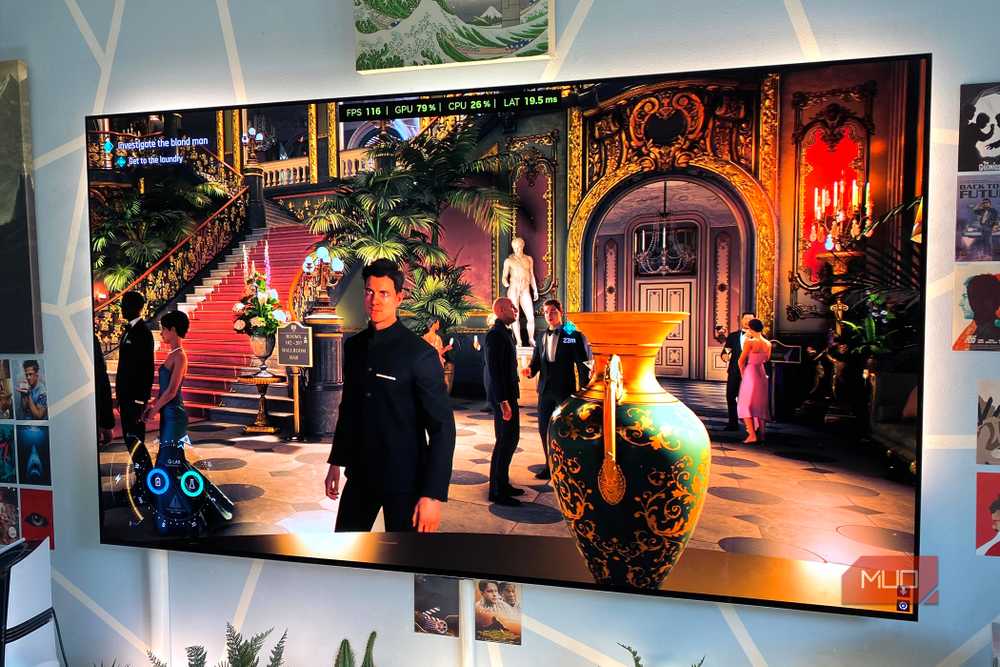
The best way to eliminate tearing without adding much latency is to invest in a G-Sync or FreeSync display. Both of these techniques dynamically sync your screen’s refresh rate to match the frame rate your GPU produces, eliminating tearing while keeping latency relatively low.
If you’ve bought a decent mid-range monitor in the past couple of years, there’s every chance it supports one of these two syncing technologies. G-Sync and FreeSync often perform slightly better with V-Sync enabled, and, thankfully, both keep lag far lower in many cases than when old-school vertical synchronization operates on its own.
For those of you with aging screens where V-Sync is your only option, there is a method to reduce screen tearing while also preventing input lag from shooting through the roof. The said method is to cap a game’s maximum FPS output at two or three frames below the highest refresh rate your display is capable of, then disable V-Sync.
The main issues with V-Sync are clearly visible stuttering during frame rate drops and added latency.
On a PC that costs more than my car, I use the Nvidia Control Panel and set the Max Frame Rate option to 117 FPS on my 120Hz OLED TV. Should you be Team Red 4 Life, you can impose the same restrictions via AMD Software: Adrenaline Edition (the company’s absurdly named control panel). If you want to use a third-party frame rate limiter, RivaTuner is generally super-reliable.
By limiting the number of frames that can appear on-screen to a figure that’s lower than your monitor or TV’s max refresh rate, you reduce the chances of screen tearing significantly. That’s because you’re limiting the number of frames your GPU can send to the display during a refresh cycle. Tearing is most common when in-game frame rates exceed a display's top refresh rate with V-Sync disabled. Though the screen-capping method won’t entirely eliminate tear lines, it will reduce them while keeping input lag lower than when V-Sync is enabled.
V-Sync definitely has its issues
It doesn’t always add lag, and it’s the best weapon against tearing

In V-Sync’s defense, it remains the best traditional way of eliminating frame tearing. Not lucky enough to own either a G-Sync or FreeSync-compatible display? V-Sync is your best bet to stop a visual defect I truly despise.
Traditional V-Sync puts the kibosh on tearing by forcing your graphics card to wait until your display’s refresh cycle has finished scanning the current on-screen image before it can send another frame, leading to lag. On 60Hz screens, these refresh cycles last for 16.7ms. With 120Hz panels, that figure is halved to 8.3ms. The longer the cycle, the greater the delay before the next image appears.
Don’t own a VRR monitor? There are definitely instances where you should consider enabling V-Sync. Say, if you primarily play slower-paced, story-driven single-player games, rather than high-octane multiplayer shooters.
The main issues with V-Sync are clearly visible stuttering during frame rate drops and the added latency it introduces. Though I can’t stand screen tearing, my twitchy digits also loathe increased input lag. I tested a small crop of GPU-intensive games at 4K/Ultra settings and discovered just how much less responsive vertically synced in-game action can feel compared to switching V-Sync off.
|
V-Sync off, lowest input lag |
V-Sync off, highest input lag |
V-Sync on, lowest input lag |
V-Sync on, highest input lag |
|
|
Cyberpunk 2077 |
49.1 ms |
68 ms |
85.5 ms |
136.3 ms |
|
RoboCop: Rogue City |
24 ms |
31.4 ms |
32.6 ms |
74.7 ms |
|
Microsoft Flight Simulator 2024 |
46.5 ms |
54.8 ms |
51.6 ms |
98.8 ms |
|
Starfield |
30.7 ms |
38.7 ms |
67.1 ms |
73.5 ms |
As you can see above, Cyberpunk 2077 and Starfield are particularly sensitive to added V-Sync latency, with maximum input lag almost doubling during my testing. There’s no denying that vertical synchronization can make certain games feel sluggish.
To come to V-Sync’s side one last time, it won’t always add latency. It all depends on the individual rendering pipeline of the game you’re playing. For instance, whether I used V-Sync, Fast Sync, or V-Sync off with a capped frame rate, latency remained extremely low in titles like 2023’s Dead Space remake.
Frame limiters aren’t a magic cure for tearing
They can help, but they’re not as effective as G-Sync or FreeSync
Capping your frame rate can definitely help reduce tears, no question. Yet unless you’re using some sort of syncing tech, torn frames will often still occur. Why? Simply because this method isn’t actually synchronizing your GPU’s frame output with that of your monitor (unlike G-Sync and FreeSync).
Though FPS capping does lower the number of frames a GPU sends to a display during a single scan cycle, frame changes mid-refresh can still occur, leading to screen tearing. That said, the results are still far more preferable to running an uncapped frame rate with V-Sync off. A frame rate cap provides the benefits of lower input lag, coupled with the upside of fewer distracting tears compared to an uncapped image.
Can you ever entirely eliminate frame tearing with V-Sync off and a capped frame rate? From my experience, certainly not always.
I’ll also say there have been times on my 120Hz TV that the 117FPS cap I mentioned earlier wasn’t all that effective at stopping tears, especially in Cyberpunk when I’m using graphically glorious but demanding path tracing features. In the case of CD Project RED’s sandbox, my most effective defense against tears with V-Sync off is to drop to a 90FPS cap. If you’re still experiencing regular tears with a capped frame rate, it’s definitely worth playing around with what figure you’re limiting your GPU to.
V-Sync has problems, so mess around with your PC’s display settings
Whether you prefer a tear-free experience and slower input lag with V-Sync on, or faster response times and more tears when vertical synchronization is disabled, comes down to personal preference. As someone who almost exclusively plays single-player games where twitch reactions aren’t normally necessary, I don’t mind going with V-Sync. For those who love hyper-fast first-person online shooters, the combination of a frame cap and V-Sync can provide a snappier, mostly tear-free alternative.
Samsung Odyssey OLED G9
- Resolution
- 5120x1440
- Screen Size
- 49-inch
- Brand
- Samsung
- Connectivity
- 1x HDMI 2.1, 1x DisplayPort 1.4, 2x USB-A 3.0, 1x Headphone Jack
- Max. Refresh Rate
- 240Hz
- Response Time
- 0.03ms
The Samsung Odyssey OLED G9 is a 49-inch super ultrawide gaming monitor with a 240Hz refresh rate.