


Windows comes with built-in optimization tools that can automatically clean up junk files. However, it still doesn't do as good a job as third-party cleanup utilities. While CCleaner is a well-known option, it feels bloated and has tons of unnecessary features, some behind a paywall.
While looking for a CCleaner alternative, I found FluentCleaner, an open-source junk cleanup app for Windows that's completely free to use and removed over 30GB of temporary files and cache from my PC.
What's FluentCleaner?
A modern, open-source cleanup tool built with WinUI 3

FluentCleaner is a free Windows cleanup utility from the developer behind Bloatbox and other popular open-source Windows tools. The developer built it out of frustration with what CCleaner has become. The app is built with WinUI 3, Microsoft's modern design framework, so it looks and feels like a native Windows 11 app.
FluentCleaner is a portable app, so there's no installation required. You download the ZIP file from the GitHub releases page, extract it, and run FCleaner.exe. Windows SmartScreen might flag it as an unrecognized app on the first launch since it doesn't have a publisher certificate yet, but you can click More info and then Run anyway to proceed. In my testing, it's perfectly safe to use.
Using FluentCleaner
A minimal interface focused on what matters


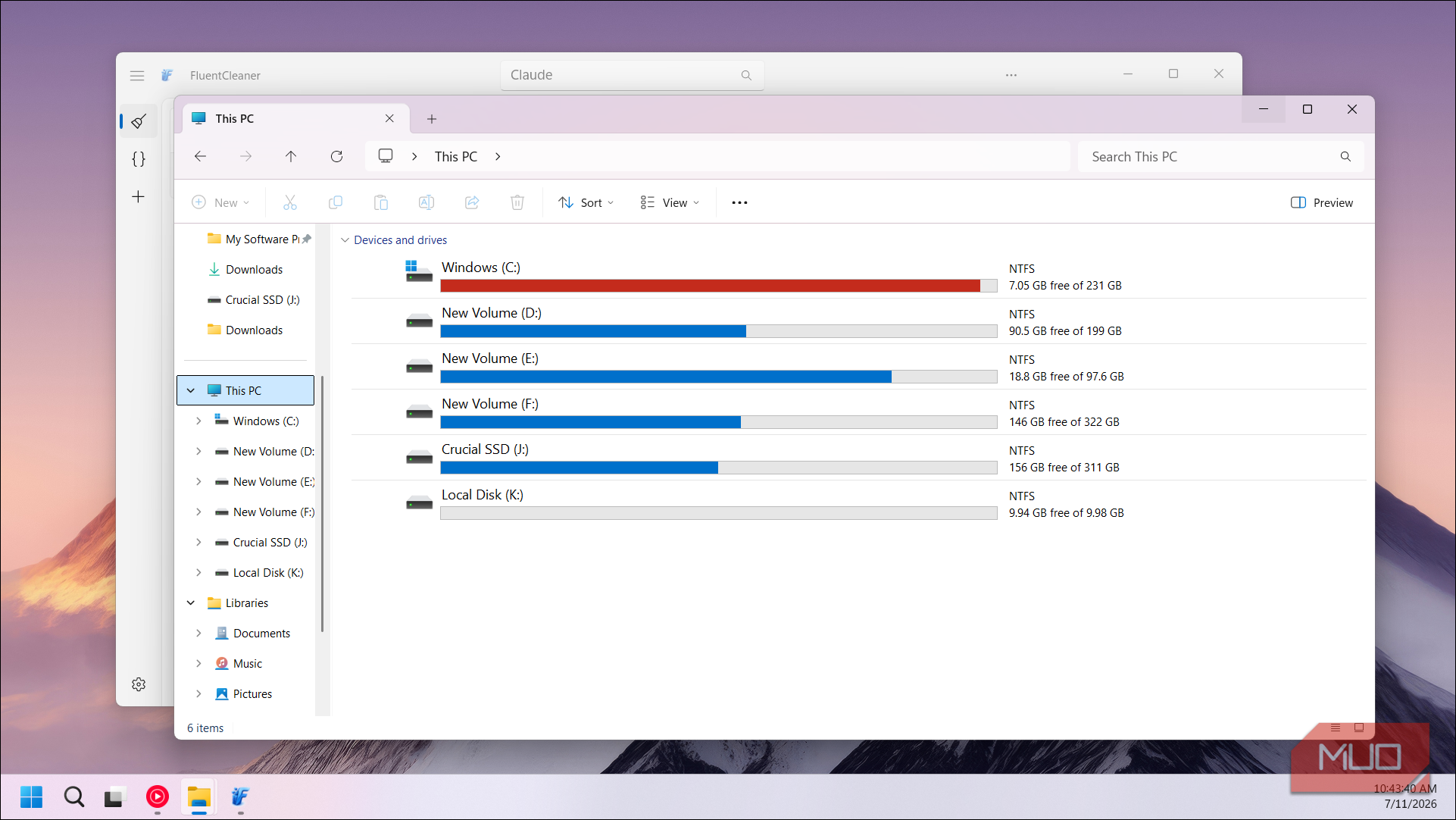
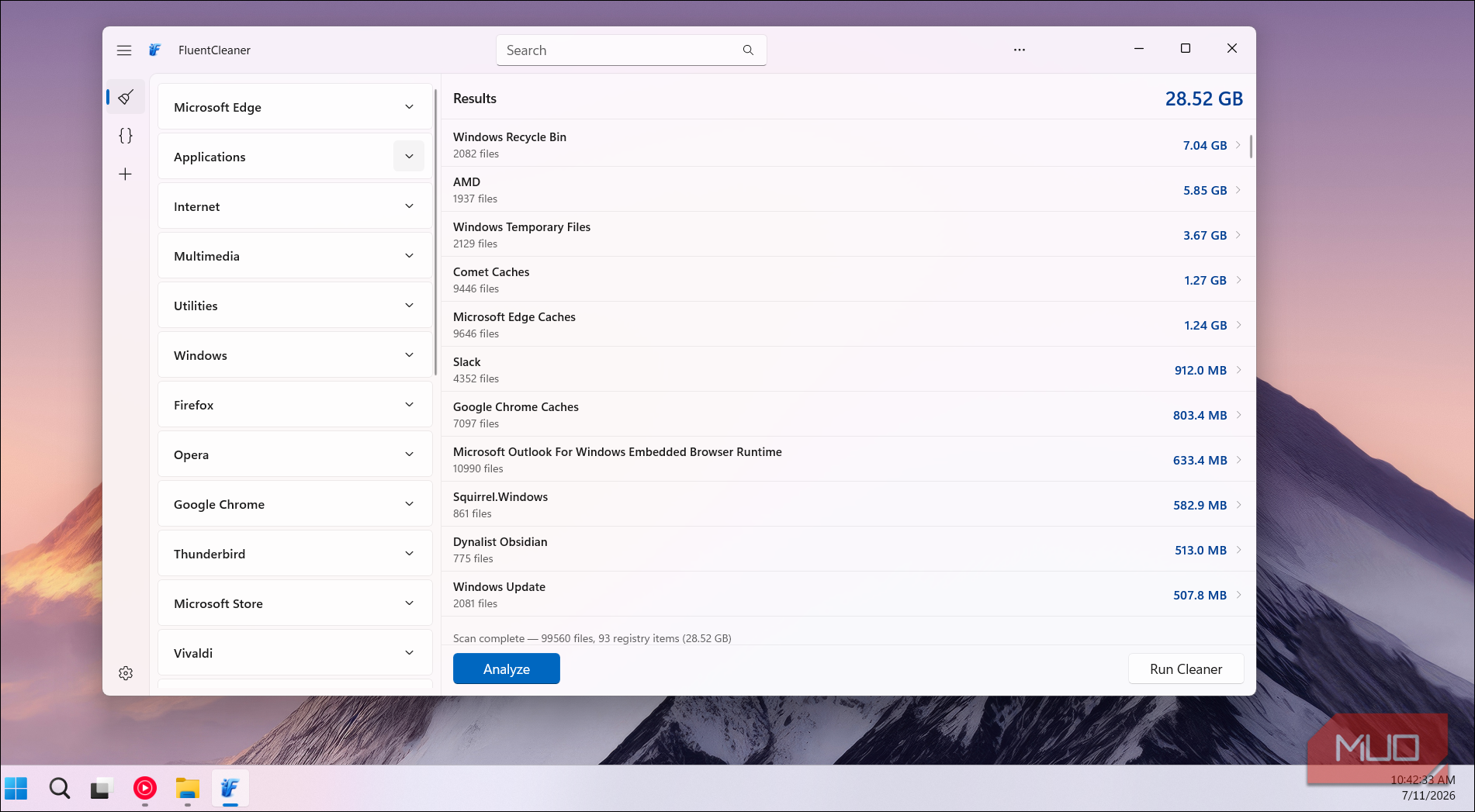
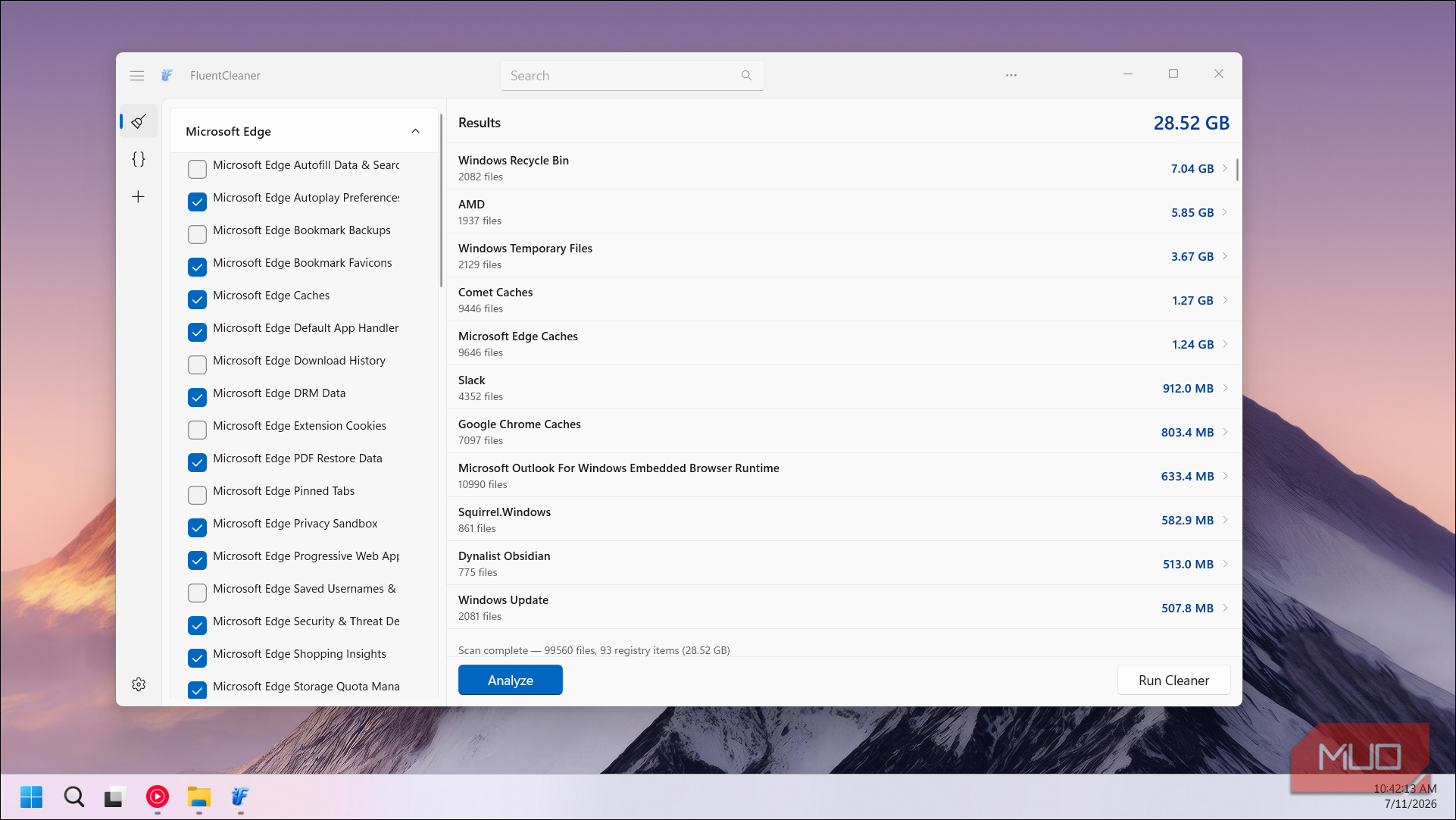
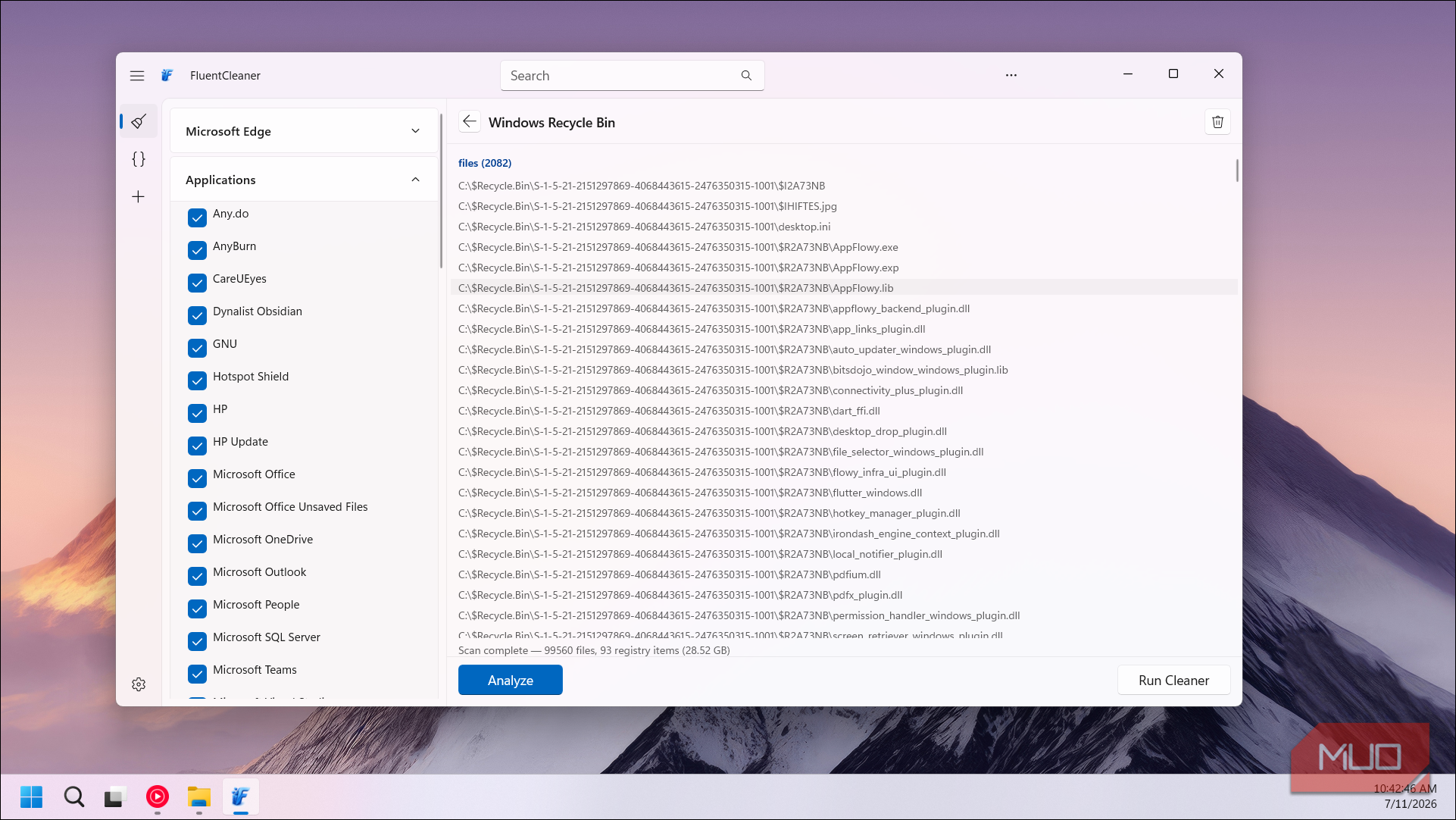
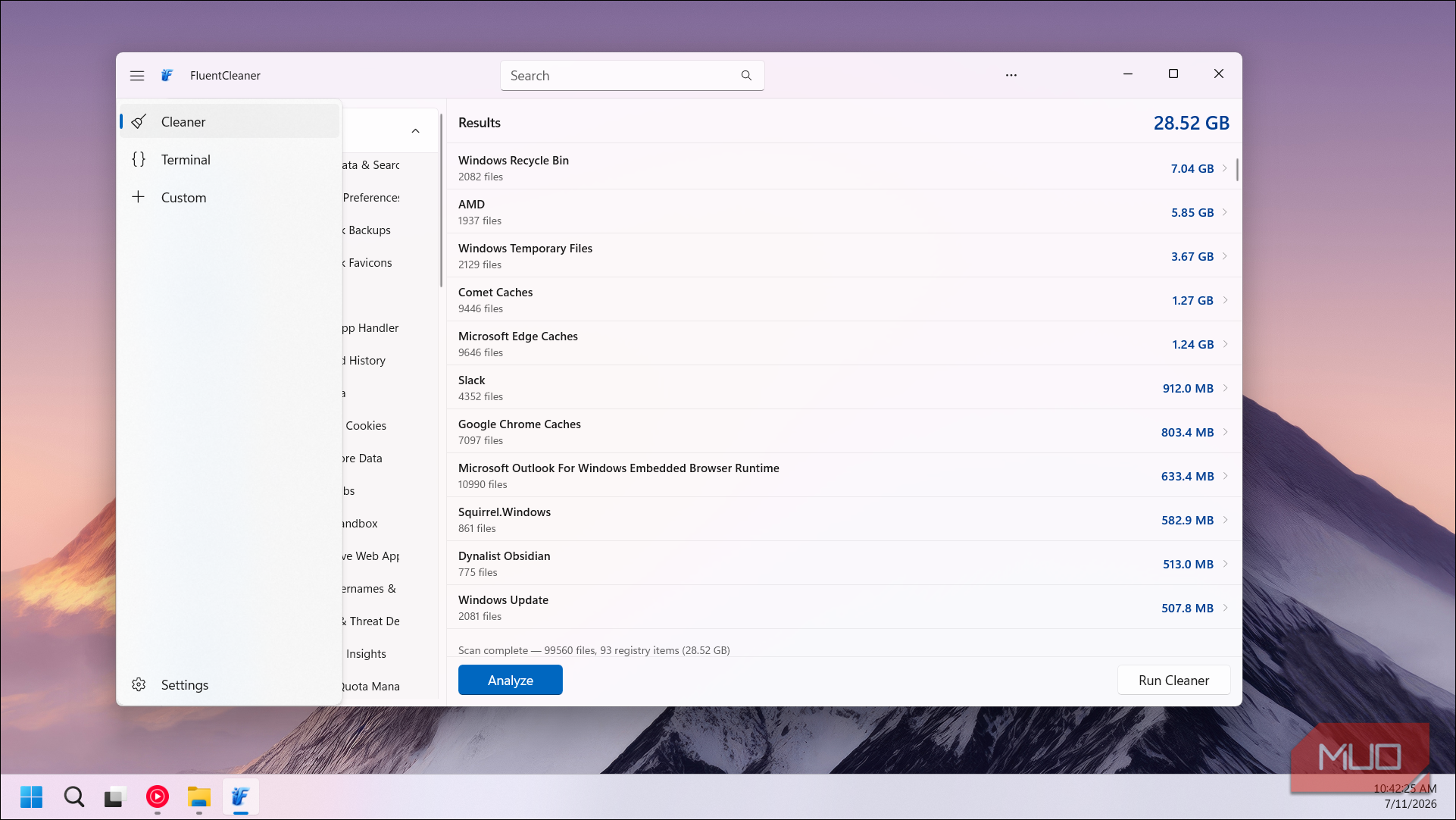
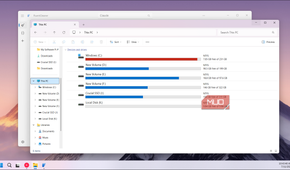
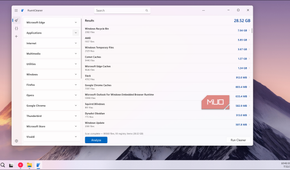
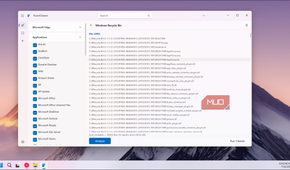
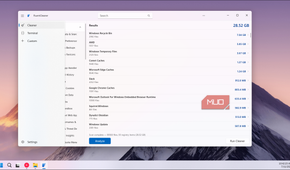
The interface is clean and minimal, with only a few options visible on the sidebar. You get three main tabs: Cleanup, Terminal, and Custom. For everyday use, the Cleanup tab is where you'll spend most of your time.
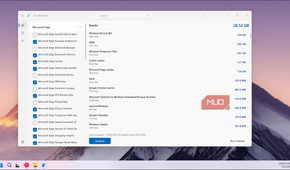
FluentCleaner runs an initial scan automatically when you launch it, but you can click Analyze to rerun it with all other apps closed for more accurate results. The results show which files and registry entries are flagged for deletion, organized by category. Instead of blindly hitting the clean button, you can drill into each category to see individual items, their sizes, and what they do.
With FluentCleaner, you're never cleaning blindly. Hover over the three-dot icon next to any item, and you can analyze or clean just that specific entry. If you're the cautious type, start by cleaning a single category first to see how it affects your system. Once you're comfortable, you can run a full cleanup by clicking Run cleaner to process all categories at once. If you've already tried removing junk files with Windows' built-in tools, FluentCleaner can help, but before that, I'd recommend creating a restore point before your first full cleanup, just in case.
The app uses the winapp2.ini format under the hood, a community-maintained database with thousands of cleaning rules built up over 15 years. Each entry tells FluentCleaner exactly which temp folders, cache paths, and registry keys to target for specific applications.
Making use of the terminal
Run FluentCleaner from the command line for automation

FluentCleaner also has an option to run the app in CLI mode, accessible through a toggle in the app's menu. This isn't something most people will need day to day, but it's a useful feature for power users who want to automate cleanup tasks.
The terminal mode lets you trigger cleaning operations through the command line instead of clicking through the GUI. This means you can integrate FluentCleaner into scripts or schedule it as a Windows Task so your system gets cleaned automatically. It's a quick way to run maintenance without opening the app every time.
The GUI is still the primary focus of FluentCleaner, and the terminal mode is more of a proof-of-concept at this stage. But for anyone who manages multiple PCs or prefers scripting their maintenance routines, it's a welcome addition that most cleanup tools like BleachBit also offer.
FluentCleaner has AI integration
AI-powered explanations help you understand what you're deleting

FluentCleaner's AI mode is probably the most unnecessary feature for a clean app, but it does make sense. The AI doesn't decide what to clean or optimize your system on its own. Instead, it explains individual cleanup entries in plain English so you can make an informed decision.
To use it, you need to set up a free API key from Groq in FluentCleaner's settings. Once enabled, you can click the three-dot icon next to any item and select Explain with AI. The AI then describes what that file, folder, or registry key does, what it's used for, and the pros and cons of removing it. This is particularly helpful for obscure WinApp2 entries or registry keys where the name alone tells you nothing.
That said, you can use the app entirely without touching the AI feature, and the core scanning and cleaning behavior is still driven by static rule databases and your manual selections.

FluentCleaner
- OS
- Windows
- Developer
- Belim
FluentCleaner is a free and open-source app for Windows that clears junk files, cache, and browser clutter without the bloat, ads, or trust issues that made you ditch CCleaner.
- Price model
- Free
FluentCleaner freed up 30GB on my PC
FluentCleaner does the core job better than CCleaner does today, without the bloat, the upsells, or the telemetry. It cleaned over 30GB of junk from my PC on the first run, and it did it while looking like it belongs on Windows 11. So, if you need to free up some storage, give it a go.