


I work with images and text files every day. I often need to compare two images to see which one I should use for my featured images, which ones to omit, and quickly preview my Markdown notes without opening them in a dedicated app like Obsidian or the Photos app.
So, I gave Windows a spacebar preview with QuickLook. This open-source app lets you preview any file instantly by pressing the space bar. It's fast, free, and works with images, text files, videos, and code without launching a single app.
QuickLook brings Mac's quick previews to Windows
Select a file, hit the spacebar, and preview it instantly

If you have ever used macOS, you're familiar with Quick Look, which lets you select any file inside Finder and preview it by pressing the spacebar. QuickLook for Windows does something similar, except it's a third-party app that you can install and use for free.
Windows does have a Preview Pane built into File Explorer, but it takes up permanent screen space and only works with a handful of file types. Microsoft PowerToys also includes a Peek feature that offers enhanced preview capabilities, but it's limited to common formats and doesn't support the hundreds of file types that QuickLook can handle through its plugin system.
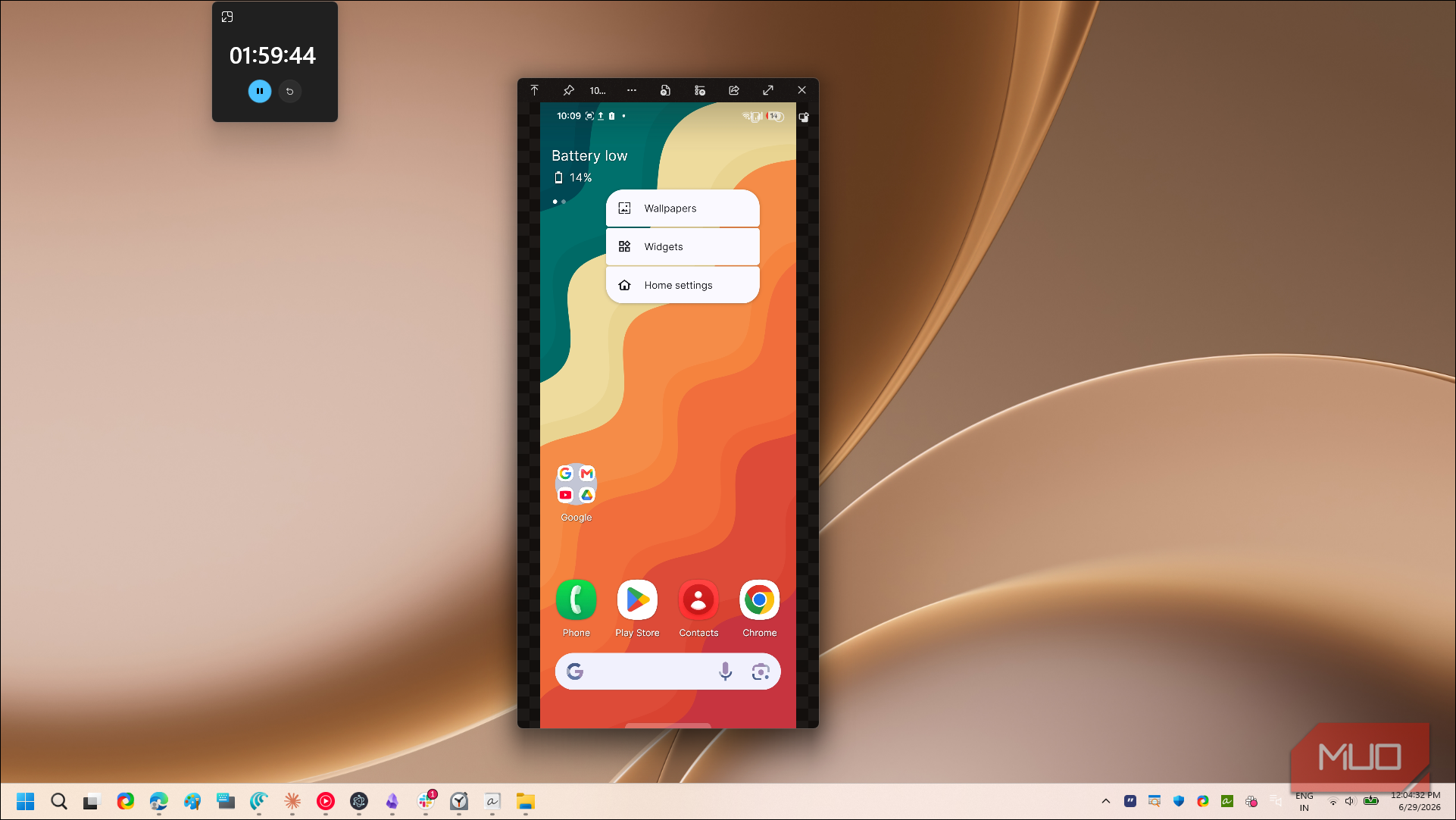
QuickLook's interface is clean and modern, matching the Windows design language with Fluent styling and HiDPI support. After installation, the first thing you'll notice is how the preview window adapts to the file's orientation. If you preview a wide landscape image, the window opens in a normal wide format. Preview a mobile screenshot, and it switches to portrait mode so the image doesn't look awkwardly stretched inside a wide window.
You can grab QuickLook from the Microsoft Store or download the MSI installer from its GitHub page. Once installed, it runs quietly in the background. Select any file in File Explorer or on your desktop, press the spacebar, and a preview window pops up instantly. Press the spacebar again or hit Escape to close it. You can also hold the spacebar instead of pressing it once, and the preview stays open only while the key is held down.
While the preview window is open, use the arrow keys to move to the next or previous file without closing anything. This is a huge time saver when you're going through a folder full of screenshots looking for the right one.
QuickLook can do more than just preview files
A resizable, draggable preview window with keyboard shortcuts


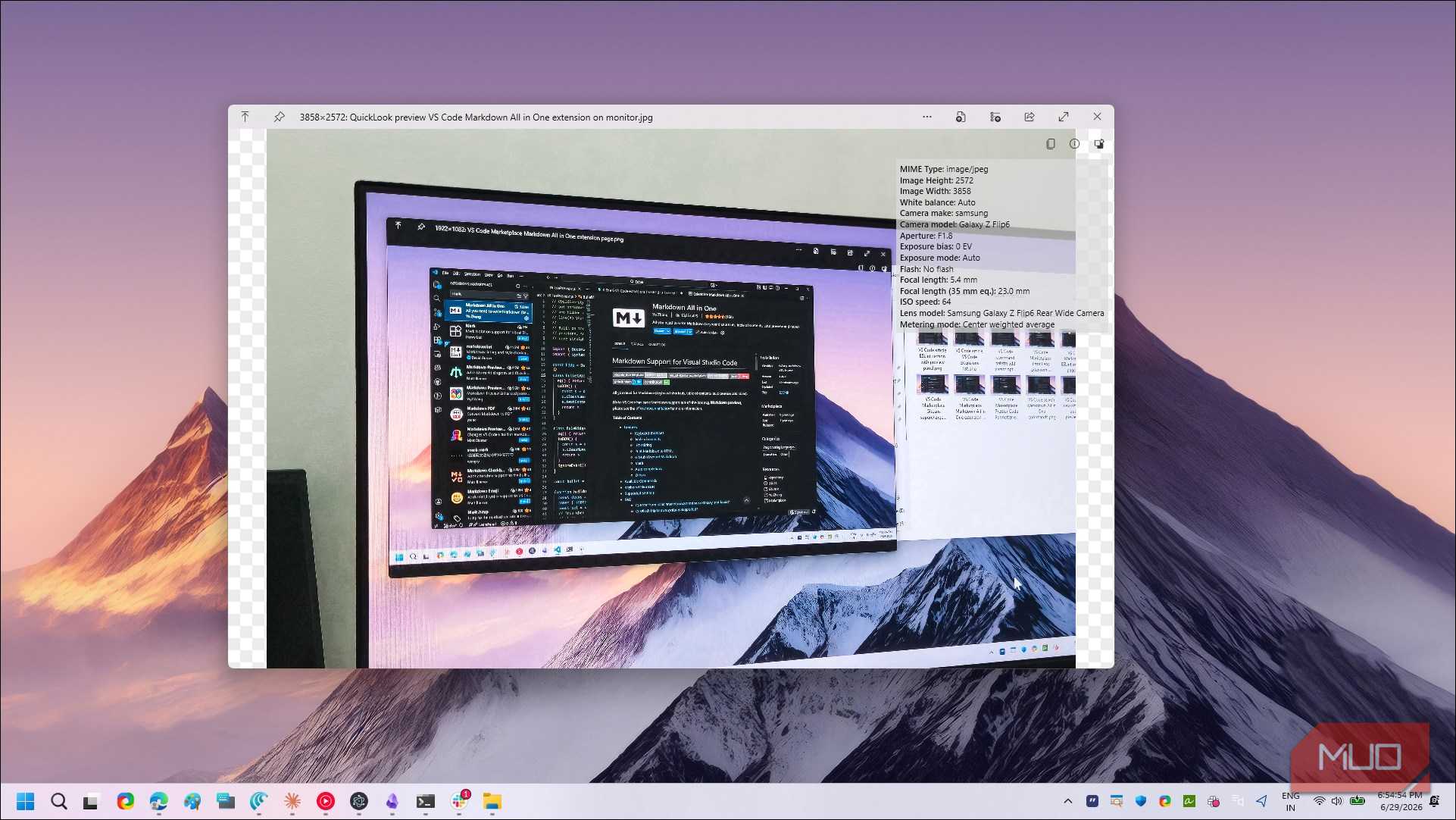
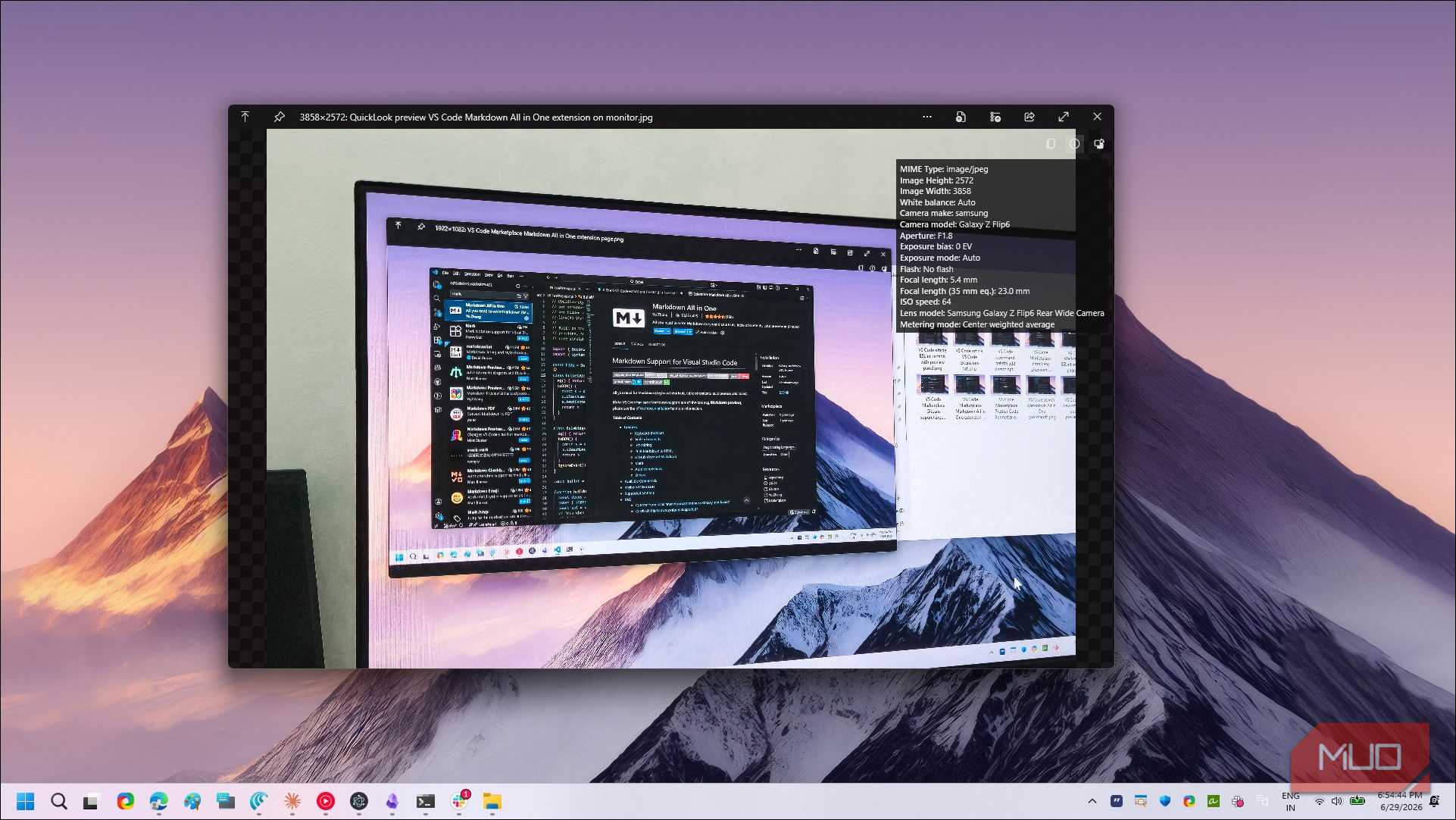
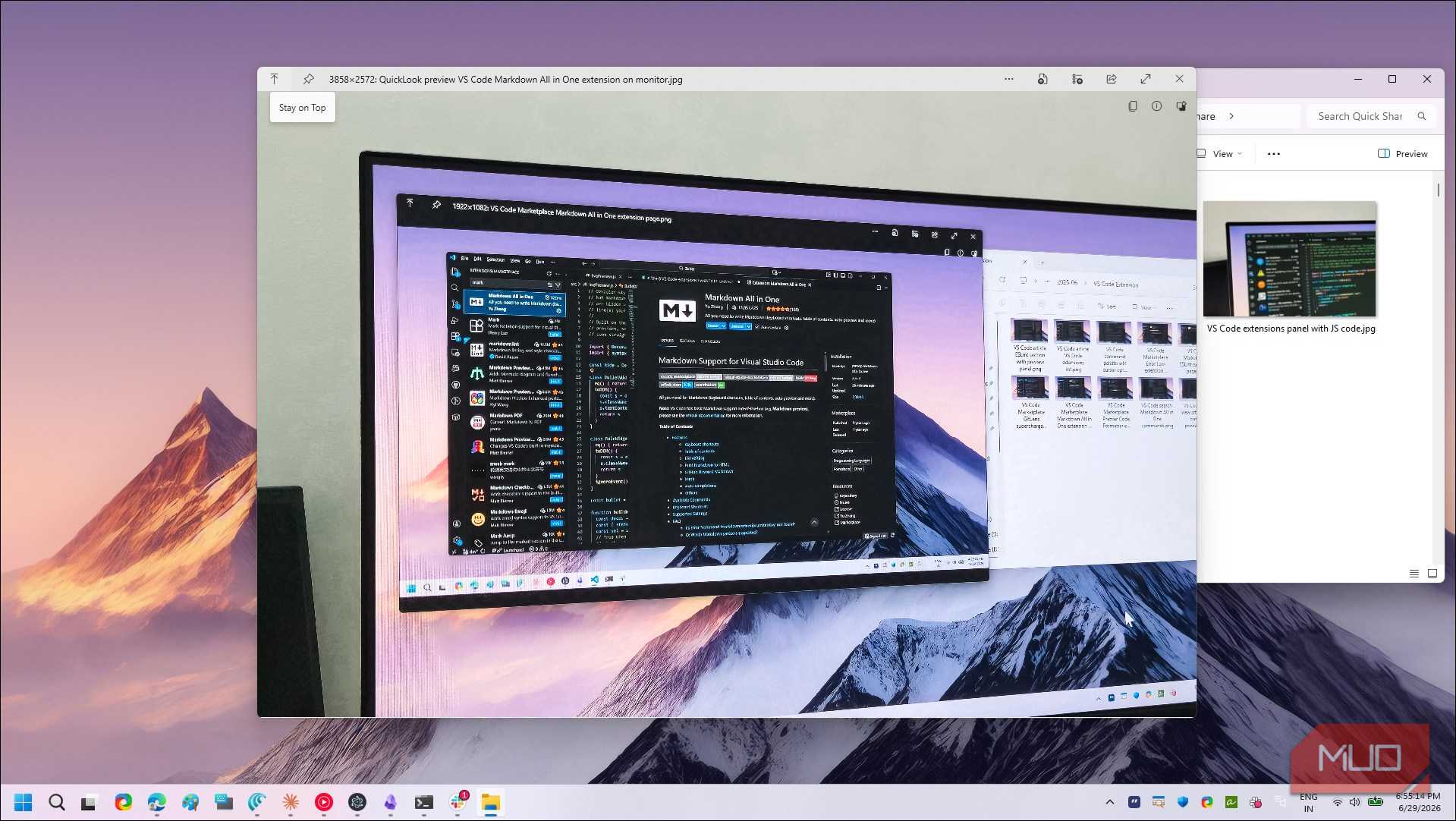
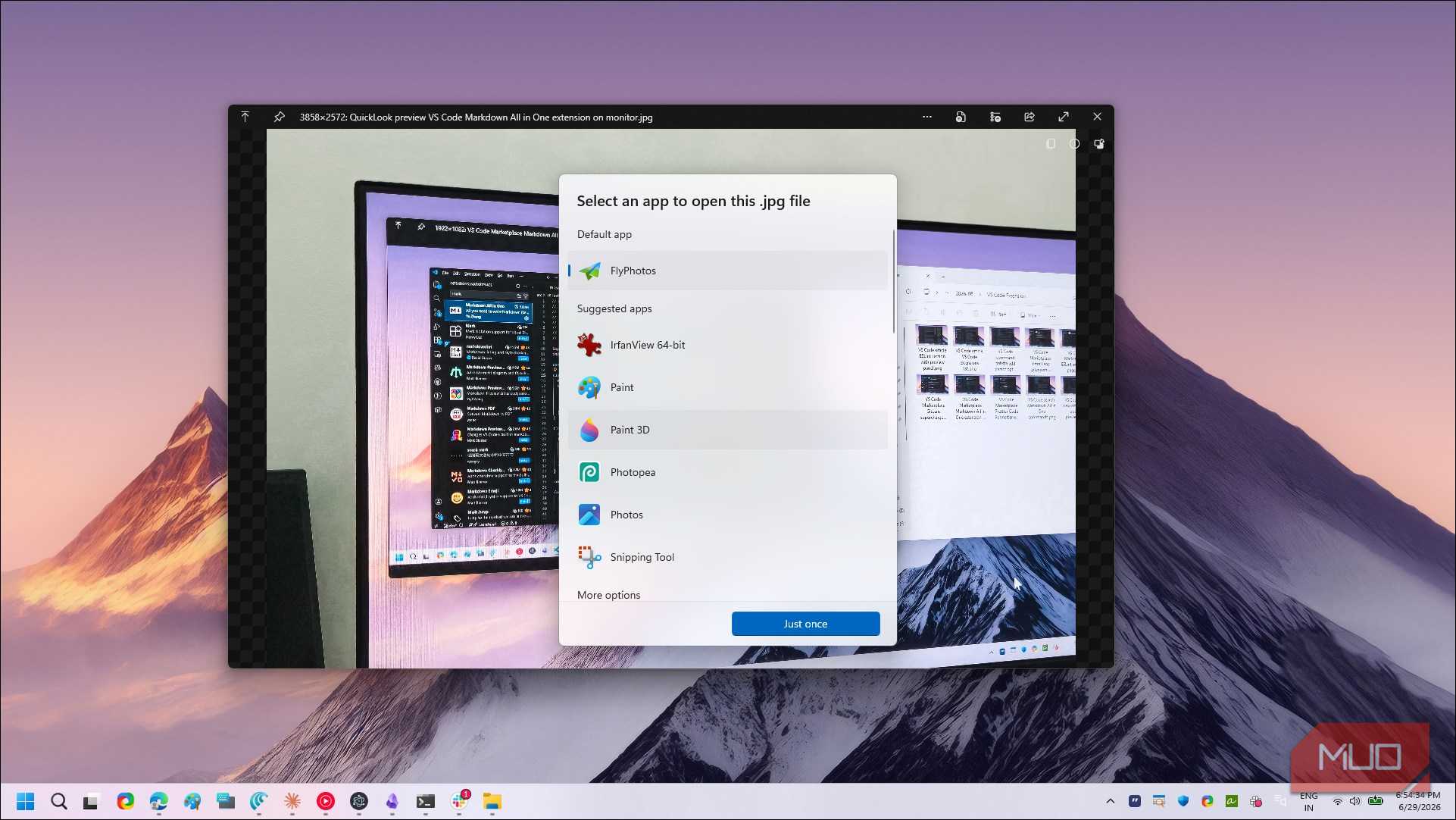
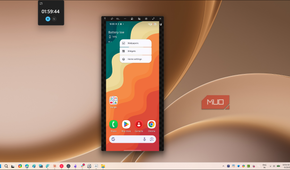
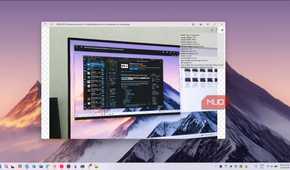
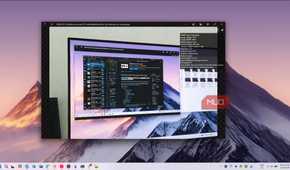
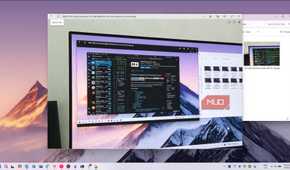
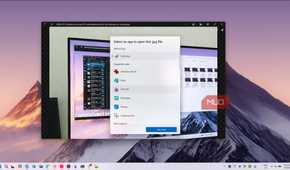
QuickLook does more than just show you a static snapshot of your files. The preview window is fully resizable and draggable, so you can move it anywhere on your screen or resize it to fit your workflow. This is handy when you want to keep the preview open on one side while working in File Explorer on the other.
For a keyboard-centric tool, it's no surprise that it supports shortcuts for most actions. For example, you can press Enter to open the previewed file in its default app, or use Ctrl + Mouse Wheel to zoom in and out of images and documents. When previewing videos or audio files, the scroll wheel adjusts the volume instead. For multi-page documents like PDFs, you can scroll through pages right inside the preview window without ever opening a full PDF reader.
QuickLook also works beyond File Explorer. It supports previews inside the Open/Save dialog boxes, which means you can preview files before choosing which one to open or save over. If you're picking an image for a project or checking which version of a document is the right one, this saves you from the guessing game of opening files one by one. It's worth noting, though, that this feature doesn't work with the Microsoft Store version of QuickLook. If you need it, install the MSI version from GitHub instead.
The built-in format support covers most common file types right out of the box. Images, videos, PDFs, text files, compressed archives like ZIP and RAR, HTML files, and even subtitle formats like SRT all get proper previews. Videos play right inside the preview window with playback controls, and compressed files show their contents without you needing to extract them first.
Plugins for extended file support
Add support for Office documents, ebooks, fonts, and more

The built-in format support is solid, but what makes QuickLook powerful is its plugin system. You can extend the app to preview file formats it doesn't handle natively, and the plugin library covers everything from Office documents to 3D models.
While it has an extensive list of plugins, I find a few quite useful in my workflow. First is, of course, OfficeViewer that lets you preview Word, Excel, and PowerPoint files without having Microsoft Office installed. Then, I also use EpubViewer to handle ebooks in EPUB, MOBI, and CBZ formats, which is useful if you download ebooks and want to quickly check their contents before opening a dedicated reader. Two more are FontViewer to render font files so you can see what a typeface looks like before installing it, and FFmpeg to extend the multimedia support to handle a wider range of video and audio codecs.
There are also plugins for niche use cases. You can preview CAD files in DWG and DXF formats, peek inside Android APK packages, view CSV files in a proper table layout, and even preview 3D models. If you work with a file type that QuickLook doesn't recognize, chances are someone has already built a plugin for it.
To install a plugin, download the plugin file (a .qlplugin file) from the project's GitHub releases page, select it in File Explorer, and press the spacebar. QuickLook detects that it's a plugin and shows an Install button inside the preview window. Click it, restart QuickLook, and the new format support is active. You can also manually extract the plugin file into the QuickLook.Plugin directory inside your install folder if you prefer doing it that way.

QuickLook
- OS
- Windpows
- Pricing model
- Free
QuickLook provides instant, full-size file previews for images, documents, and videos. It gives you access to the previews when you press the spacebar.
QuickLook is the file previewer Windows should have had built in
Now to the quirks. The Microsoft Store version has a notable limitation where it can't preview files inside Open/Save dialog boxes, and the app can feel slightly sluggish on older hardware when previewing large files. Memory usage has improved a lot since the app's early days, but it still hovers around 100 MB when actively previewing, which is worth knowing if you're on a resource-constrained machine.
That said, for a free, open-source tool, QuickLook offers a solution that Windows should have addressed years ago. I quickly got used to the space bar shortcut in a few hours, and the overall experience is closer to what macOS offers than anything else I've found on Windows. If you spend any real time browsing through files, QuickLook is a no-brainer.