


Whenever your computer downloads a monthly security patch, Windows quietly archives the old system files inside a hidden folder called WinSxS. This component store acts as a safety net for rolling back problematic updates, but it regularly expands into a massive storage hog on your SSD. When that happens, you can use PowerShell to get control of your storage without risking a broken computer. Make this one of the commands you use the most, and you'll have a faster PC.
I ran one Disk Cleanup command and recovered 20GB of Windows Update files I didn't know were there
Quickest 20GB I've recovered on my PC.
The WinSxS folder can end up hoarding data
Don't watch your local storage vanish into hidden archives

Whenever your machine downloads a monthly security patch, Windows doesn't discard the old files. It archives them inside the WinSxS folder, which is notorious for harding memory. This process keeps the files necessary to roll back if a new update causes hardware conflicts or sudden crashes.
Saving these old files creates a frustrating strain on your local storage. It may seem smart to delete the folder manually to free up space on a crowded solid-state drive, but you actually shouldn't do that. Deleting files directly from this directory leads to missing dependencies and severe system corruption.
This folder is the Windows Component Store, which is like the central nervous system for your operating system's core files. If you were able to just delete it without thinking, you'd brick your PC. The files inside WinSxS use complex hard links that make the folder appear significantly larger than its actual physical footprint on the disk.
Messing with it through the standard File Explorer interface is strictly off-limits. You could always choose to ignore it and let Windows handle the maintenance in the background. Modern versions of Windows come with built-in background tasks designed to periodically compress and remove these old updates when the system is idle.
The problem is that the automatic cleanup doesn't always trigger, and it eats gigabites of memory. Scheduled maintenance tasks can easily be interrupted by power-saving sleep settings or sudden system reboots. They fail to run, and so the component store keeps hoarding gigabytes of old data.
How to run the DISM command in PowerShell
It only sounds hard at first
You have to use PowerShell to fix this issue, since it is the only app that can safely clean the folder. It may seem risky to use tools that feel meant only for IT professionals, but you don't have to be an expert. If you follow the instructions, it is actually very easy.
First, open PowerShell as an administrator to access system files. You can do this quickly by clicking the Start button, then type PowerShell into the search bar, and right-click the icon. From there, just pick the option to run as administrator.
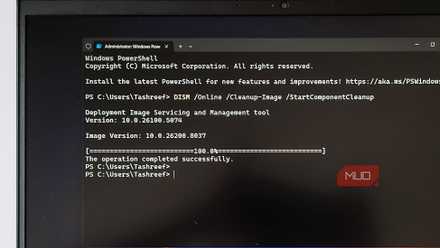
Once the blue window opens, copy and paste the command Dism.exe /online/ Cleanup-Image /StartComponentCleanup into the window and press Enter. The system will immediately start running the tool to analyze your storage, find old Windows Update packages, and remove old files that traditional disk cleanup tools miss.
You get a progress bar or text indicator in the window, and you just need to wait a few minutes without closing the app until the process finishes. I use this command on my own PC every few months, and I have yet to see any issues.
If you happen to have a lot of power outages or maybe feel like your PC is on the slow side, feel free to do it sooner. However, remember that you don't want to waste your time trying more than once. This is designed to check to see if anything is free to go; repeating the process is just a waste of time.
This is the best way to do it
Don't buy into fake options

Turning to the command line can feel intimidating if you are used to clicking through traditional menus. PowerShell looks like the classic Command Prompt, but the window is blue instead of black. It uses a specific verb-noun naming convention like Get-Process or Set-Location, which can look complicated on its own, but the commands are simple to type.
PowerShell is only intimidating when you've never used it before. I was intimidated at first, too; it looks like something you'd see in movies that feature older computers. PowerShell doesn't need graphics since it is only there to do what you tell it to do. If you're not the kind of person who wants to mess around with their PC a lot, then just stick to specific instructions.
The reason it is important here is that you need to be able to interact directly with the deepest administrative layers of Windows. Unfortunately, there's no negotiation here, and you have to use PowerShell. Running the Deployment Image Servicing and Management (DISM) command directly in PowerShell is the absolute best way to get rid of old update files.
DISM is the official, built-in administrative tool designed for servicing Windows operating system images. Using it is safer and far more reliable than questionable third-party disk optimization applications.
You need to think past those internet ads and the legacy Disk Cleanup utility when it comes to your hard drive running out of available space. You shouldn't trust anything too much, and that older legacy method barely scratches the surface of what can actually be safely removed.
Using the specific StartComponentCleanup flag with the DISM command is a much better choice. This flag digs deeper into the hidden system archives to get the leftover files and old Windows Update packages.
Use PowerShell to get rid of clutter
Relying on the command line can feel intimidating if you prefer clicking through familiar graphical menus. If you are entirely uncomfortable touching administrative utilities, leaving the folder alone and letting Windows handle background maintenance is still a reasonable choice. However, the DISM command is the cleanest way to clear the clutter. The process takes only a few minutes; it costs zero dollars, and safely handles the deep cleanup that standard tools miss.

- OS
- Windows
- Minimum CPU Specs
- 1Ghz/2 Cores
Windows 11 is Microsoft's latest operating system featuring a centered Start menu, Snap Layouts, virtual desktops, enhanced security with TPM 2.0, and deeper integration with Microsoft Teams and AI-powered Copilot.