


Fifteen gigabytes is plenty by free cloud storage standards, but it’s rarely enough, especially when it’s split across Google Photos, Google Drive, and Gmail. Yet, when Google Drive storage gets full, most of us only look beyond deleting photos and Drive files.
In my case, Gmail was taking up as much space as the other two, and clearing that up was a lot easier than deleting photos and personal files I actually wanted to keep.
Gmail was the storage hog I overlooked
It fills up faster than you think

When the Google Drive storage starts filling up, the first instinct usually is to look for any unnecessary photos and files you’ve backed up. And that makes sense. Emails feel weightless comparatively, so you never think about them as storage hogs.
But that’s only true to some extent. When you have thousands of emails sitting in your inbox, they all add up fast. More importantly, when some of those emails have attachments included, they can fill up the storage faster than you’d expect.
The sneaky part is that it happens regardless of whether or not you’re actively sending attachments. Those bank statements, invoices, earnings reports, and files you emailed yourself for safekeeping, they all count. Every single one of those might only take a few MBs, but it doesn’t take that long before they’re collectively taking up gigabytes.
Spam and promotional emails make this worse. Even those newsletters with a few embedded images can run several megabytes. And since none of this is large enough on its own, it doesn’t show up anywhere obvious. In my case, when I checked the storage breakdown, Gmail alone was taking more than 5GB, which is about one-third of the total free storage Google offers.
Deleting emails with large attachments was the obvious first step
The built-in cleanup tool is your best friend


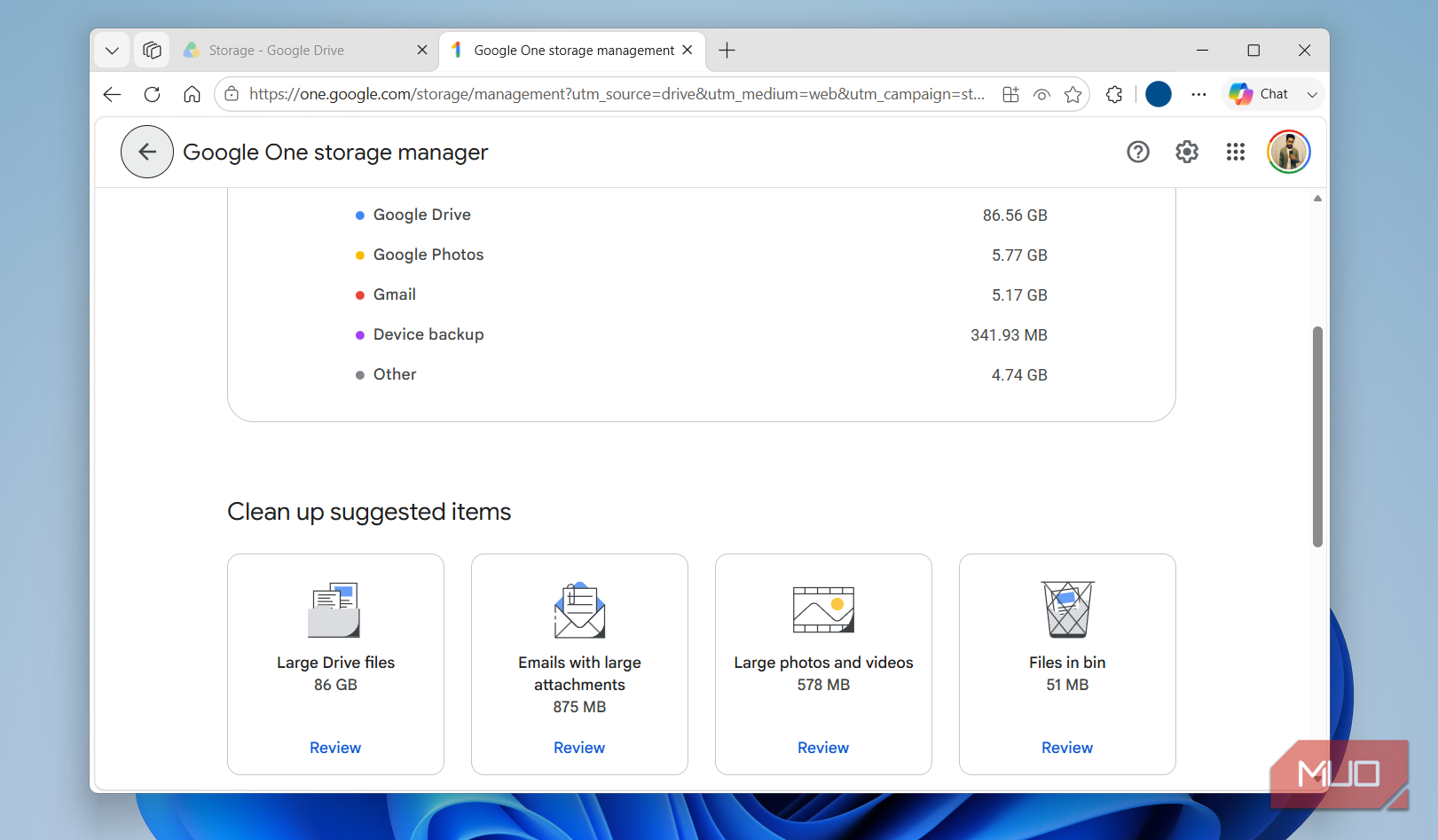
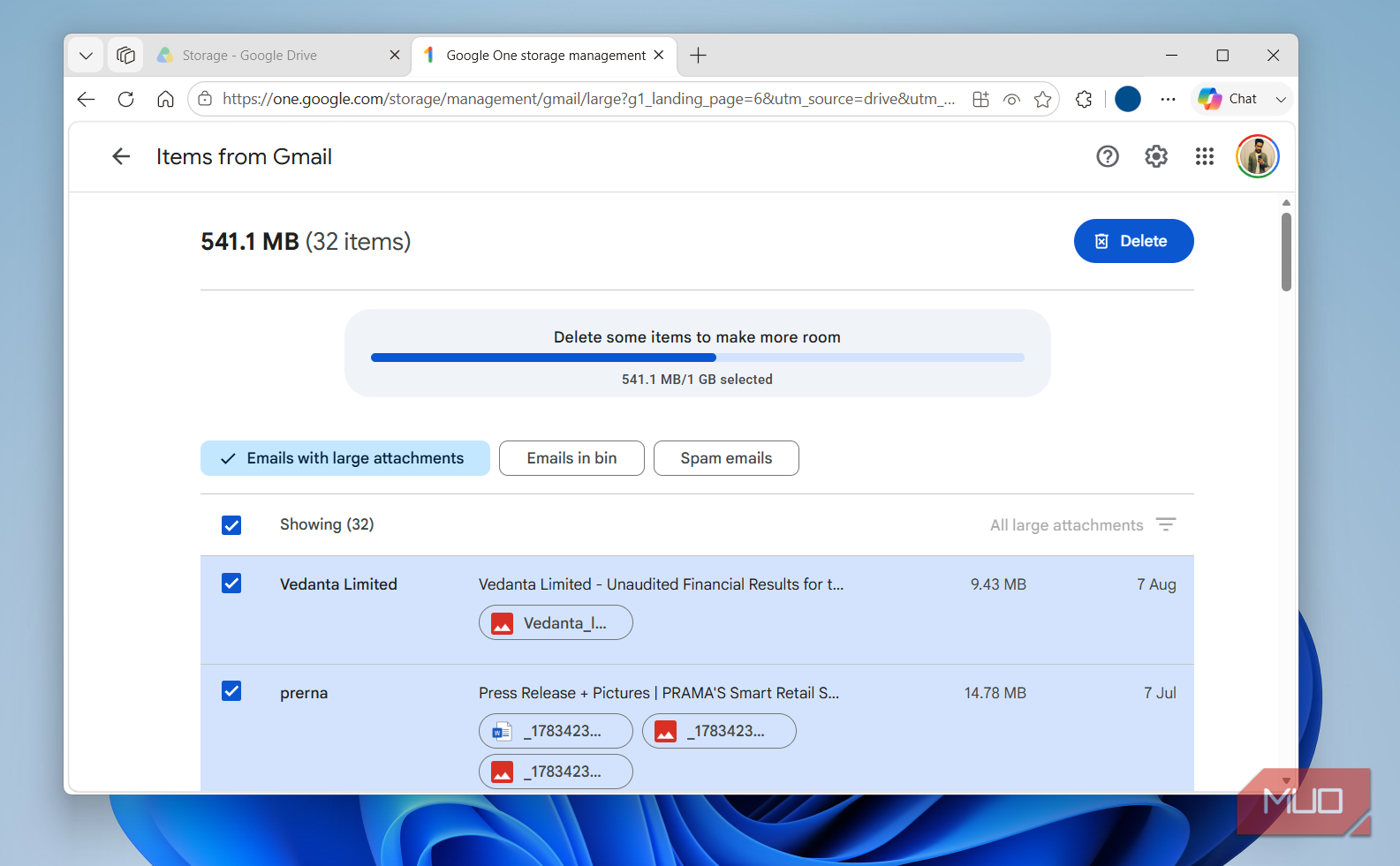
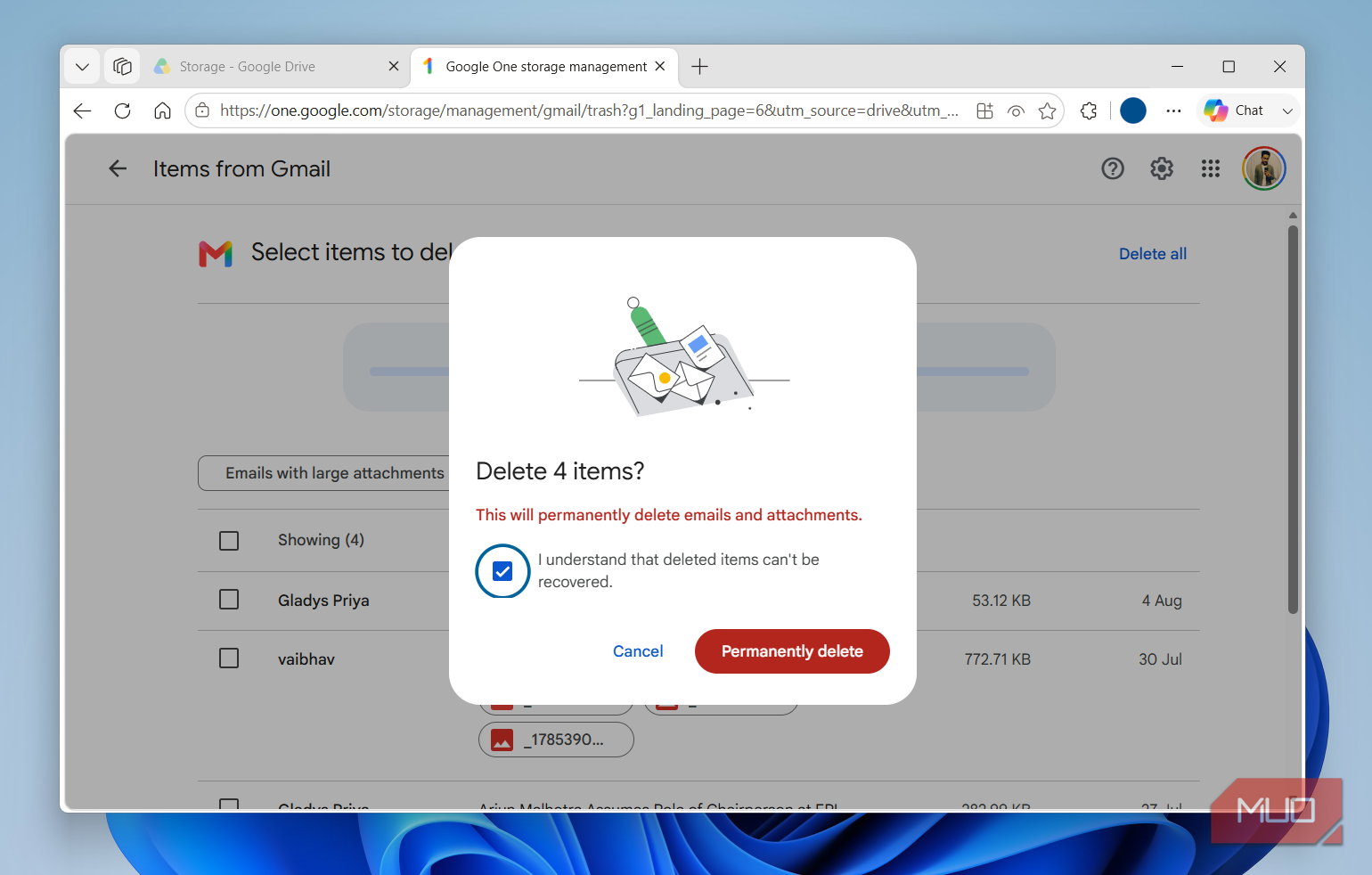
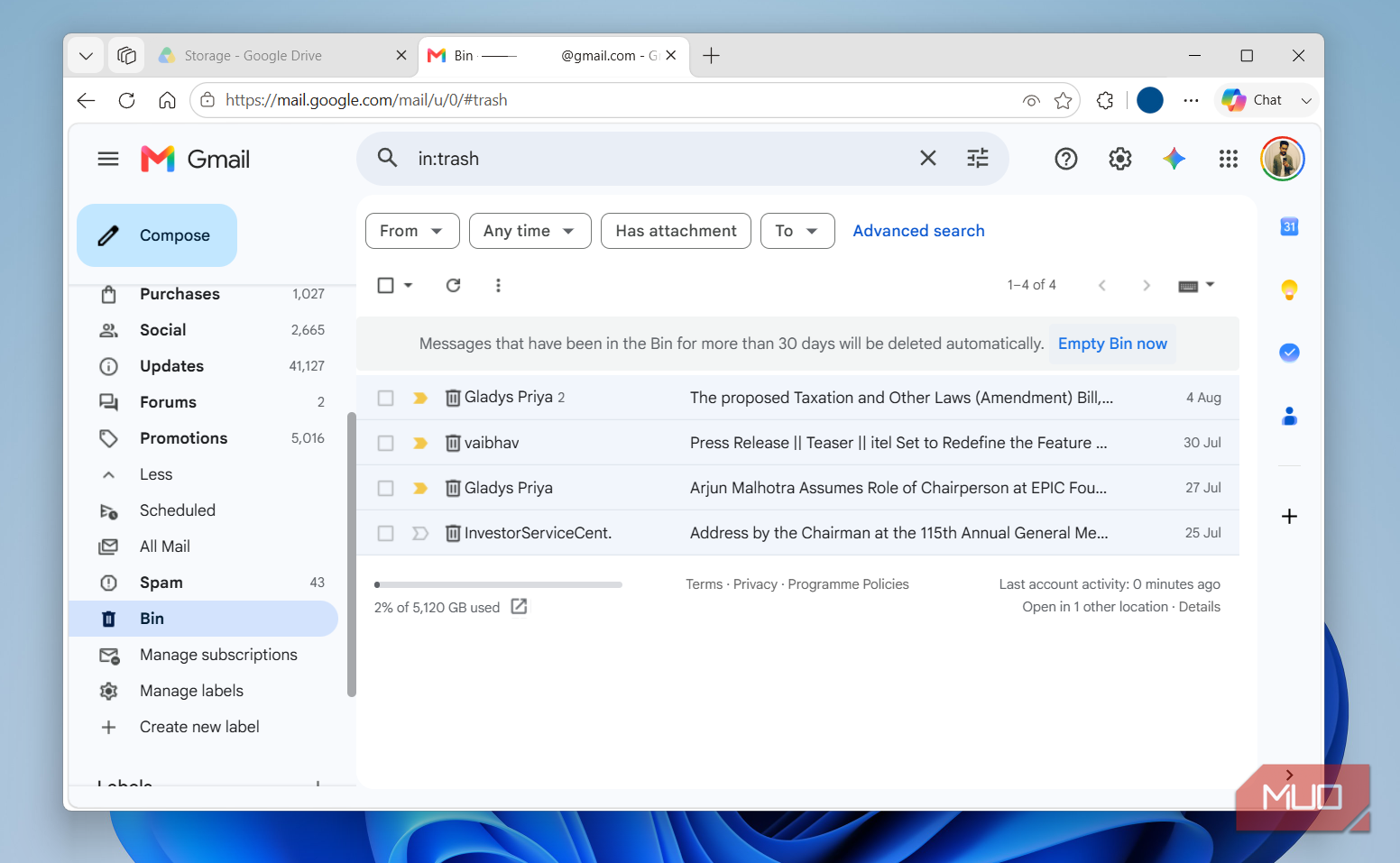
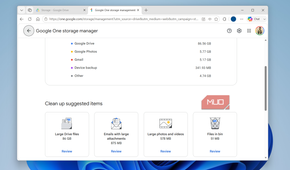
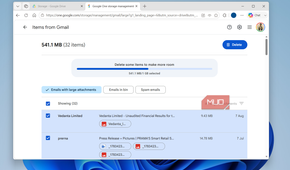
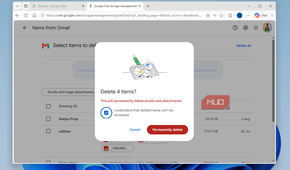
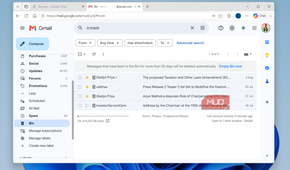
Once you’ve identified Gmail as the culprit, the next step is actually easy. Google Drive includes a handy "cleanup" option in the storage breakdown menu itself. Click it, and you’ll get suggestions to delete emails with large attachments. Hit Review and it’ll list all the large emails along with how much storage each one is taking. You can select them all and hit Delete. You can also empty the emails in Bin and Spam folders from the same menu. This alone should help free up a decent chunk.
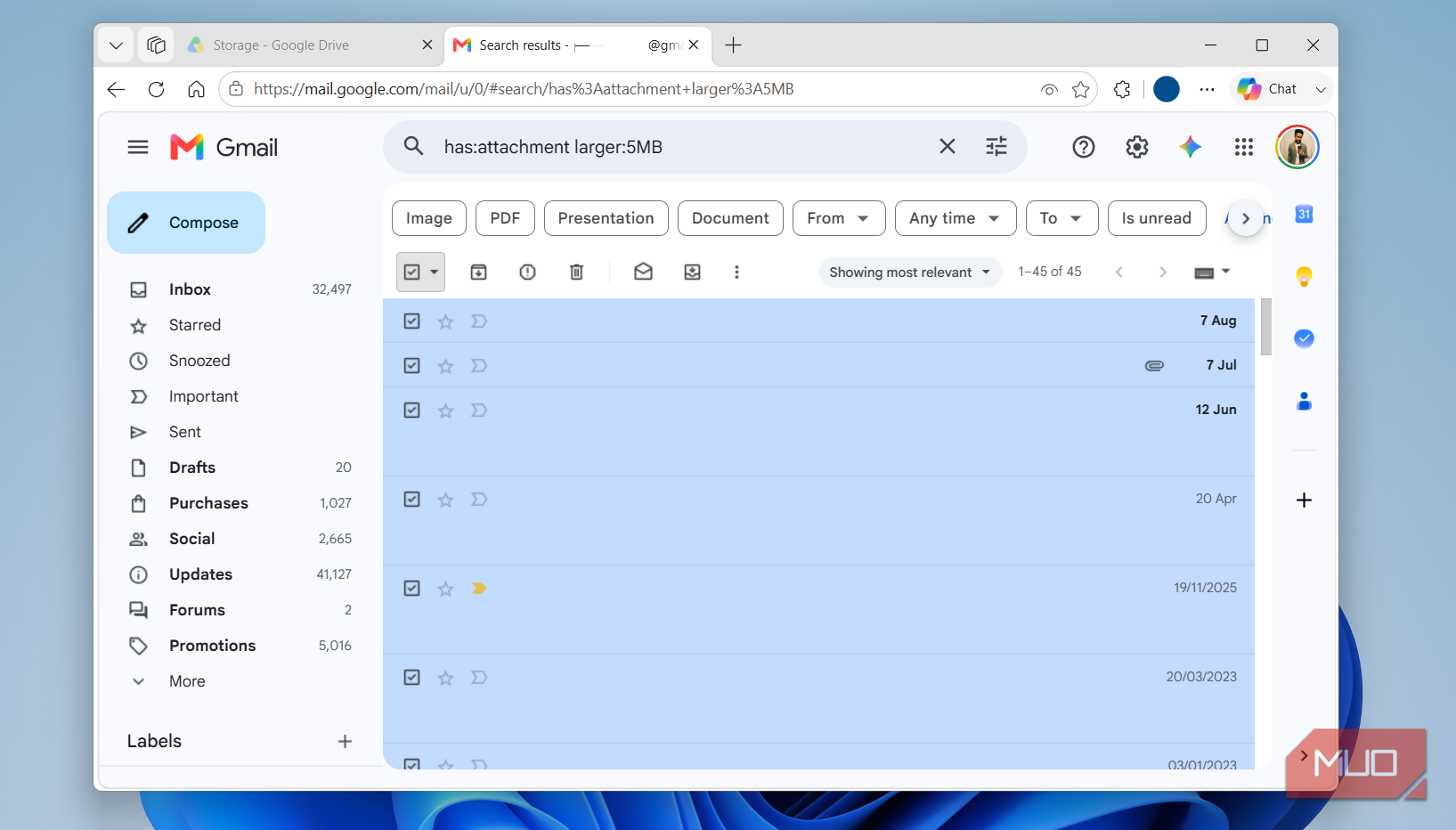
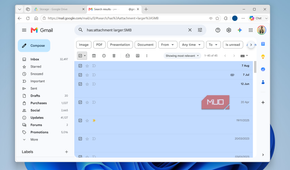
You don’t have to stop here, though. You can also search for large emails manually and delete them. Type has:attachment larger:5MB in Gmail search, and it’ll pull every email that’s larger than 5MB. You can lower that number if you want to be more aggressive. Besides the main inbox, check the drafts folder too. Gmail holds drafts indefinitely, and they count toward your storage quota just like everything else.
Deleting emails via the cleanup menu removes them permanently, but anything you delete manually will need to be removed from the Bin folder too.
Managing subscriptions is just as important
You’ll thank yourself for doing this

Deleting what’s already there only solves half the problem. If you don’t want to deal with how many emails are coming in, you’ll end up with the same problem sooner or later.
The biggest ongoing culprits are newsletters and those promotional emails. Even if you manage to ignore them, they still sit there, taking storage. Gmail has a feature that can help with this. Head to the Manage Subscriptions tab and unsubscribe any unwanted newsletters or promotional emails from there.
Not every sender will show up on this list, of course. And for those that don’t, blocking them is the next best move. Gmail will send all future emails from that sender to Spam, from where they’ll be deleted automatically after 30 days. Again, none of this will free up storage, but it’ll help you avoid those annoying warnings from coming back.
There’s one more thing that can help
If deleting emails and managing subscriptions sounds like a task, you can also target Google Drive directly. The same cleanup tab also gives you suggestions for clearing Google Drive. Plus, you can do a manual cleanup by deleting old shared files or switching to "Storage Saver" quality in Photos.
But if you want a more permanent fix, there’s one more thing you can do besides, of course, upgrading your plan. You can create a second Google account and transfer all your photos and files there. That’ll free up your main account for emails and 15GB is a lot of storage to fill with just emails. Most people are not likely to hit that limit ever.
This does take some work, though. You need to download everything from your main account using Google Takeout and then upload it to your secondary account. I know, it's a workaround, but if you don’t want to pay for storage, this is your best bet.