


Installing the important apps is among the first things I do on my new PC. No surprise there, but it's a tedious process. Taking note of all the apps I've installed and then reinstalling them one by one is a chore.
Fortunately, I've stopped manually reinstalling apps from scratch and now rely on the popular UniGetUI, a free app manager that can save a list of your apps and help you reinstall them quickly after a fresh Windows install.
Do a little cleanup before anything
Remove what you don't use before saving the list

I'm always surprised by the number of apps I've installed. Only a handful of them are what I use day to day, and the rest simply sit there taking up space, never to be used again. Granted, for someone like me who tests apps for a living, this is expected, but we all have more apps than we need.
So, consider this a good chance to clean up your PC before you create any list. Every app you remove now is one less app to download later, which keeps your app package small and quick to install.
Head to Settings > Apps > Installed apps and go through everything. Sort the list by Size (largest to smallest) first, since big apps are the easiest wins. Then remove anything you don't need or haven't opened in the last few months. If you want to go further, I follow a yearly routine to deep clean my Windows PC that also clears the leftover files regular uninstallers miss.
Get UniGetUI up and running
Build a bundle of your apps in a few clicks


UniGetUI is a free, open-source app that puts a graphical window on top of package managers like WinGet, Scoop, Chocolatey, pip, and npm. It lets you search for software, install it, update it, and remove it from one place, without visiting download sites or typing commands. It used to be called WingetUI, and Devolutions now maintains it. I've already explained why I like it as a package manager that brings the scattered Windows app world together, but here I only need one feature: Package Bundles.
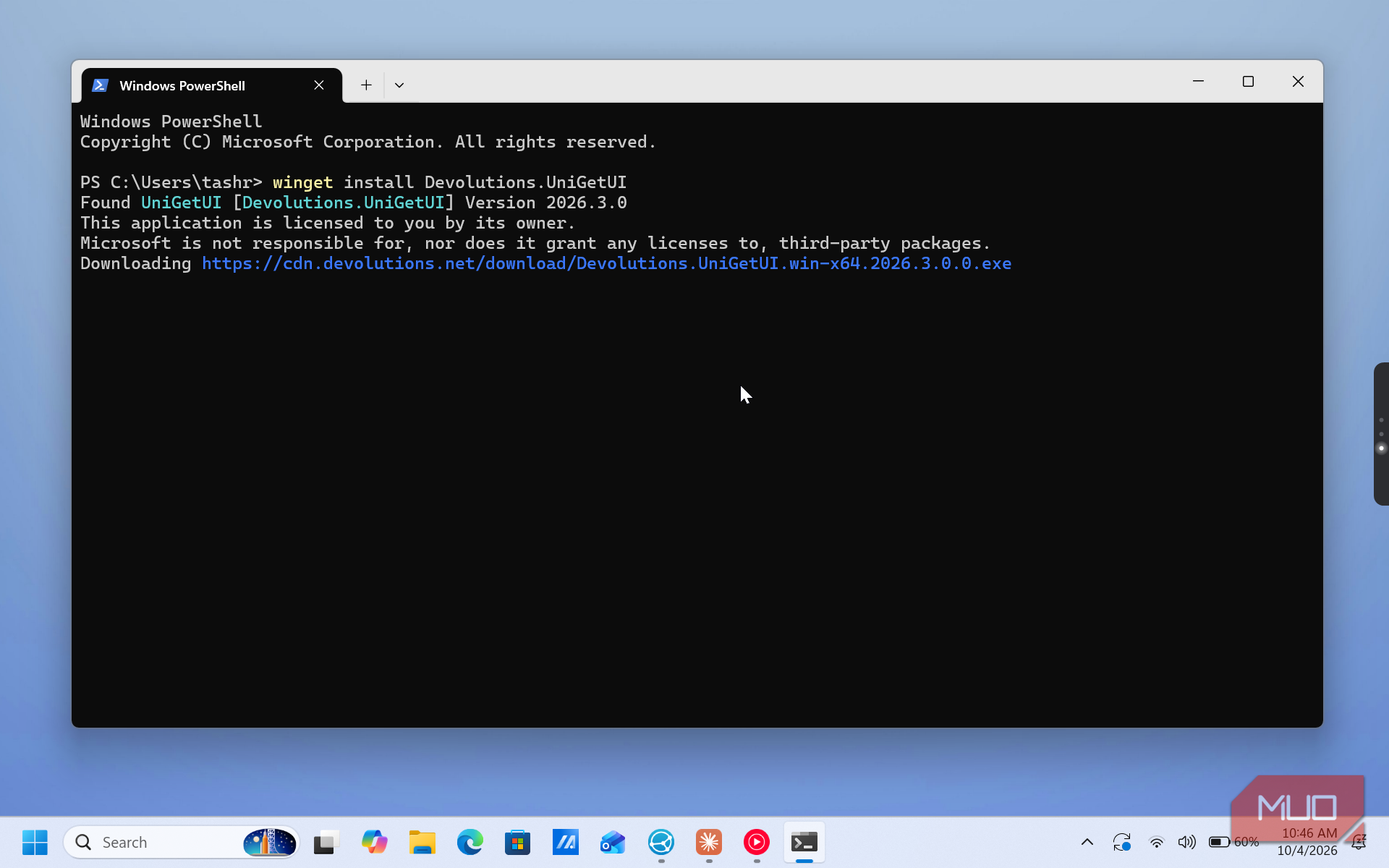
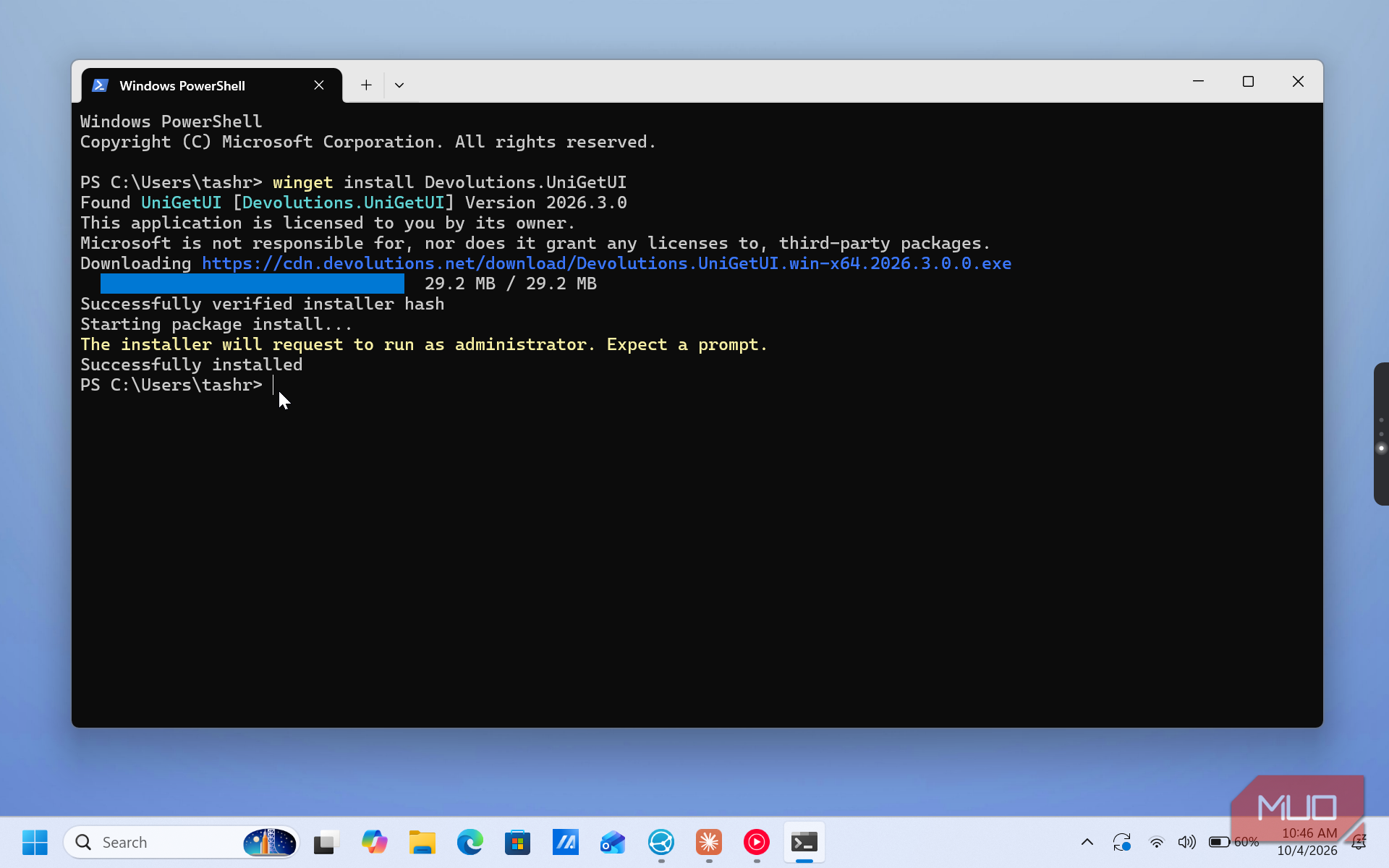
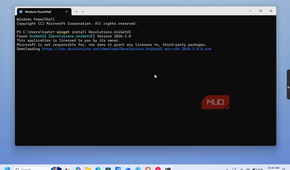
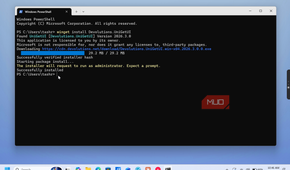
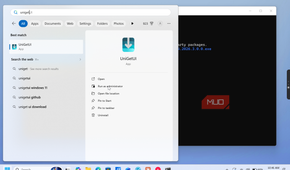
You can get it from the Microsoft Store (check that the publisher is Devolutions) or run winget install Devolutions.UniGetUI in an admin Terminal. On first launch, keep WinGet turned on. You can also sign in with GitHub from the bottom-left corner, which backs up your package list to your account. That's a handy second copy if you lose the bundle file.
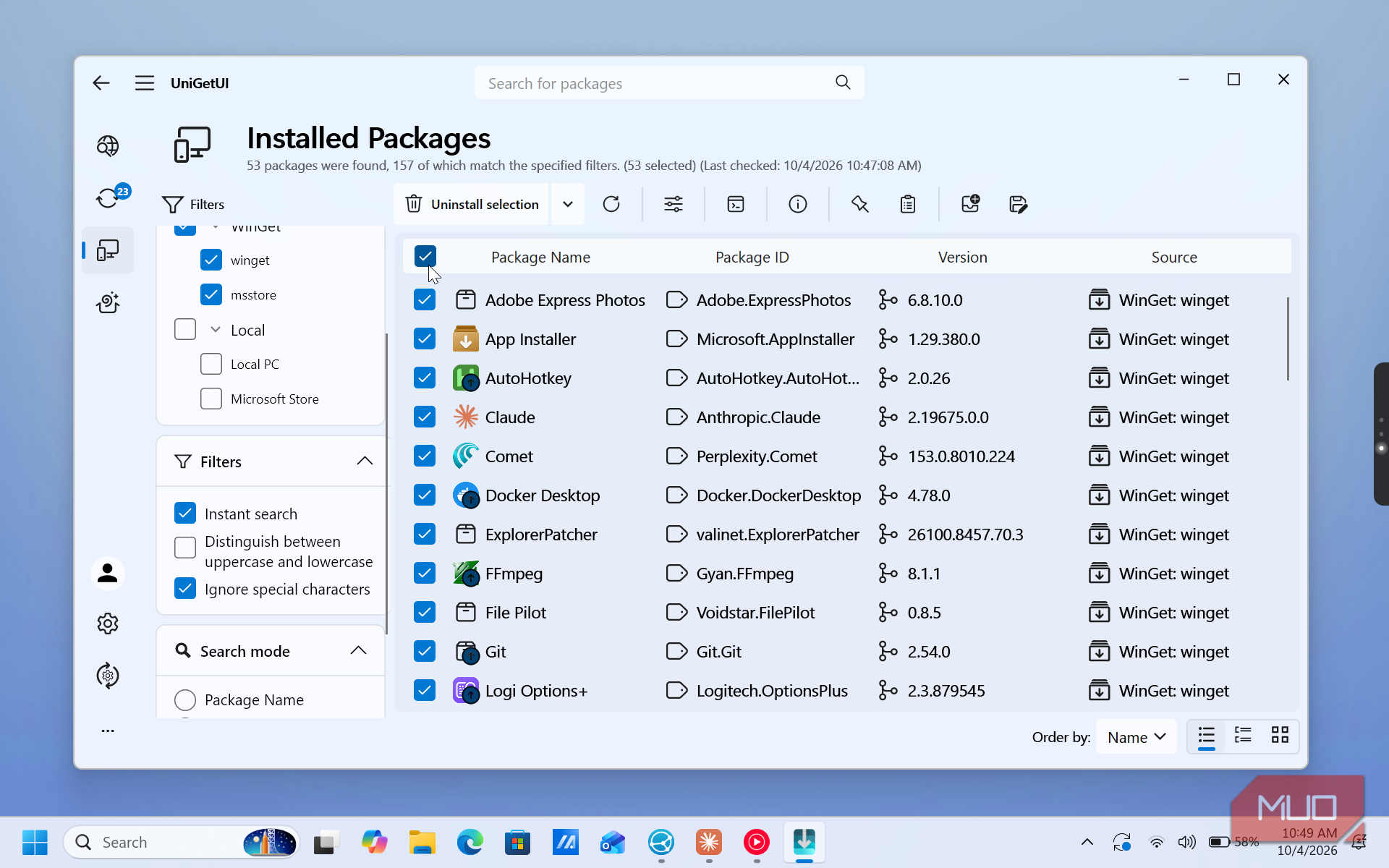
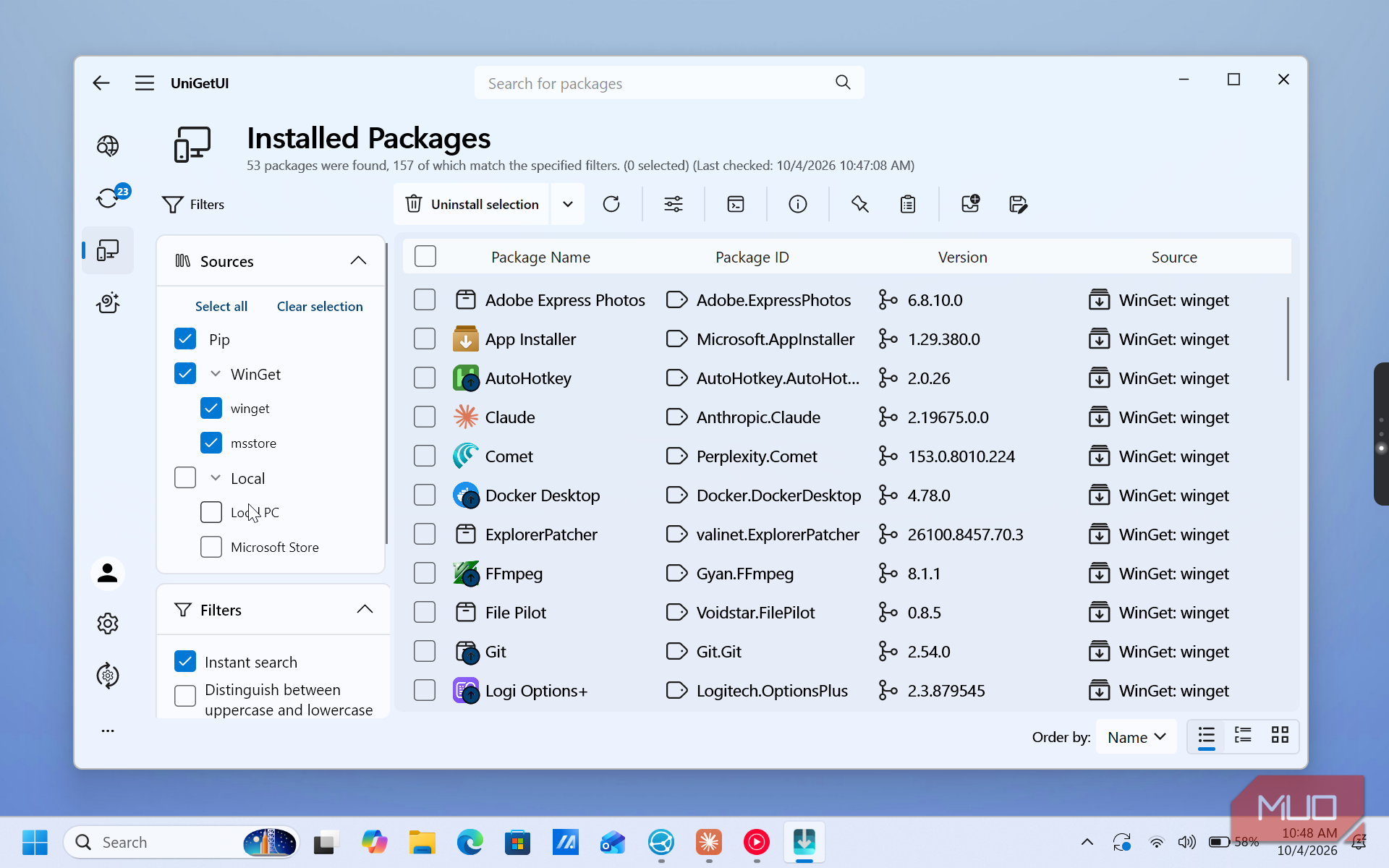
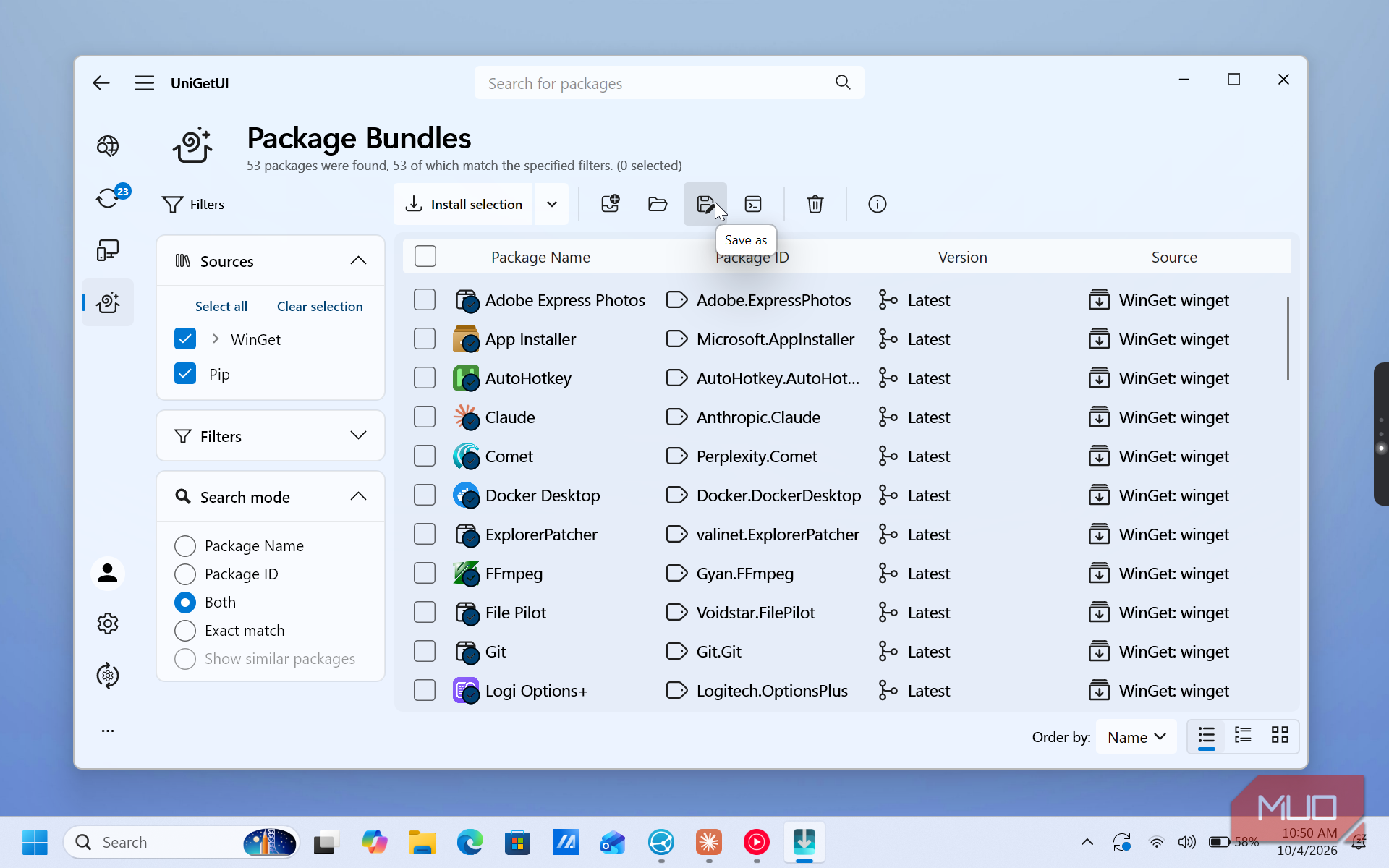
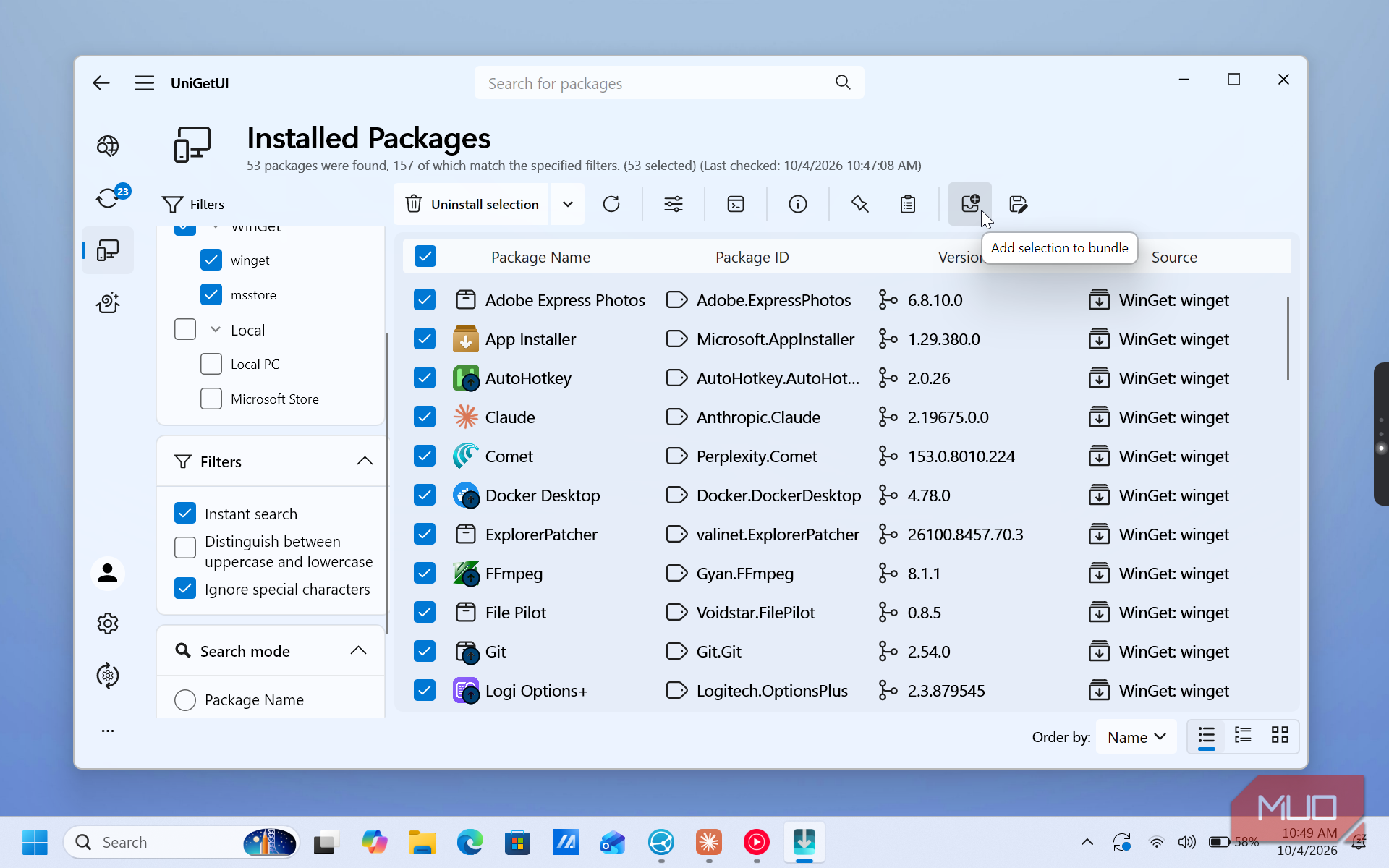
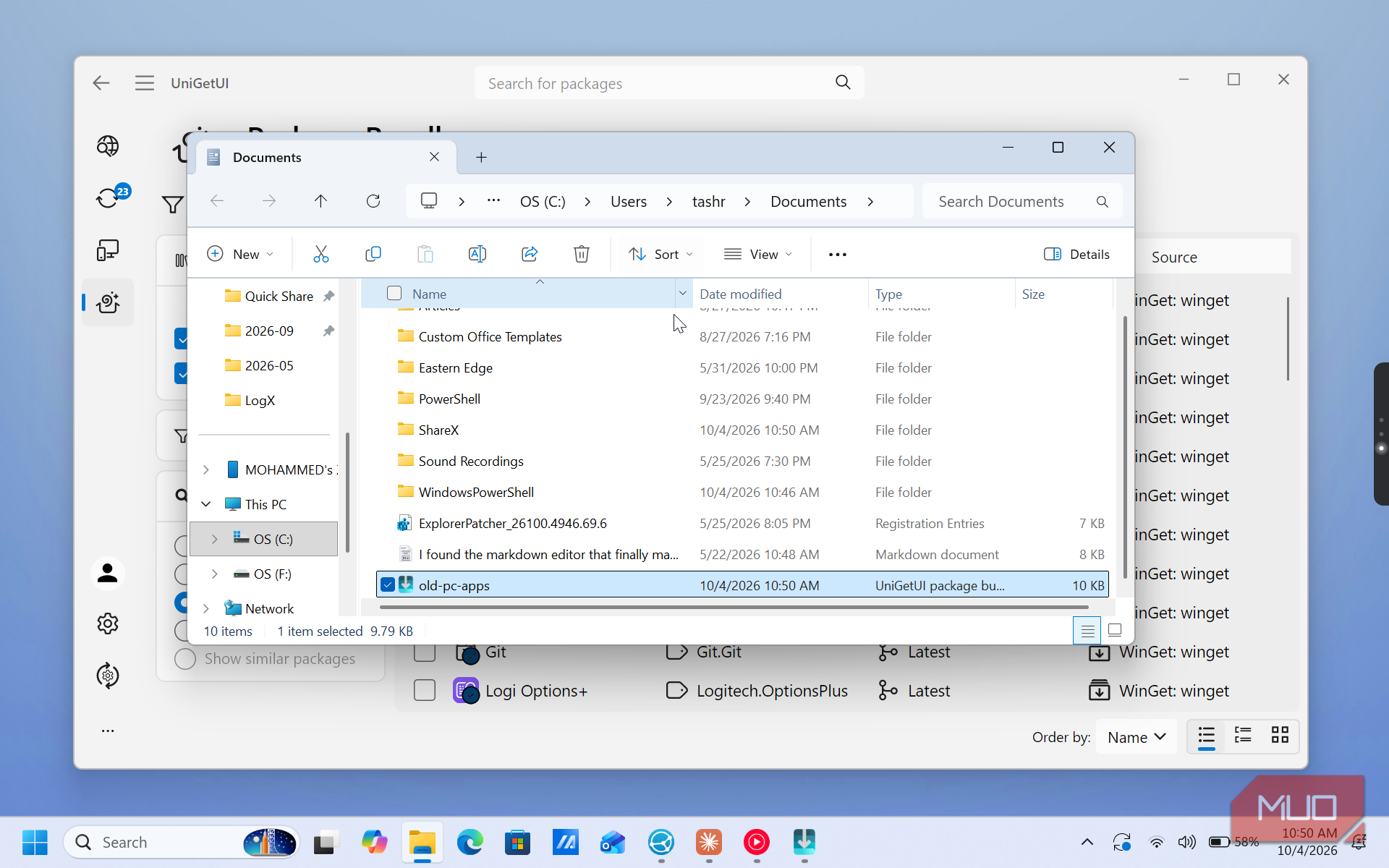
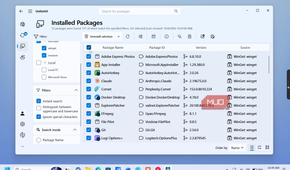
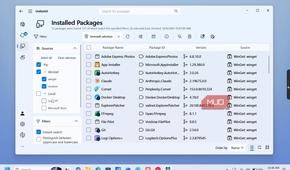
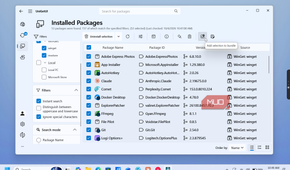
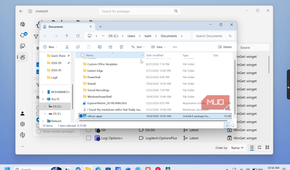
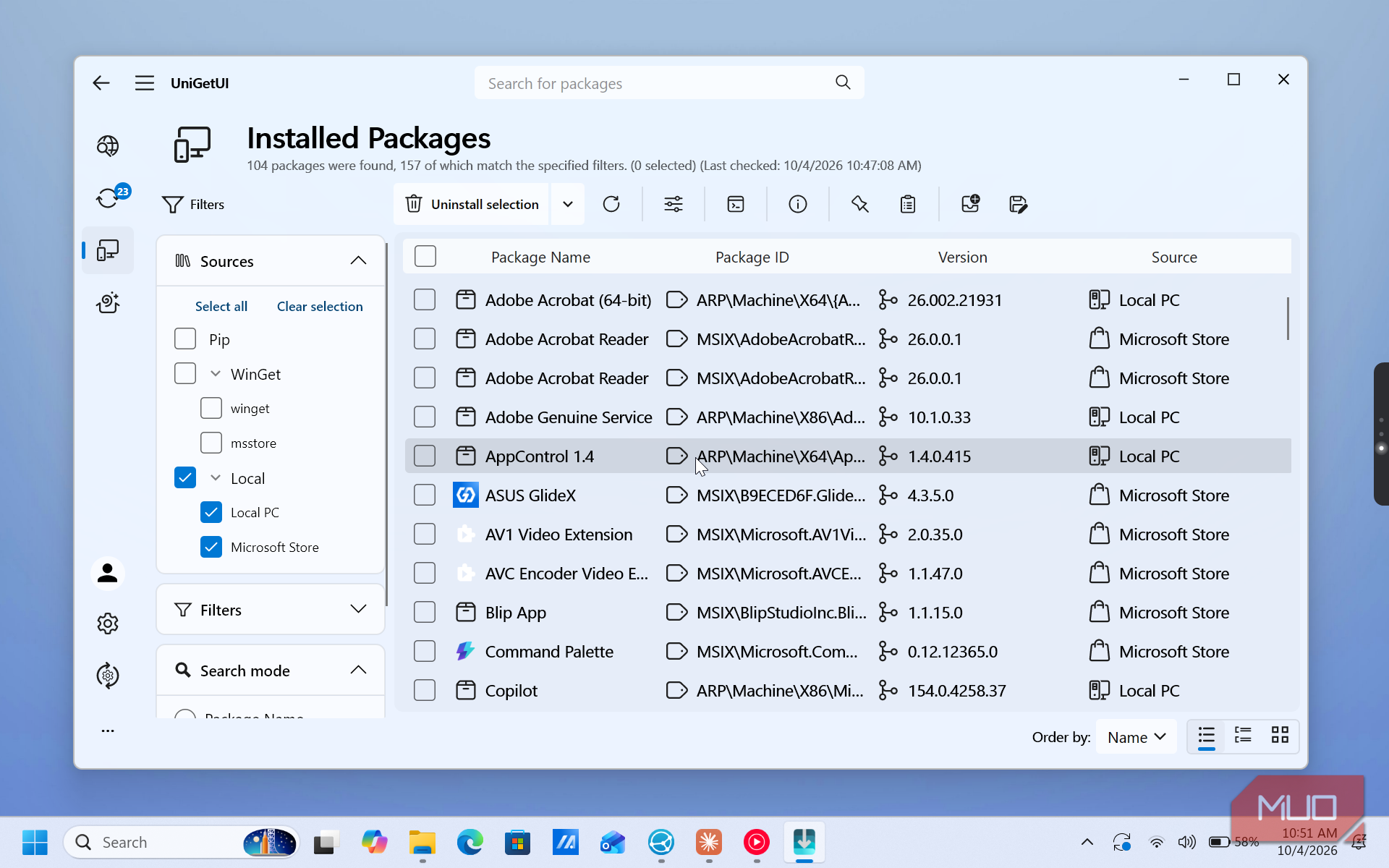
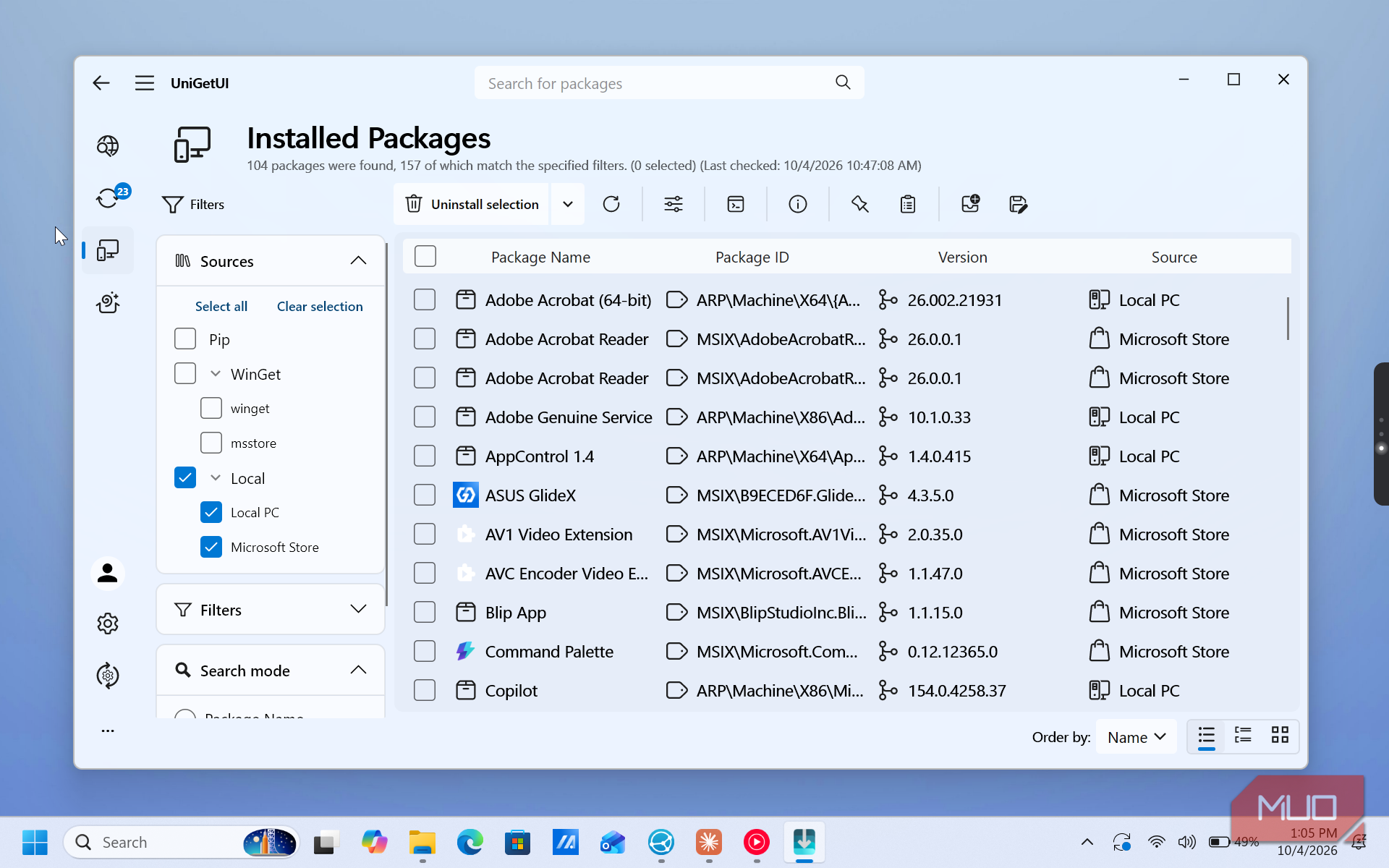
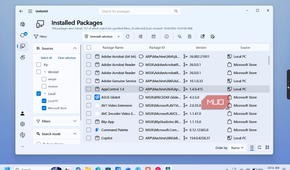
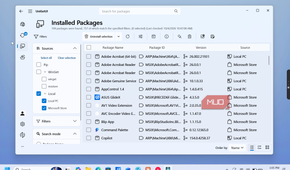
To build the bundle, open Installed Packages and click Filters. Under WinGet, keep both winget and msstore checked, and uncheck the Local PC options. Apps marked "Local" have no matching package in a repository, so they can't go into an installable bundle. Next, click the checkbox beside Package Name to select everything, then click Add selection to bundle. Click Save As, pick a name like old-pc-apps, and copy the file to a USB drive or cloud storage. It's usually only a few KB.
Go back to Filters, check only Local PC, and you get a list of everything the bundle can't carry. That's usually older apps, security or VPN tools that install drivers, and paid software from the developer's site. I write down where I downloaded each one and find its license key now, so I'm not hunting for it later.
Moving apps to your PC
Open the bundle and let it do the installing


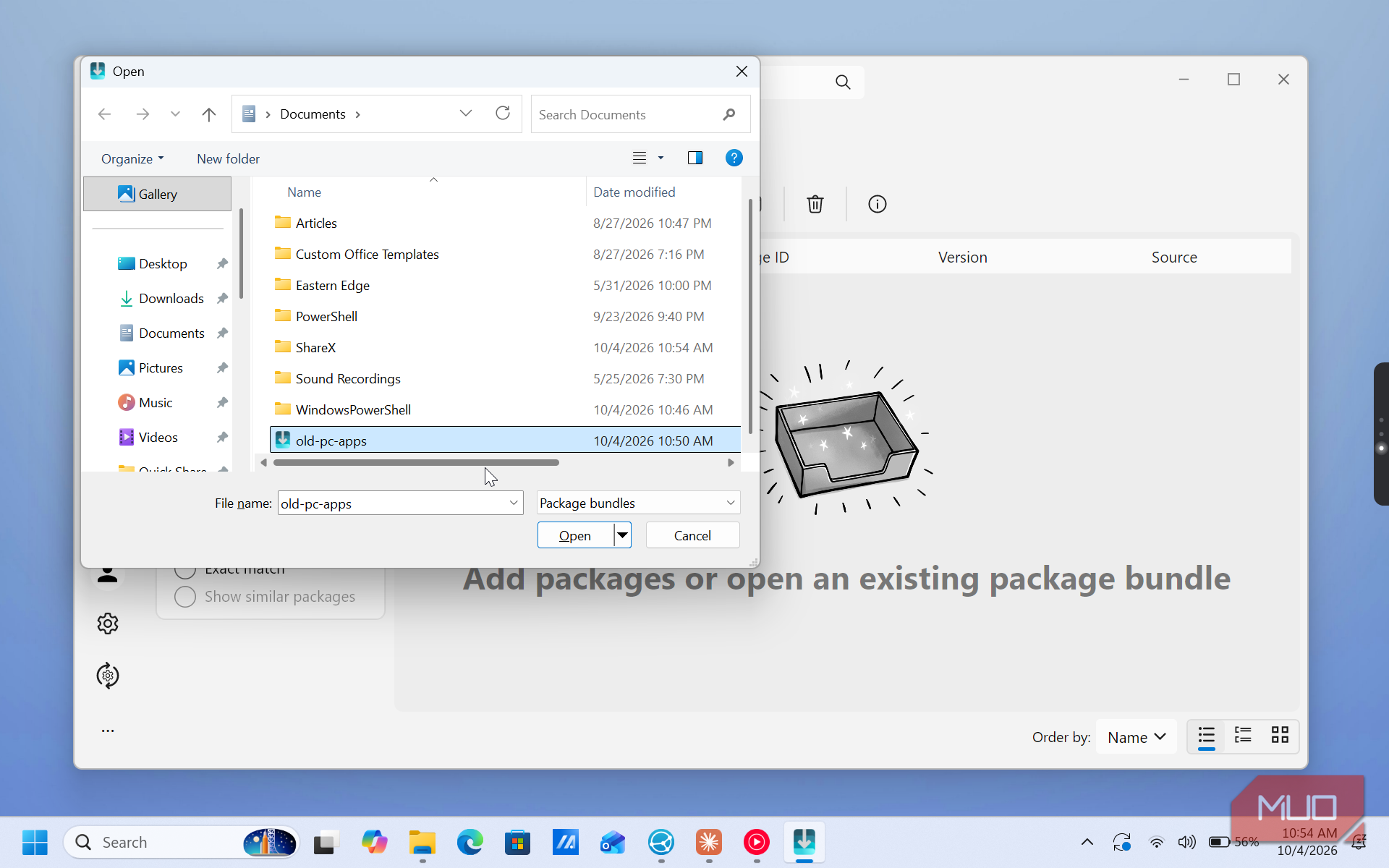
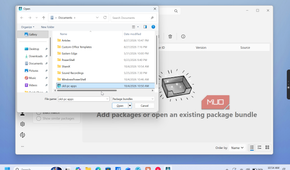
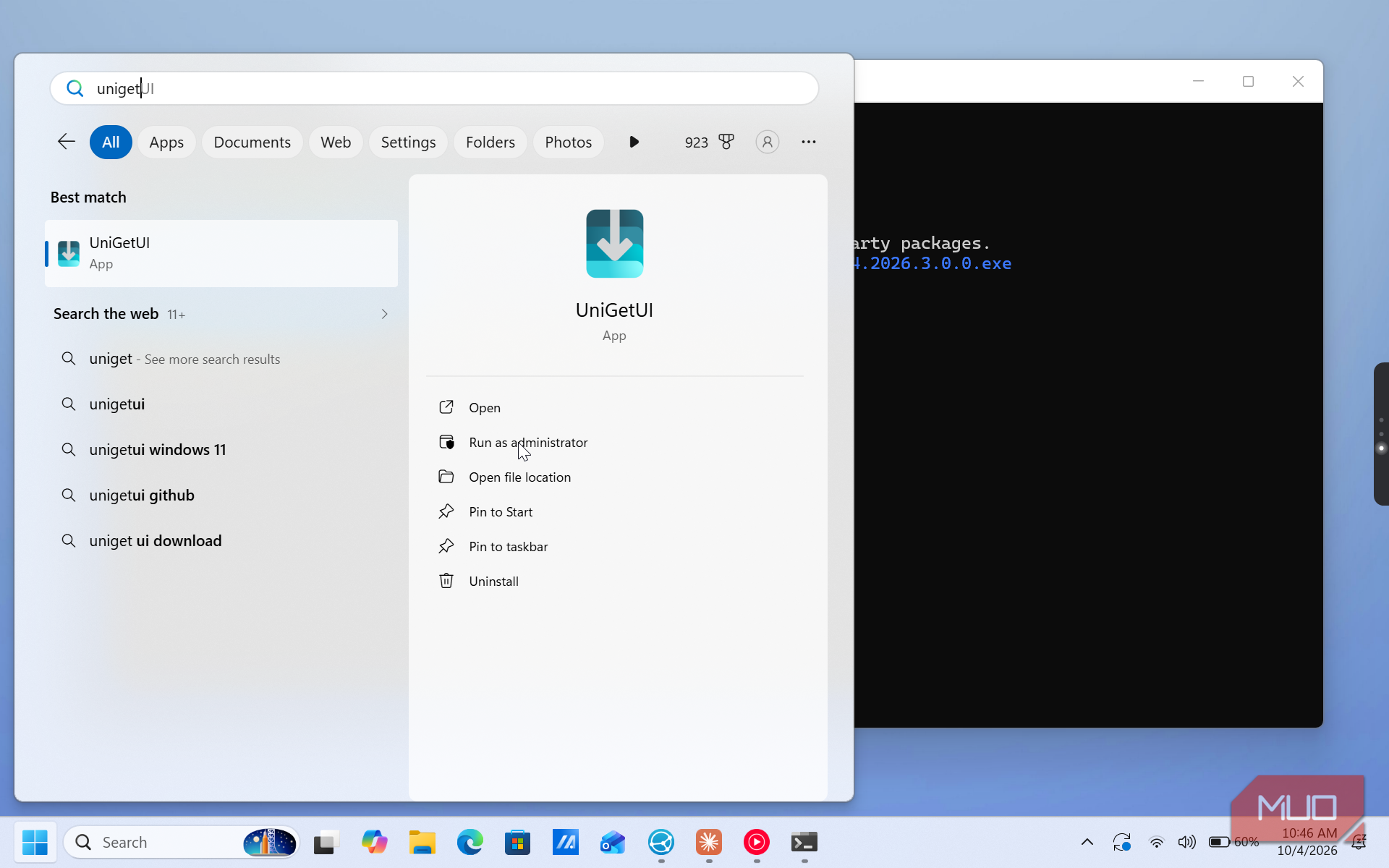
Once Windows setup is done, run Windows Update first so WinGet and the Microsoft Store are current. Then install UniGetUI the same way as before and keep WinGet on. Copy the bundle from your USB drive or cloud storage to a local folder like Downloads. Opening it straight from a cloud placeholder can fail if the file hasn't synced yet.
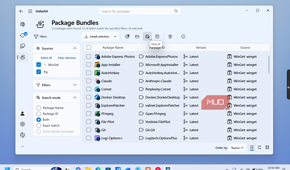
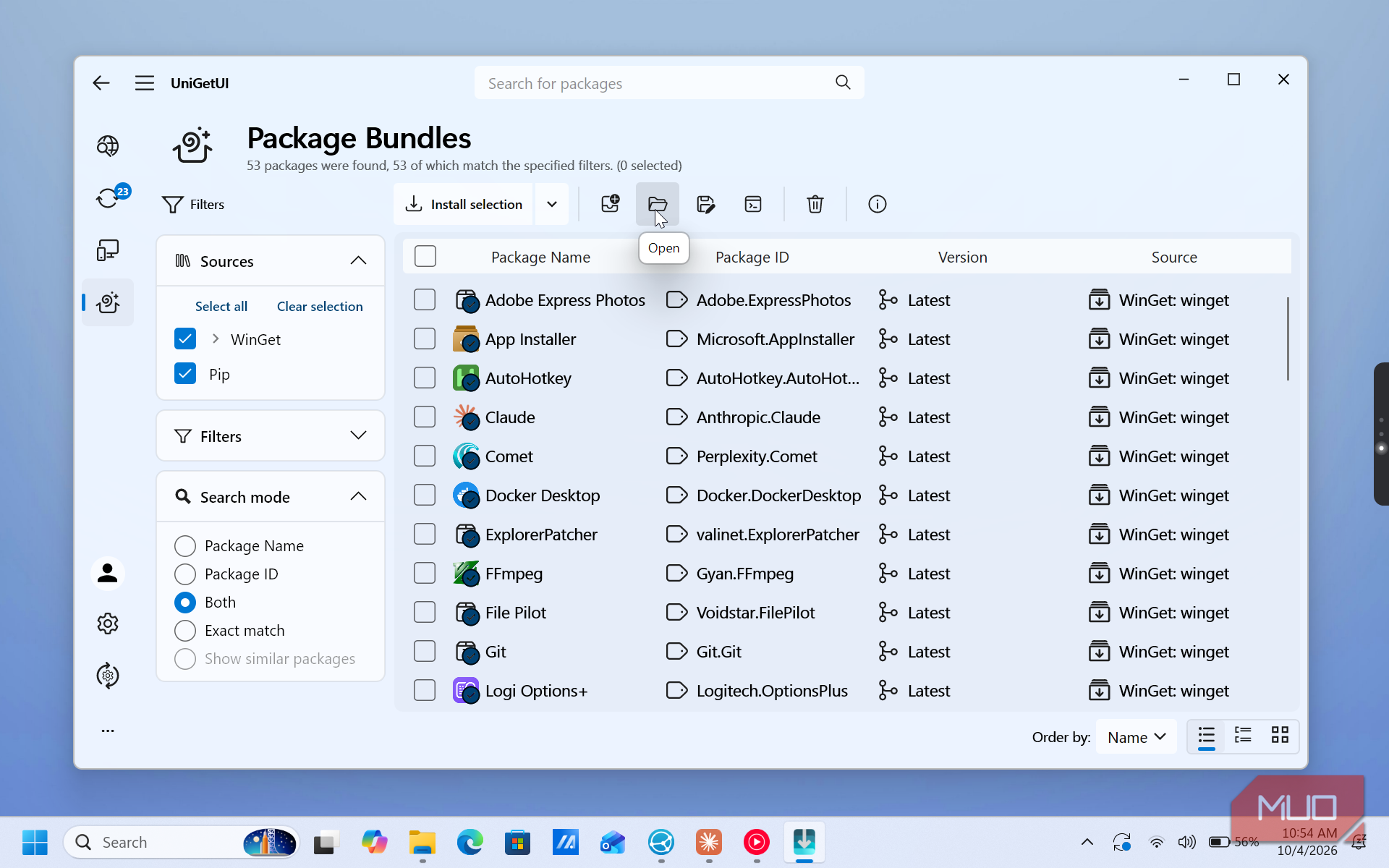
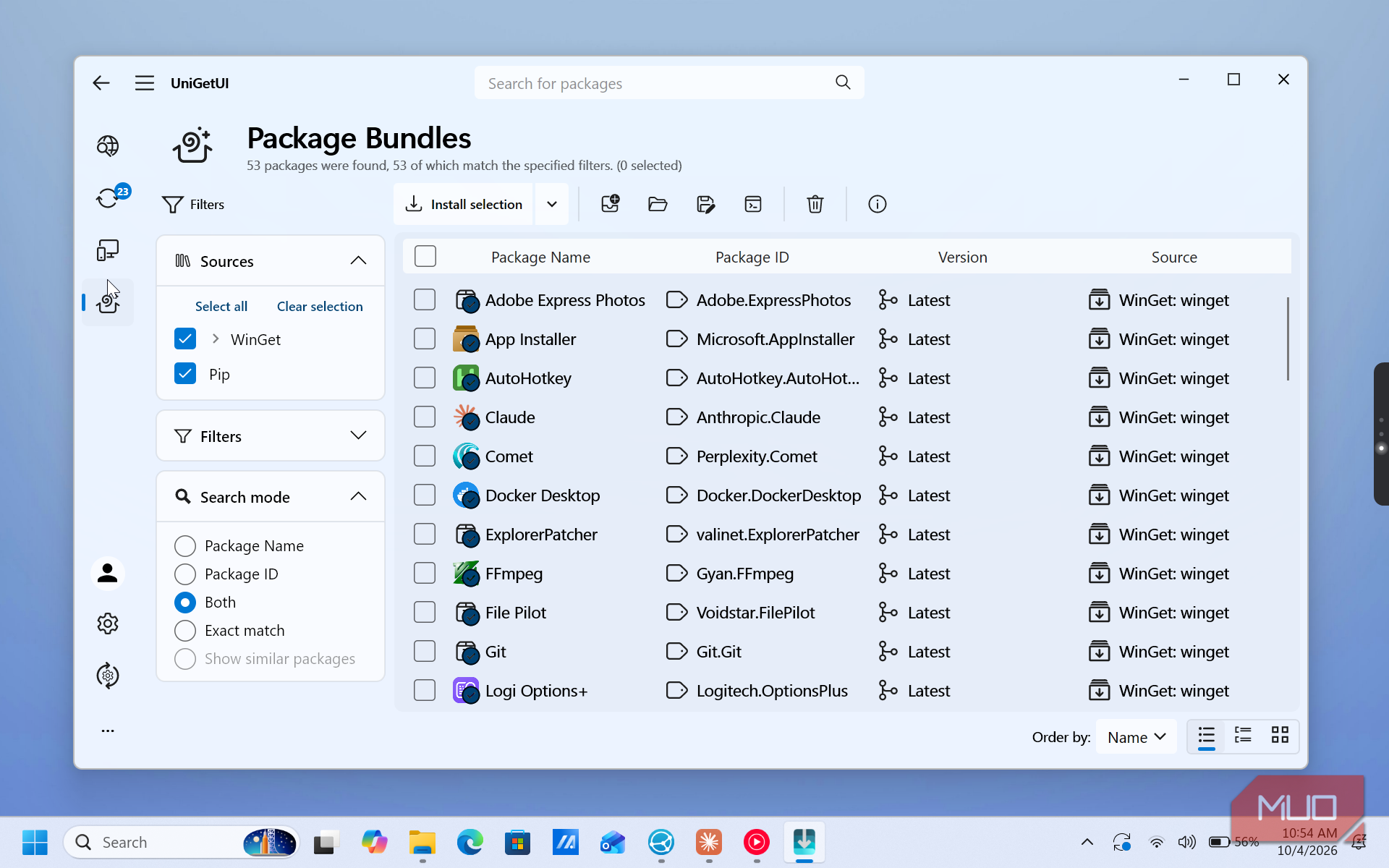
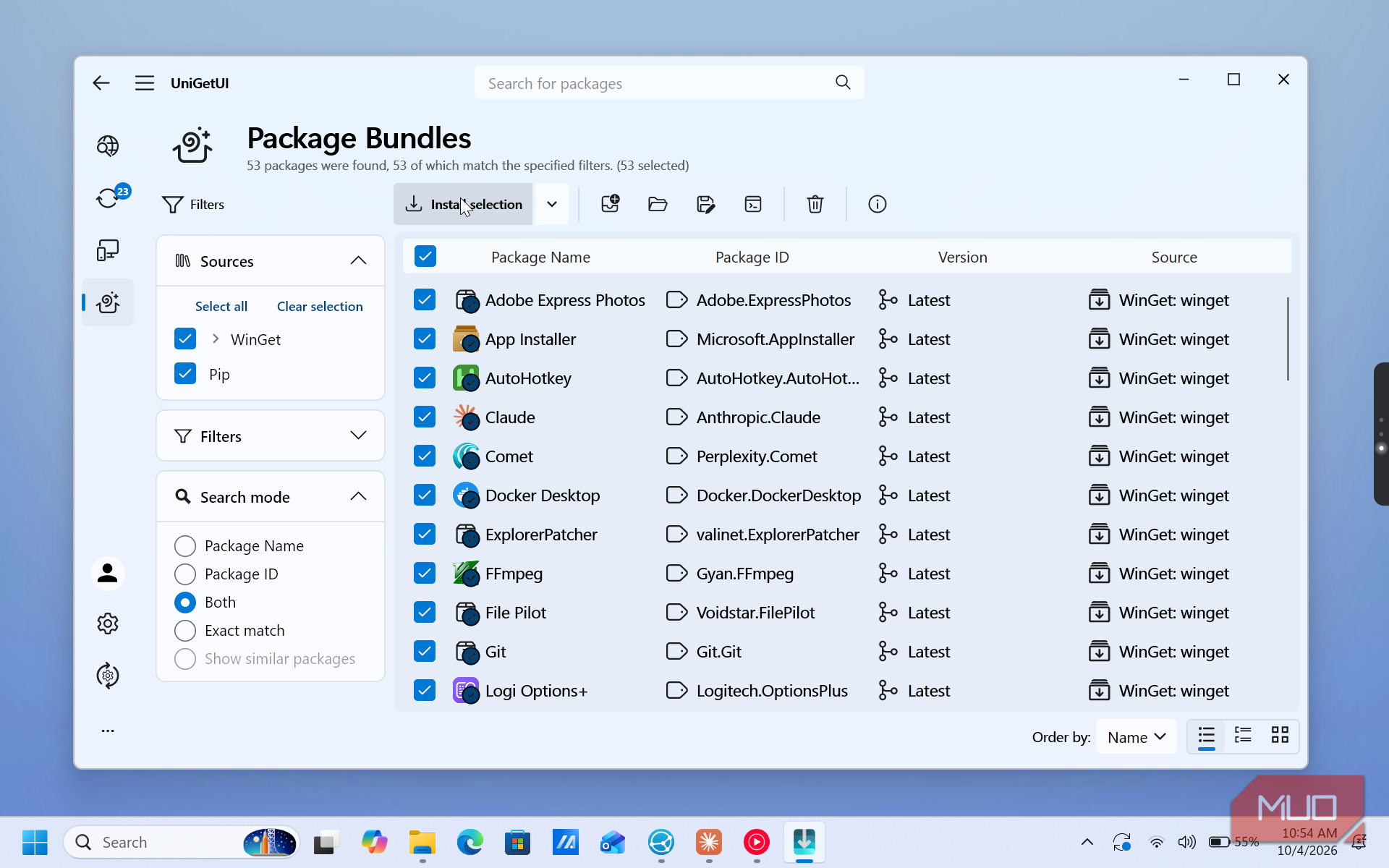
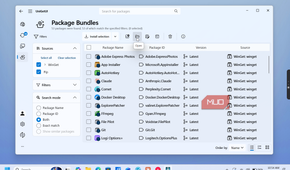
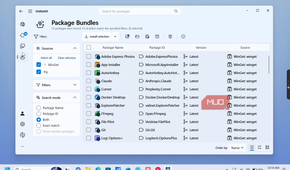
In UniGetUI, click Package Bundles in the left bar, then Open, and pick your file. The list fills with every app from your old PC, along with its package ID and source. Select everything, then uncheck anything you've decided you don't need anymore. Some apps may already be on the new PC, either from Windows or your PC maker. You can uncheck those too, though UniGetUI normally skips or updates them.
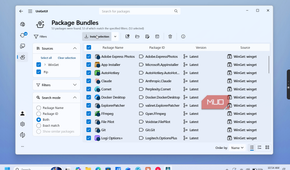
Click Install selection and walk away, mostly. UniGetUI installs each app in silent mode, so you won't see setup wizards. The only thing it needs from you is a UAC prompt for apps that want administrator rights. Keep an eye on the screen, because the queue stops moving while a prompt is waiting. You can follow progress in the operations panel at the bottom.
When the queue is empty, check for failed installs. The usual causes are a network timeout, a package that was renamed or removed, or an older copy of the app still running. Retry the failed ones, and if they fail again, search for them on Discover Packages or download them from the developer's site. Then open Installed Packages to confirm everything is there, and install the Local PC apps from your list by hand.
The caveat is that the bundle brings back your apps, but not their settings. If you want a plain backup outside UniGetUI, you can also use Winget's export and import commands to rebuild a Windows setup. Run winget export -o apps.json on the old PC, then winget import -i apps.json --accept-package-agreements --accept-source-agreements on the new one.
Windows can restore your app list, but it won't install them for you
You obviously don't need UniGetUI to get your apps back. Windows 11 already has a built-in backup tool, found at Settings > Accounts > Windows backup, that saves your app list to your Microsoft account. On a new PC or after a clean install, you sign in with the same account and Windows offers to restore it.
But it only pins your apps in the Start menu and taskbar. You still have to click each one to start the install, and it mostly covers Microsoft Store apps. UniGetUI automates the process and turns hours of manually installation into a few UAC prompts. It won't restore settings or apps missing from the repositories, but you can always install them from the developer's site.