


Windows always offered plenty of ways to lock your PC, but they all have one thing in common: you need to be sitting in front of it. Yes, there’s Dynamic Lock, which can automatically lock the PC, but you still need to set it up in advance. Microsoft’s latest Phone Link update changes that. It lets you lock your PC remotely from your Android phone, even after you’ve walked away from it. I tried it on mine, and I feel it’s way better than any of the existing options.
Phone Link can now lock your PC remotely
No more running back to your desk

Phone Link is one of those rare Microsoft apps that almost everyone seems to like. And with a recent update, Microsoft has given Windows users one more reason to use it. You can now use the Phone Link app on your phone to lock your Windows PC remotely. This is currently only available for Android.
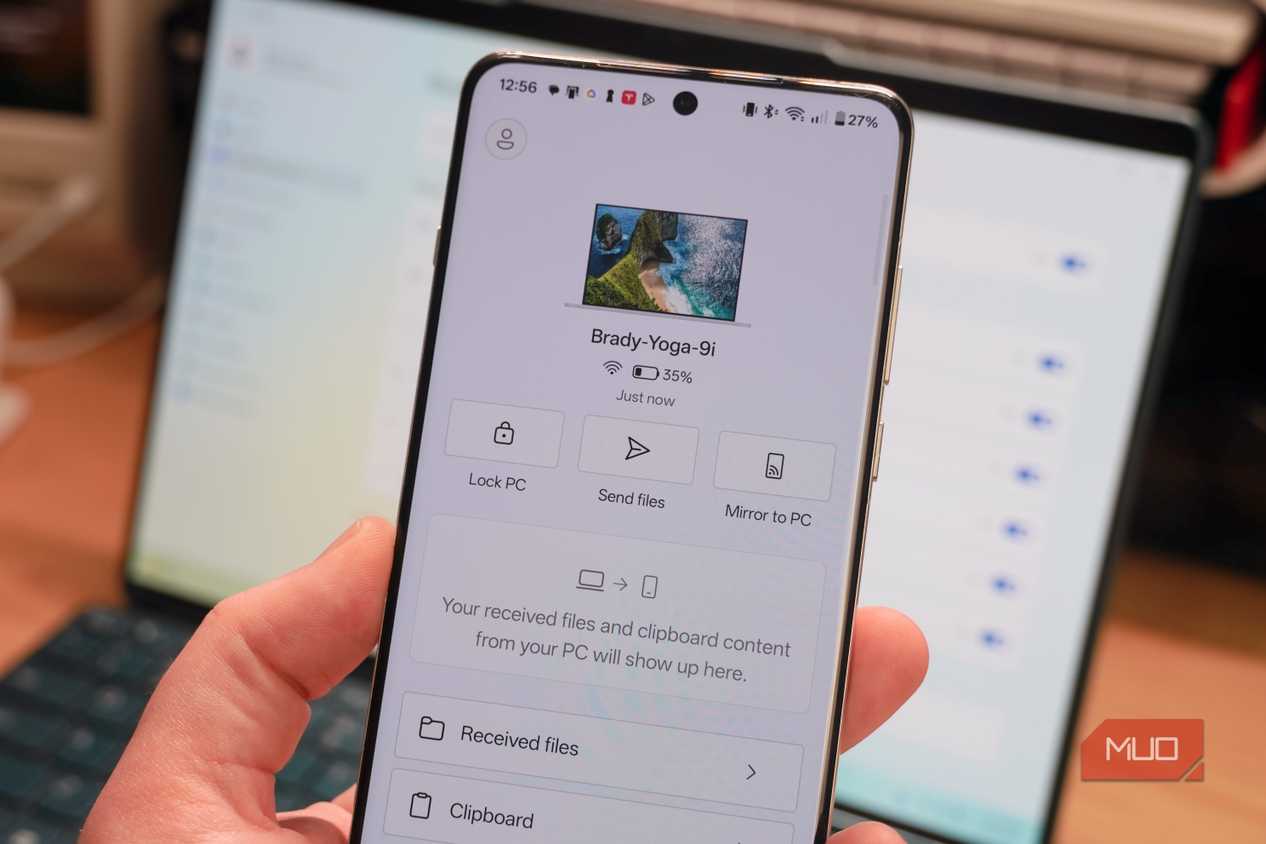
When you open the Phone Link app on your phone, you’ll see the Lock PC option. Tap it and your PC will be locked almost instantly. It barely takes more than a couple of seconds. The obvious use case of this is if you work in an office or a shared space and often forget to lock your PC while stepping away from the desk. You don’t have to rush back to press Win + L. The Phone Link app on your phone can do it for you.
Once your PC is locked, Phone Link disconnects automatically. You then need to unlock your PC manually to re-connect the app. The best part is that you don’t need to do anything extra for this feature. As long as you’re running the latest version of Phone Link on both your PC and phone, the Lock PC option shows up automatically.
Now, if this feature doesn’t work for you or if you’re worried about locking your PC accidentally, head to Windows Settings > Bluetooth & devices > Mobile devices and select your phone from the list. Here, use the Remote PC controls toggle to enable or disable the feature.
Dynamic Lock already does this, but Phone Link is more flexible
Same goal, much better execution

If Phone Link’s remote locking feature sounds similar, that’s because it is. Windows has offered a similar feature called Dynamic Lock for years. It works a little differently, but the end goal is the same.
Dynamic Lock on a Bluetooth connection between your phone and PC. When your phone disconnects, Windows assumes you’ve walked away and automatically locks your PC. It gets the job done, but there are a couple of issues with it.
For one, you can’t really be sure if Dynamic Lock has actually locked the PC. You simply have to trust Windows with it. Phone Link gives you a lot more control. First, it only locks the PC when you actually press the button. More importantly, if your phone isn’t connected, the Lock PC button is grayed out, so you’ll know the feature isn’t available.
The bigger issue is that Dynamic Lock requires your phone and PC to stay connected all the time, which can cause your phone’s battery to drain slightly more. Since Phone Link works over Wi-Fi, Bluetooth is not necessary for the remote locking feature.
The only time Dynamic Lock makes more sense is if you don’t already use Phone Link. In that case, it’s probably the better option, since there’s little reason to install and set up Phone Link just for remote locking.

Phone Link
- OS
- Windows (Phone Link); iOS, Android, macOS (Link to Windows)
- Developer
- Microsoft
- Cost
- Free
Microsoft doesn’t get enough credit for Phone Link
It keeps getting better


 Credit: Pankil Shah / MakeUseOf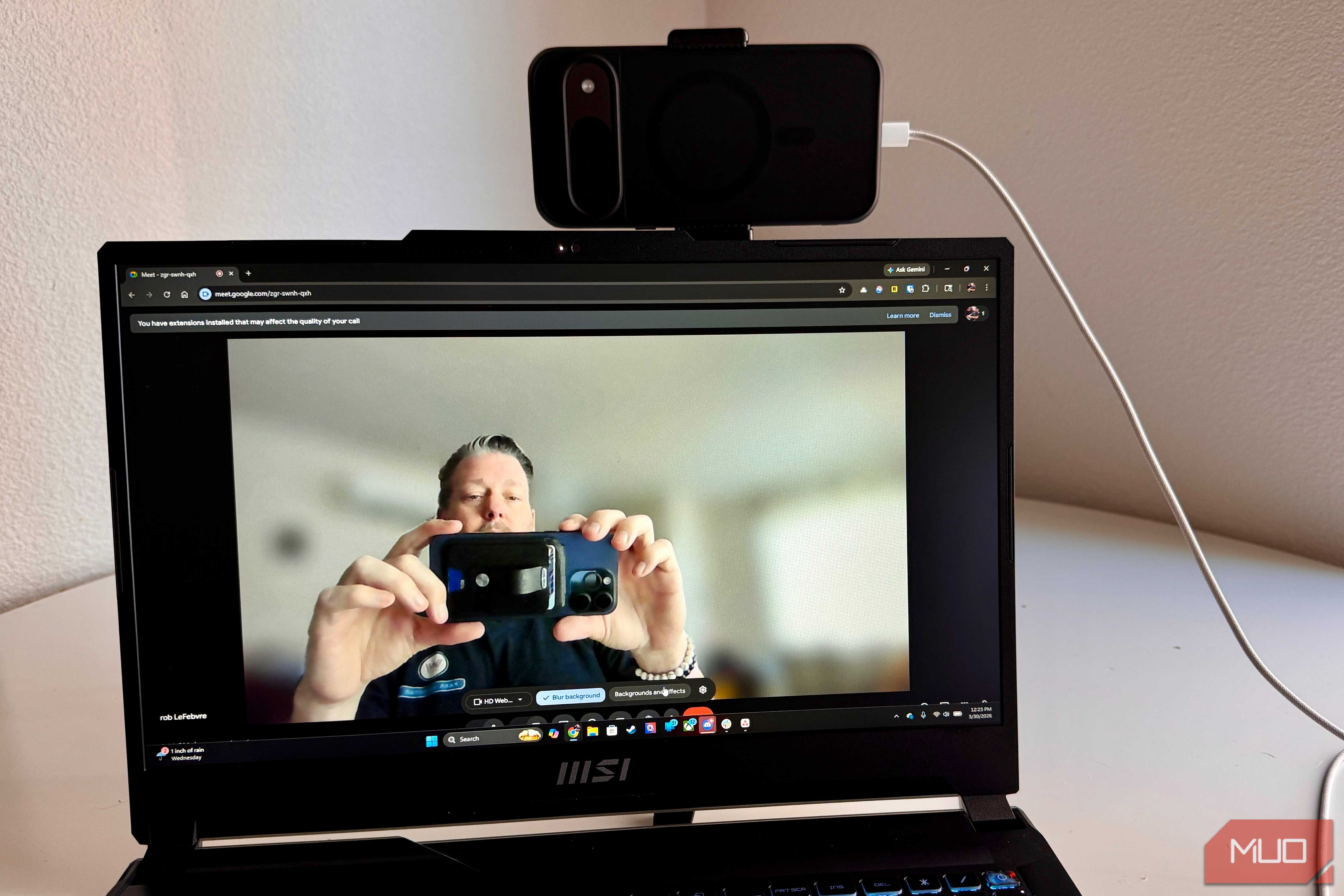
 Credit: Brady Snyder / MakeUseOf
 Credit: Brady Snyder / MakeUseOf
 Credit: Shimul Sood / MakeUseOf
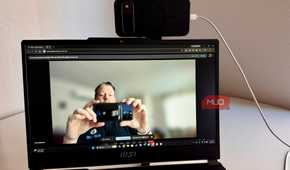
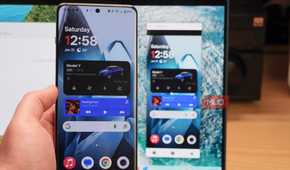
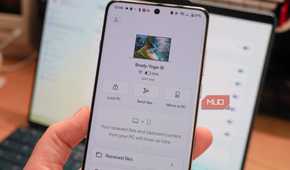
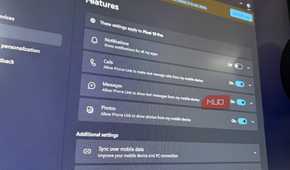
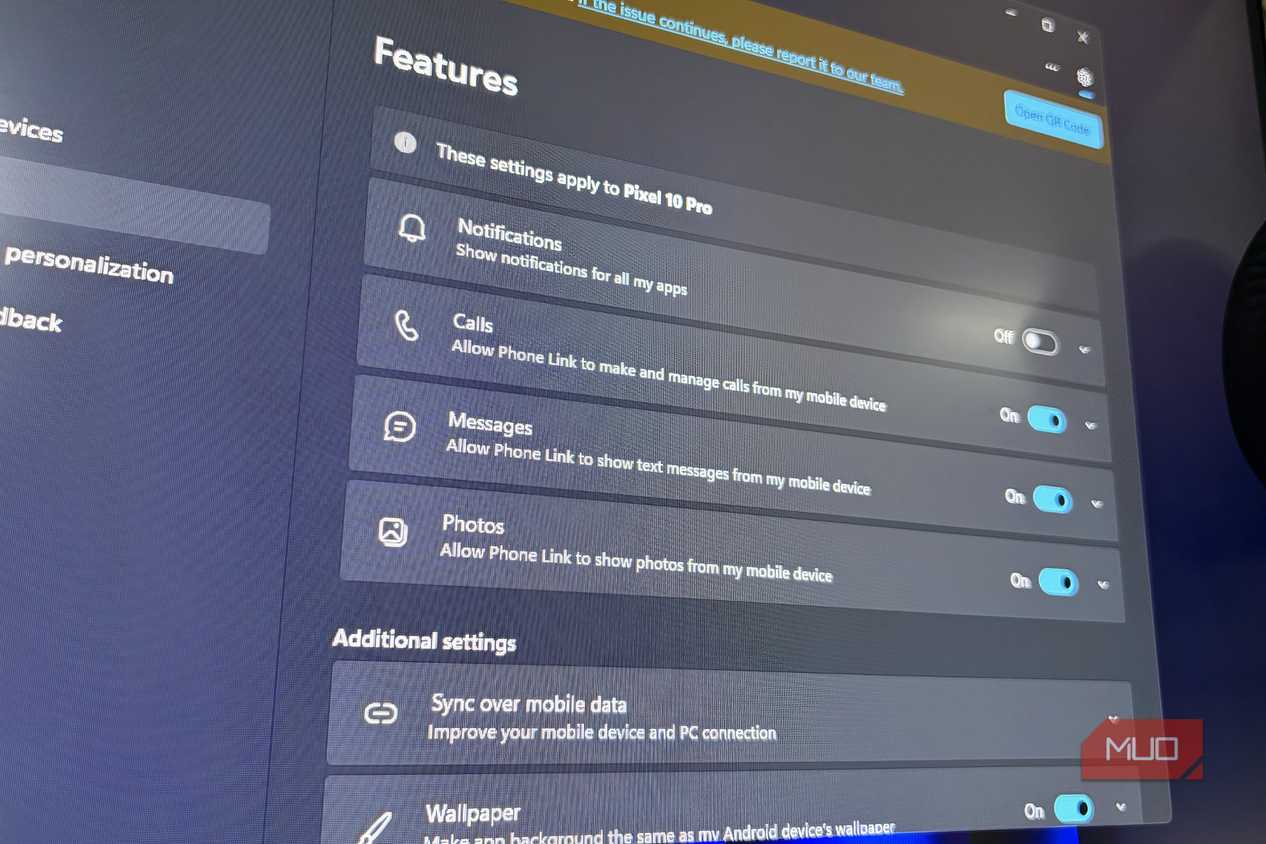
Microsoft’s Phone Link seems to keep getting better with every update. It’s no longer just for syncing your phone notifications or sending text messages from your PC. It now offers a lot more features, and remote locking is just one of them.
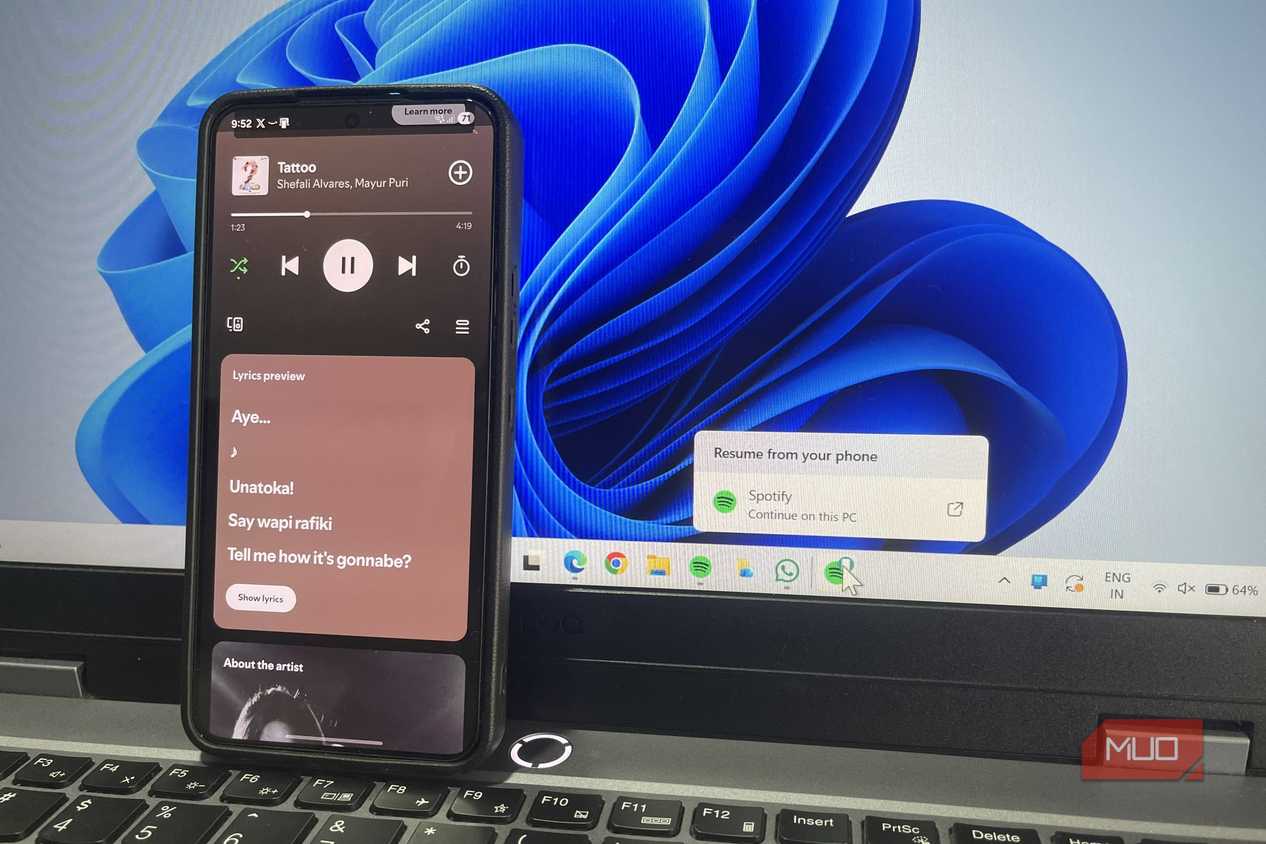
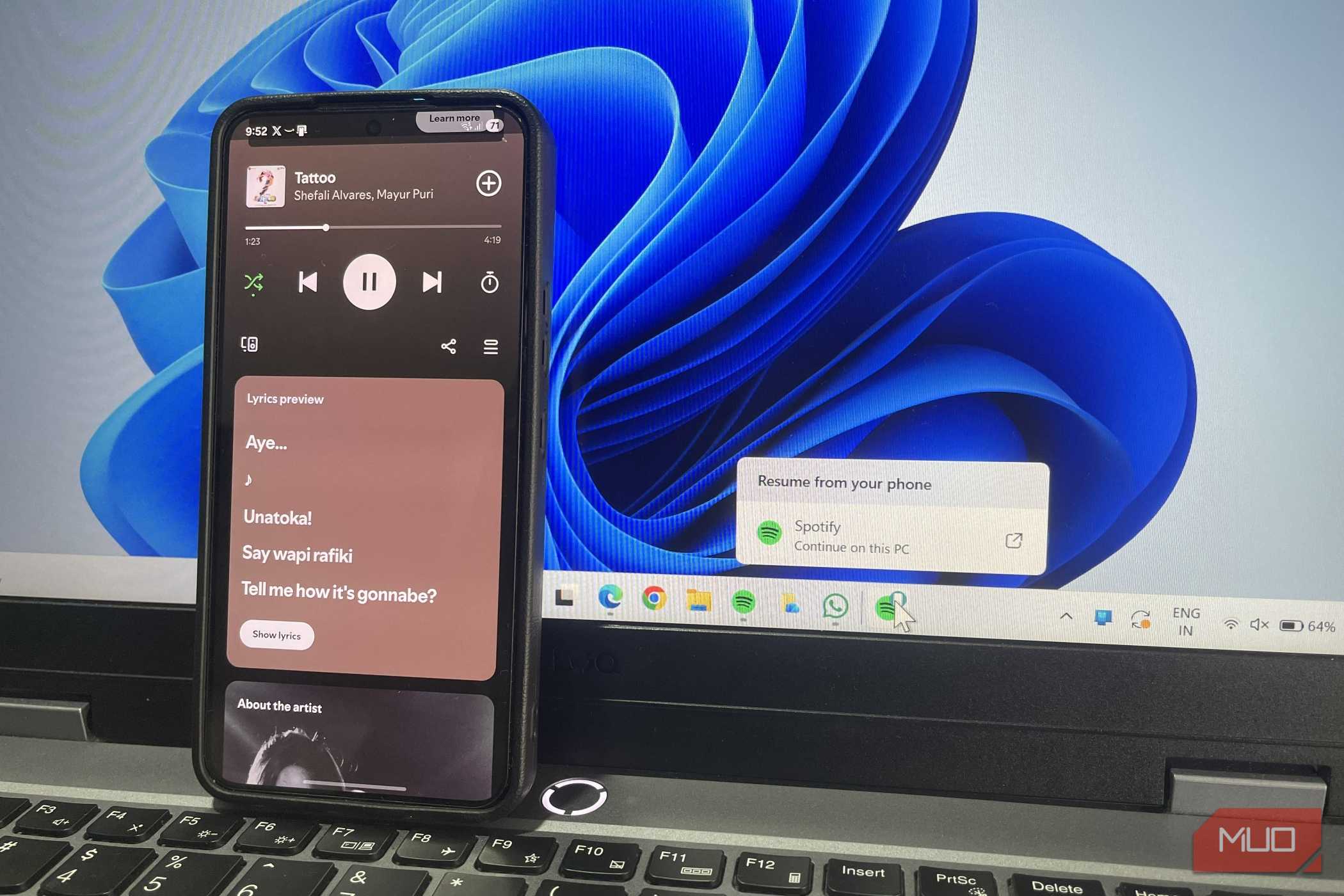
For instance, Cross Device Resume lets you switch between your phone and PC in certain apps. If you’re listening to music on your phone or editing a Word document, Windows automatically shows the option to continue the same session on your PC.
Another useful option is the ability to browse your phone’s files and photos directly from File Explorer. This means you can view, copy, and move files to and from your phone without cables or cloud storage.
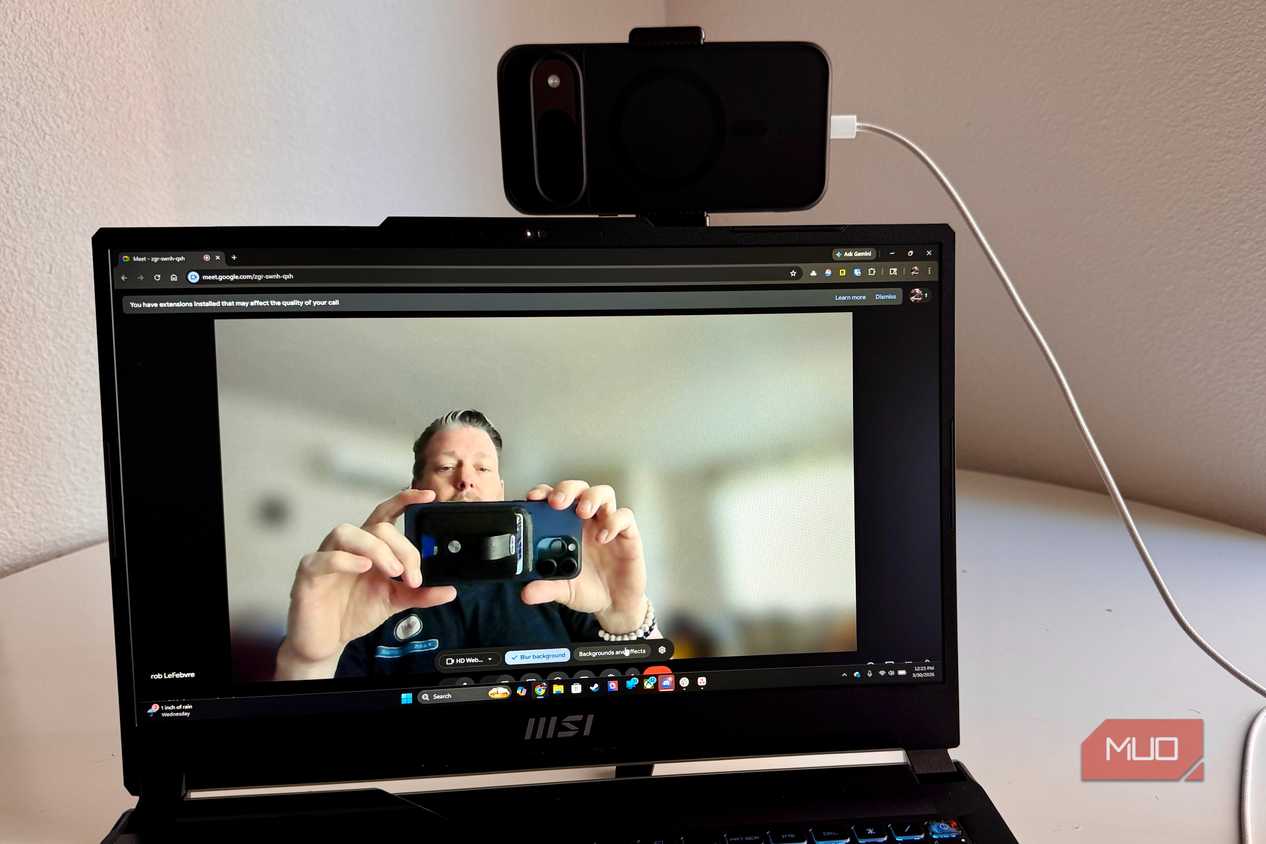
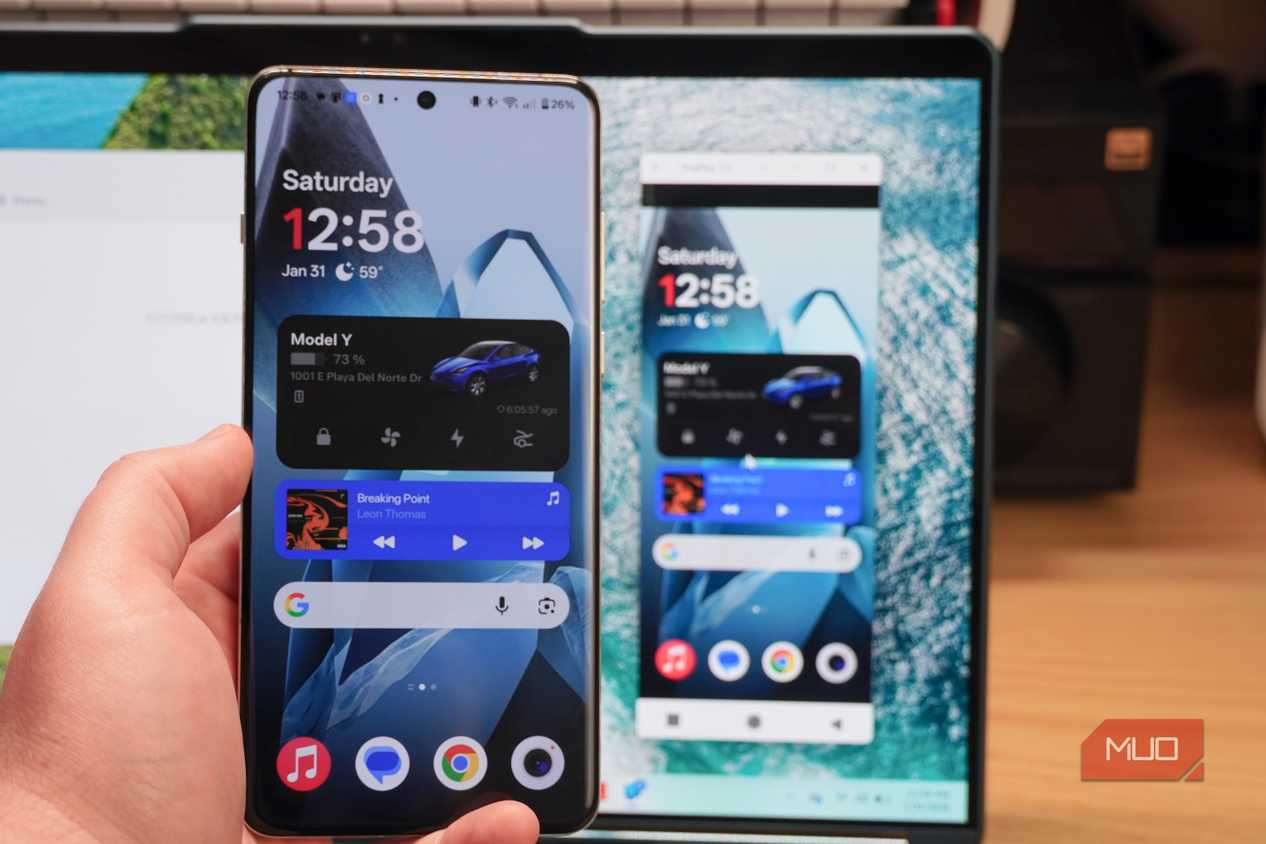
Screen mirroring is another underrated feature that’s available on specific phones. Of course, it’s not something you’ll need every day, but it’s by far the easiest way to try your favorite Android apps on a Windows PC. My favorite Phone Link feature, though, is the option to use your phone as a webcam because the built-in camera on my laptop is mediocre at best.
And these are just a few examples. There’s so much more you can do, and that’s what makes Phone Link easily one of the best Microsoft apps around.

Lenovo LOQ 15IAX9I

- Operating System
- Window 11
- CPU
- 12th gen Intel Core i5 12450HX
- GPU
- Intel Arc A530M, Intel UHD Graphics
- RAM
- 12GB