


A reliable Wi-Fi connection can make or break your workday. Since I work from home, I depend on a stable internet connection for pretty much everything. Whenever my Wi-Fi starts acting up, my first instinct is the classic fix: switch the router off, wait a few seconds, and turn it back on. More often than not, that does the trick.
But sometimes the problem isn't the connection itself; it's the router sitting right in front of me. I recently discovered this firsthand when I learned that something as simple as repositioning my router's antennas could noticeably improve Wi-Fi performance around my home. It took just a few seconds to adjust them, yet the difference was surprisingly significant. If you've never given your router's antennas a second thought, you might want to start now.
I changed one 2.4GHz Wi-Fi setting and my connection got much more stable
A simple change in my Wi-Fi setting fixed the issue, and the connection has been consistent ever since.
Give your Wi-Fi a better angle
They could really be the reason your Wi-Fi feels patchy
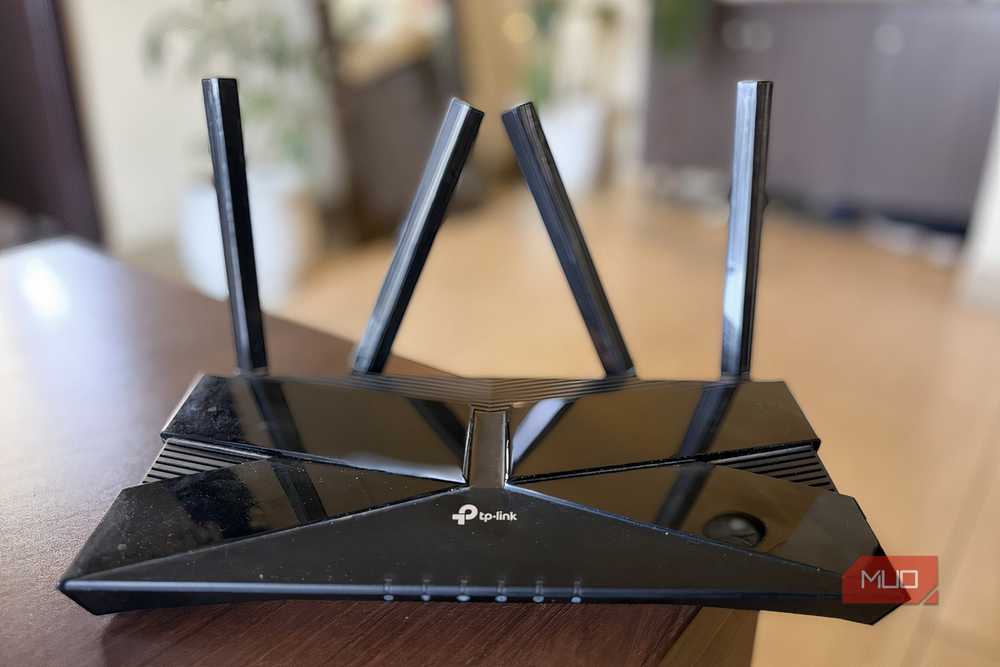
Most of us assume Wi-Fi works like a light bulb, spreading its signal evenly in every direction. In reality, that's not how a router's antennas behave. The direction they're pointing can have a big impact on where the strongest signal ends up.
Wi-Fi antennas are a little more complex than they look. Rather than firing the signal straight out of the tip, they spread it sideways in a doughnut shape around the antenna. So, if an antenna is standing upright, most of its signal radiates across the same floor rather than directly above or below it.
This is where antenna positioning comes into play. Imagine your router is on the ground floor, but you spend most of your time working in a room upstairs. Keeping every antenna perfectly vertical may not be the most effective setup. Tilting one antenna horizontally at about 45 degrees can help direct more signal toward devices located on different floors, improving coverage where you actually need it.
There's another factor at work, too: orientation. Your phone, laptop, tablet, and smart TV all have antennas hidden inside them, and Wi-Fi performs best when those antennas are aligned with the router's signal. That's why many networking experts recommend positioning antennas at different angles rather than keeping them all parallel. It gives devices around your home a better chance of receiving a stronger, more reliable signal, regardless of how they're being held or placed.
In short, a small adjustment to your router's antennas can help Wi-Fi reach the rooms that matter most, reduce dead zones, and make your connection feel more consistent throughout the day.

My Wi-Fi Drops Every Hour: Here's What Finally Fixed It
Random Wi-Fi outages absolutely suck—so take some steps to resolve the problem.
Your router likes a little flexibility
The right antenna setup can reduce dead zones

Once you understand how Wi-Fi signals travel, adjusting your router's antennas becomes much easier. There's no universal setup that works for every home, but a few simple guidelines can help you get started. If your router has two antennas, try keeping one pointed straight up while tilting the other to the side. This creates a wider coverage pattern, helping devices in different parts of your home maintain a stronger connection.
For routers with three or more antennas, avoid lining them all up in the same direction. Instead, keep one vertical and angle the others slightly outward. This gives your router a better chance of reaching devices that are spread across multiple rooms, floors, and orientations.
That said, the layout of your home matters just as much as the number of antennas. For instance, in a multi-story home, introducing a few angled antennas can help Wi-Fi reach rooms upstairs or downstairs more effectively.
Just don't be afraid to experiment. A router in the living room might need a different antenna setup than one in a home office. In my case, I live in a multi-story home, so I kept a few of them angled. The result was immediate: fewer weak spots, more consistent speeds, and a Wi-Fi connection that felt noticeably more reliable throughout the day.

TP-Link AX6600
- Brand
- TP-Link
- Range
- Not Provided
- Wi-Fi Bands
- Tri-band
- Ethernet Ports
- 1x 2.5Gbps WAN/LAN, 1x 1Gbps WAN/LAN, 3x 1Gbps LAN
While the TP-Link AX6600 might not be the fastest Wi-Fi 6 router out there, it still boasts an impressive 4804Mbps data transfer speed on the 5GHz band, and thanks to the eight high-gain antennas, you can expect to see some impressive Wi-Fi coverage in your home or office. The TP-Link AX6600 comes with a free HomeShield Basic plan, offering great parental controls as well as running network security scans and even offering incredibly intuitive parental controls, making it easy to block certain sites from your children or employees. It even allows you to see what sites certain users have been visiting and for how long they stayed on the website. HomeShield also has a pro plan, but this will set you back a little per month, or you can save some money by paying for a year's subscription upfront. It offers you upgraded security features, and even a cool rewards system for children, letting you reward them with extra online time for completing chores.
Who knew better Wi-Fi was a matter of posture?
I stumbled upon this tweak almost by accident one afternoon while trying to figure out why some corners of my home had better Wi-Fi than others. It took less than a minute to adjust the antennas, and honestly, I wasn't expecting much. But over the next few days, I noticed fewer connection drops, more consistent speeds, and a stronger signal in places that usually struggled.
That's why I'd recommend checking your router's antenna setup sooner rather than later. It's one of those rare fixes that doesn't cost a penny, doesn't require any technical expertise, and takes less time than restarting your router.
Will it magically double your internet speed? Probably not. But it can help you get the most out of the connection you're already paying for. And when the fix takes just a few seconds, there's really no reason not to give it a try. Sometimes the simplest changes deliver the biggest wins.