


Most Windows PCs ship on the Balanced power plan, and Balanced exists to do one thing, which is to stretch your battery life. It gives the CPU enough headroom to feel quick, then eases it back the moment you stop pushing it, which keeps a laptop cool, quiet, and easy on the battery. That made sense when laptops took over. However, your desktop may also be using the same default plan even though it never runs on a battery.
Plugged into the wall, your desktop saves nothing while Balanced may keep throttling the CPU — you probably never noticed. Switching to a faster plan takes about two minutes, and it's one of the quickest ways to make a slow Windows PC feel faster, but it's worth seeing what you're on first.
That power-saving tradeoff is costing your desktop
Throttling shows up where you'd least expect it

Here's what Balanced is doing under the hood. It keeps your processor's minimum state low and ramps up clock speed only when it determines the workload is heavy enough to justify the jump. On paper, that sounds efficient, and it is. In practice, it adds a tiny delay between when you ask for performance and when you actually get it.
That gap is where the cost hides. It rarely shows up as a lower benchmark score. Instead, you feel it as micro-stutters in games, weaker 1% lows, apps that take a beat longer to open, and a general sense that the PC isn't as eager as it should be.
I want to be honest about its impact. Average frame rates usually climb only a few percent when you switch plans, so anyone promising a night-and-day difference is overselling it. The real improvement is in consistency and responsiveness. Your frame pacing smooths out, and your desktop stops second-guessing you, which is the same kind of lag Microsoft recently admitted Windows itself has struggled with for years. For a machine that never has to ration power, that's a trade worth making.
Switching plans takes about ten seconds
Two routes, depending on how your PC is set up


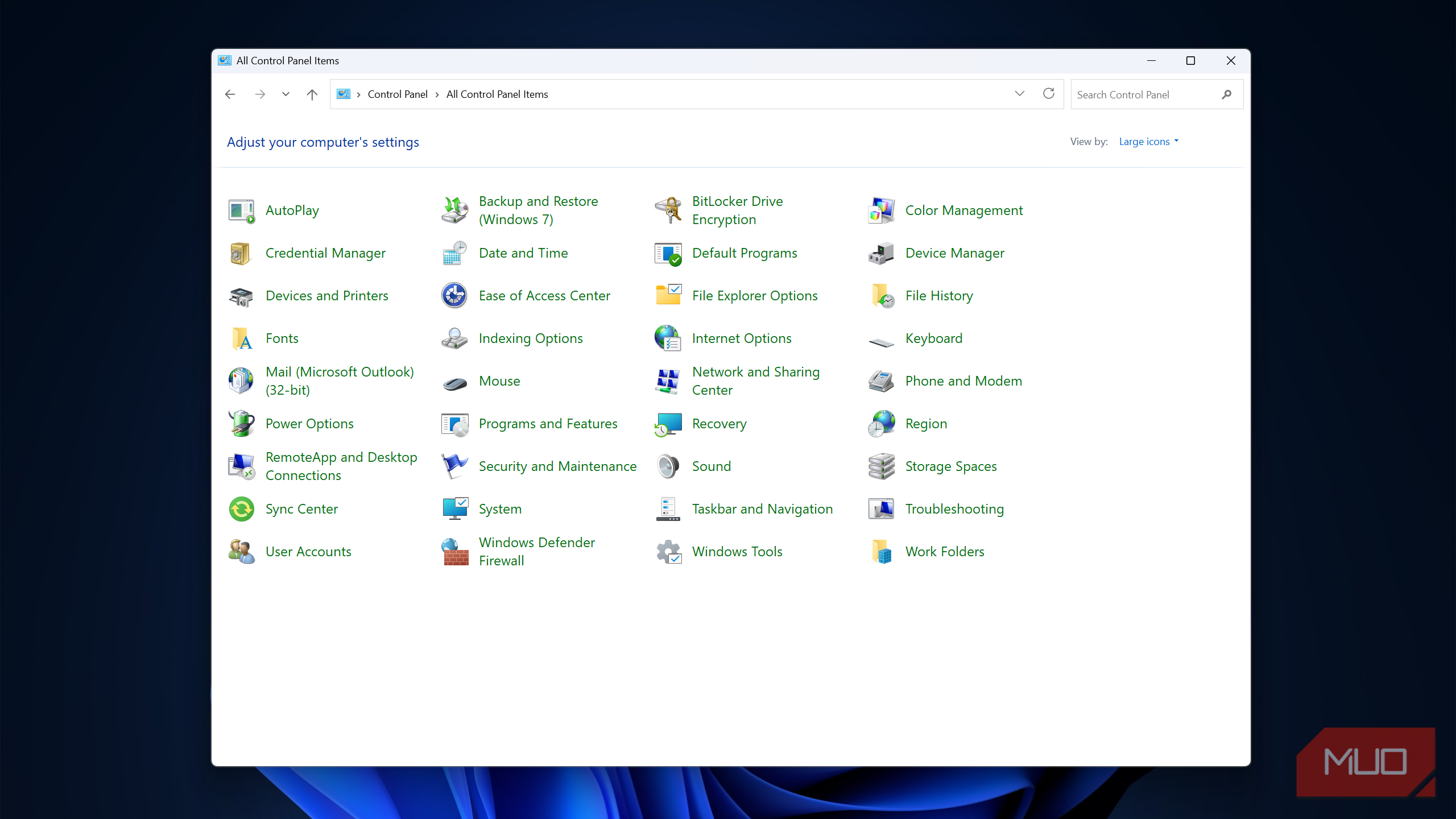
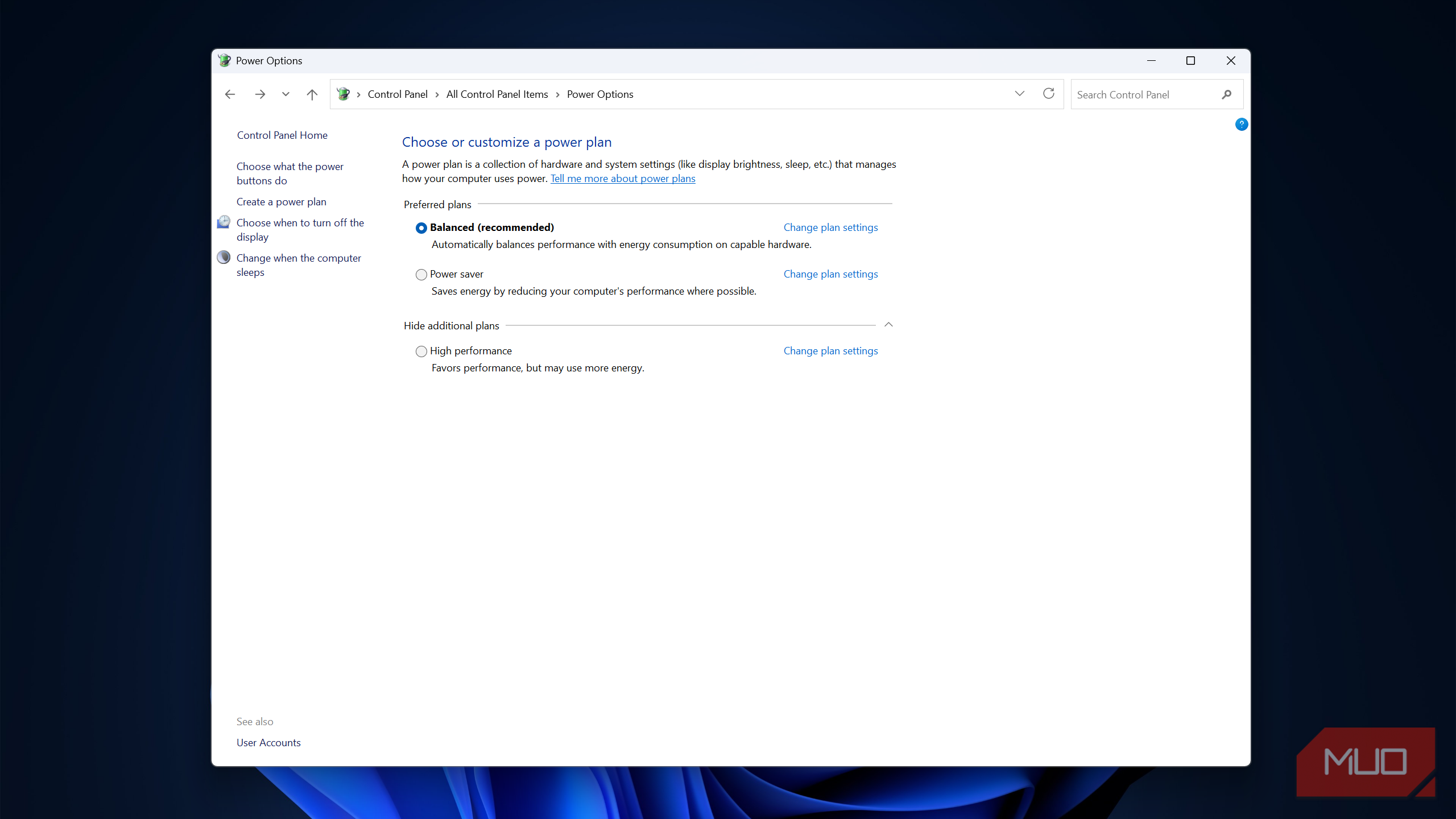
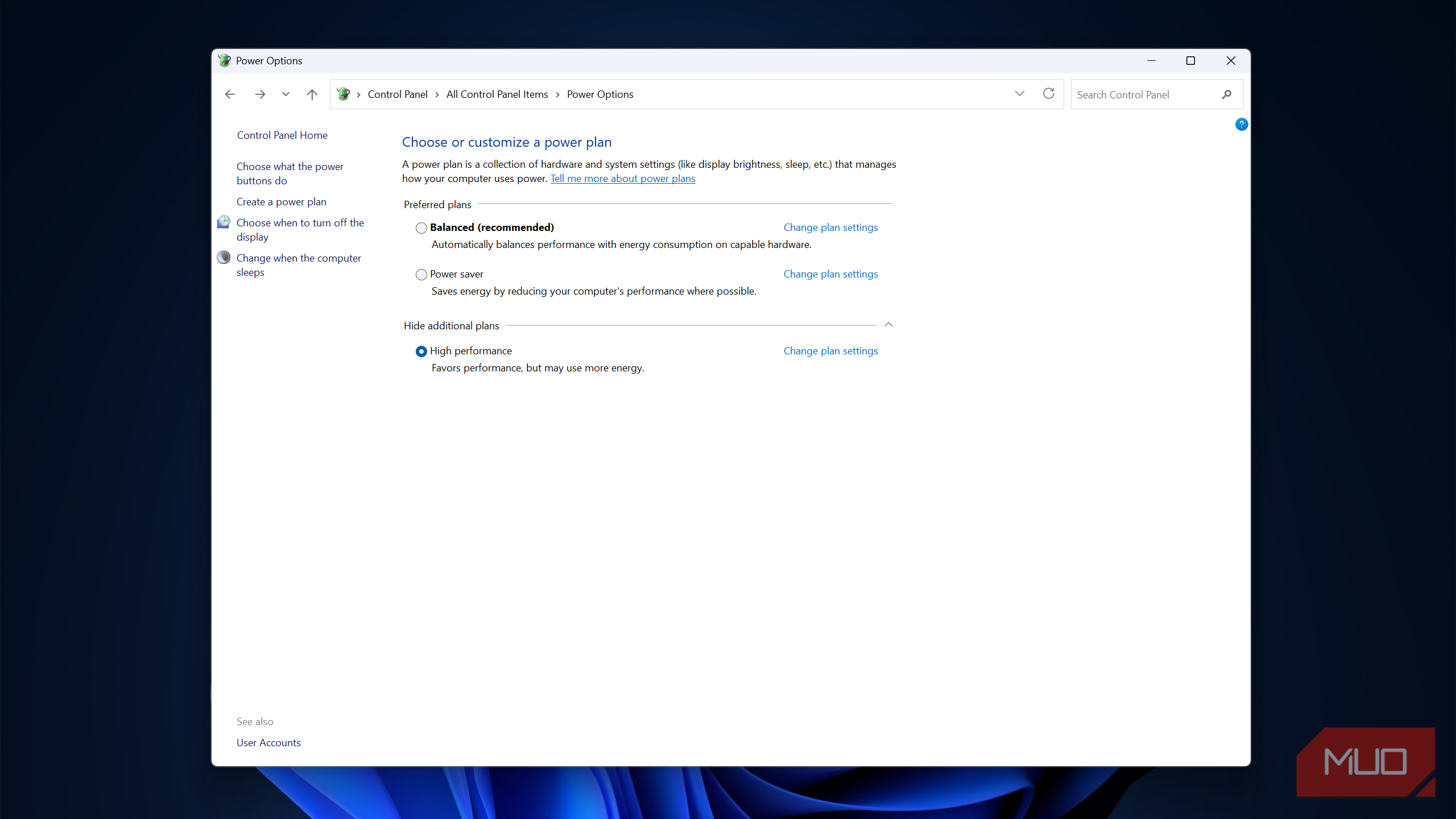
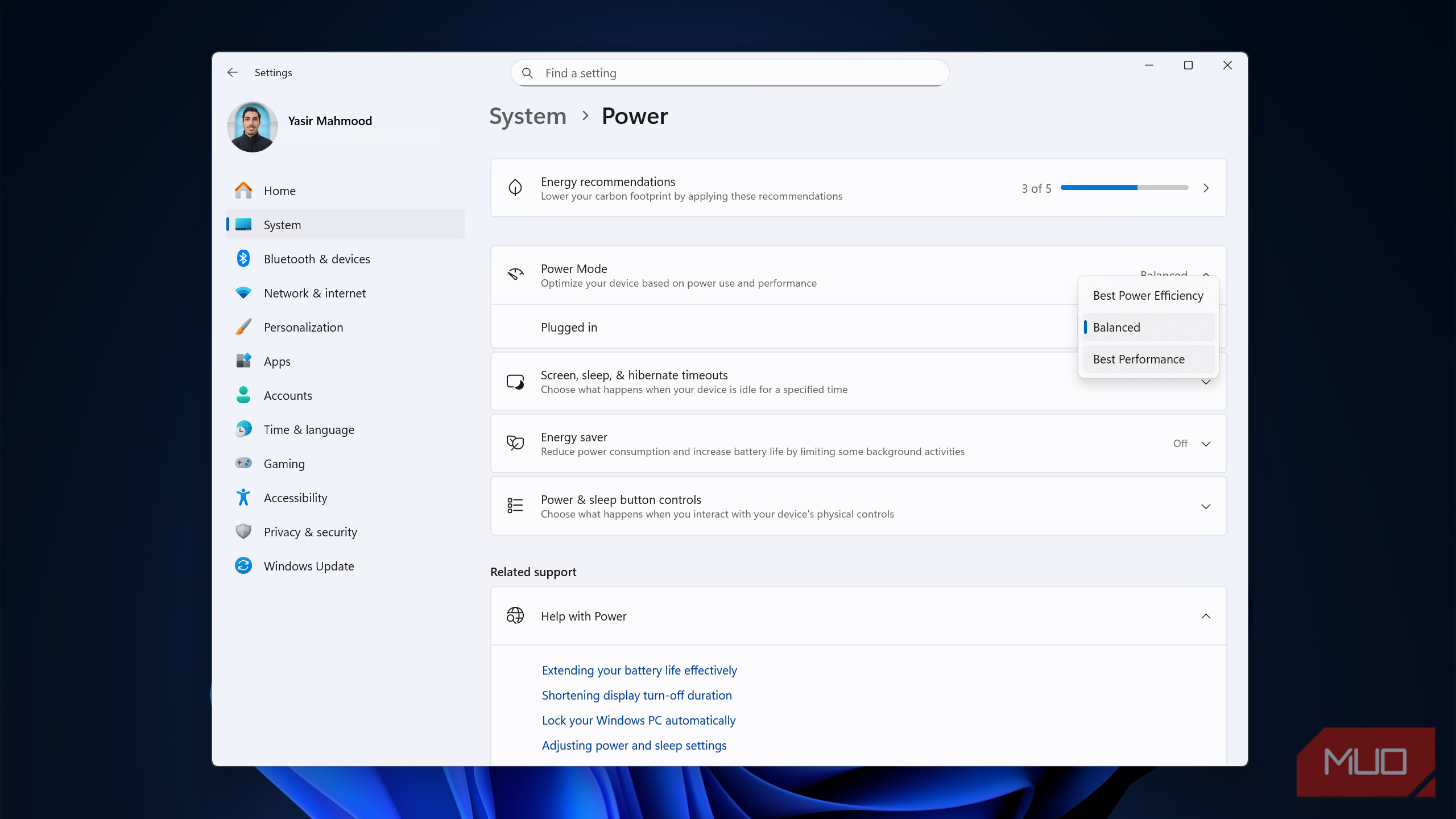
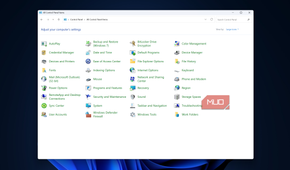
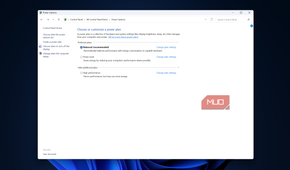
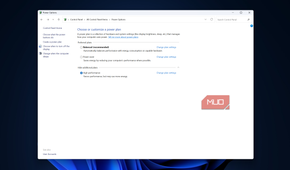
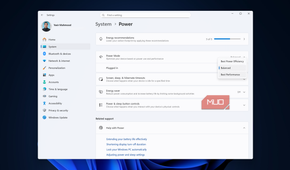
There are two ways in, and which one you use depends on what your PC shows you. The Control Panel route is fastest.
- Open the Control Panel and click Power Options.
- Select High performance. If it's missing, click Show additional plans first.
Alternatively, you can use Settings instead.
- Open Settings and go to System, then Power.
- Open the Power mode dropdown and pick Best performance.
One thing worth knowing is that choosing High performance in the Control Panel automatically locks the slider to Best performance, so you never have to set both. And if the Control Panel only shows Balanced, that's Modern Standby hiding the rest, which the next section fixes anyway.
Windows hides its fastest plan from you
It's worth turning on, as long as you know trade-offs

Beyond High performance sits Ultimate Performance, a plan Microsoft built mainly for Workstation editions and left out of the standard list. It strips away the last of the small power-saving delays so the hardware never eases off, and the CPU headroom it frees up is real if your chip can handle a little extra heat.
You can add it with a single command. Open Windows Terminal as an administrator and run this:
powercfg -duplicatescheme e9a42b02-d5df-448d-aa00-03f14749eb61
Ultimate Performance will then appear alongside your other plans in Power Options, ready to select. This same trick is what brings back the hidden plans on a Modern Standby desktop.
Ultimate Performance runs your idle power draw and temperatures a little higher, and for most people the gap over High performance is slim. If you're chasing every last drop of responsiveness on a powerful rig, it's a nice extra. If you just want your PC to stop sandbagging, High performance already improves it.
Your power plan is one setting worth revisiting
Where to point that reclaimed headroom next
Once your CPU stops holding back, it's worth looking at the other defaults Windows leaves in a cautious state. Startup apps you never approved, background processes quietly eating cycles, and conservative GPU power settings are all sitting in the same place, waiting for someone to decide those apps or settings don't need babysitting. A power plan is just the first switch you flip. The bigger takeaway is that Windows tunes itself for the average machine and the average user, and a desktop owner who knows what they're running can almost always do better than the safe default the installer picked for you.