


Every time you use a Galaxy AI feature on your Samsung phone, your data leaves your device. Photos, text, voice snippets — it all gets shipped off to Samsung’s servers for processing depending on what features you use. That’s the default, and Samsung isn’t exactly loud about it.
The good news is that the solution isn’t to stop using Galaxy AI altogether. There’s a setting that can keep your data private without giving up on it entirely. It does come with a catch, but I feel it’s worth it for most people.
Galaxy AI is great, except for this one thing
There’s a hidden privacy cost

Samsung has packed Galaxy AI into nearly every corner of One UI. You’ve got Call Assist for phone calls, Writing Assist for handling text, Audio Eraser for getting rid of background noise, and Notification Highlights for prioritizing alerts. Most of these Galaxy AI features work well, although some do feel a bit gimmicky.
But the important thing is, all these AI features send your data to Samsung’s servers for processing. That means your photos, chats, voice snippets, and more are leaving your device. Samsung does mention this in its Galaxy AI menu, but it’s easy to miss. And to their credit, Samsung says all of this data is encrypted and protected, which is reassuring, but only to a point. Still, your data is still traveling somewhere, and that’s not exactly a comfortable thought.
The big catch, though, is that by default, your Samsung phone processes everything AI-related through its servers — including the features that could work locally. Writing Assist, for instance, is fully capable of working on your device to fix grammar and rewrite text. Still, it relies on Samsung’s servers for processing unless you tell it otherwise.
If you're not bothered by this, fair enough. But if you’d rather keep your data private, Samsung actually gives you a way out.
You can force Galaxy AI to process everything locally
Samsung just doesn’t make it obvious


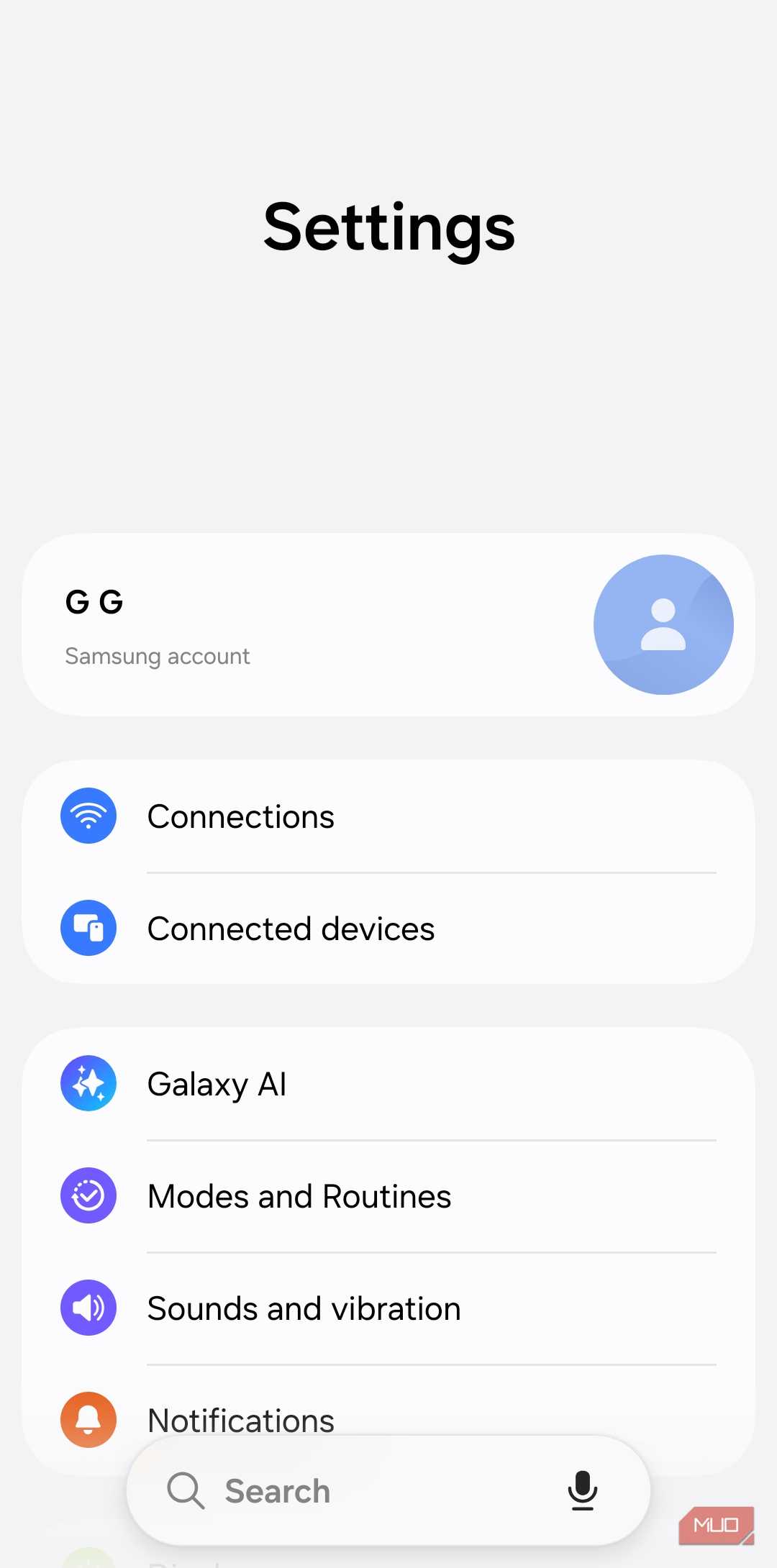
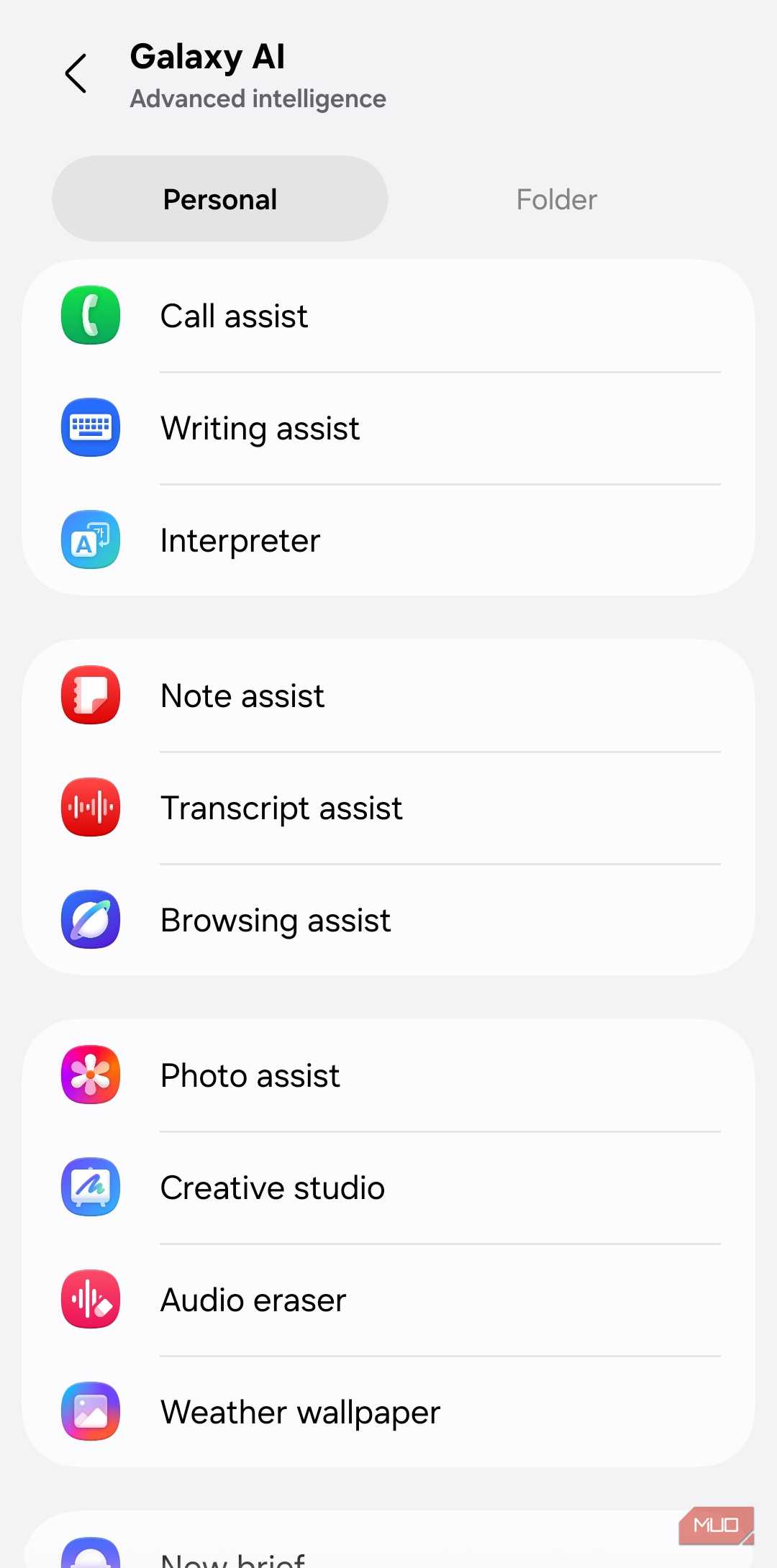
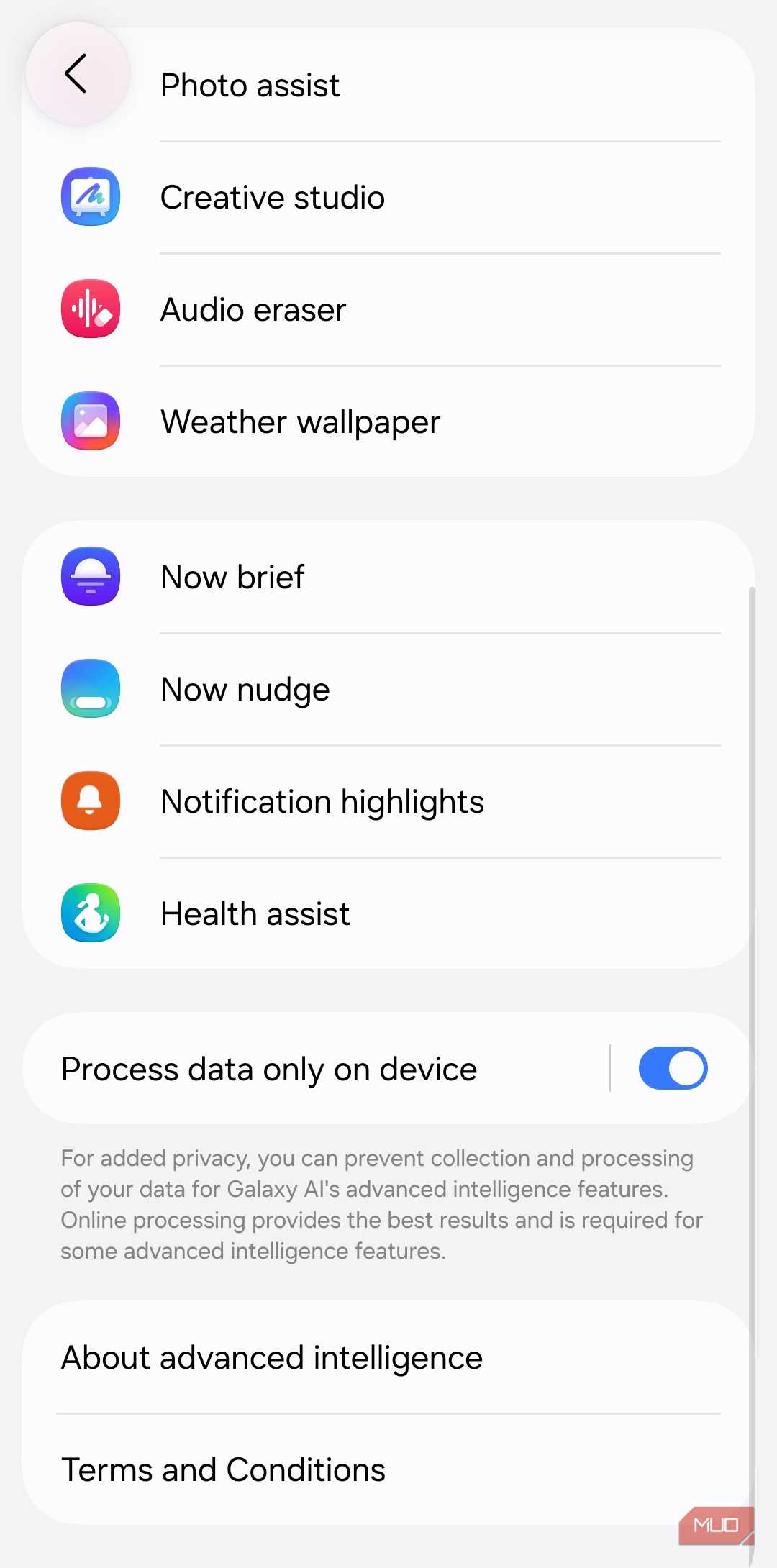
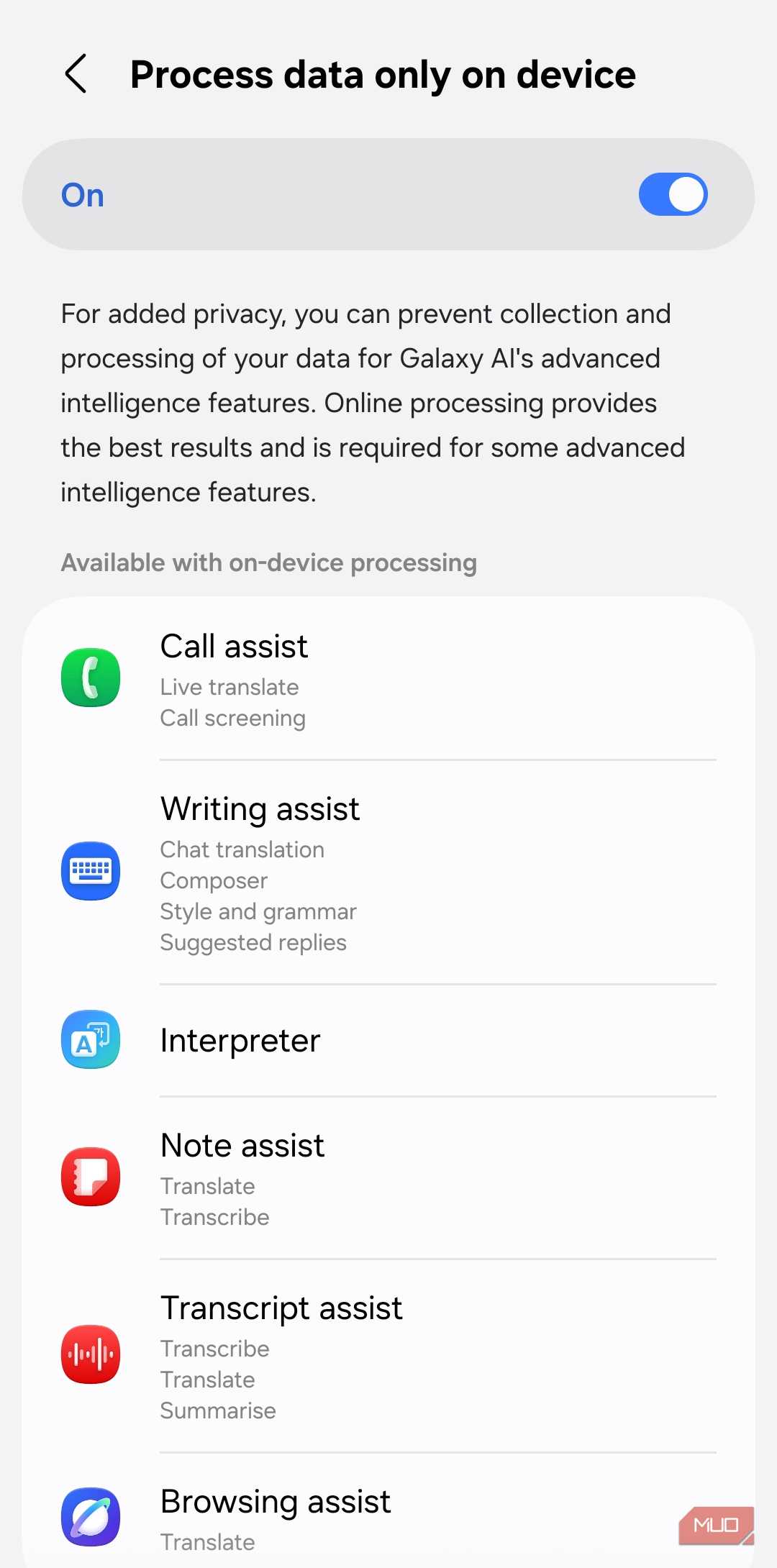
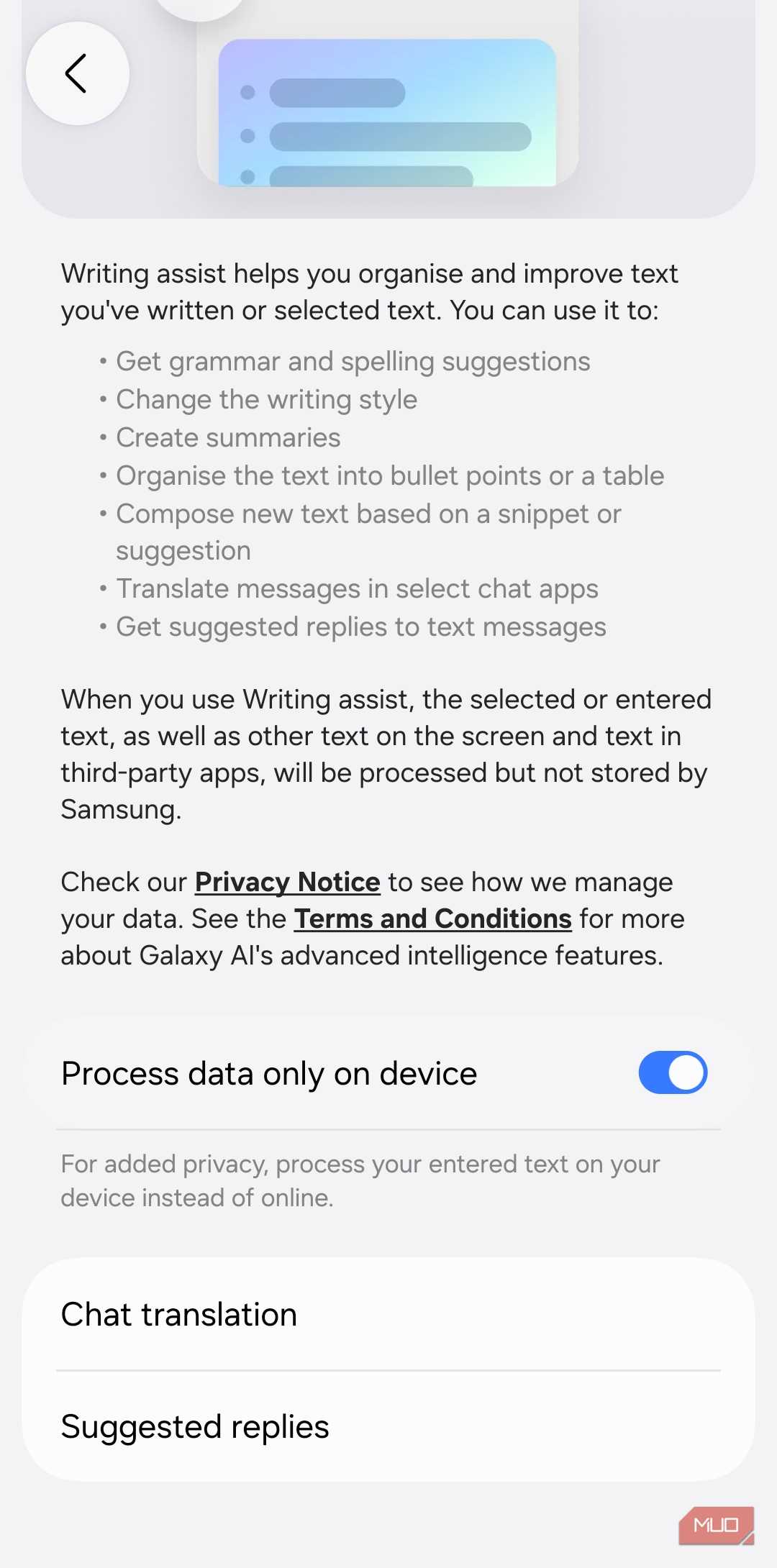

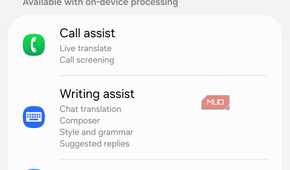
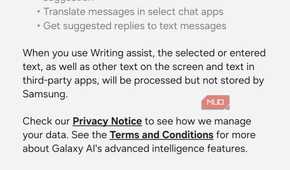
To use Galaxy AI privately, you have to limit it to on-device processing only. There are a couple of ways to go about it. You can either force specific features to run locally or use a master toggle that covers everything at once. So yes, there’s a bit of flexibility here.
For the all-in approach, head to Settings > Galaxy AI and turn on Process data only on device. Once you do, Galaxy AI will strictly use on-device processing for AI-related stuff. And if you want to be selective about it, you can go through each Galaxy AI feature and enable on-device processing for specific ones. Not every feature offers this option, though. On my Galaxy S26, for instance, I’ve enabled on-device processing for AI eraser and Move since they're my most used Galaxy AI features.
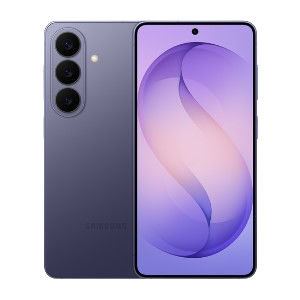
Samsung Galaxy S26
- SoC
- Snapdragon 8 Elite Gen 5
- Display
- 6.3-inch Dynamic AMOLED 2x
- RAM
- 12 GB
The Samsung Galaxy S26 features a 6.3-inch 120Hz display, a Snapdragon 8 Elite Gen 5 chip, and a 4,300 mAh battery. It includes a 50MP main camera with enhanced AI software, 256GB of base storage, and a slim 7.2mm profile, focusing on fast daily performance.
- Storage
- 256 or 512 GB
It’s not without trade-offs
Quality and availability take a small hit

Switching to on-device processing feels liberating, but it does come with a few strings attached. One of them is the difference in result quality. According to Samsung, Galaxy AI features work best when it’s processing data online. The difference isn't night and day, but it's enough that you’ll notice it, especially when using features like AI eraser.
The bigger issue is that some features stop working entirely when you enable on-device processing. The reason is simple. Some Galaxy AI features are too resource-intensive to work locally. This includes things like text summarization, auto formatting in notes, webpage summarization, creative studio, and a few others. You can check the Process data only on the device menu under Settings > Galaxy AI to see which features are available locally.
Storage is another thing to keep in mind. On-device AI relies on local models, and Samsung bundles these through apps like Samsung Language Core, which powers Writing Assist. These aren’t small by any means. I recently removed Samsung Language Core from my phone and ended up freeing 3GB of space. More importantly, the feature still works with cloud processing.
Of course, none of this is a deal-breaker, especially if you don’t use Galaxy AI features anyway. But if you’re into Galaxy AI features, you have a choice to make. A little slower and more private, or faster with your data taking a detour through Samsung’s servers. Neither answer is wrong. It just comes down to what matters more to you.