


It doesn’t take long to clutter your Galaxy’s home screen with too many apps. Before you know it, you've installed apps that make you wonder why you have them in the first place. Installing a launcher sounded like the solution, but I wanted to see how much I could get out of my home screen without adding one.
Samsung already had most of what I needed built in. After a few small changes, I was spending less time swiping around and getting to the apps I actually use much faster.
Finding your apps shouldn’t be a scavenger hunt
I group similar apps, so I know where to look
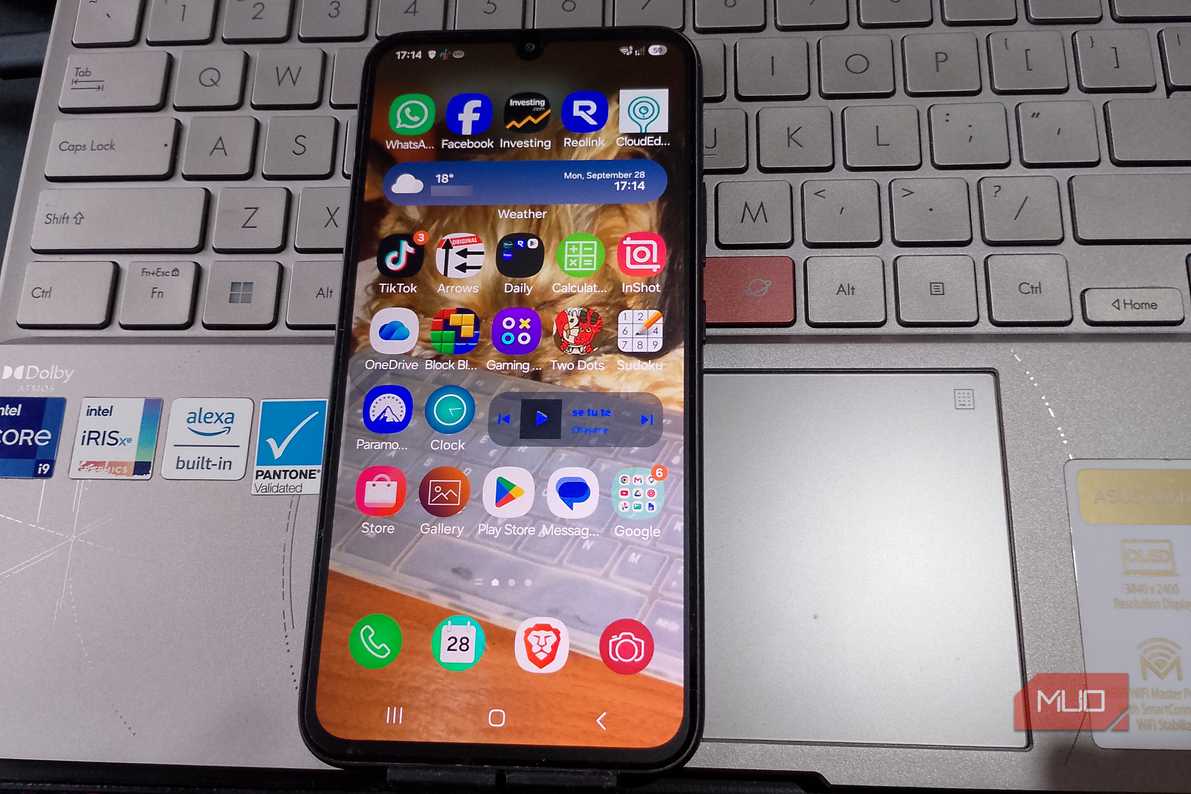
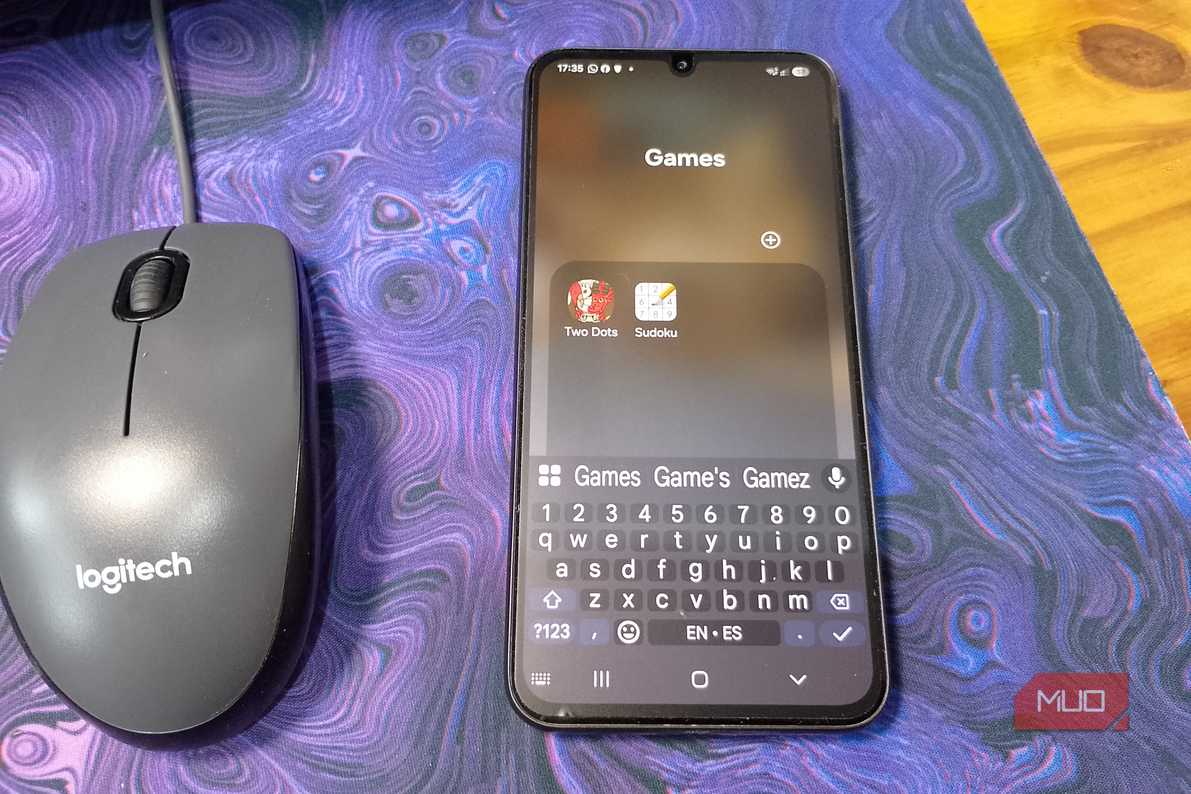
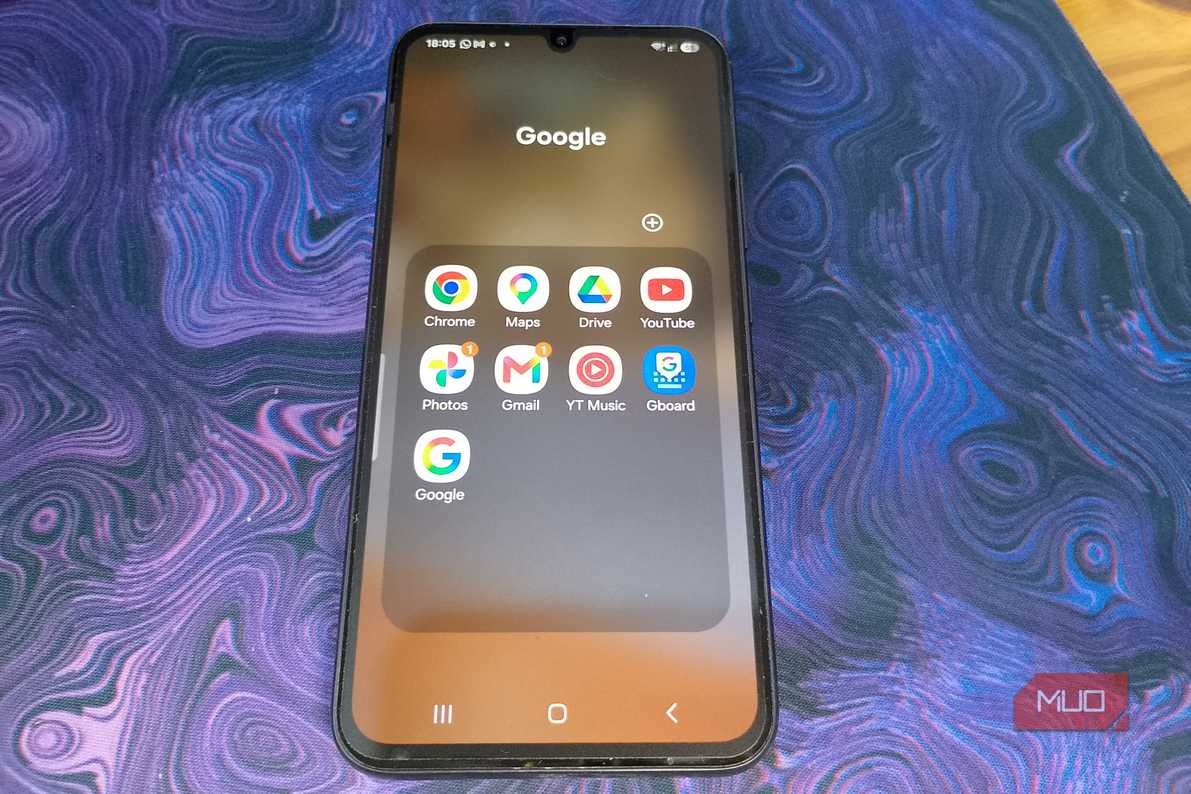
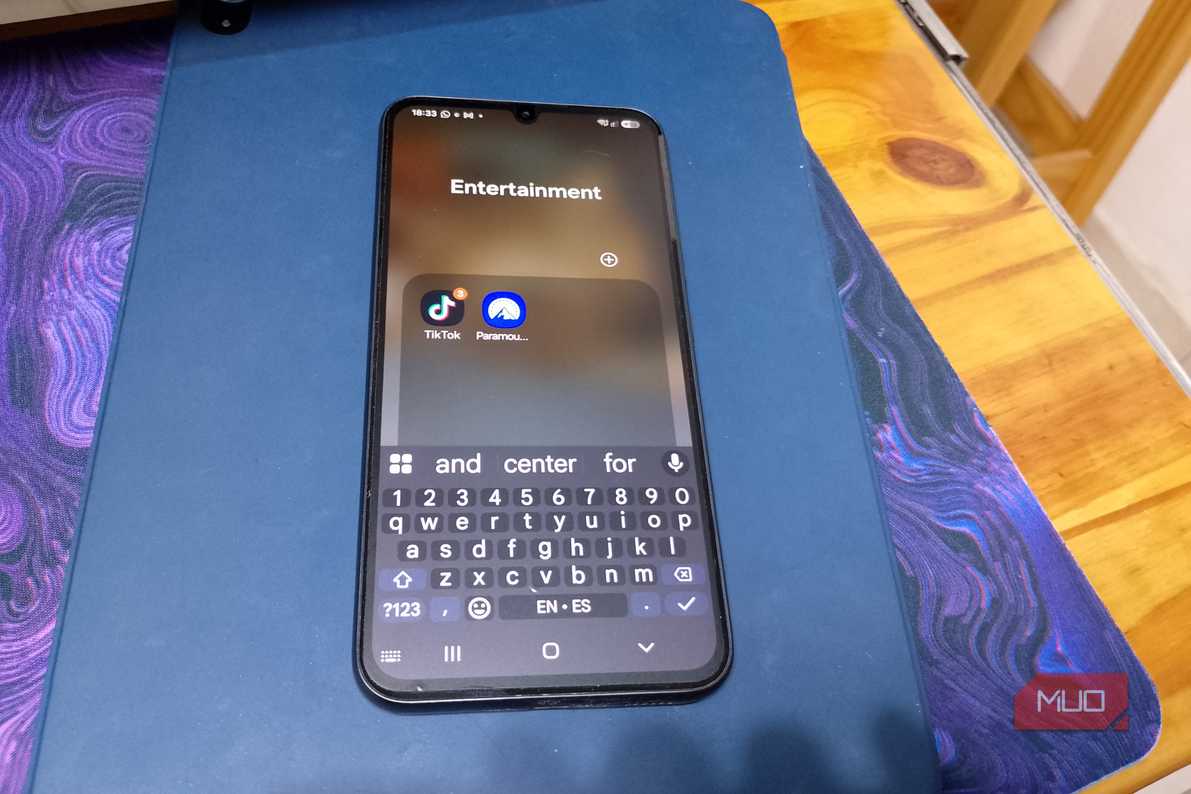
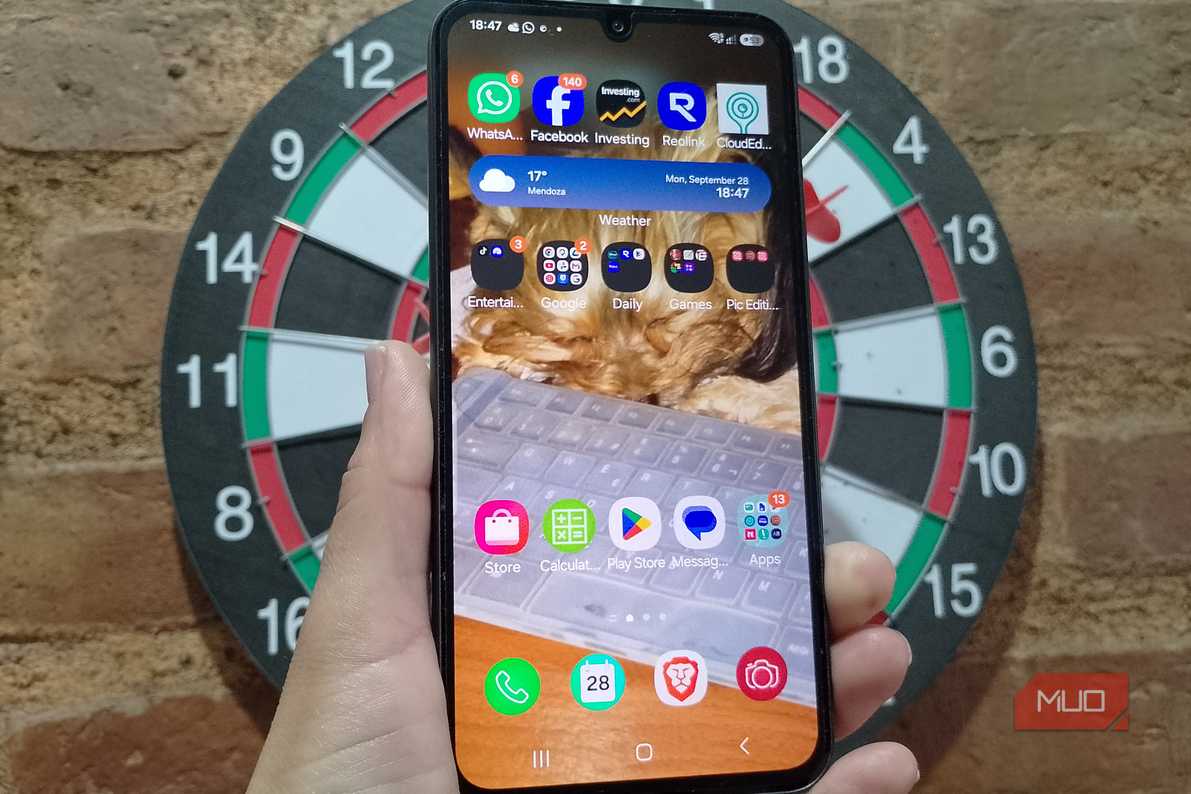


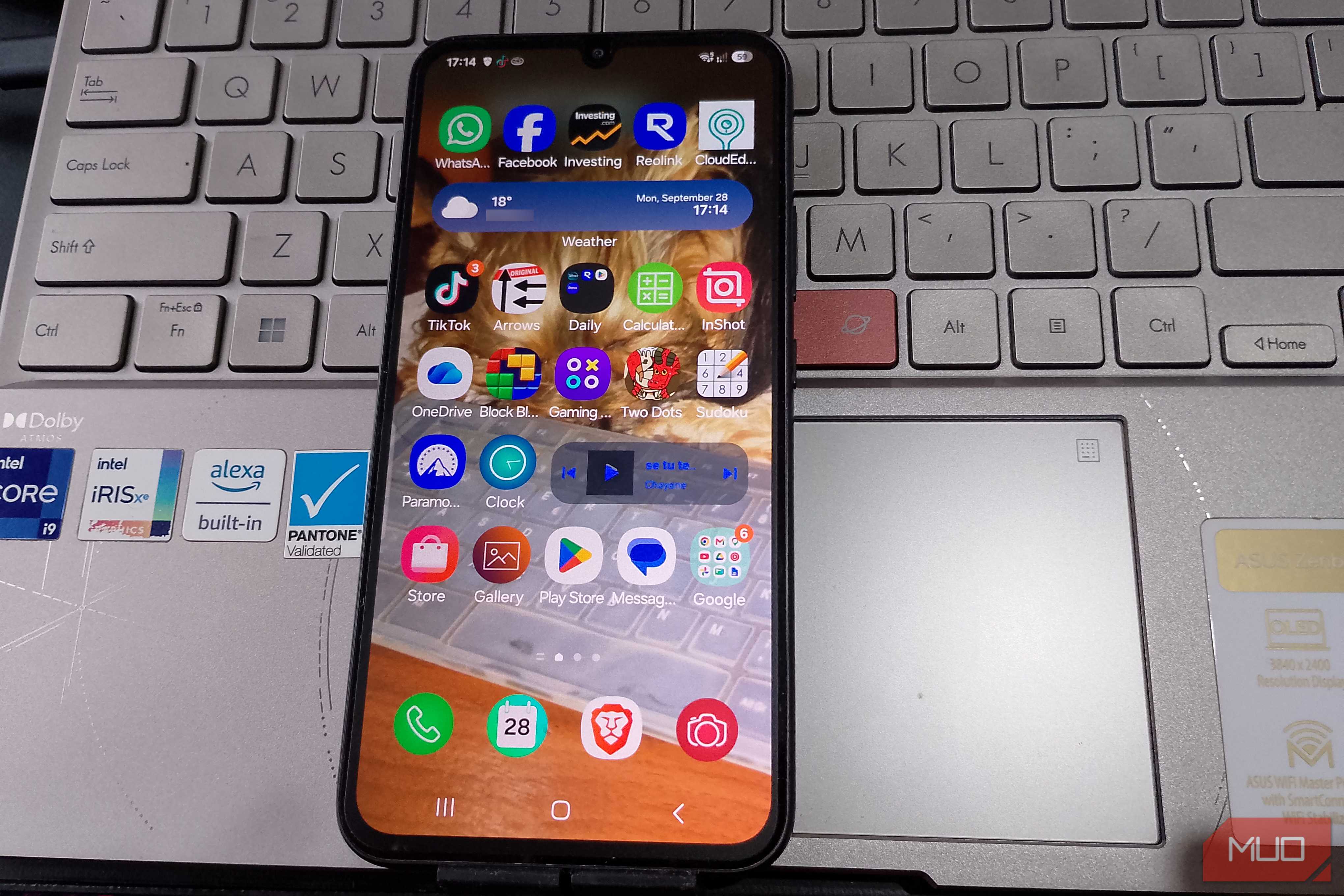
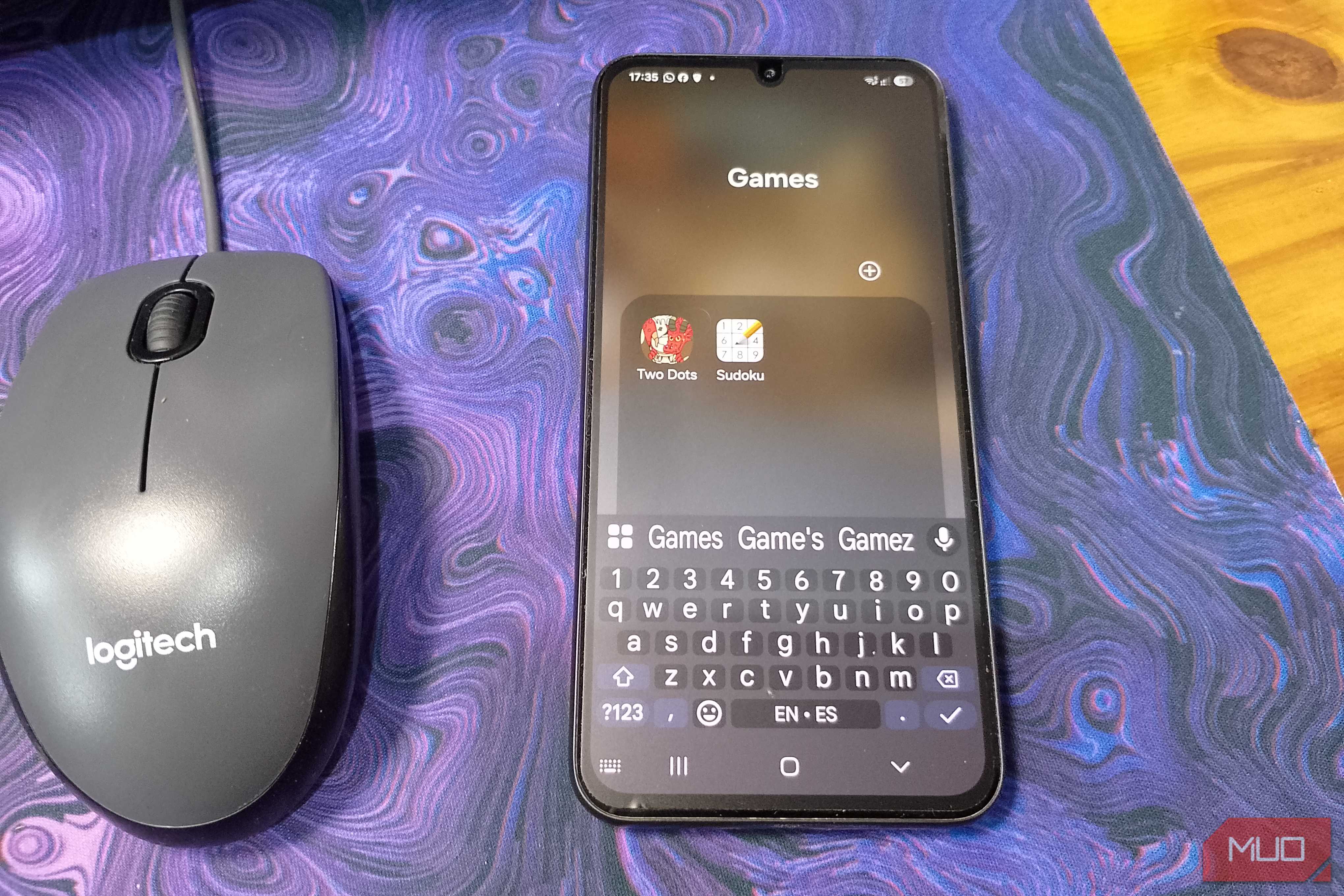
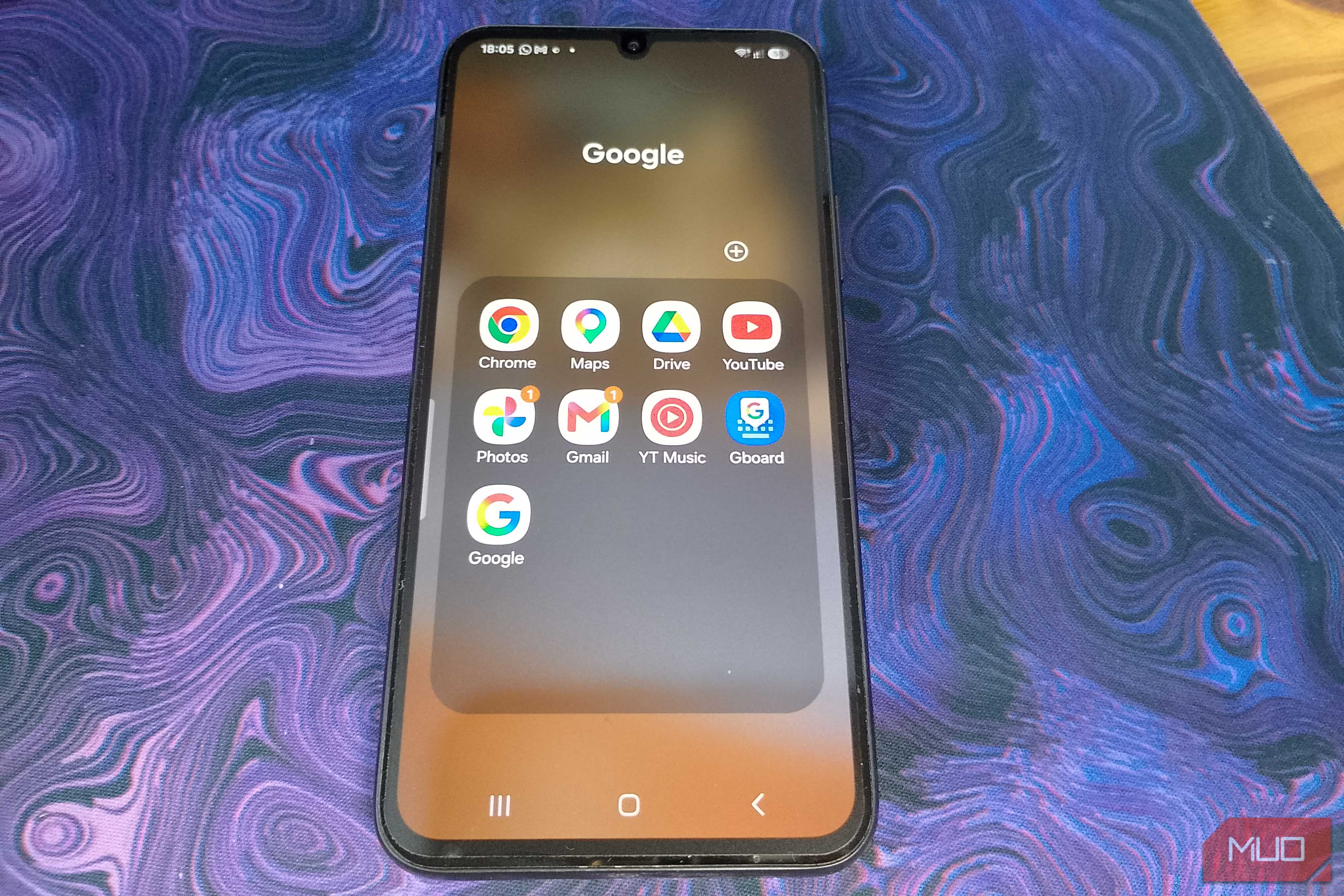
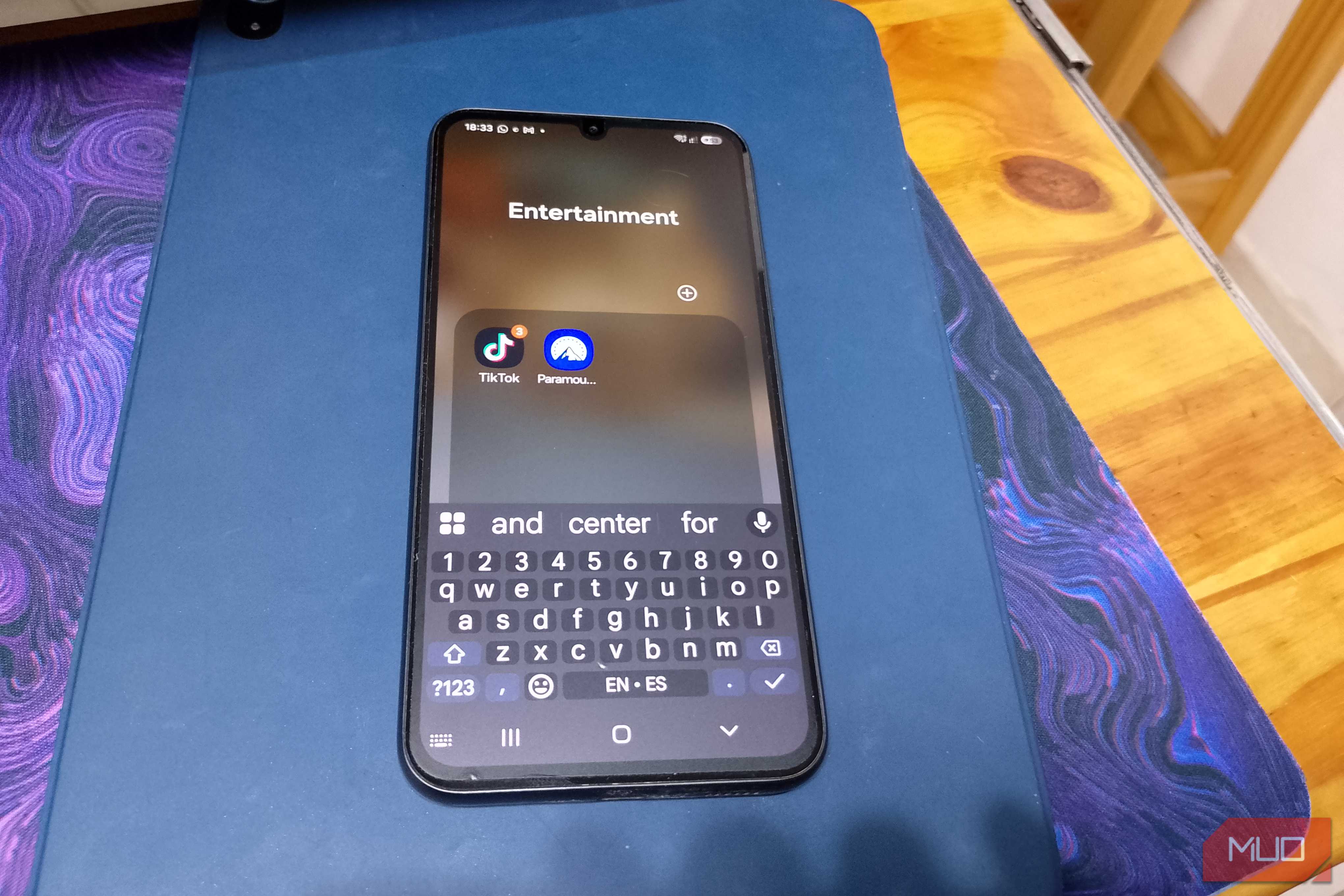
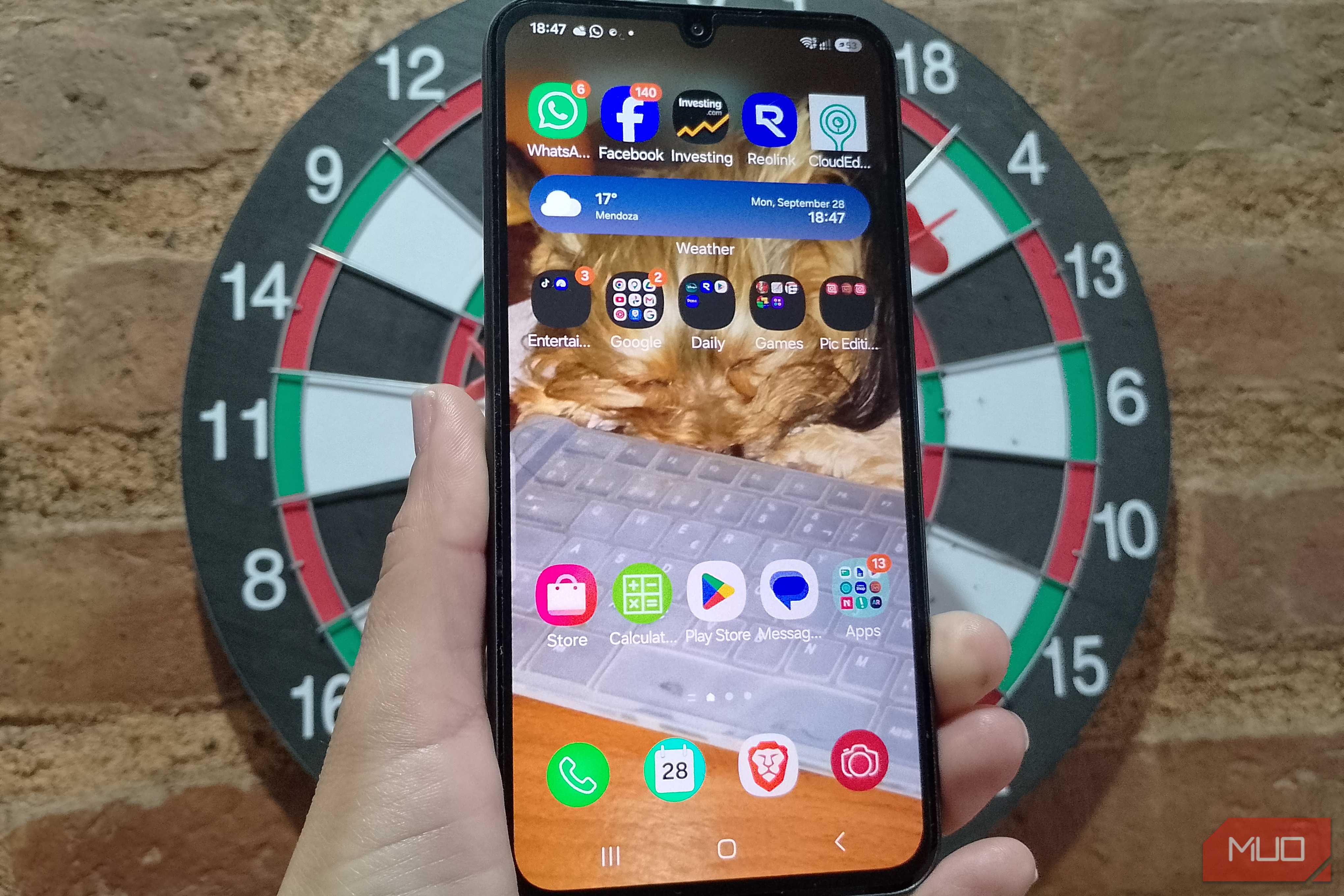
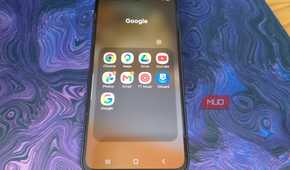
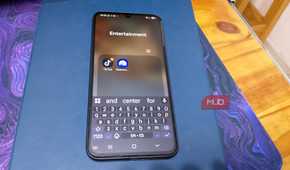
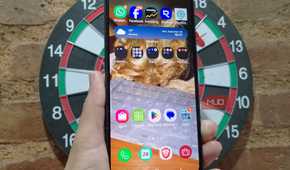
If you have a lot of apps on your home screen, organizing them into folders is a must. That way, if you’re looking for a type of app, you can narrow the search right away. I organize my folders by topic. For example, I keep all my Google apps in one folder, so whenever I need Google Keep or Gmail, I know where to look. I also give the folders names such as Google, AI, Photo Editing, and so on.
Keep in mind that a folder has more than one page. You can access the others by swiping left on each page. I grouped up to 16 apps per page across 6 pages in one folder. To adjust the layout, go to Settings, then Home Screen. You’ll see options to adjust the size on the Home and Apps screens.
To fit as many apps as possible per page, set the Home screen grid, Apps screen grid, and Folder grid to the maximum allowed values. If you want to make your folder look different, you can long-press on one and go to Settings. You can change the folder's background color and opacity to your liking.
Put your most-used apps at the bottom of your home screen
Only five of them will become the chosen ones

When you place your five most-used apps at the bottom, you can access them faster. No matter how much you swipe between home screen pages, those five apps will never move. You can try adding important apps such as the phone app, a medical app, a messaging app, and any two others you want.
The downside is that you can only choose five, but that's better than nothing, and if you ever need to change one, you can swap it for another at any time. If you have various apps you consider important, you can always swap one of those spots for an entire folder. If you want to save even more space, avoid turning on the Show Apps screen button in the Home screen option since it takes up one of those five spots.
Use Finder when you can’t spot an app
Keep it right on your home screen
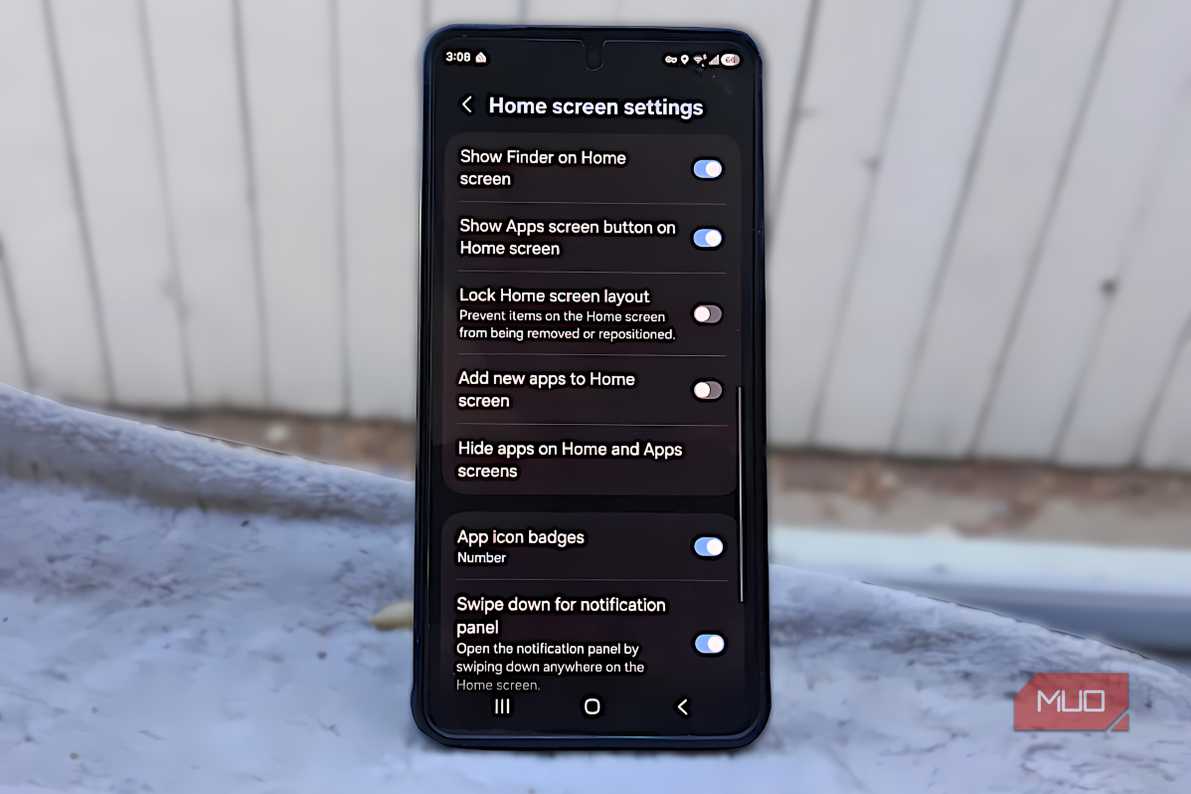
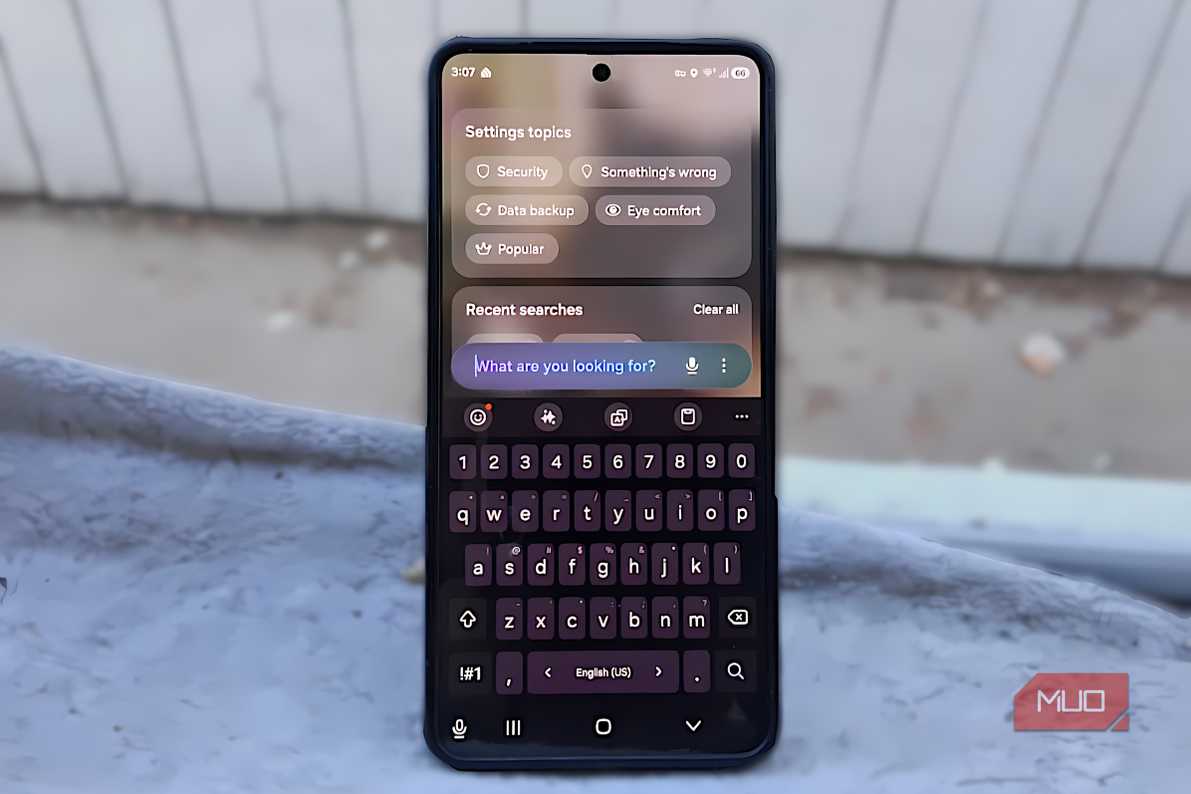


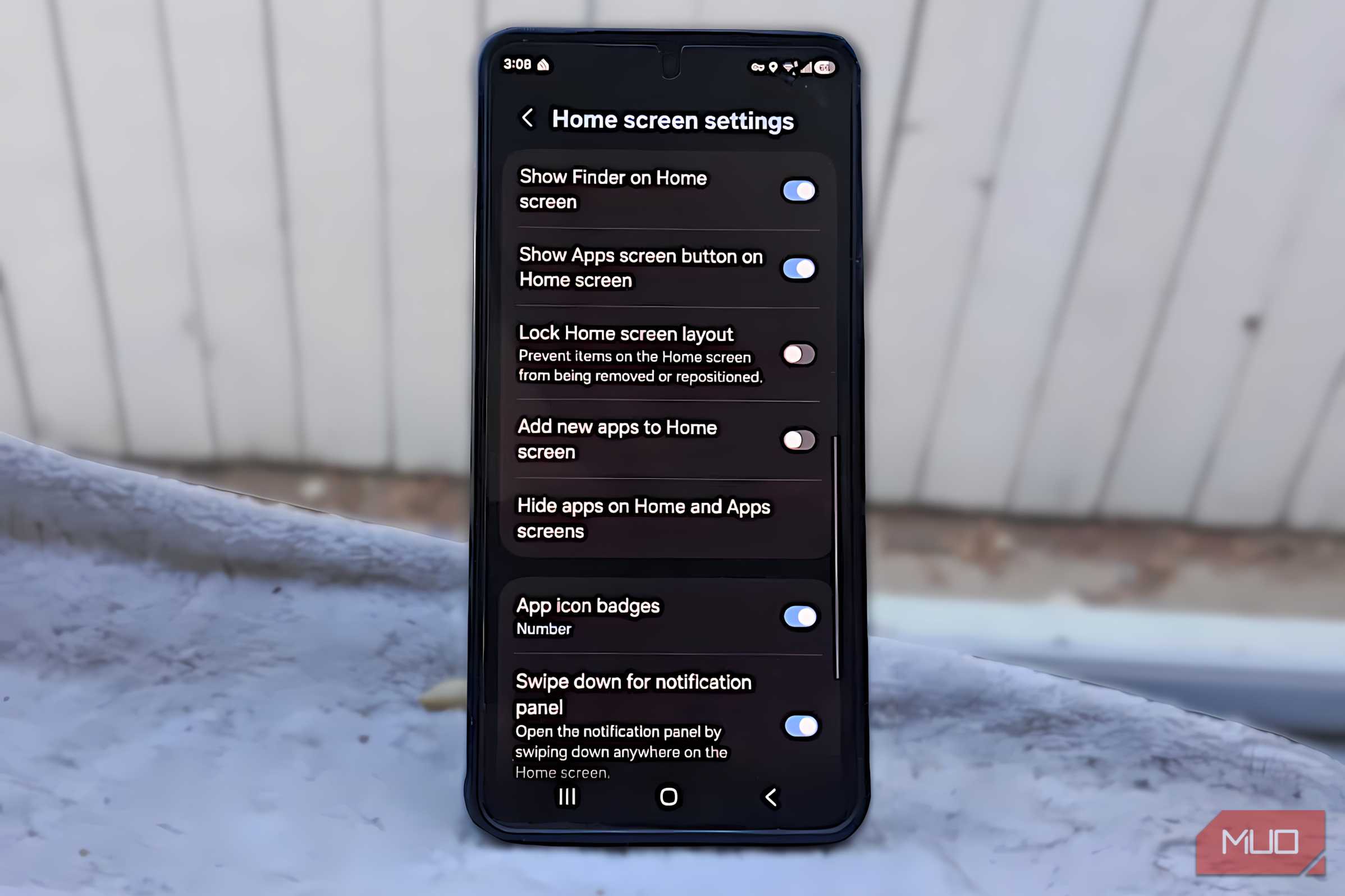
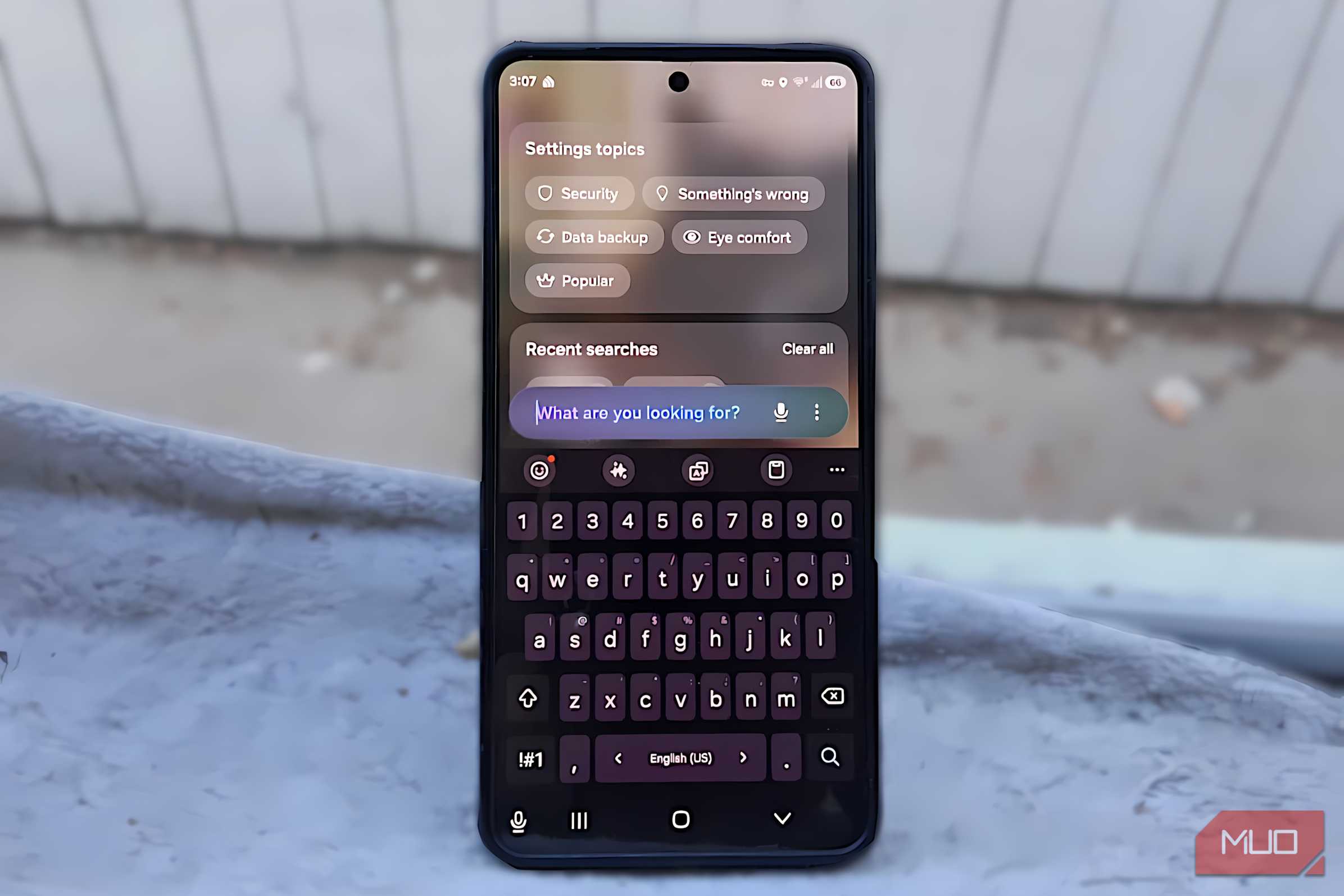
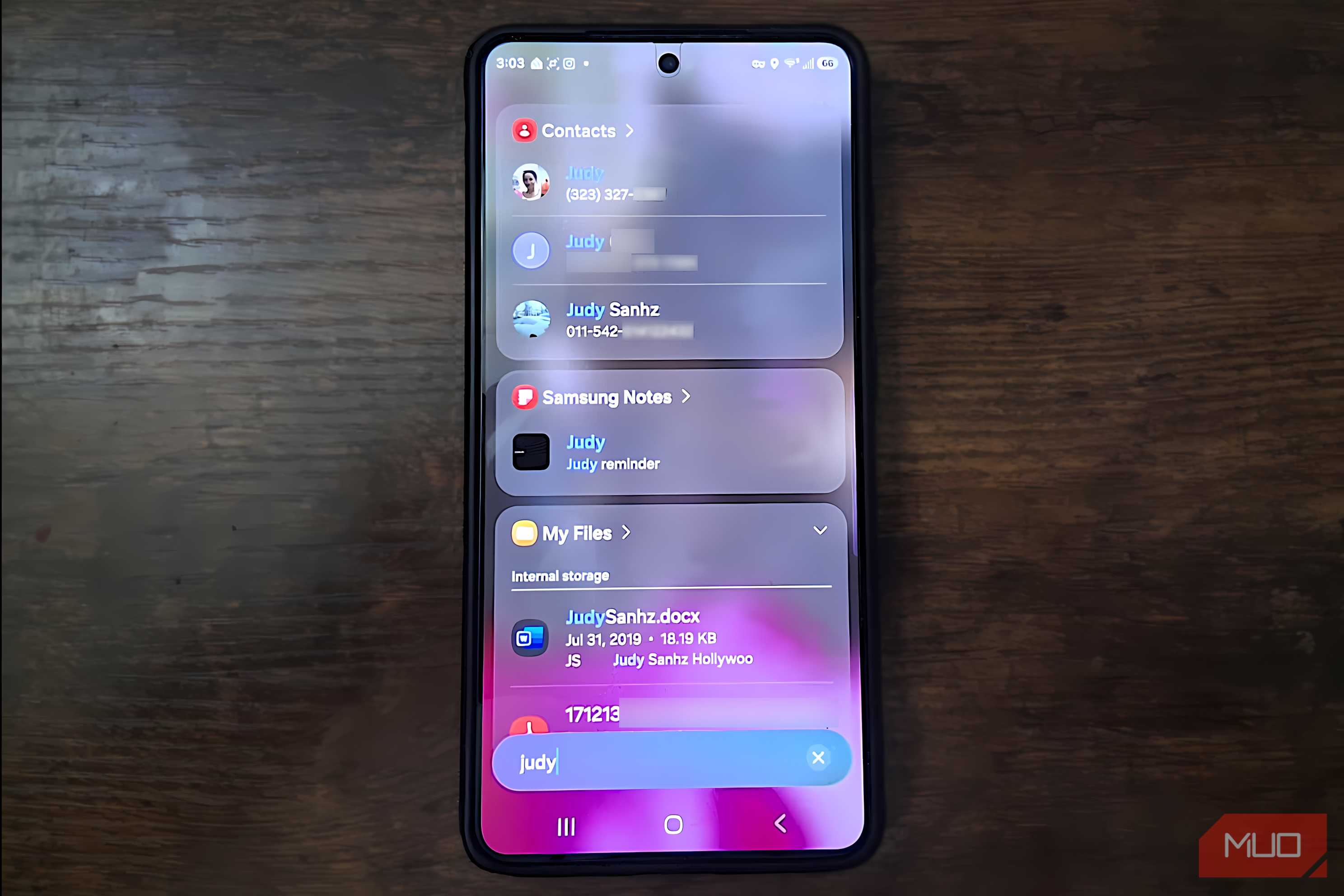
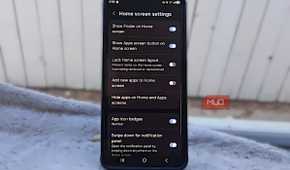


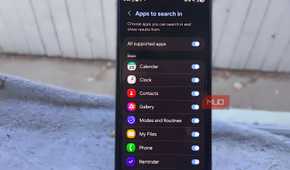
Using Finder on the Galaxy S26 makes it much quicker to get to an app. You can swipe up from the bottom of the screen to access it, or make Finder available directly from the Home screen.
Go to Settings and then to Home screen settings. Toggle on Show Finder on Home screen. It doesn’t clutter your home screen much. You don’t have to remember where every app is, which means you can reserve your Home screen for the apps you use most instead of giving everything a spot.
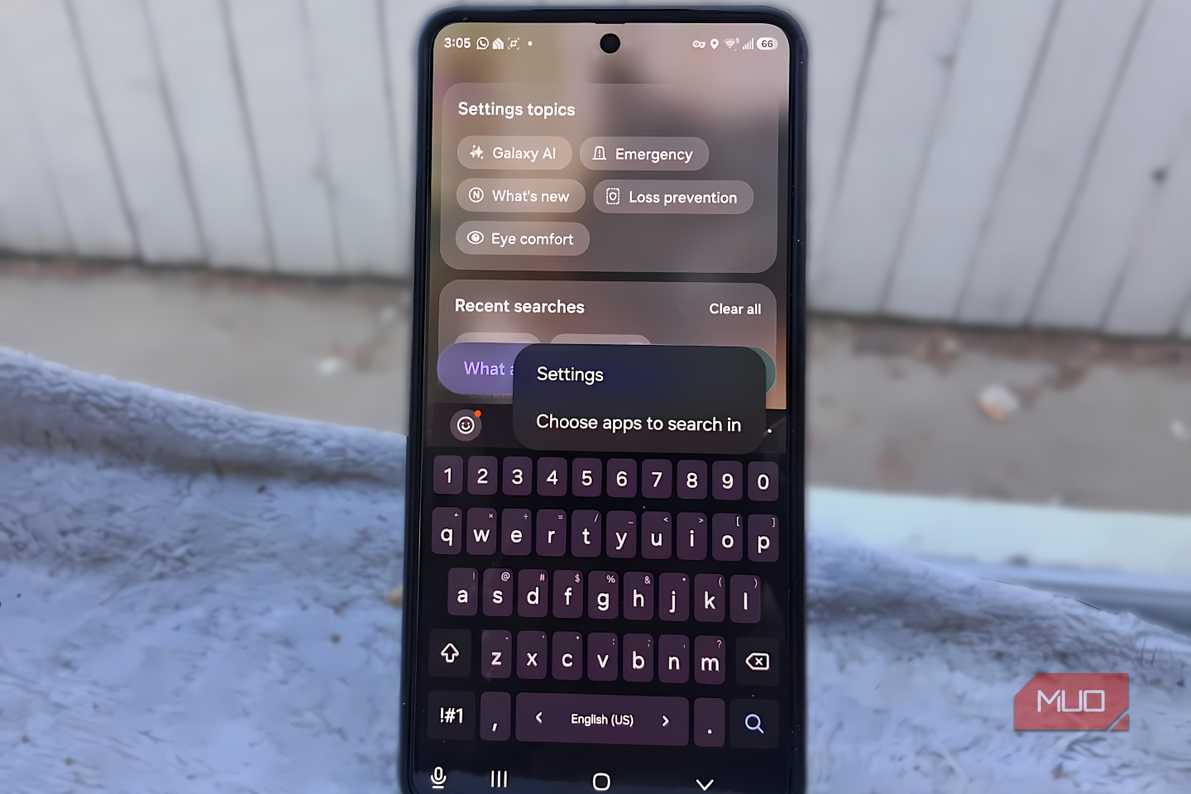
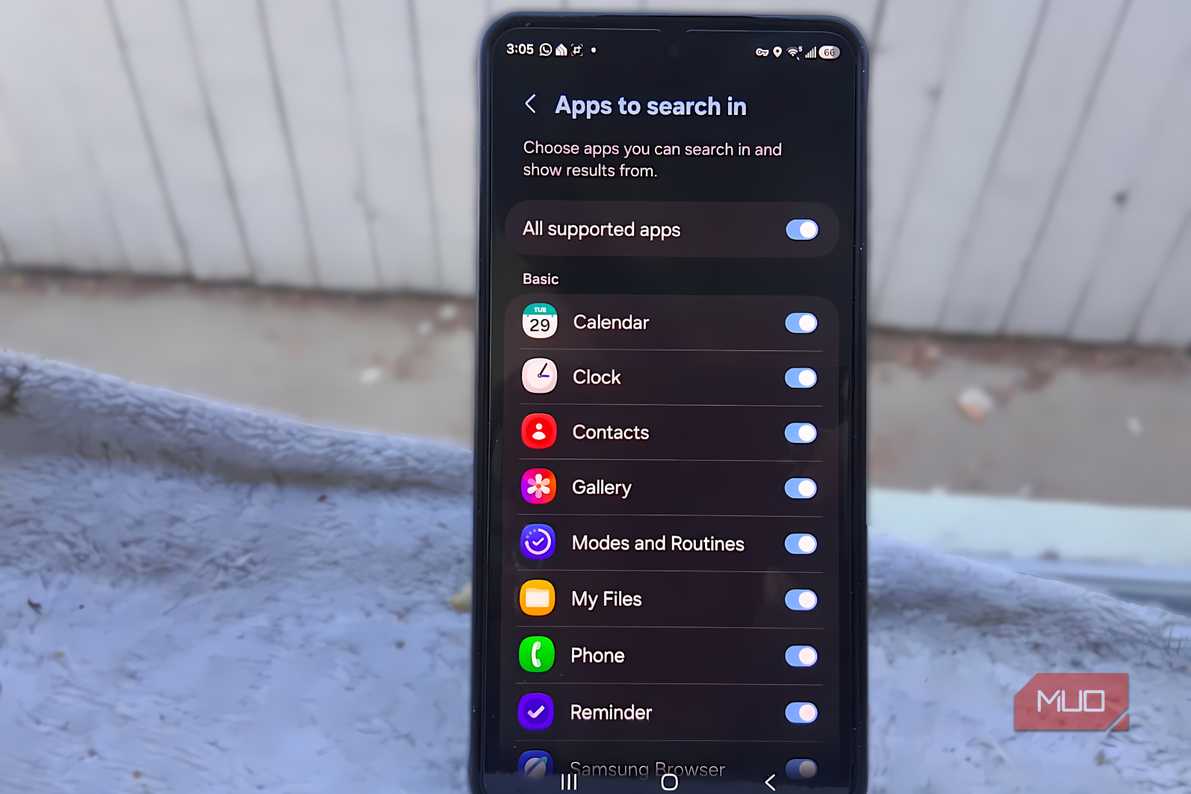
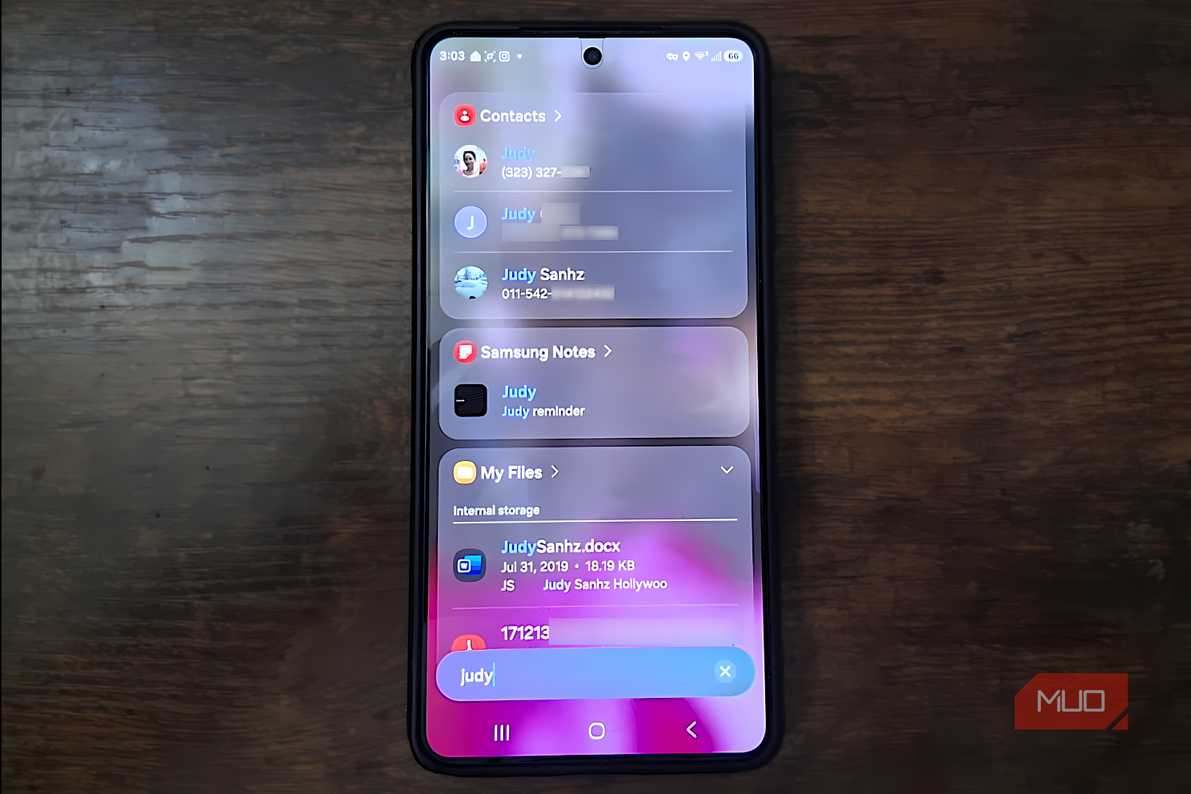
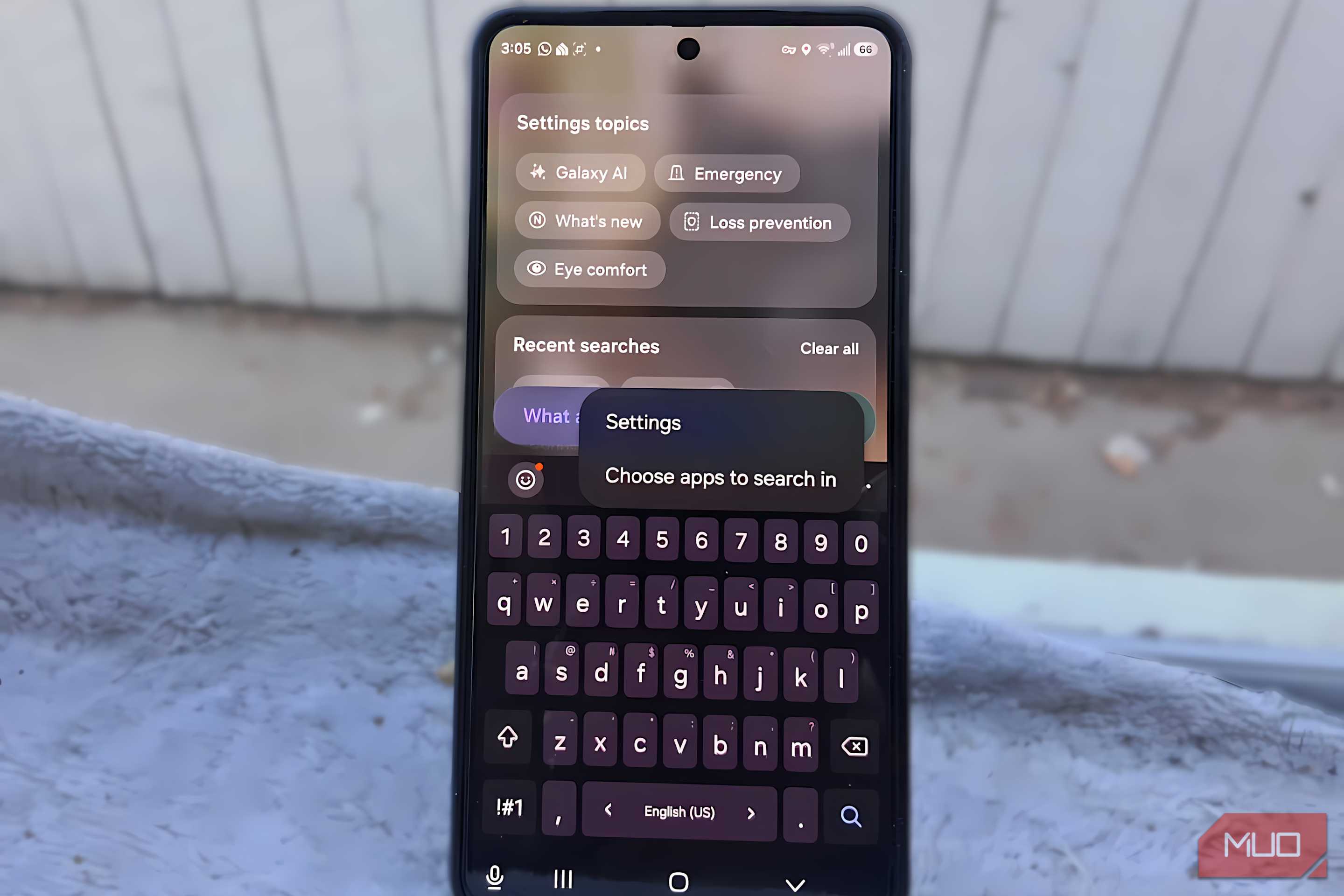
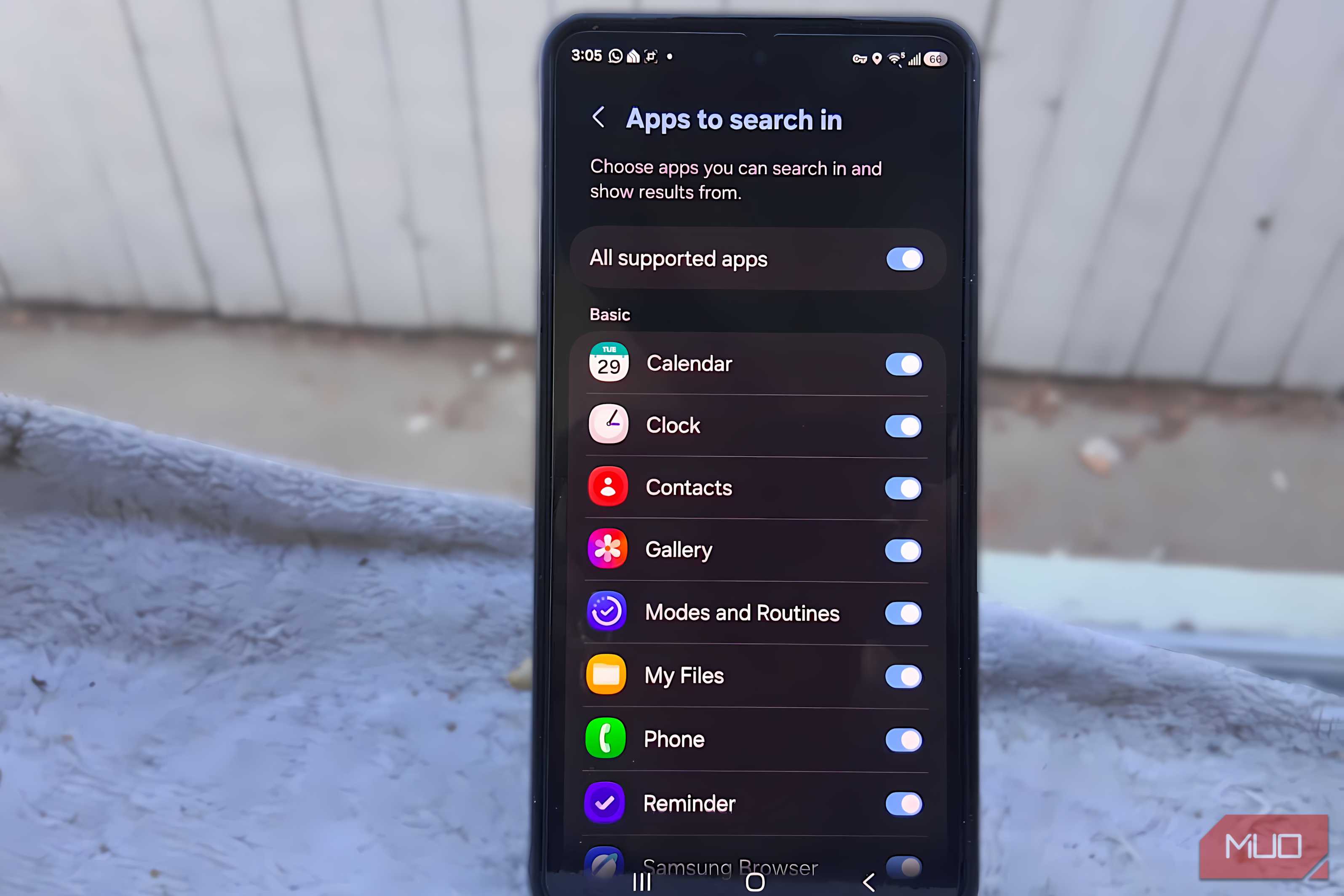
You can also choose which apps Finder searches. Tap the three dots, then Choose apps to search in and select the ones you want included. For example, if Notes is enabled, searching a name or keyword can bring up a matching note without opening the app first.
Launchers give you more freedom
They can organize your apps for you

You could say launchers are worth a try because they can do more than your Galaxy offers. Even if you have the latest Galaxy, it can’t automatically organize your apps into categories, but some launchers can.
With a launcher, you can enjoy things like:
- Custom layouts
- Docks
- Gestures
Those options can save you time and give you a different user experience that you might not get otherwise on your Galaxy phone. The experience you get will depend on the launcher you choose and whether it’s the free or paid version. Still, you get a lot more options with them. For example, Smart Launcher can automatically organize your apps into categories, so you don’t have to sort every app yourself.
I’d rather keep the Galaxy home screen I already know
I already know where everything is

I’m obviously not going to deny that a launcher can offer some great features and more customization. However, that’s something I’m more than happy to pass on; at least for me, I can get enough out of my Galaxy home screen that I don't need to install a launcher yet. It just changes the experience too much for my taste.
Once I cleaned up the folders and put my most-used apps at the bottom, I wasn’t swiping through pages trying to remember where I put an app. If I ever draw a blank, I know I can always use Finder. These small changes are enough for me, so jumping into a completely different setup doesn’t feel necessary.
Give your setup one last chance
A launcher can give you more options, but just because you have a cluttered home screen doesn’t mean you need one. Sometimes all you need to do is dig into your home screen settings, see what it can do, and then decide.
Once you’re happy with the setup, you can go to Settings and then to the Home screen. Toggle on Lock Home screen layout, and your apps and widgets won’t be moved or removed from the Home screen by accident. After that, use your Galaxy some more and see if you still feel like installing that launcher.