


Whenever I click a photo, my mind immediately jumps to how I can make it look even better. I post regularly on Instagram, and more often than not, a little editing brings out the best in a shot. Over the years, I’ve relied on apps like Canva, Snapseed, and CapCut for that.
The problem is that editing usually means opening another app, finding the photo again, importing it, and then getting to work. It’s not a huge hassle, but when you’re in a rush, those extra steps can feel really annoying. That’s what made me curious about my Samsung’s built-in Gallery app. Could it handle most of my editing needs without making me jump between apps? I decided to give it a proper shot, and frankly, I was amazed by how well it held up.
Cutting people out has never been this fun
Object Eraser may be the star, but it's not the only trick in Samsung's bag

I already use Samsung’s Object Eraser all the time to clean up my photos. Whether it’s a random stranger in the background of a solo shot or someone accidentally photobombing a group picture, it usually gets the job done with very little effort. In fact, after trying similar tools on plenty of Android phones over the years, I’d say only Google’s Pixel phones come close. Samsung’s implementation is consistently accurate, which is a big reason I keep coming back to it.
Another tool I’ve grown surprisingly fond of is the Lasso tool. It lets me cut out subjects in free-form or shape them into different outlines, and I’ve had a lot of fun experimenting with it. Most often, I use it to create custom WhatsApp stickers from my photos. It’s quick, easy, and the results are usually good enough that I don’t need to touch another app.
These are the features I use most, but they’re far from the only useful ones. Tools like Spot Color, Moiré, and Style can completely change a photo's look and feel, and they’re great to have when I’m in the mood to experiment a little more.
Everything fades away except the good part
A little color goes a long way

Even when I edit photos in dedicated apps, I almost always gravitate toward punchier, more vibrant edits. A little extra pop can completely change how a photo feels, making it look more lively, energetic, and eye-catching. That's why I was surprised to discover that Samsung's Gallery app already had a feature that helps achieve exactly that — and I'd been overlooking it for years.
It's called Spot Color, and it's a tool that's far more creative than it first appears. It lets you selectively restore color to specific parts of an image while leaving the rest in black and white. For example, if I photograph a bright pink object against a darker, muted background, I can desaturate the entire scene and keep only that object in color. The result instantly draws your attention to the subject, making it stand out in a way that feels intentional.
What I like most is that it adds depth and drama without requiring any complicated editing. It's a simple effect, but when used well, it can completely transform an otherwise ordinary photo into something that feels much more striking.
Samsung found the gremlin in my screen photos
The mystery lines finally met their match
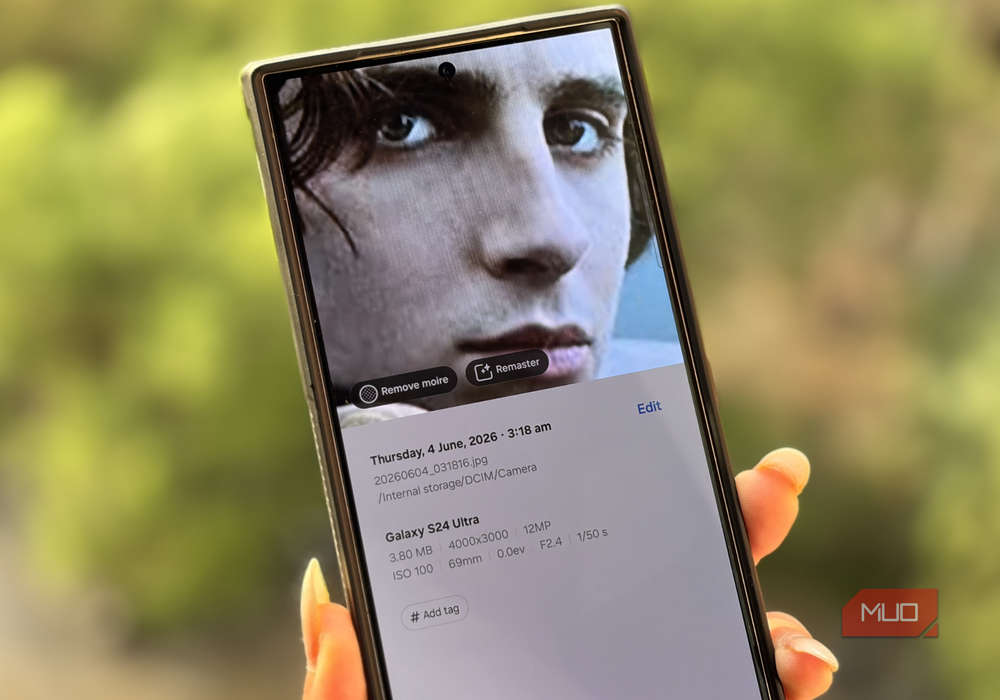
Have you ever taken a photo of a monitor or a smart TV, only to notice those strange wavy lines or grid-like patterns ruining an otherwise great shot? This really drives me up the wall. I deal with it more often than most because my work regularly involves photographing monitors, laptops, and TVs. I find myself taking the same photo multiple times, shifting angles and adjusting positions, hoping one of them comes out clean.
The frustrating part is that even the best-looking shot often ends up with those distracting patterns. No matter how good the composition is, the image can still look messy because of them. That's why I was pleasantly surprised to discover Samsung's Remove Moiré feature. Whenever these patterns show up, I can simply open the photo in the Gallery app, tap the "i" button, and Samsung often suggests a "Remove Moiré" option right there.
A single tap later — with a healthy dose of AI working behind the scenes — those distracting lines are reduced, and the image looks cleaner. I didn't pay much attention to it until recently, but once I started using it, I found myself appreciating Samsung's Gallery app a lot more. This feature solves a frustrating problem. For that, Samsung deserves some credit.
Picasso, but make it AI
A creative rabbit hole I didn’t see coming
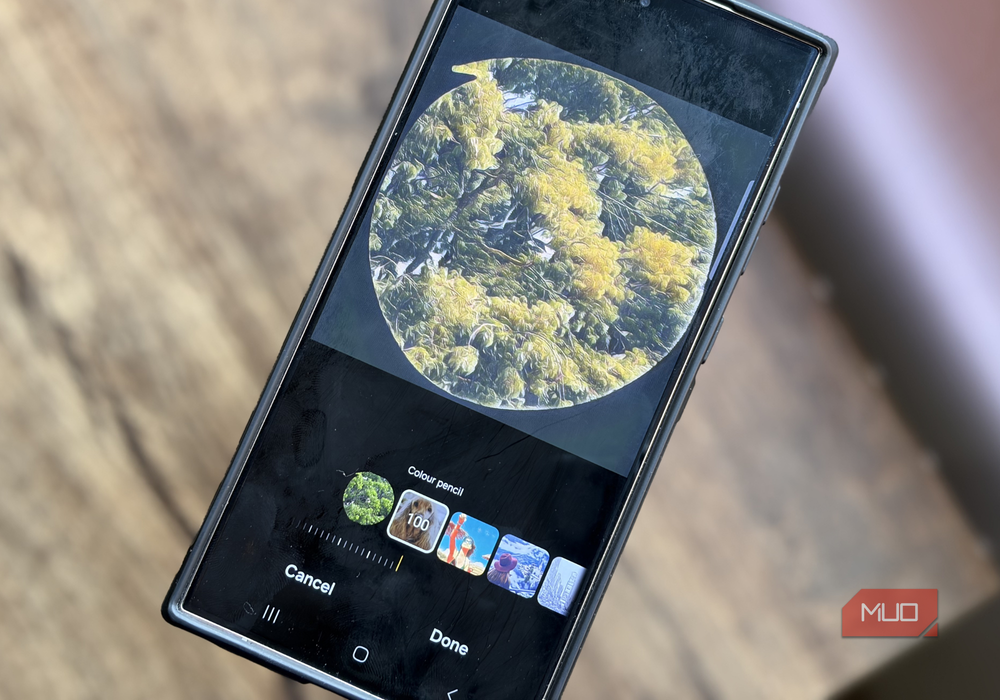
Another feature I've been having a lot of fun with is Styles. Whenever I'm in the mood to give a photo a completely different look, it's the first place I go.
The feature lets me transform my pictures with a variety of artistic effects, including Color Pencil, Comic, Watercolor, Blue Ink, Pastel, and several others. I've spent more time experimenting with these than I'd like to admit, mostly because it's fascinating to see how different the same photo can look with just a single style change.
Some of these effects even remind me of scenes straight out of an anime, giving otherwise ordinary photos a more artistic, hand-crafted feel. The best part is that I don't need any editing skills to make it happen. I simply pick a style that catches my eye, and the AI handles the rest. A few seconds later, I have a completely reimagined version of my photo without having to tweak a single setting.
A reminder to check the tools you already have
So, while features like Object Eraser and the Lasso tool are already quite popular — and for good reason — I never really paid much attention to the rest of Samsung's editing toolkit. But that changed when I stumbled upon the Remove Moiré feature while editing a photo of a screen. One discovery led to another, and before I knew it, I was trying tools I'd ignored for years. Looking back, I'm glad I finally gave them a chance.
I no longer feel the need to constantly export pictures to third-party apps just to make a few tweaks or add a creative touch. Samsung already has a tool for the job waiting right there in the Gallery. And that's probably the biggest compliment I can give it: it saves me time, keeps my workflow simple, and handles most of the edits I need surprisingly well.
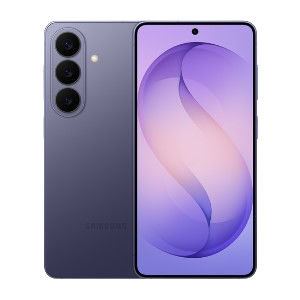
Samsung Galaxy S26
- SoC
- Snapdragon 8 Elite Gen 5
- Display
- 6.3-inch Dynamic AMOLED 2x
- RAM
- 12 GB
- Storage
- 256 or 512 GB
- Battery
- 4,300 mAh
- Operating System
- Android