


My laptop has a fairly reliable habit of letting me know when Docker Desktop launches. Not through a notification, or a sound, or anything as polite as that. Just the fan. A gentle but unmistakable whir that translatesroughly as: the daemon is awake and hungry.
I'd been using Docker Desktop for long enough that I'd never questioned it. It was just what I installed when I needed containers. However, a colleague of mine mentioned offhandedly that they'd switched to Podman Desktop — one of the best Docker alternatives for container management — and I decided to spend some time with it.
Docker Desktop didn't do anything wrong, exactly
It just has a lot of feelings about your RAM


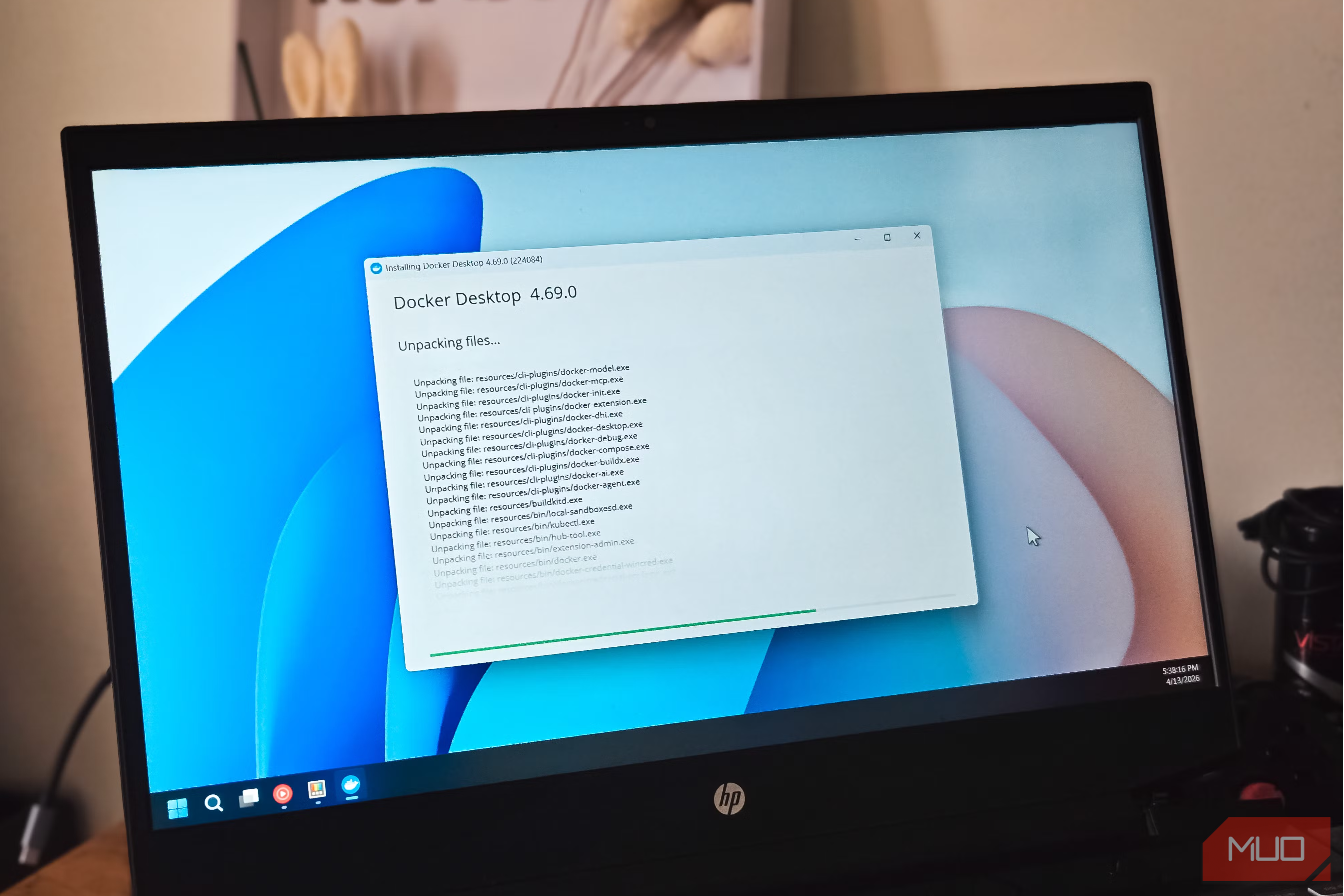

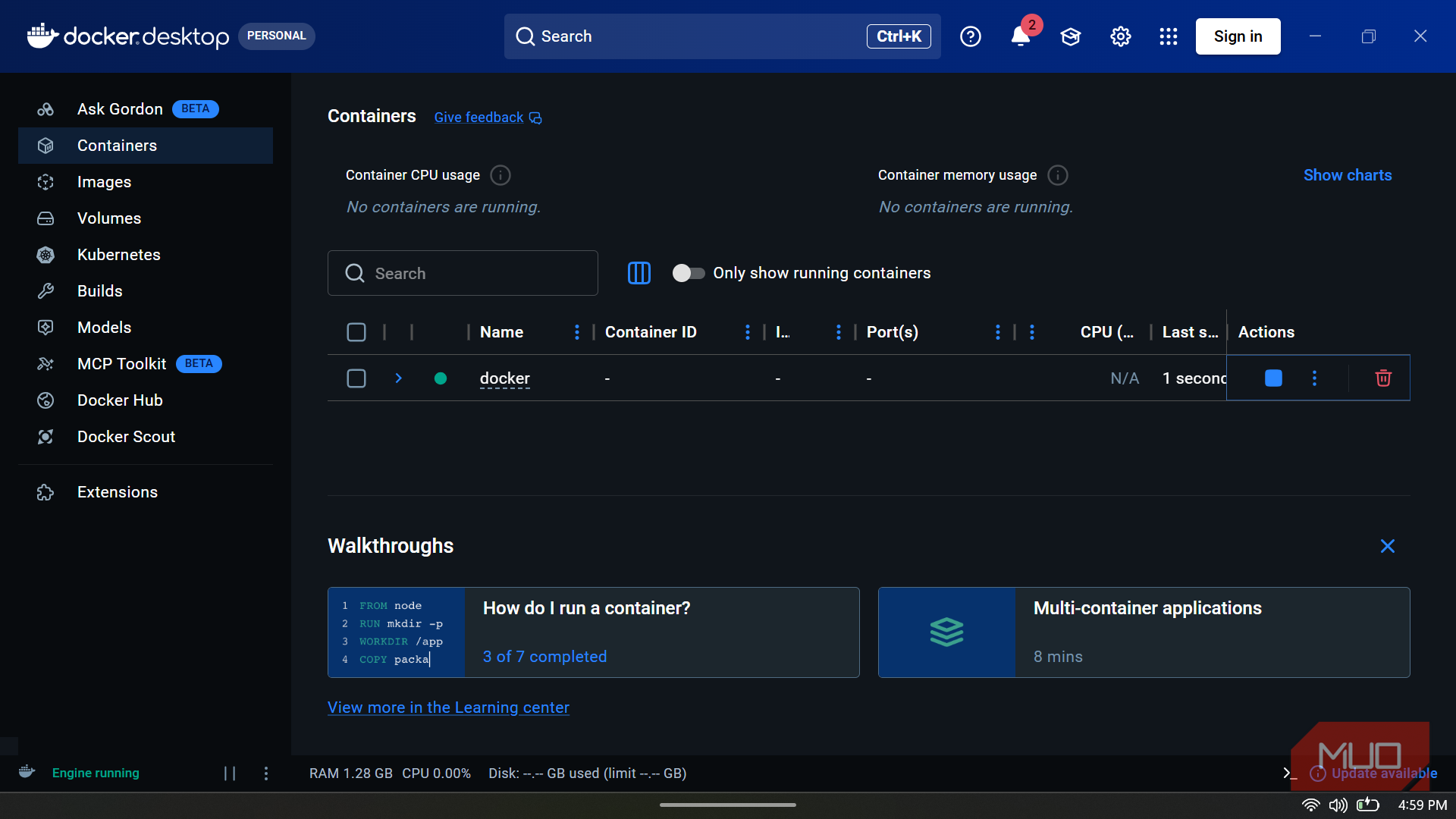
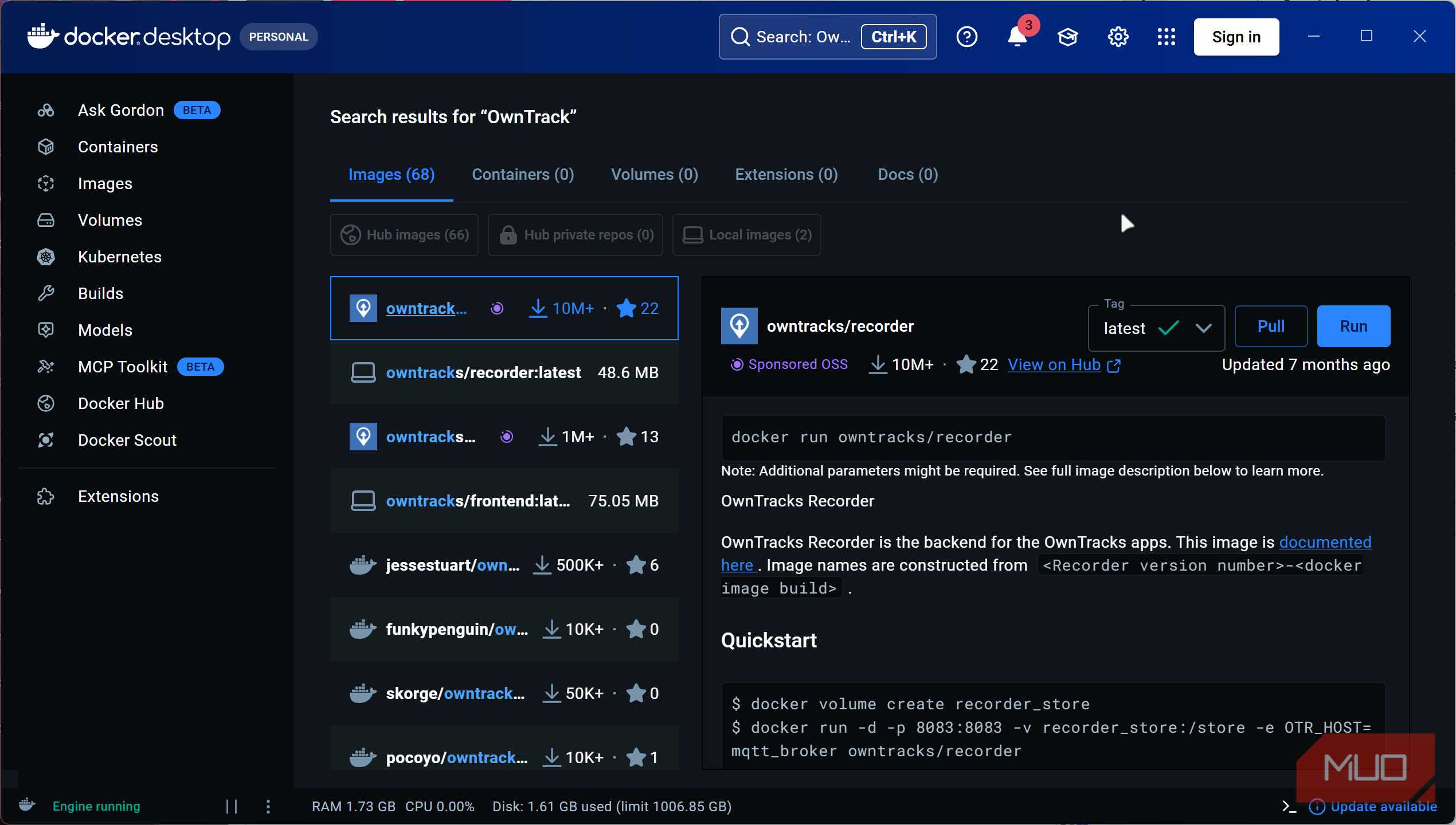
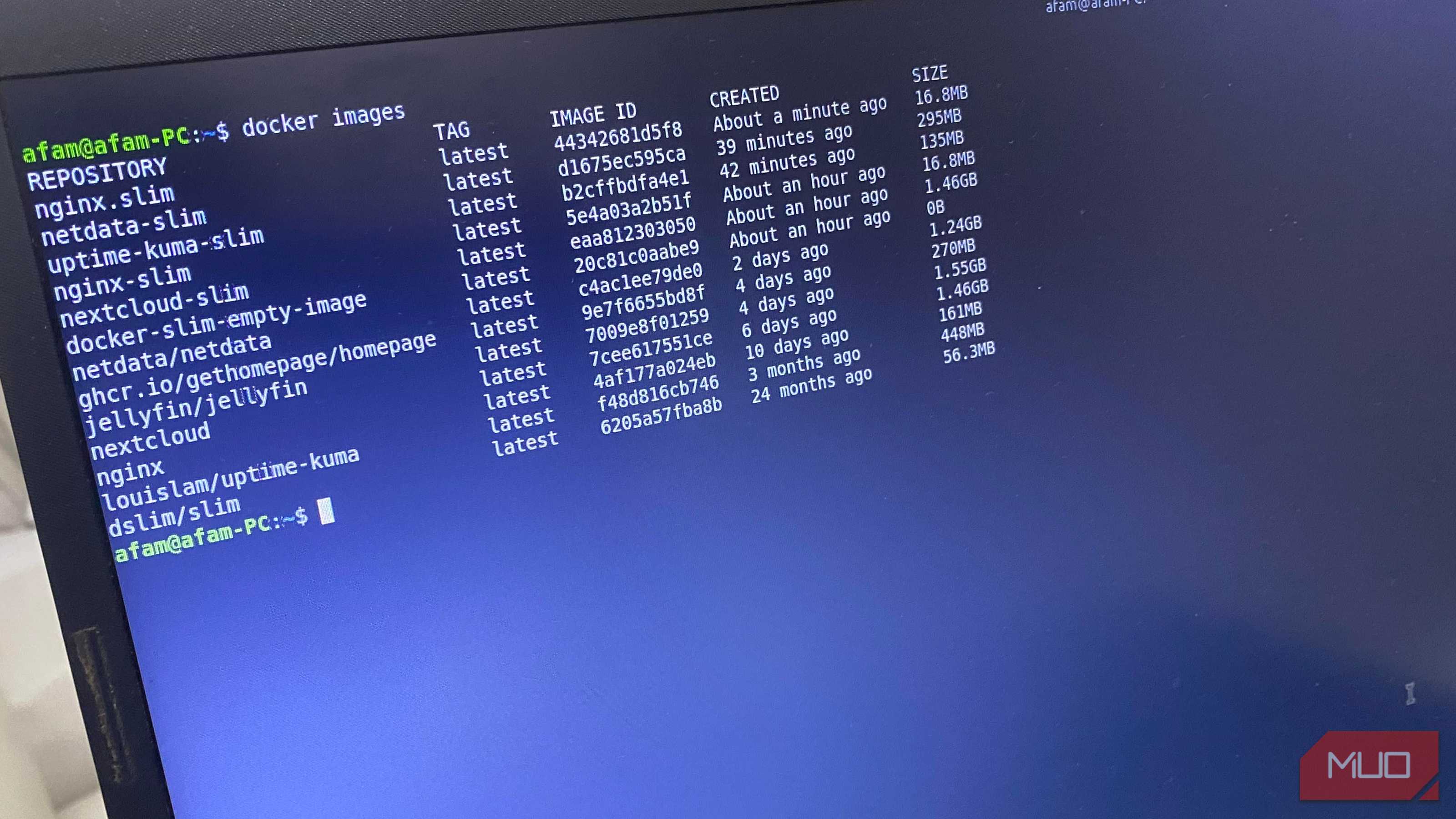
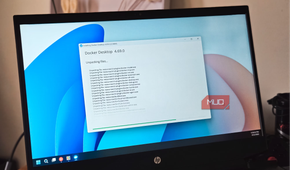

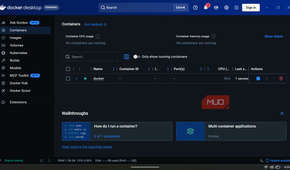
To be fair to Docker, the tool earned its reputation. When containers were still a new and slightly intimidating concept, Docker Desktop made the entire concept approachable on macOS and Windows. You do not need to understand Linux kernels, hypervisors, or VM networking to get a container running. Docker bundled the complexity into a polished package that handled the unpleasant parts for you, and for years, that ease was invaluable.
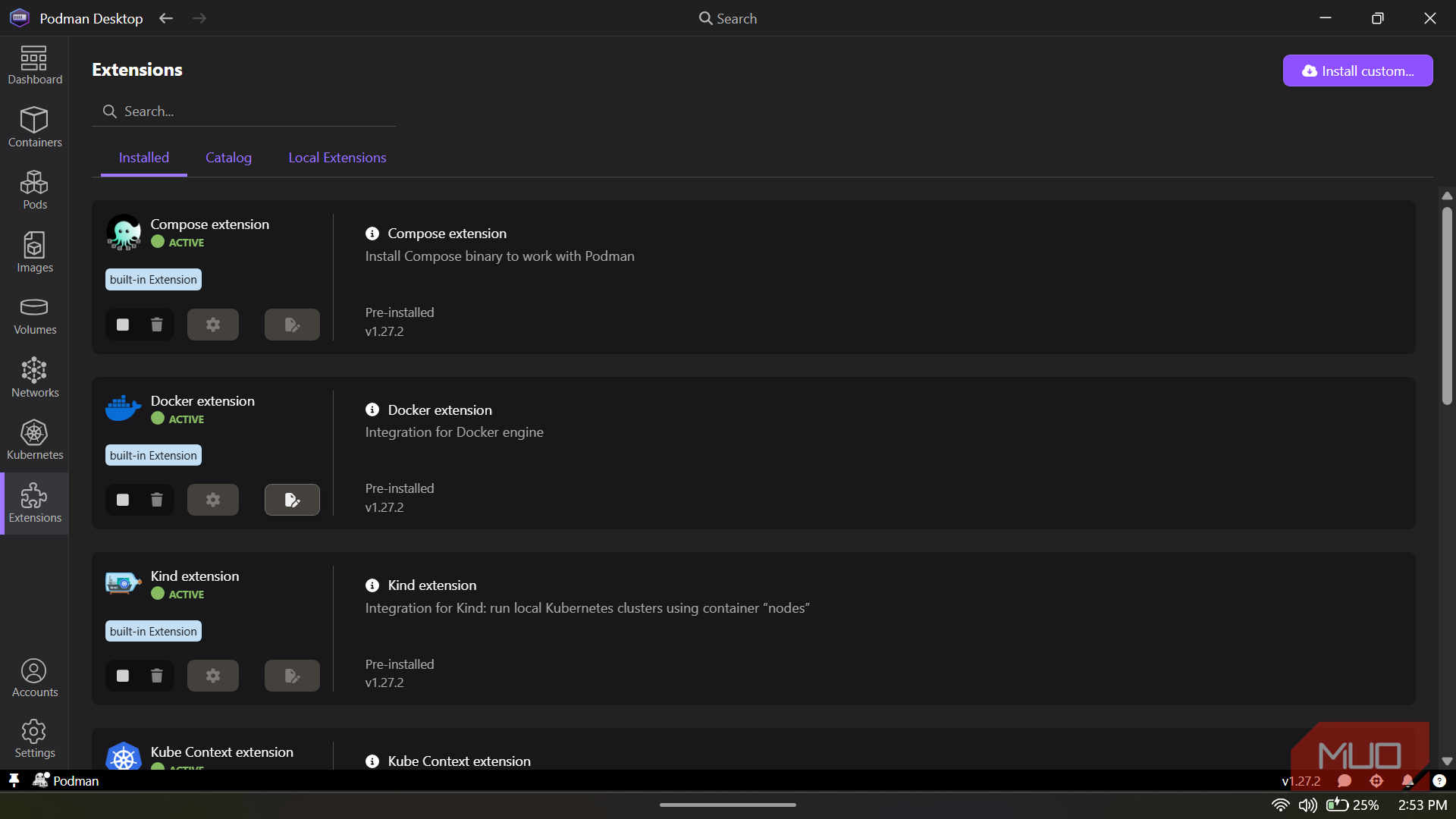
However, Docker Desktop has also grown steadily in ambition. There's a heavy GUI now, Kubernetes integration, Dev Environments, Extensions, and a credential store that occasionally disagrees with you. For teams relying on those features, the platform makes sense. For those of us who mostly run four or five containers a day from a terminal and can't name the last time we opened the Docker Desktop GUI, it's a lot of tools to carry around.
Part of that heft comes from the architecture underneath. On macOS and Windows, Docker Desktop runs containers through a Linux virtual machine, which is not a problem in itself. Still, it does mean there is always a virtualization layer involved. Docker also depends on a persistent background daemon, dockerd, to manage containers. Docker Desktop handles all of this neatly, which is part of its appeal, but it also means there are more moving parts and more background resource usage between you and the containers you are trying to run.
What Podman Desktop does differently (and why you actually feel it)
Root? We don't do that here


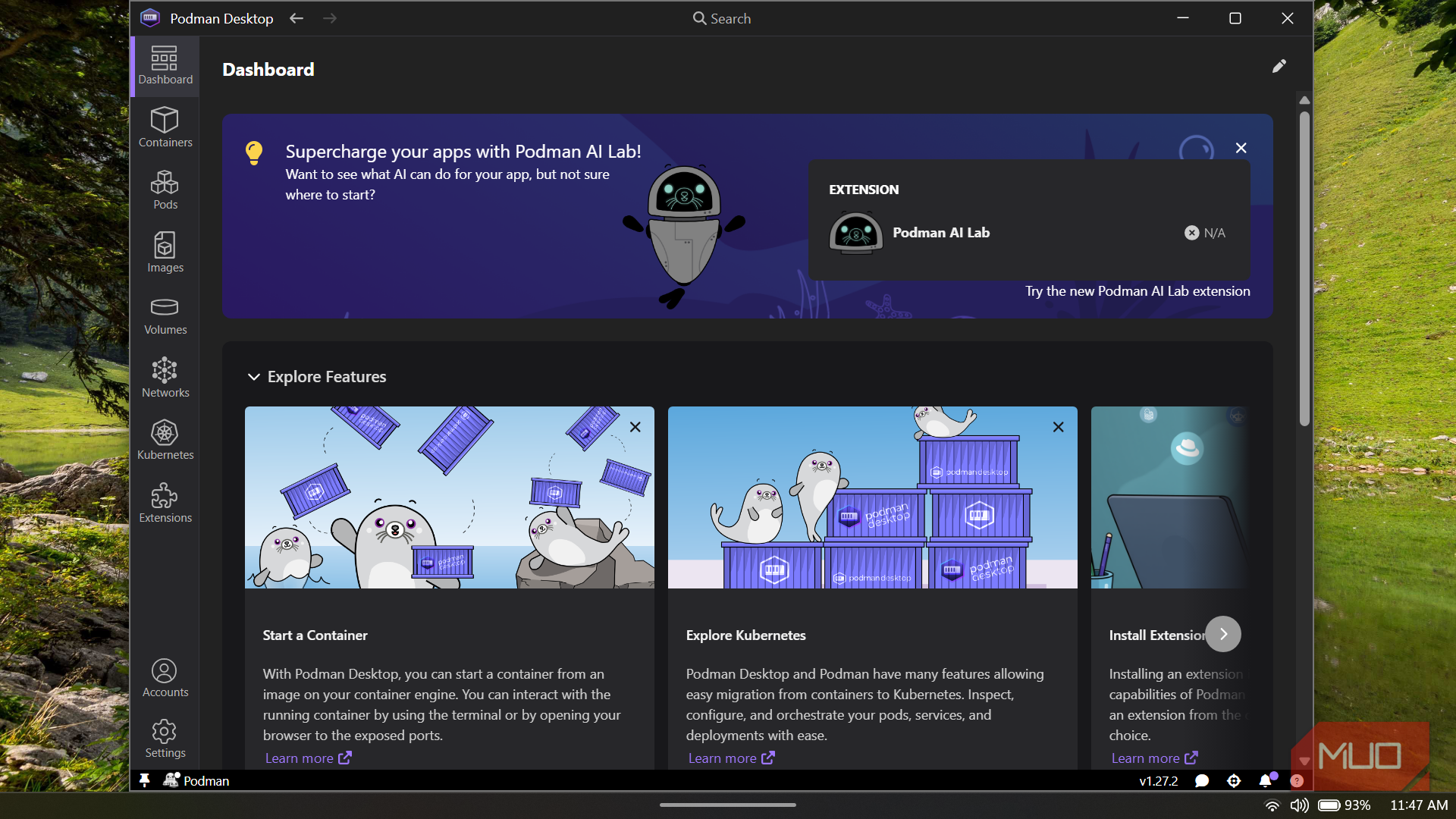
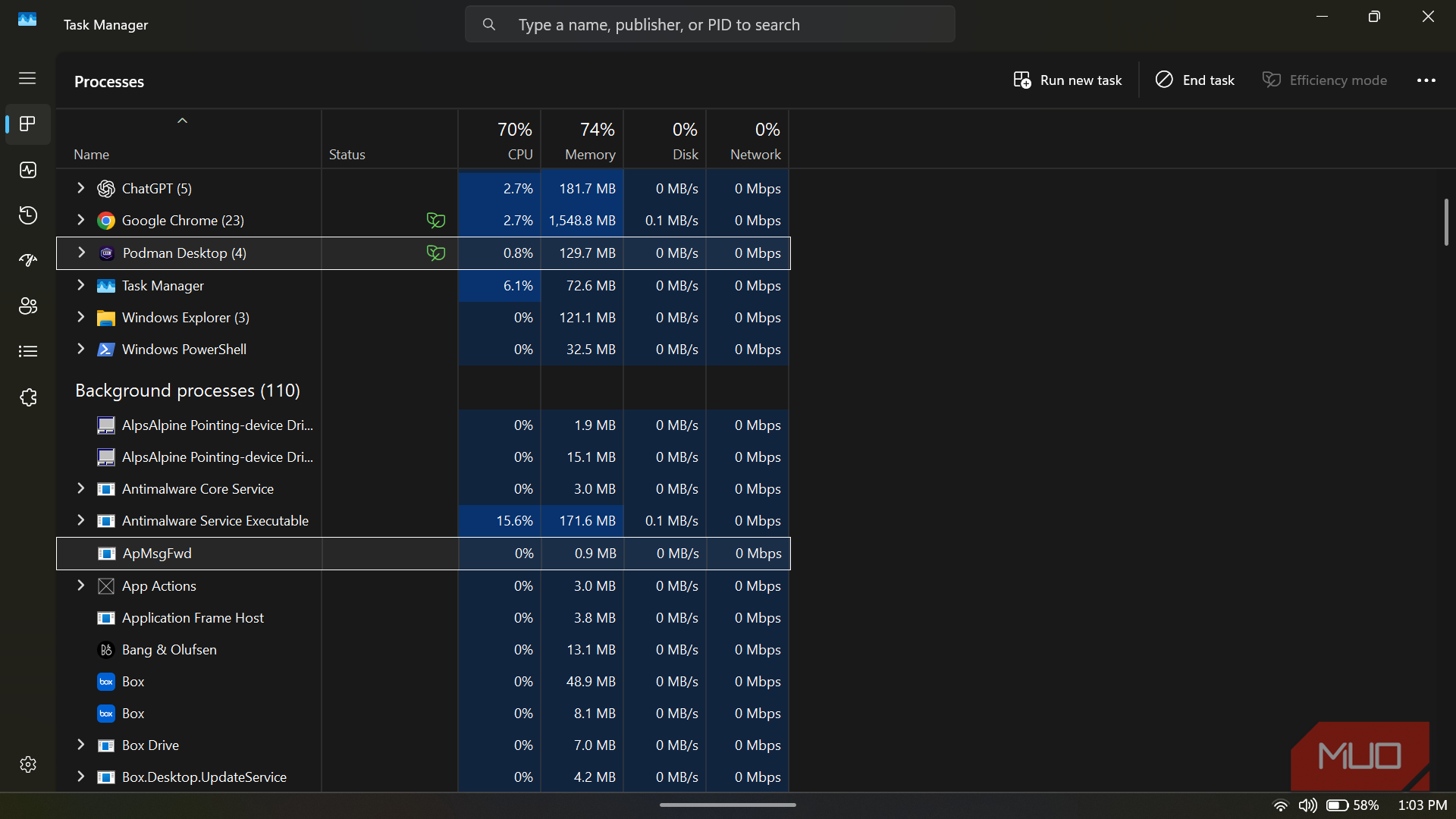
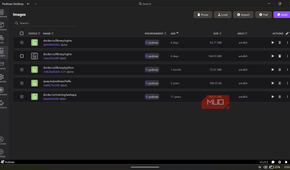
What drew me into Podman Desktop was how instantaneous it is. I type podman run, the container starts, and the process gets out of my way. I never sit around waiting for a background service to wake up because Podman uses a daemonless architecture. On Linux, every command runs as its own process directly under your shell session. On macOS and Windows, Podman talks to a lightweight Linux VM through a fast SSH connection, launches the container, then steps aside once the job is finished.
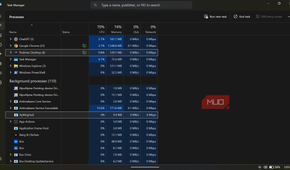
That design has a noticeable effect on system resources throughout the day. Podman Desktop idles with remarkably little overhead, while Docker Desktop's daemon and GUI tend to keep chewing through memory even when no containers are running. The difference becomes especially visible once you already have a browser full of tabs, a code editor, terminals, and half a dozen background apps competing for RAM. It is not the sort of transformation that makes your laptop levitate off the desk, though the reduction in friction becomes easy to appreciate after a few days of regular use.
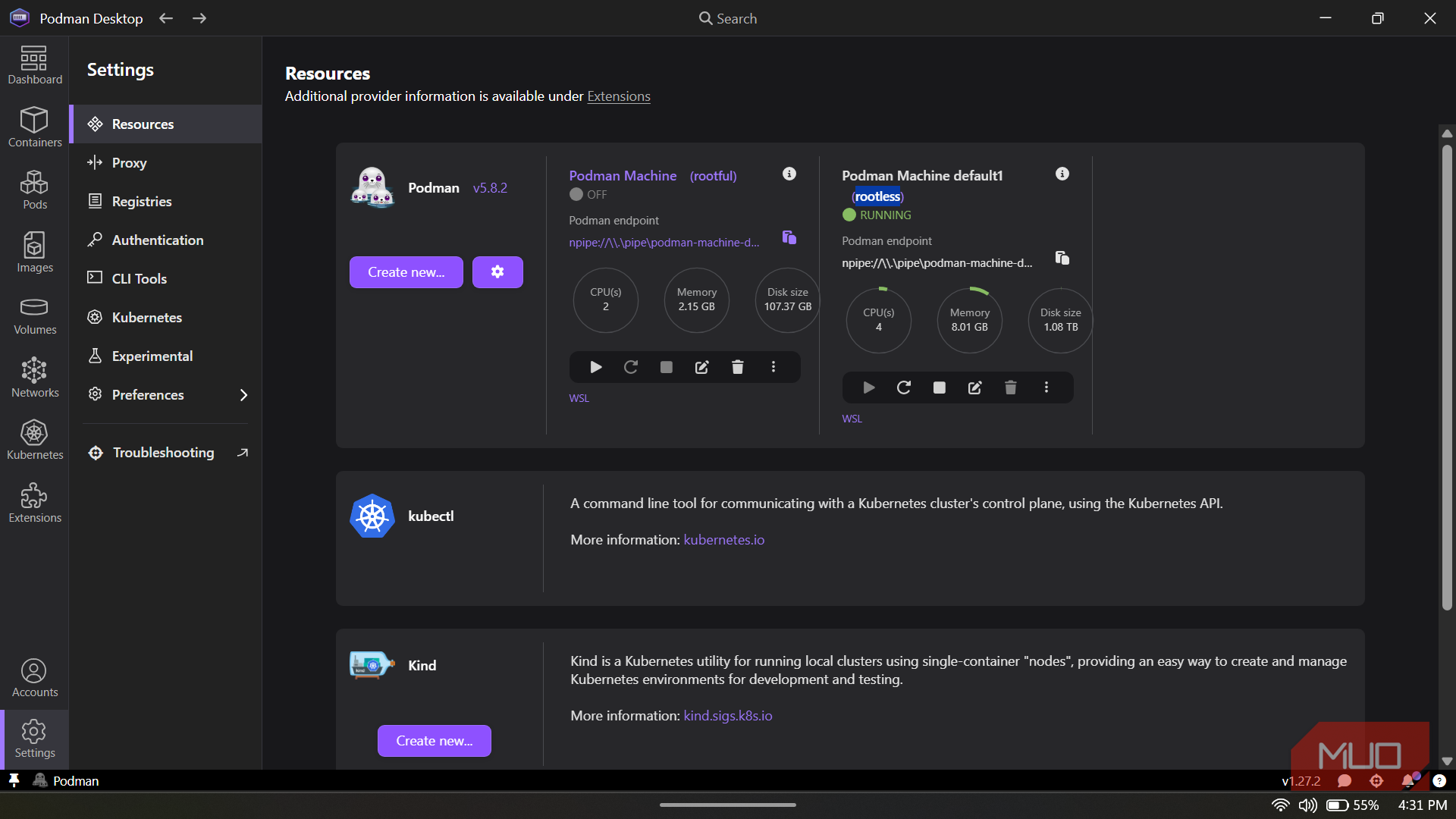
I also ended up appreciating Podman's default security model. Containers run rootless out of the box, meaning they operate under your normal user account rather than with elevated system privileges. If a container ever goes sideways, the blast radius stays far smaller because the process does not automatically inherit root access to the machine. For most local dev work, this doesn't change your day-to-day workflow in any visible way. But it's a meaningfully better security posture, especially when you're pulling third-party images you didn't build yourself.
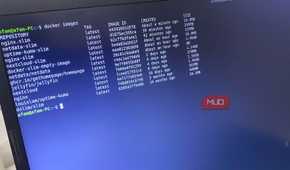
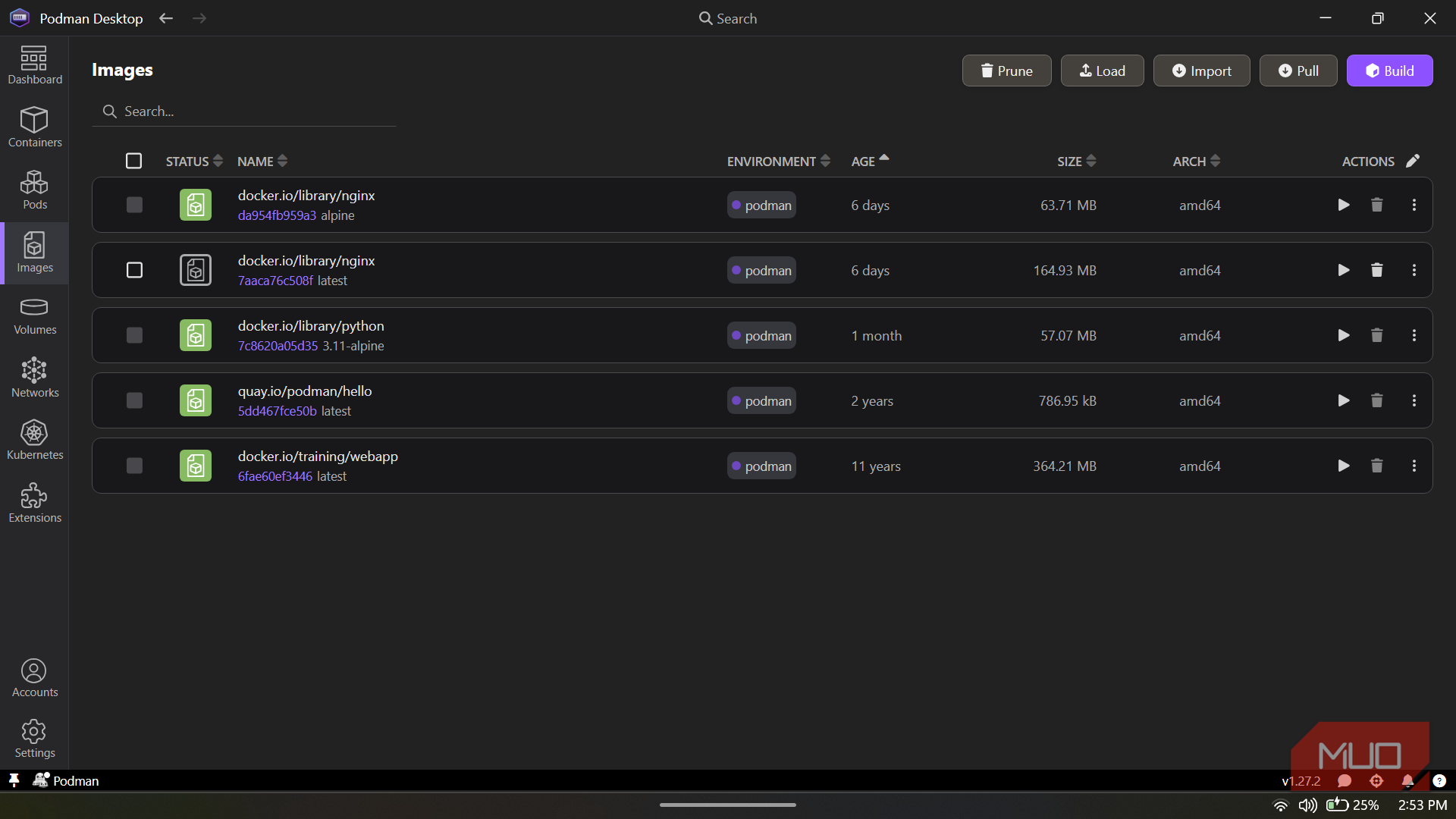
The CLI transition was also easier than I expected. Podman maintains strong compatibility with Docker's command structure, so most of my existing workflow transferred over almost intact. I aliased docker=podman and carried on using the commands already burned into muscle memory: run, ps, images, rmi, and the rest. Within a day or two, I had mostly stopped thinking about the switch altogether.
Podman Desktop has also matured substantially, particularly on macOS and Windows, where it now integrates cleanly with the host system and uses fast file-sharing technologies like VirtioFS. Underneath, Podman still relies on a Linux VM through podman machine, much like Docker Desktop does behind the scenes. The difference is that Podman exposes more of that machinery directly, allowing you to resize, configure, and manage the VM yourself instead of hiding it behind layers of abstraction. The speed improvements I noticed came from a leaner guest environment and the absence of a constantly running daemon, not from eliminating virtualization.
There are some rough edges with Podman
Here's what I actually hit

The migration wasn't frictionless, and I'd rather tell you that upfront than let you find out mid-project.
If you already know how to use Docker Compose inside and out, Compose support is probably the trickiest part of the switch. Podman can work with Compose in two main ways: through podman-compose, a community Python implementation, or by pointing the official docker-compose binary at Podman's API socket using the DOCKER_HOST environment variable. For simple Compose files, both work well. However, once your setup involves more complex networking, custom bridges, or edge-case service behavior, you may start to run into gaps. (And if you rely on tools to automatically create Compose files from running Docker containers, expect to make a few manual adjustments).
Rootless containers can also make volume mounts a little more awkward. I ran into immediate "permission denied" errors on some bind mounts until I started appending :Z labels to volume mappings or configuring userns_mode: keep-id so containers inherited the correct user identity from the host machine. None of this is a dealbreaker, but if your Compose files do more than basic service orchestration, it is worth setting aside some time to smooth out the local quirks.
The broader ecosystem is also still entirely shaped around Docker. When something goes wrong, and you start digging through Stack Overflow or GitHub issues, almost every solution assumes you are using Docker. Translating those fixes over to Podman usually takes only minor adjustments. However, I occasionally found myself spelunking through Linux sub-user namespaces and /etc/subuid configurations to understand why a permission model behaved differently.
I’m not uninstalling my muscle memory
I would still recommend Docker Desktop to plenty of people. If your team already uses it, your tooling depends on it, or you want the most documented path through container development, there is no shame in staying with the whale. Familiarity has value, especially when deadlines are circling overhead.
However, I no longer treat Docker Desktop as the automatic front door to every local container job. Podman reminded me that some tools feel better not because they shout louder, but because they leave the room once the work starts. And that is probably the highest praise I can give Podman.

Podman Desktop
- OS
- Windows, macOS, Linux
- Developer
- Red Hat
- Price model
- Free and open-source
Podman Desktop is a powerful container management tool that gives developers an intuitive GUI for building, running, and debugging containers locally. It simplifies working with Podman and Kubernetes while offering a clean alternative to heavier container desktop platforms.