


If you deal with sensitive PDF documents, you probably don't want to use a tool that would send them to a third-party server over the internet. That makes self-hosted PDF apps a great alternative.
Stirling PDF is one such tool. It packs over 50 PDF editing and management features into a single Docker container that runs entirely on your own hardware. I set it up on the same machine I use to run other self-hosted services with Docker, and now I have a full PDF toolkit in my browser, and I don't pay anything to keep it running.
Stirling PDF is open-source and self-hosted
A privacy-friendly PDF toolkit that runs on your own machine

Stirling PDF is a free, open-source PDF toolkit that you run locally. Instead of uploading your contracts, tax forms, or ID scans to some website you found on Google, everything gets processed on your machine. The files stay in your server's memory during the task and get deleted once you download the result.
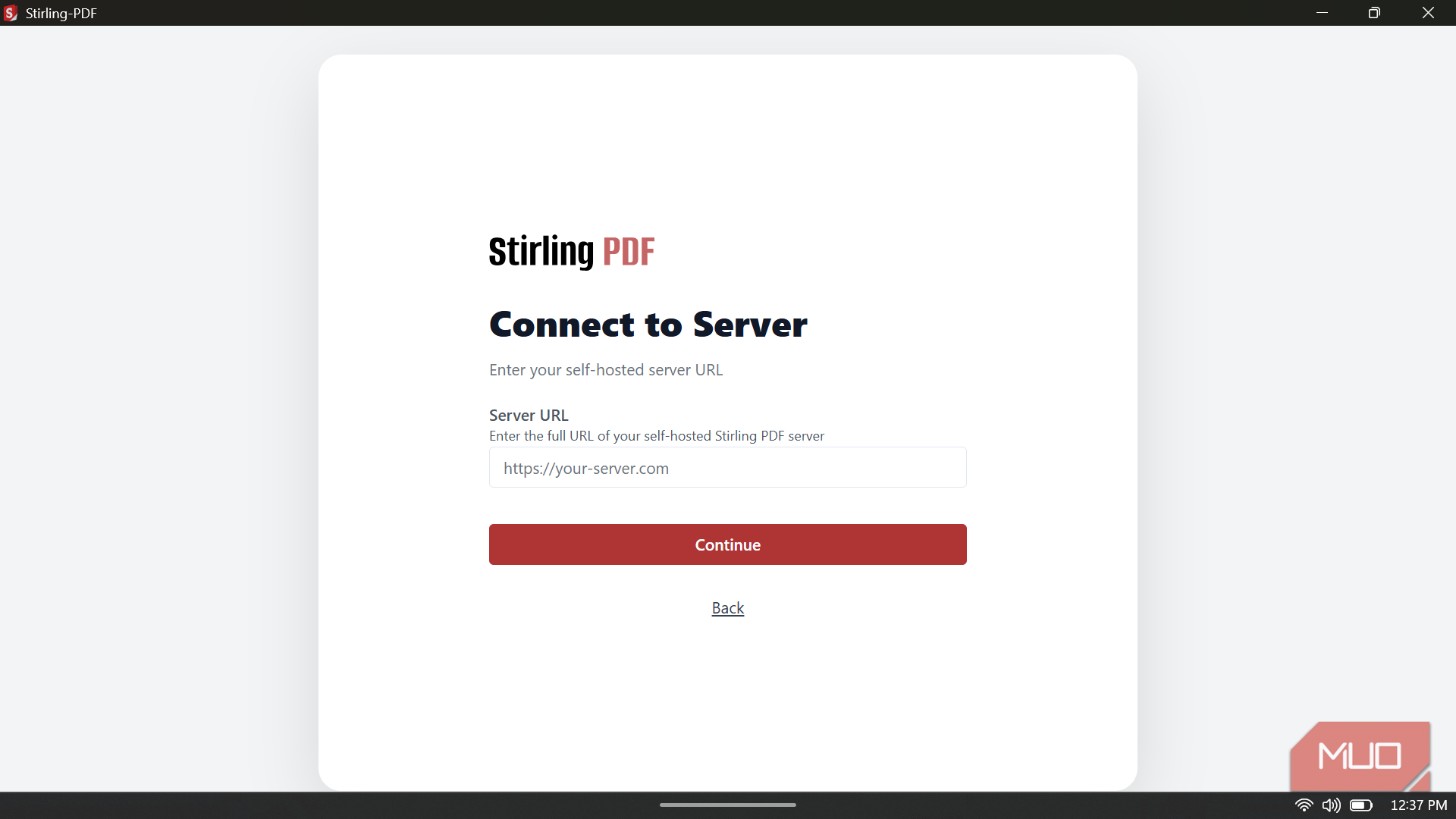
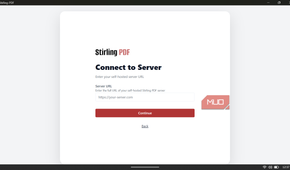
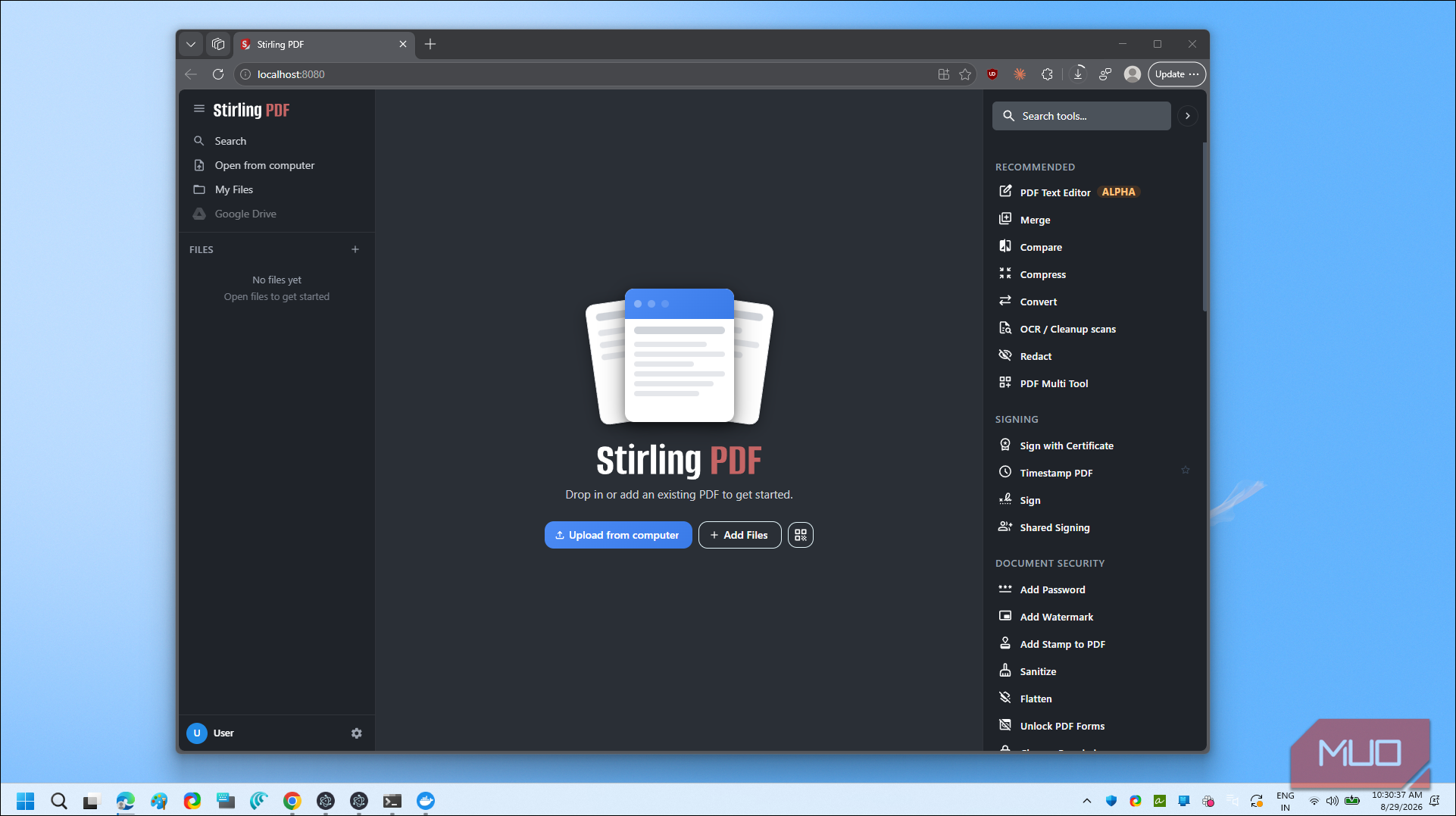
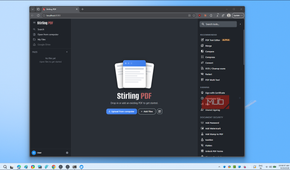
You can access it through a web browser at localhost:8080 after setup. The interface groups its tools into categories like Convert, Security, Page Operations, and more. There's also a dedicated desktop app if you prefer that over a browser tab.
The free version covers everything most people need. A paid tier exists for teams that want features like SSO and unlimited user accounts, but for personal use, you're not missing anything.
Setting up Stirling PDF using Docker
One YAML file and one command is all it takes


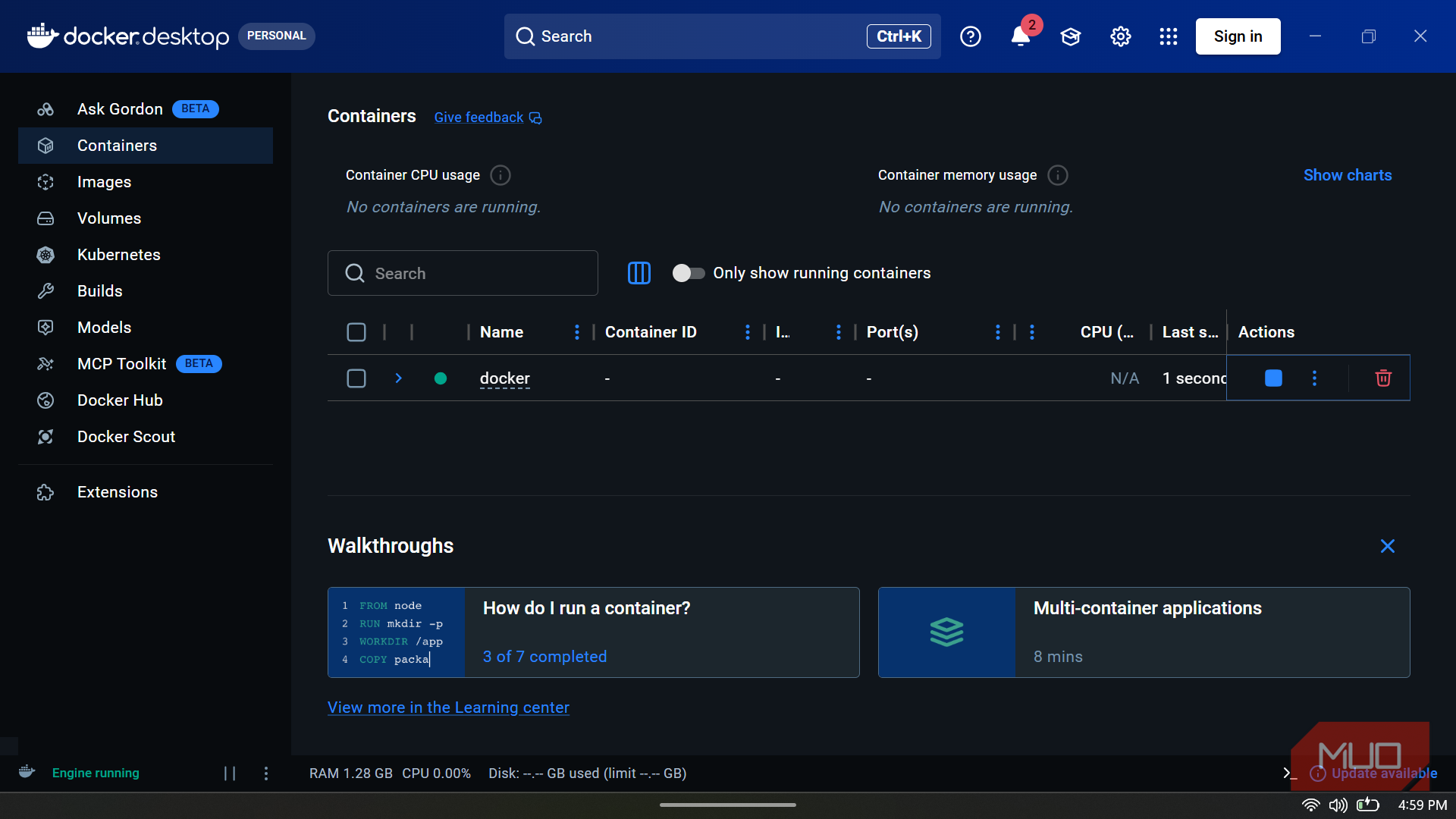
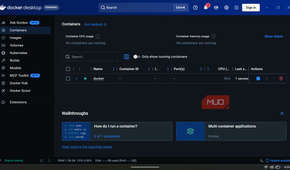
If you already have Docker installed, you have one less thing to worry about. If not, begin by installing Docker and make sure it shows the status as running. Then, create a folder for the project, and create a file docker-compose.yml with the following:
services:
  stirling-pdf:
    image: docker.stirlingpdf.com/stirlingtools/stirling-pdf:latest
    ports:
      - "8080:8080"
    volumes:
      - ./stirling-data/tessdata:/usr/share/tessdata
      - ./stirling-data/configs:/configs
    environment:
      - SECURITY_ENABLELOGIN=false   # omit/set true if you want login enabled
    restart: unless-stopped
The restart: unless-stopped line makes sure the container comes back up after a reboot or crash (but not if you stop it manually). If port 8080 is already taken on your machine, change the left number to something else, like 9090:8080, and access the app on that port instead.
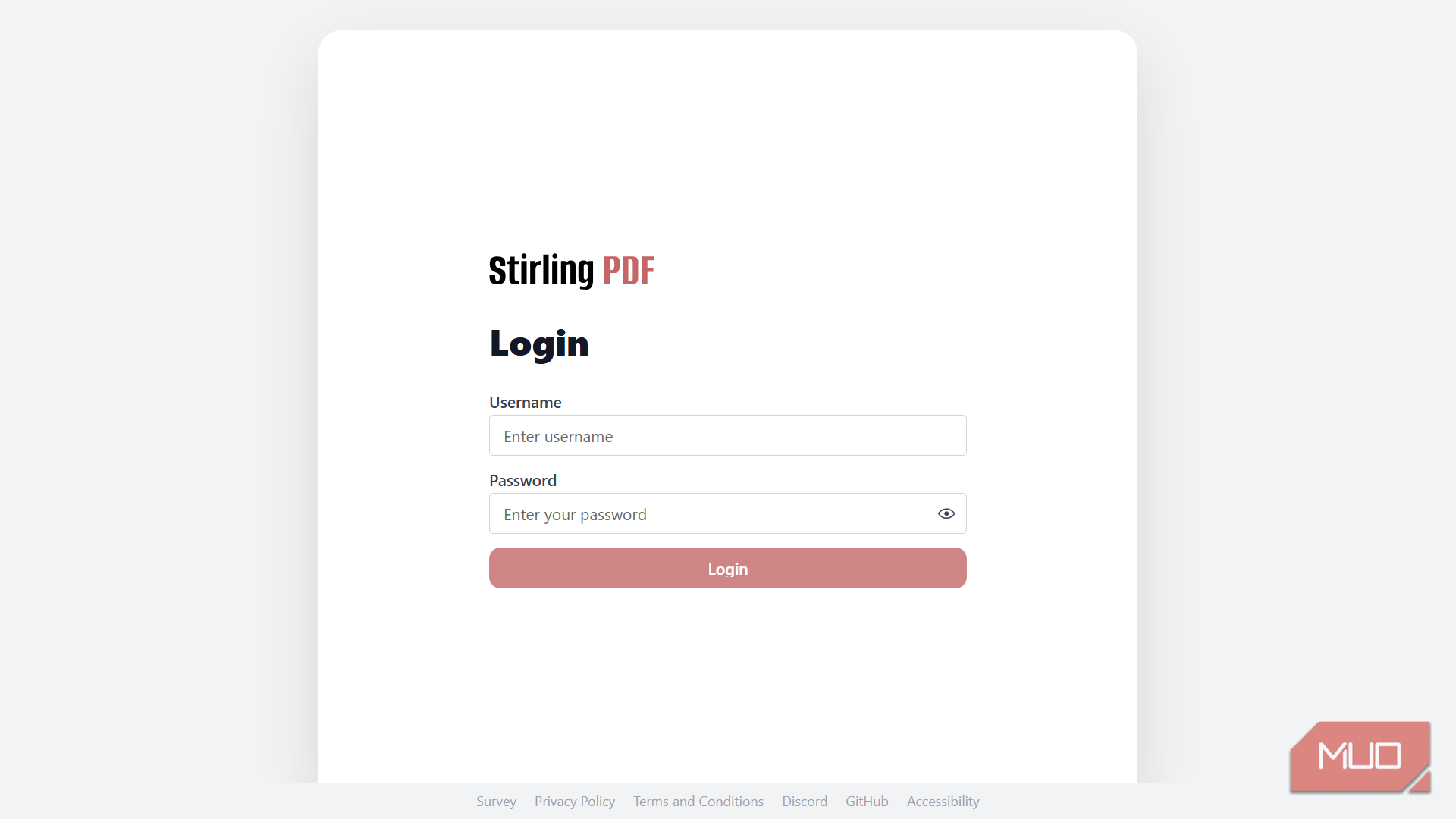
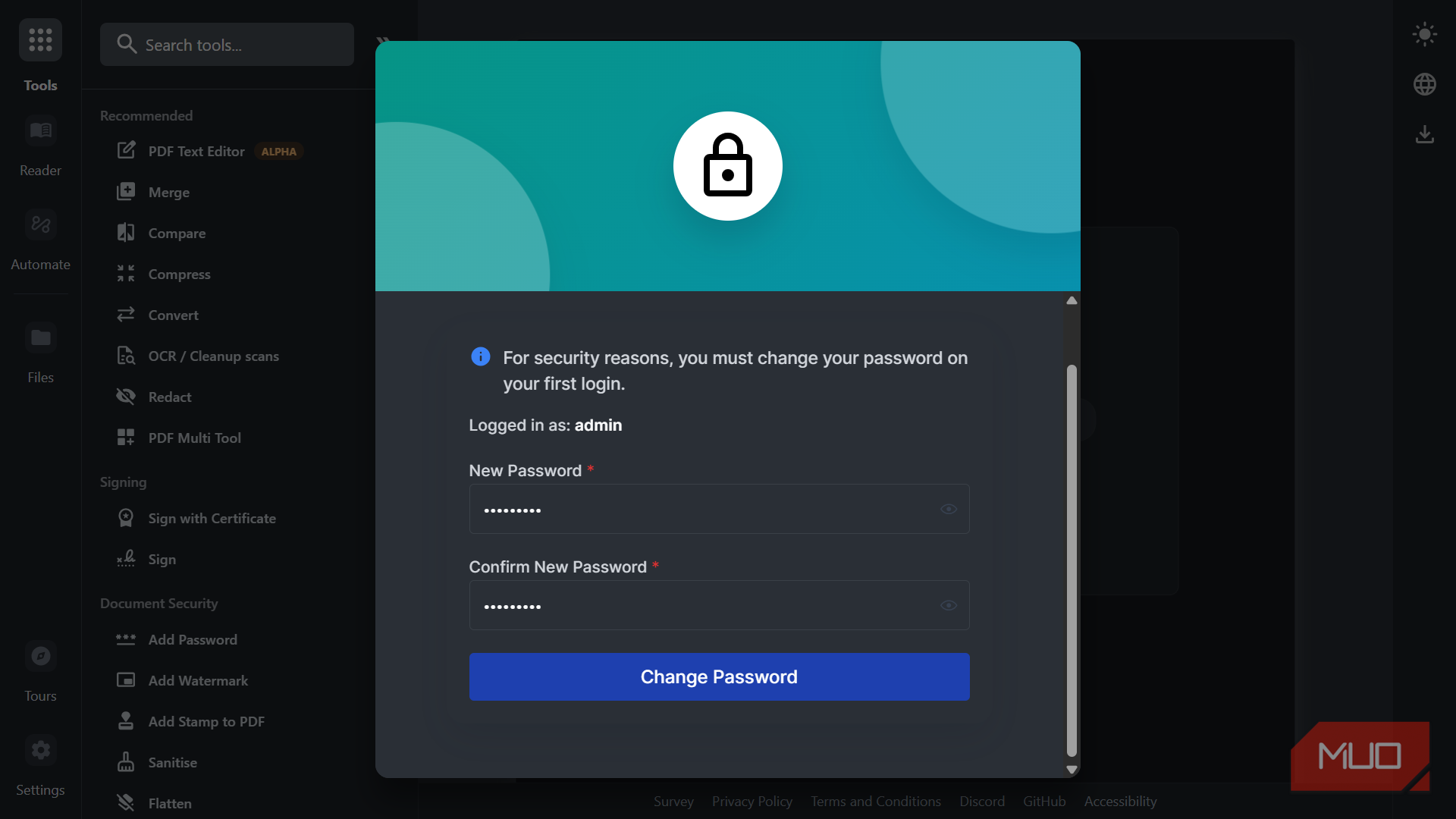
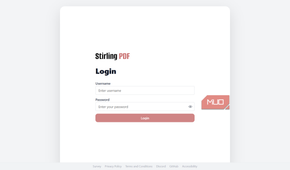
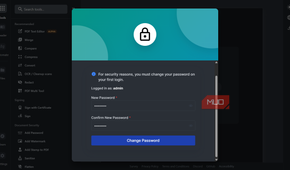
By default, Stirling PDF requires login. This compose file opts out with SECURITY_ENABLELOGIN=false, which is fine on a private home network, but if you plan to expose it beyond your local machine, you should remove that line (or set SECURITY_ENABLELOGIN=true) and add login credentials as environment variables.
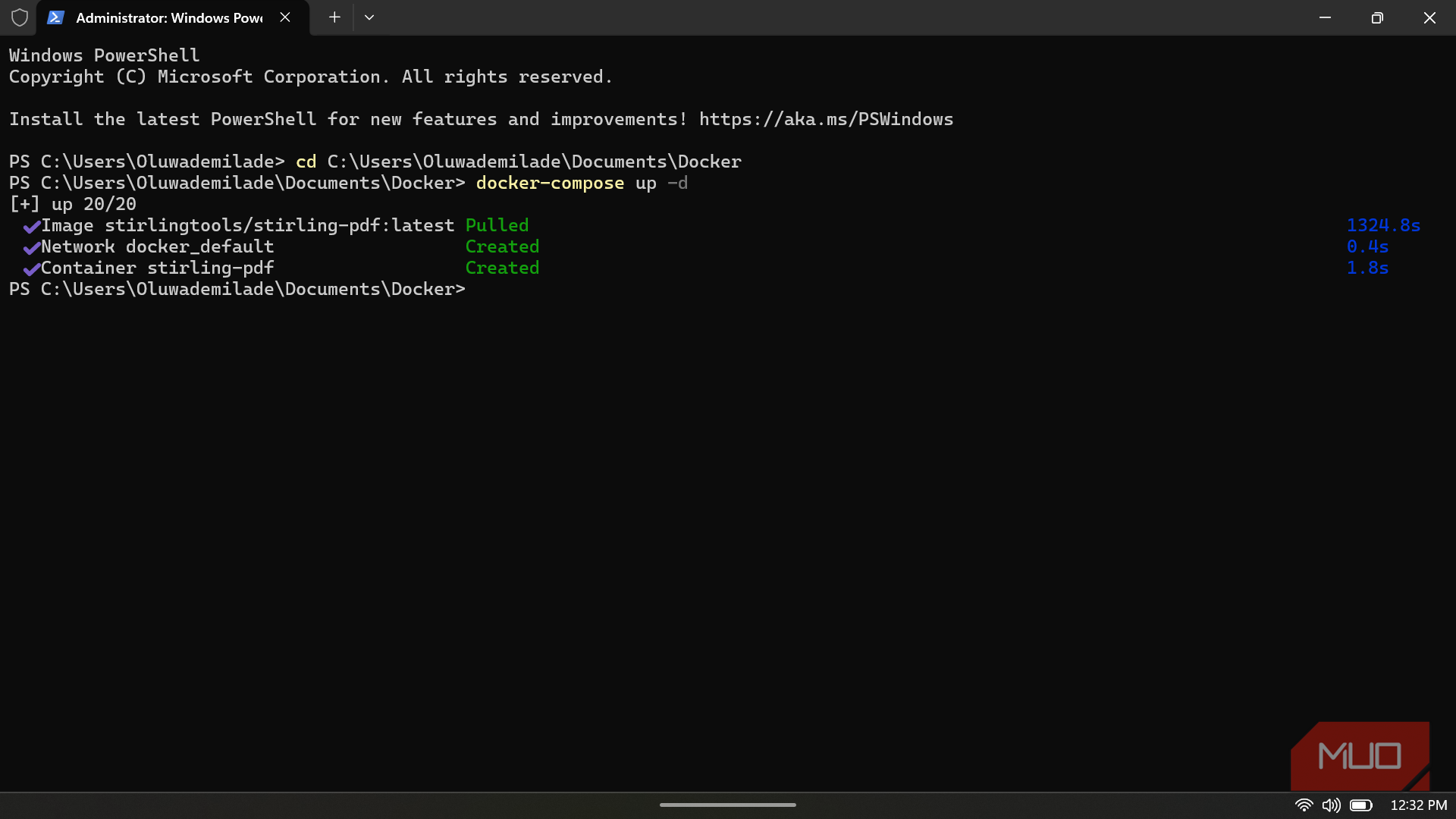
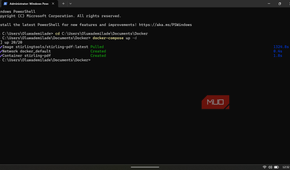
Once the file is saved, open a terminal in that folder and run:
docker compose up -dThat pulls the image and starts the container in the background. Open http://localhost:8080 in your browser, and you should see the Stirling PDF homepage. After a brief walkthrough, you should land on the edit interface.
Merging images, adding pages, and redacting text
Where it goes beyond the basics


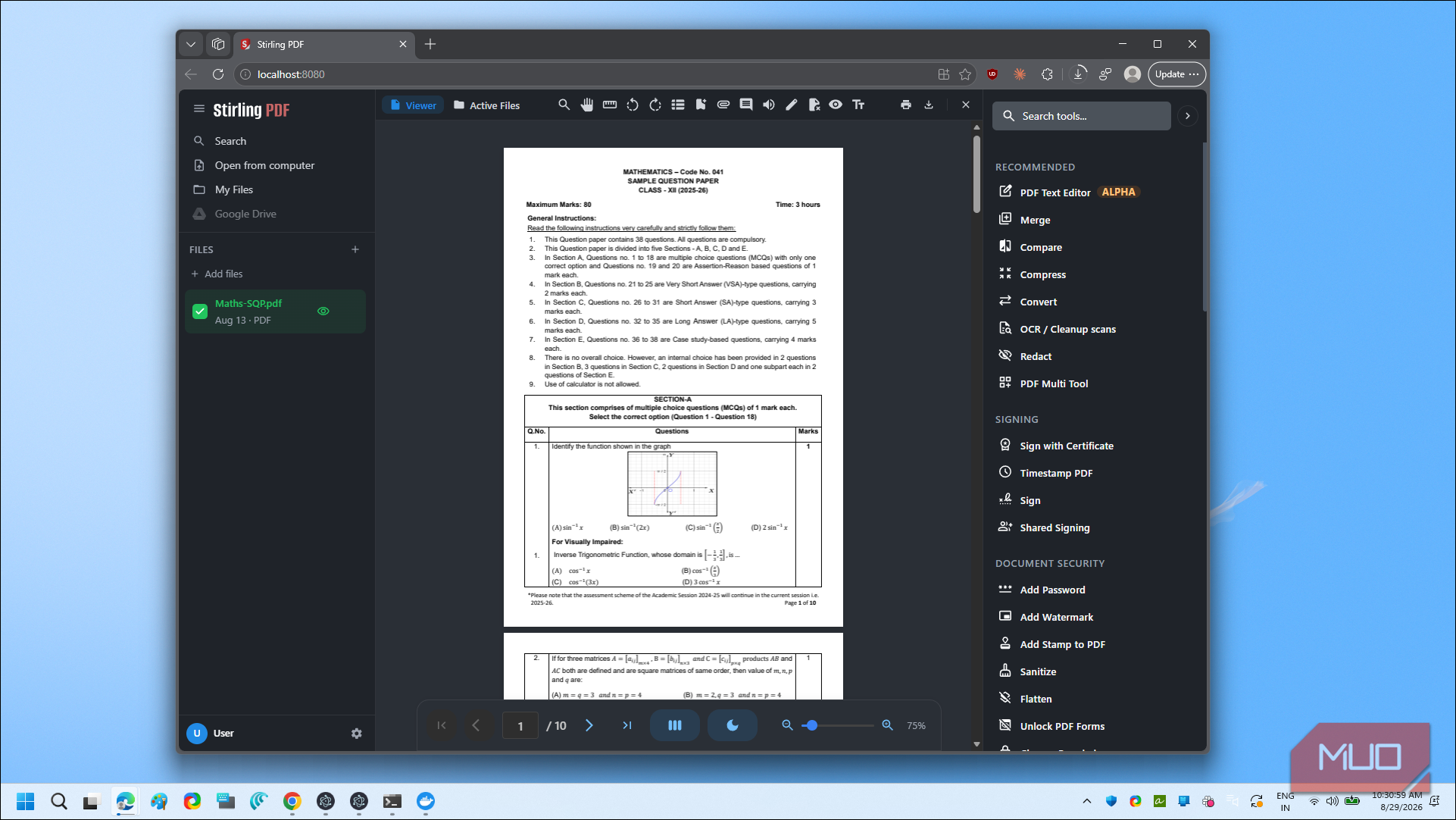
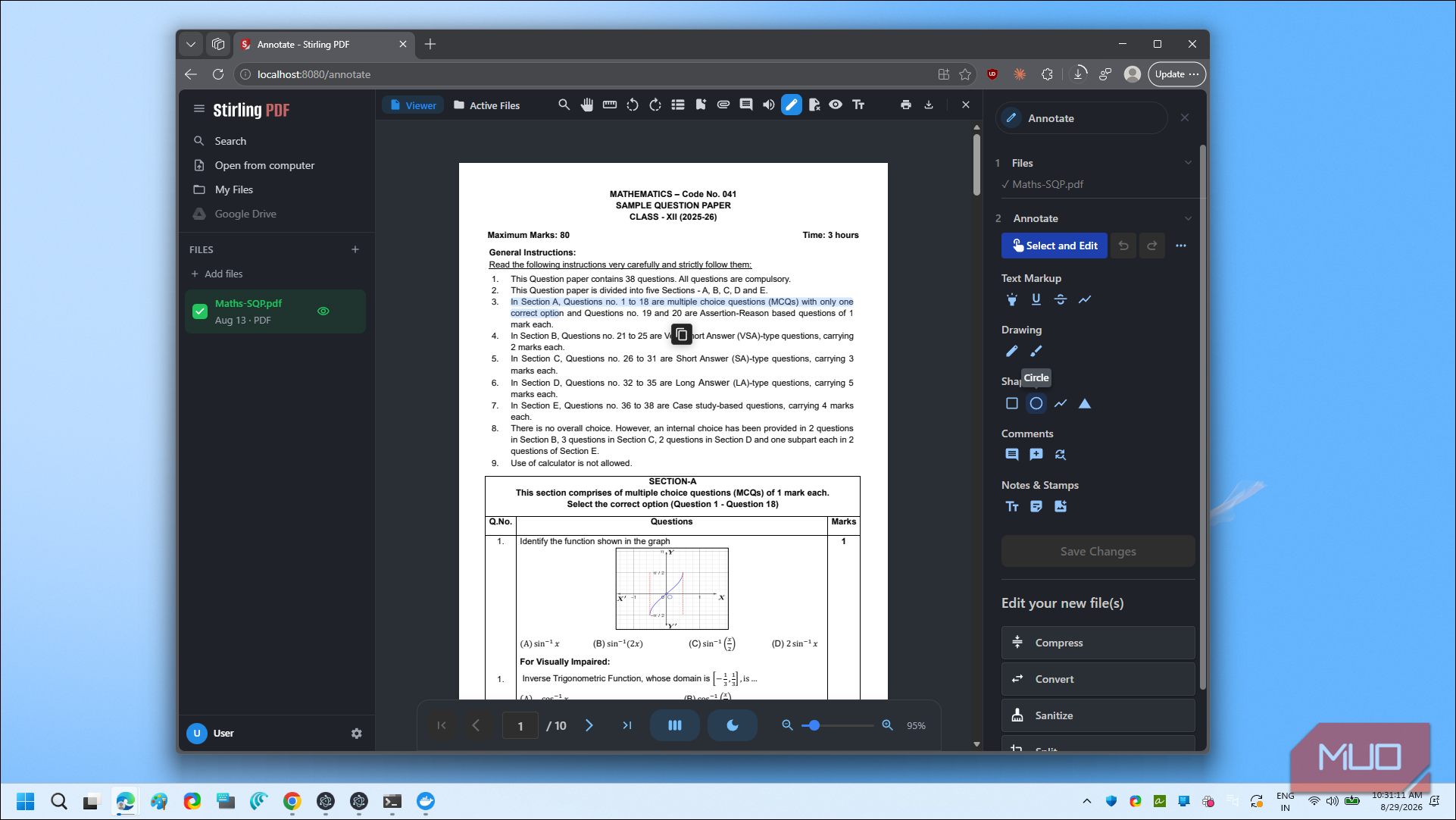
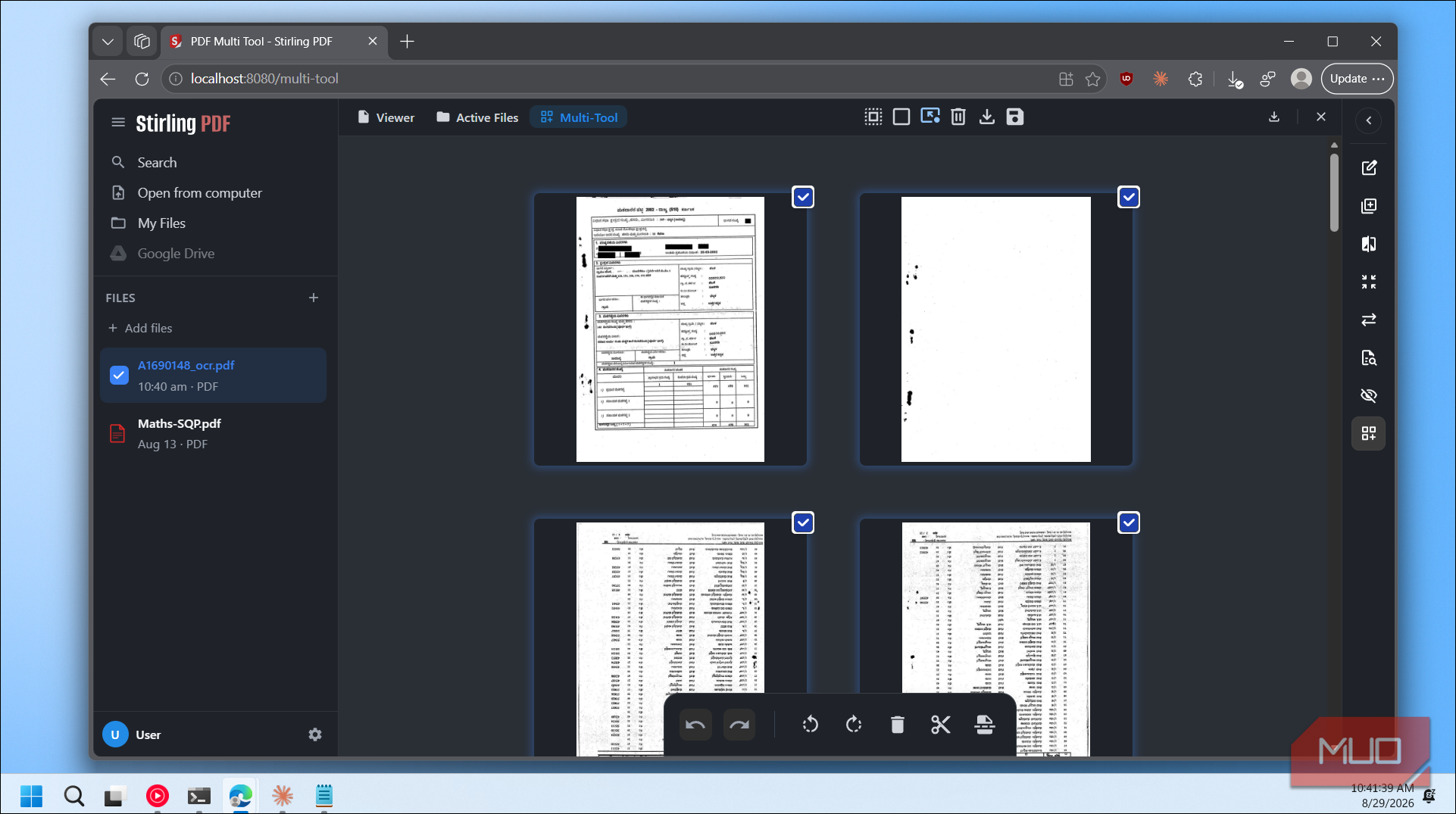
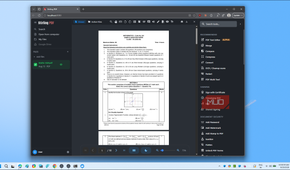
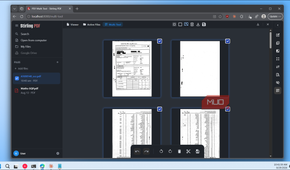
I started by converting a batch of images into a single PDF. To do this, open the Image to PDF tool, select the image files, set them to maintain aspect ratio, and choose to merge them into one document. Then, click Convert and all images will come back as pages of a combined PDF.
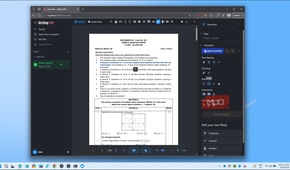
Adding page numbers was just as quick. I opened the PDF I had just created, picked a margin size, set the starting number, chose which pages to number, and placed them in the bottom-right corner.
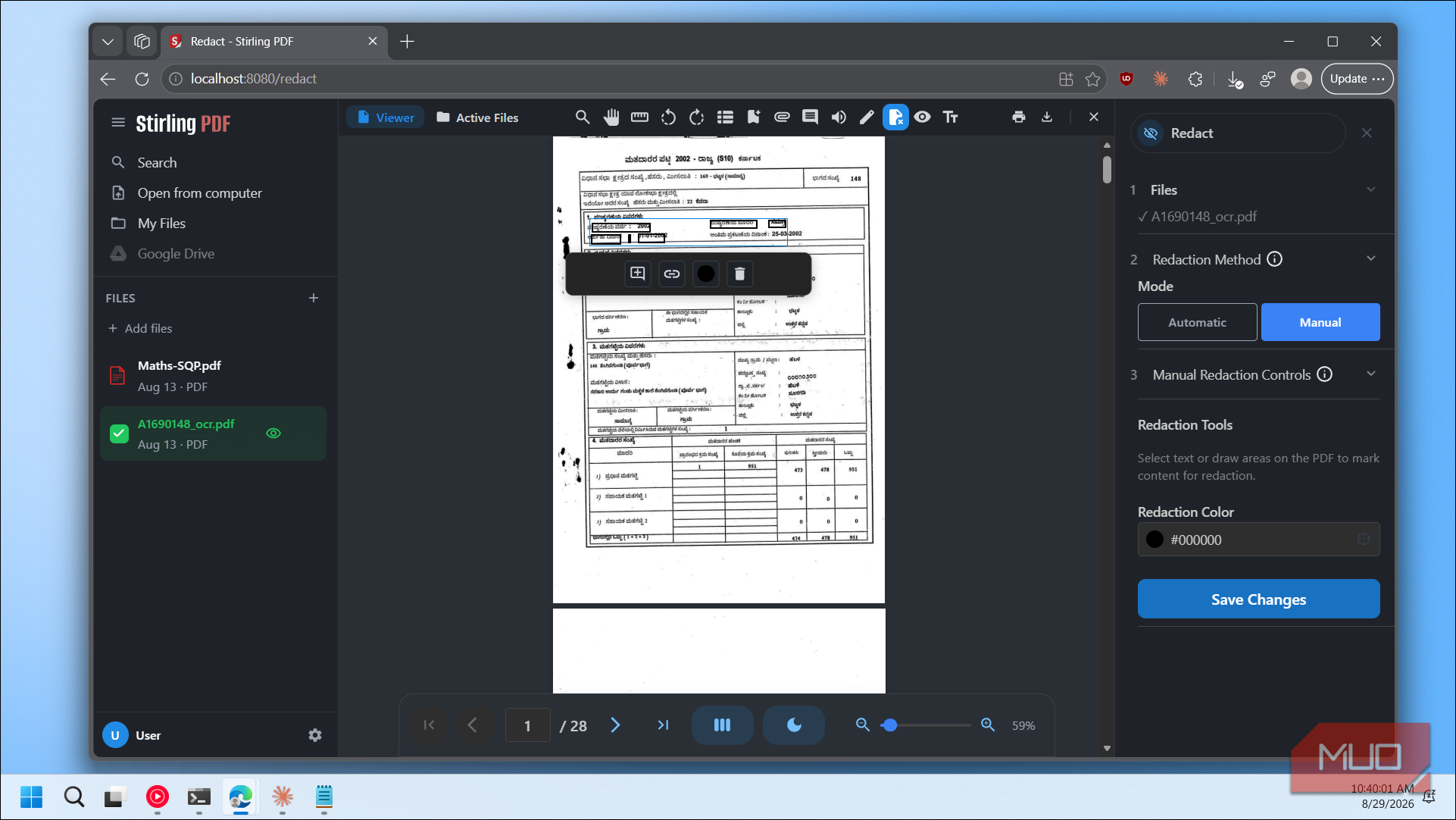
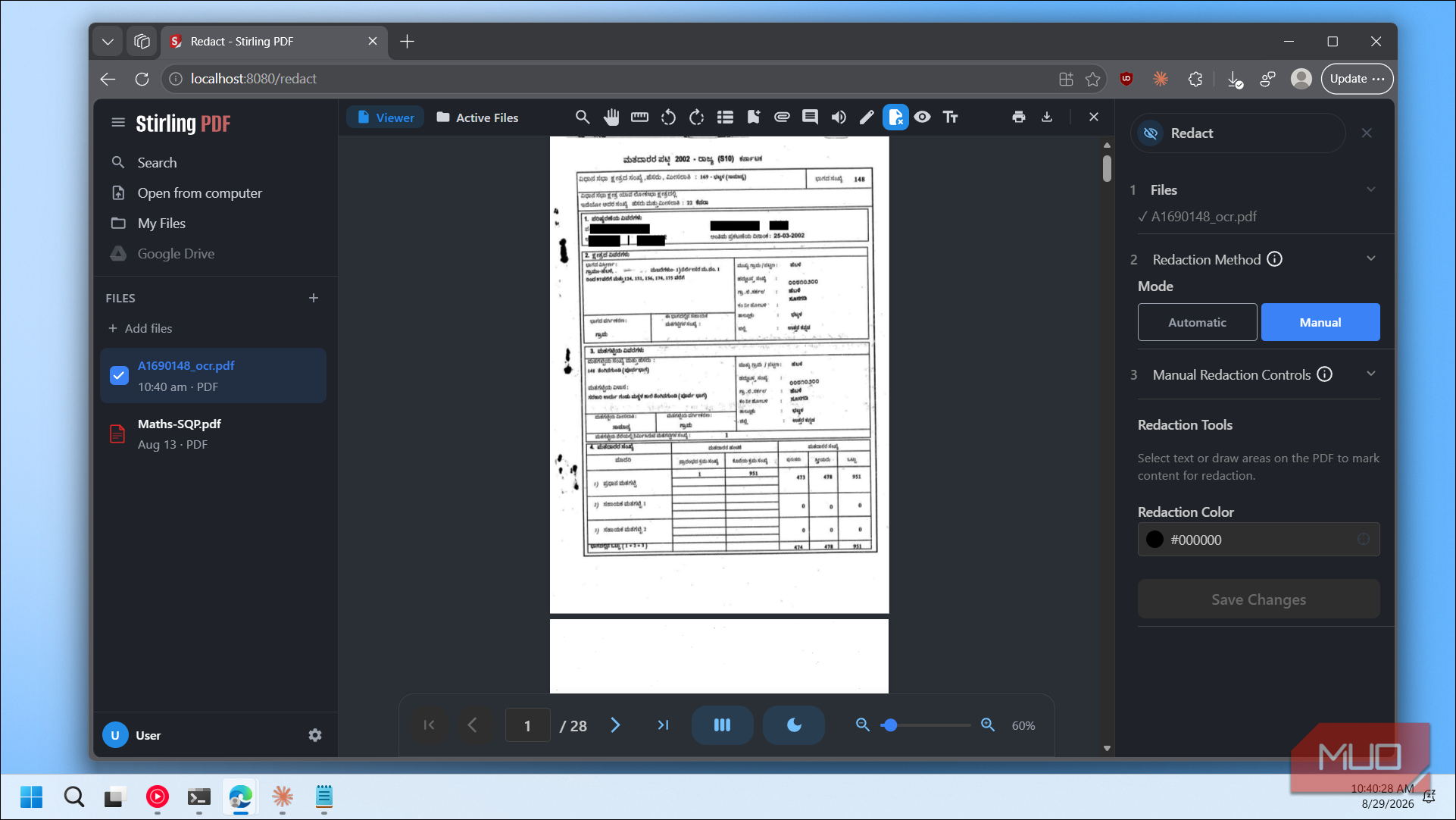
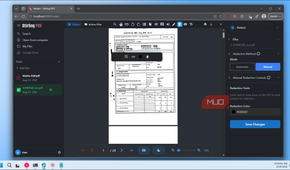
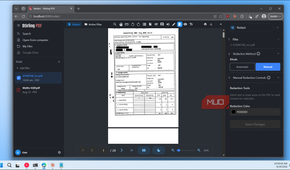
Redaction is another useful PDF editing tool. Stirling PDF has an Auto Redact tool that lets you type in specific words or phrases, and it blacks them out everywhere they appear in the document. You can enable whole-word matching and regex, pick the color of the redaction box, and even add padding around each match. There's also an option to flatten the output into an image-based PDF, which removes the text behind the black boxes entirely so nobody can select or copy the hidden content.
What sets Stirling PDF apart from something like BentoPDF, another self-hosted PDF app I've tried, is the ability to chain multiple operations without saving and re-uploading between each step. BentoPDF processes one operation at a time, while Stirling PDF lets you queue them up. It can also convert live webpages to PDF, export PDFs to HTML or XML, overlay one PDF on top of another, and batch-rename files based on their content.
What doesn't work yet
A few rough edges worth knowing about

The redaction tool only works on real, selectable text. If text is baked into an image inside the PDF, like a scanned page or a screenshot, Stirling PDF won't detect or redact it. I tested this specifically, and text embedded in images was completely ignored. You would need to run OCR on the document first to make that text searchable and redactable.
Out of the box, there's no login or authentication. The web app is an open page that anyone on your network can access. That's fine if it's running on your personal machine behind a home router, but if you're setting this up for a team or exposing it beyond your local network, you'll need to configure the security environment variables yourself.
The password protection feature also has a gap. When you set an owner password to restrict what can be done with a document after it's opened, not all PDF readers respect those permissions. Some apps will simply ignore the restrictions, so don't rely on owner passwords alone if you need tight control over how a document gets used.
A full-fledged PDF editor that's open-source
Stirling PDF is ideal for PDF tasks most people run into every day: merging, splitting, compressing, converting, redacting, and password-protecting; it handles all of them without your files ever leaving your machine.
If you've been relying on random PDF websites and wondering where your files end up, running this one Docker container gives you a private toolkit that covers almost everything you need. For anyone already comfortable with Docker or exploring open-source PDF editors for the first time, Stirling PDF is well worth the five-minute setup.