


I know enough about Registry Editor to be dangerous, which usually means knowing a setting exists while having no idea where Microsoft buried it. Some Windows Registry hacks genuinely make the operating system better, but finding the right key often involves an old tutorial, a newer correction, several missing values, and a debate over decimal versus hexadecimal. Then I need to remember how to undo it if something goes wrong.
FluentTweaker gathers much of that detective work into one interface while showing that the changes underneath are ordinary registry values, policies, and scripts rather than optimization dust. It does not make every tweak safe or sensible, but it makes the work far easier to inspect before I commit to it.
Getting FluentTweaker running
Portable, current, and still carrying old luggage

FluentTweaker is one of those Windows apps that runs without a conventional installation, which feels right for a tool I may only open once every few months.
I downloaded it from the official GitHub Releases page, following the sensible security rule of getting software from official websites or verified repositories to avoid getting malware on your machine. That is important because the developer has repeatedly warned that lookalike domains such as winslop.com are not his.
At the time of writing, the latest release is version 26.06.02, titled "Dawn of the Fluent Era" and released on June 7, 2026. I downloaded FluentTweaker-win-x64.zip, extracted it, and launched FTweaker.exe. There is no conventional installer, and the source code and tweak databases are publicly visible in the repository.
The package includes a self-contained .NET runtime, so I did not need to install .NET separately. Depending on the Windows installation, the WinUI 3 interface may still require the Windows App SDK Runtime. The app does not require administrator access merely to open, but it may request it when a selected tweak writes under HKEY_LOCAL_MACHINE and needs administrator rights. More on that in a moment.
FluentTweaker has gone through two previous names. It started as Winslop, was later renamed Winslopr, and eventually became FluentTweaker, a companion project to the same developer's FluentCleaner.
Some older releases include a Winslop.Legacy.exe file alongside the main application, so older screenshots or extracted folders may still show the previous branding. The correct file to launch now is FTweaker.exe from the latest official release.
Registry tweaking without registry roulette
The checkbox still has paperwork underneath


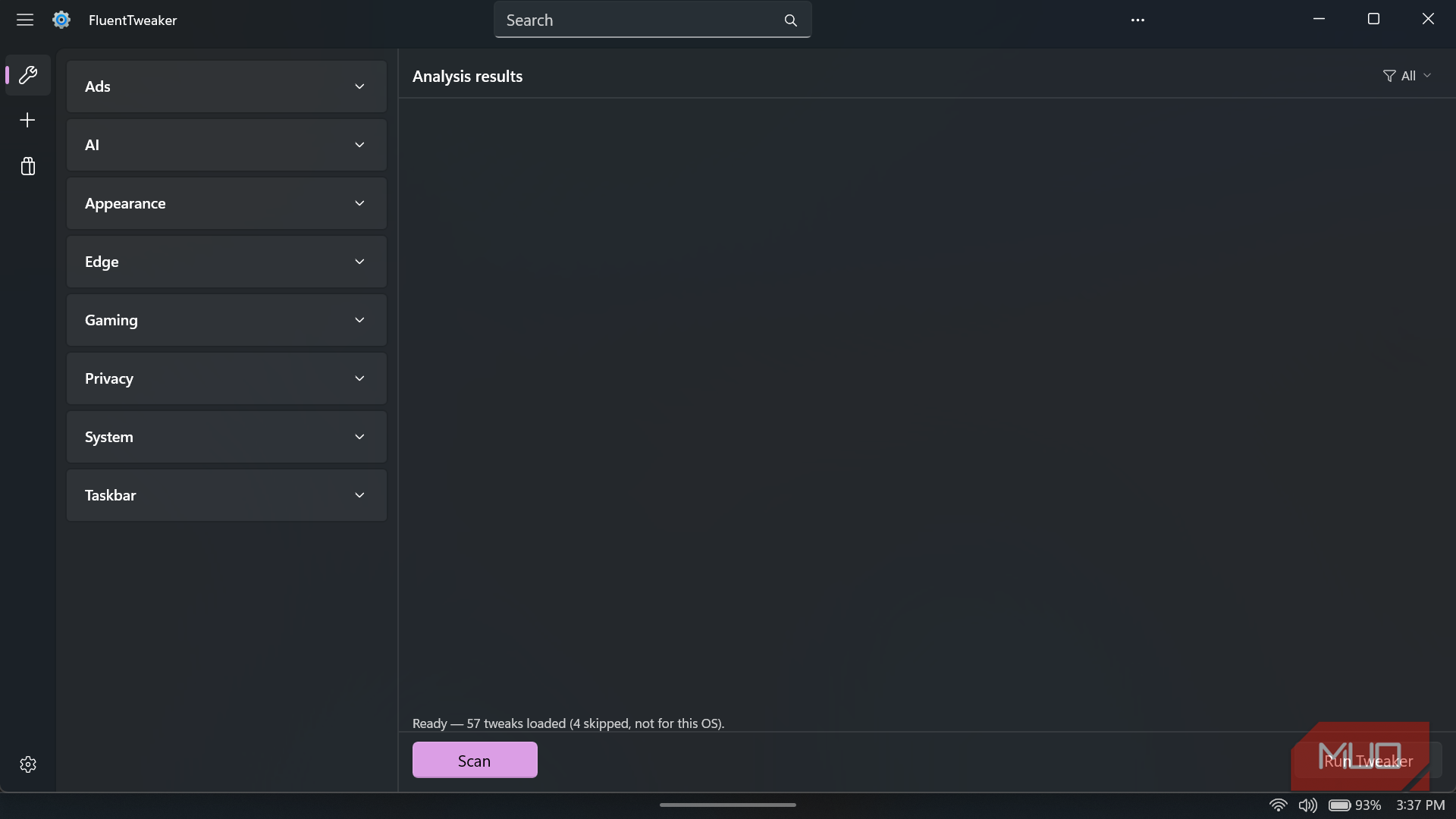
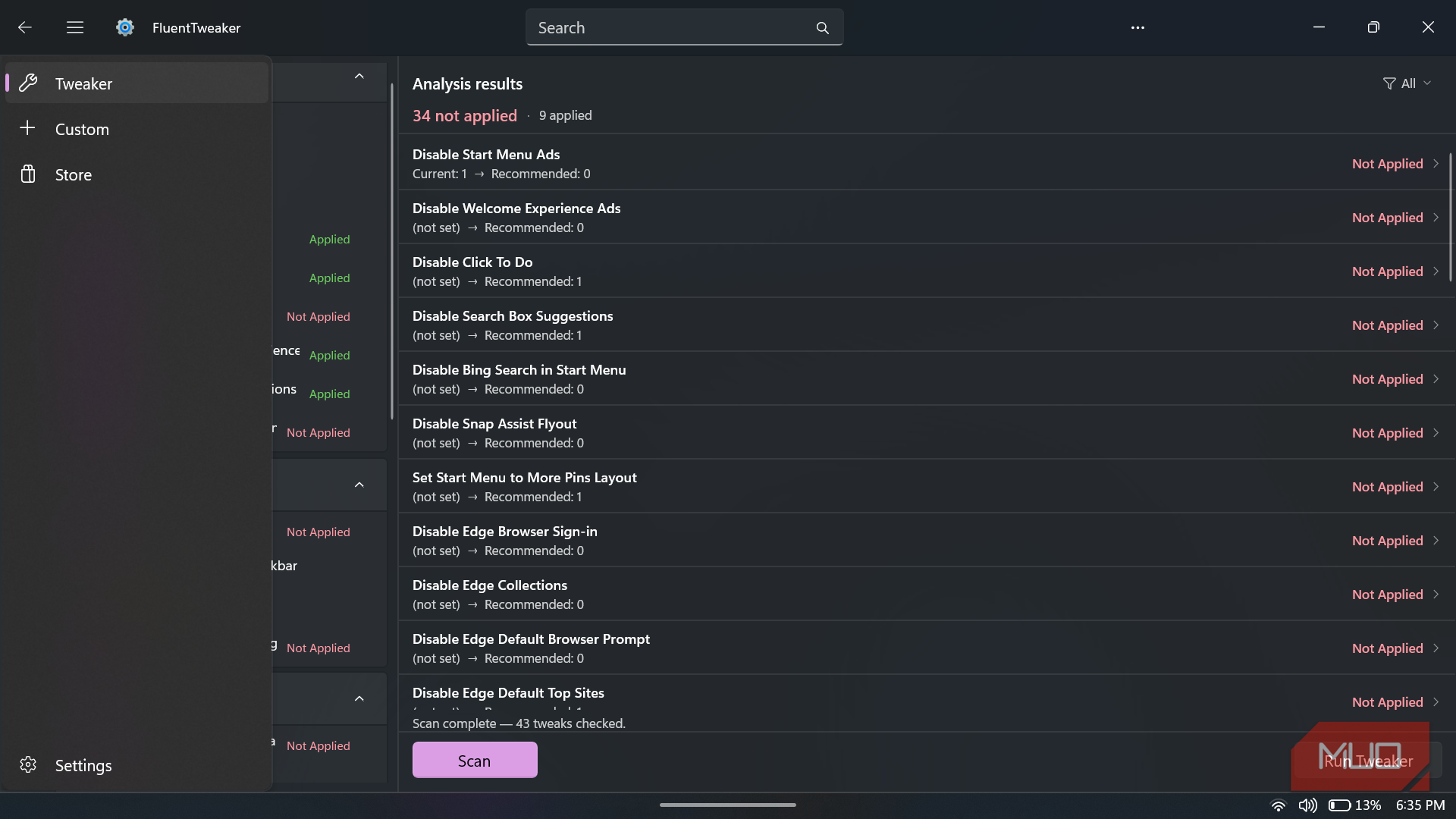
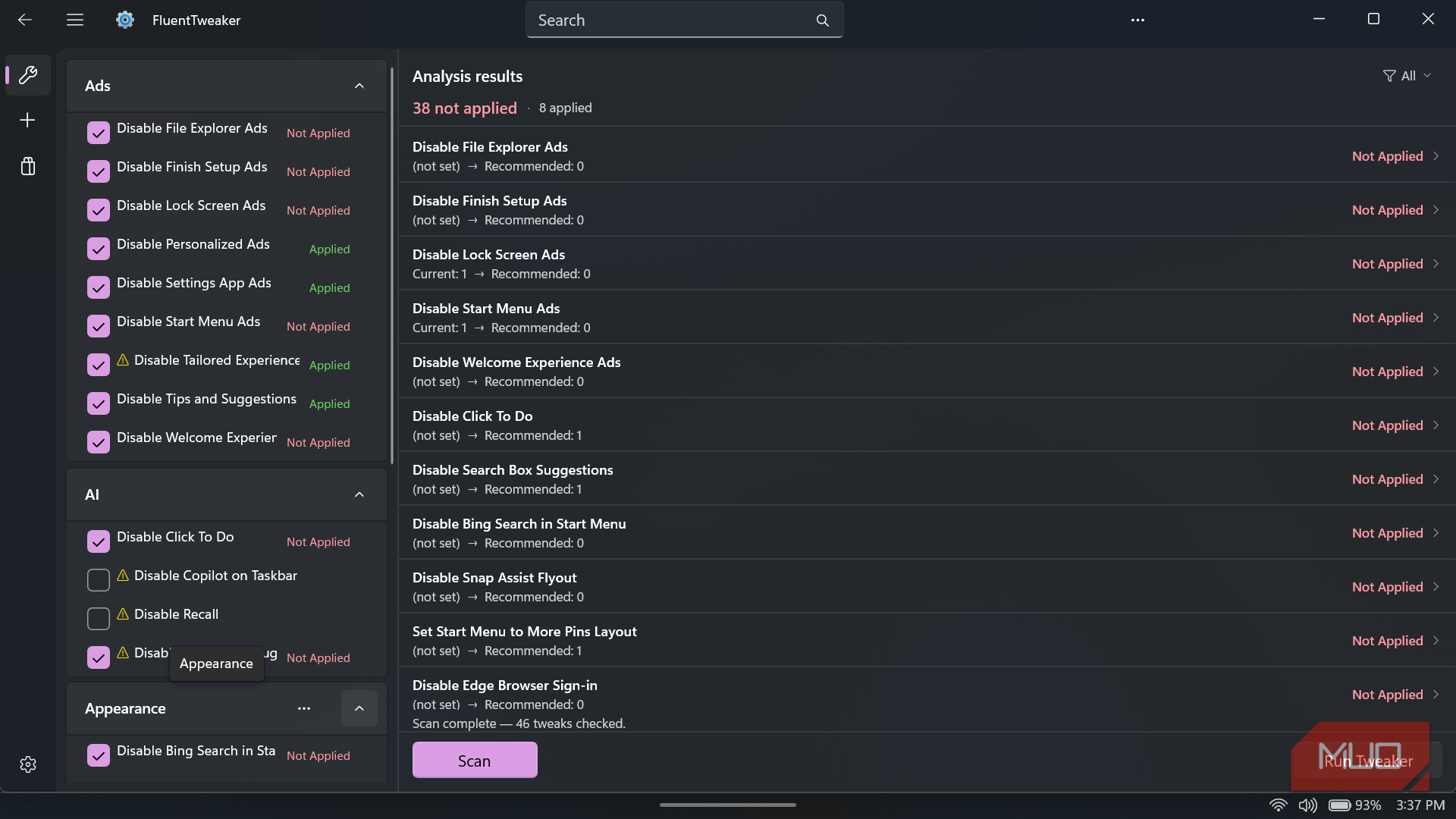
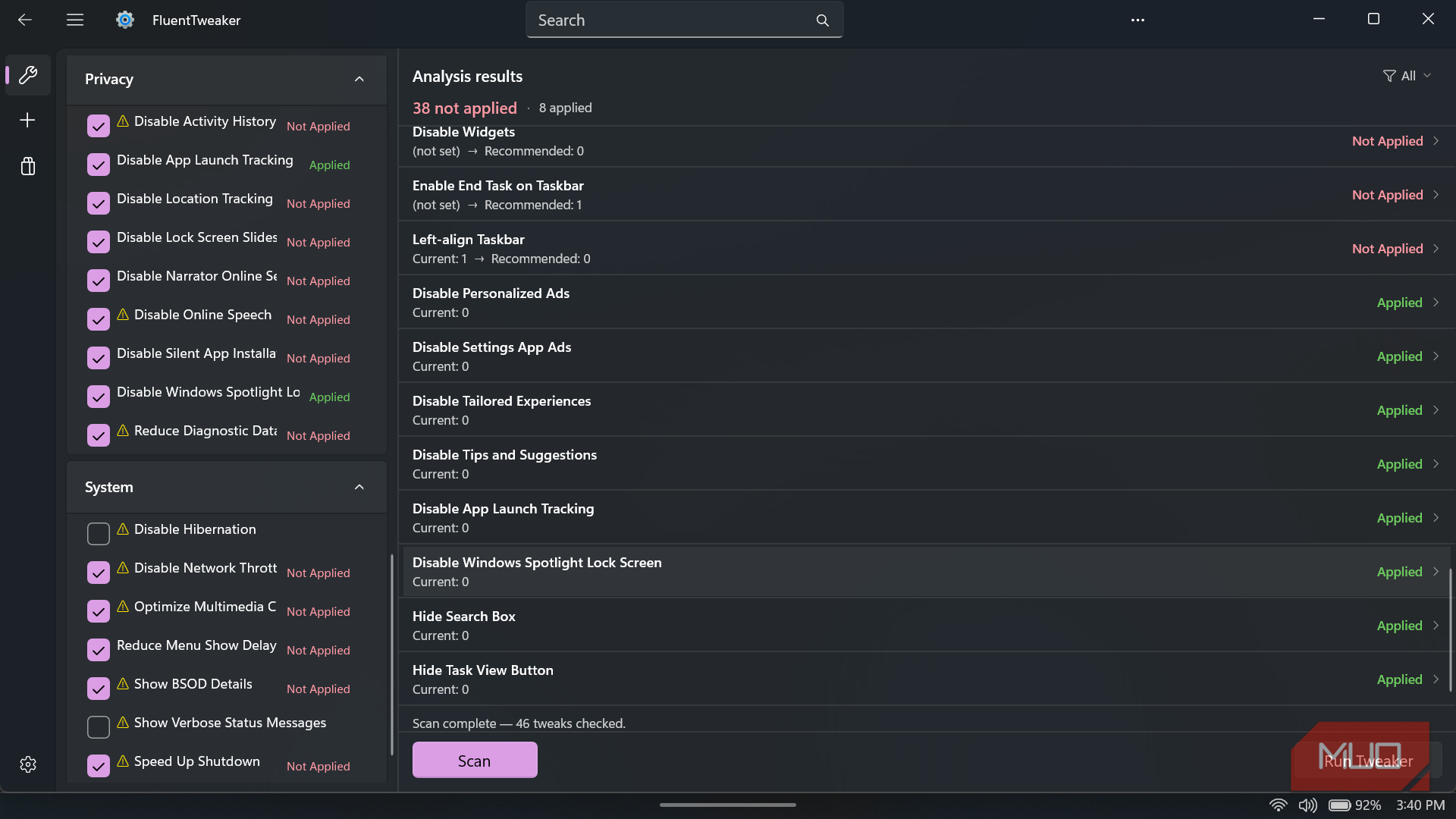
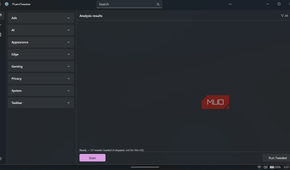
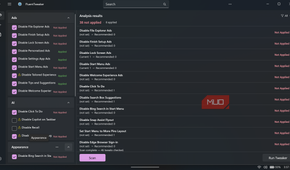
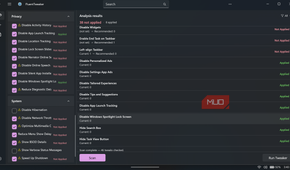
The main navigation is split into Tweaker, Custom, Store, and Settings. Tweaker is where most of the registry-focused work happens, with collapsible groups for Ads, AI, Appearance, Edge, Gaming, Privacy, System, and Taskbar. A search box sits above them, which is considerably faster if you know what you're searching for.
FluentTweaker does not apply any changes until you click Run Tweaker. Pressing Scan first checks the available tweaks against the version of Windows installed on the PC. On my machine, it confirmed that a batch of tweaks had loaded while skipping several that were not compatible with my build. That compatibility check is one of the features I value most. It prevents me from applying an outdated Windows 10 setting on Windows 11 and then wondering why nothing changed.
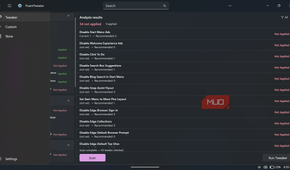
Once the scan finishes, the Analysis results pane displays the current value for each setting, FluentTweaker's recommended value, and a status such as Applied or Not Applied. When the app cannot reliably determine a setting's state, it labels it Unknown rather than presenting a guess as fact. It also makes elevation requirements clear, showing a prompt with the exact registry path it needs to access before requesting administrator privileges.

I trust this approach more than downloading an unexplained .reg file because the underlying changes are inspectable. FluentTweaker stores its built-in tweaks in a plain-text database called Wintweak2.ini, similar to CCleaner's winapp2.ini. Each entry can specify the registry path, value name, data type, proposed value, reset instruction, restart requirement, administrator requirement, and supported Windows generation.
You select individual changes using the checkboxes inside the collapsible categories, then apply them with Run Tweaker. Now, many recommendations arrive preselected. "Recommended" means recommended by FluentTweaker's database and developer, not approved by Microsoft or guaranteed to improve every PC.
Some entries are straightforward preference changes, such as hiding suggestions or restoring Windows 11's classic right-click context menu. Others alter shutdown timing, networking behavior, multimedia scheduling, privacy policies, Game DVR, Edge features, or background services.
Before pressing Run Tweaker, I deselected anything I had not researched or could not explain. I would be especially cautious around performance tweaks because a registry value that helps one workload may be irrelevant or counterproductive on another machine. Applying every checked recommendation in one batch also makes troubleshooting needlessly difficult if something breaks.
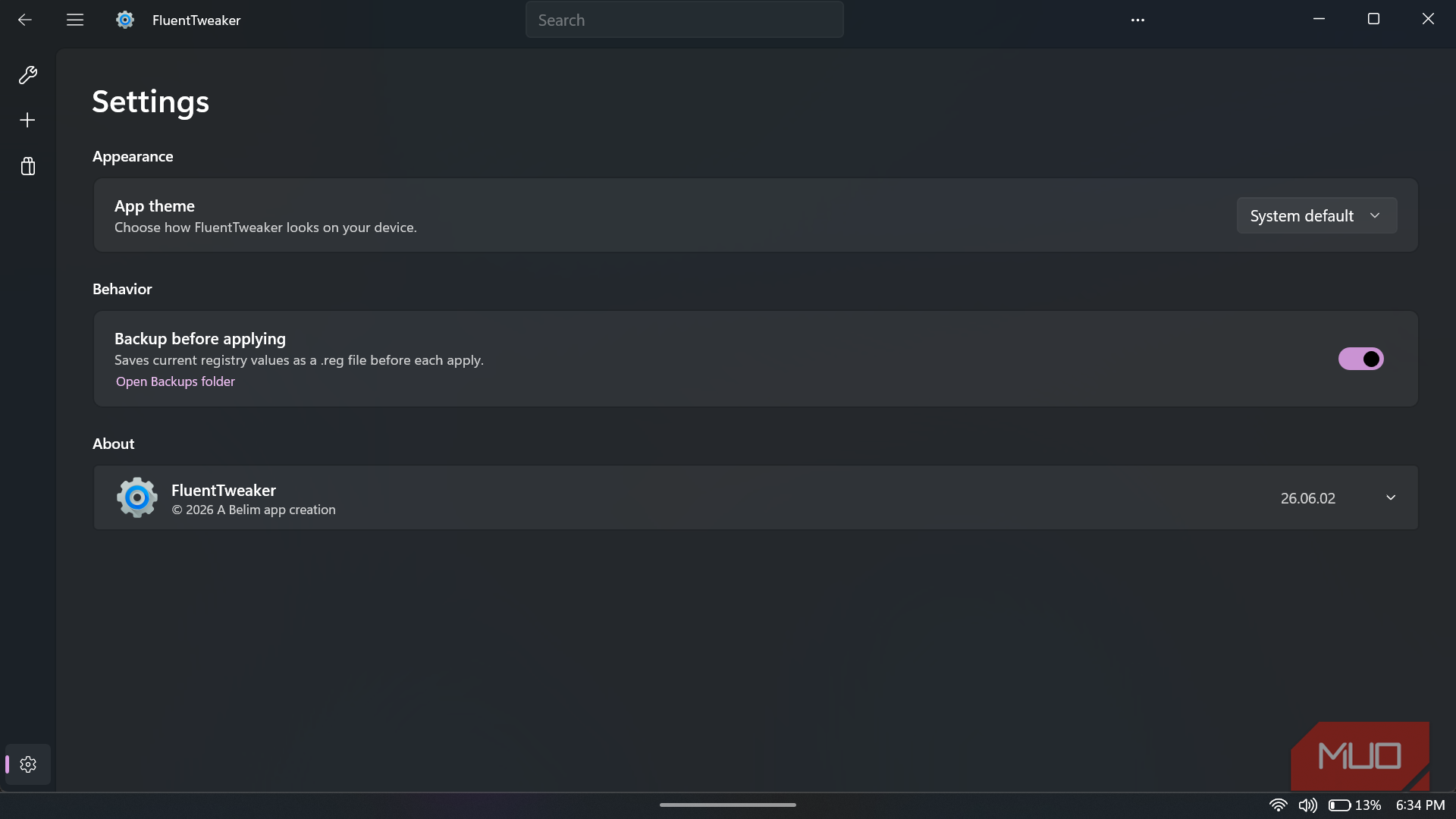
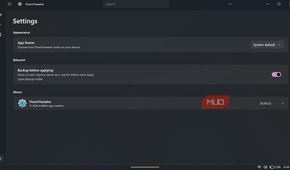
Recovery is an equally important part of the experience. In Settings, FluentTweaker can back up the affected Windows Registry values to a .reg file before each application operation. Most built-in entries also define a reset value or deletion instruction intended to restore the setting's normal Windows behavior.
That backup is useful, but it is not the same as a complete restore point. It covers the registry values that are changed by the tweaker. It will not necessarily reinstall an AppX package, reverse a winget uninstall, undo every PowerShell script, or recover unrelated system files. Before experimenting with the more invasive features, I would still create a restore point or a proper system backup.
FluentTweaker goes beyond registry switches
Two more cards with their different jobs


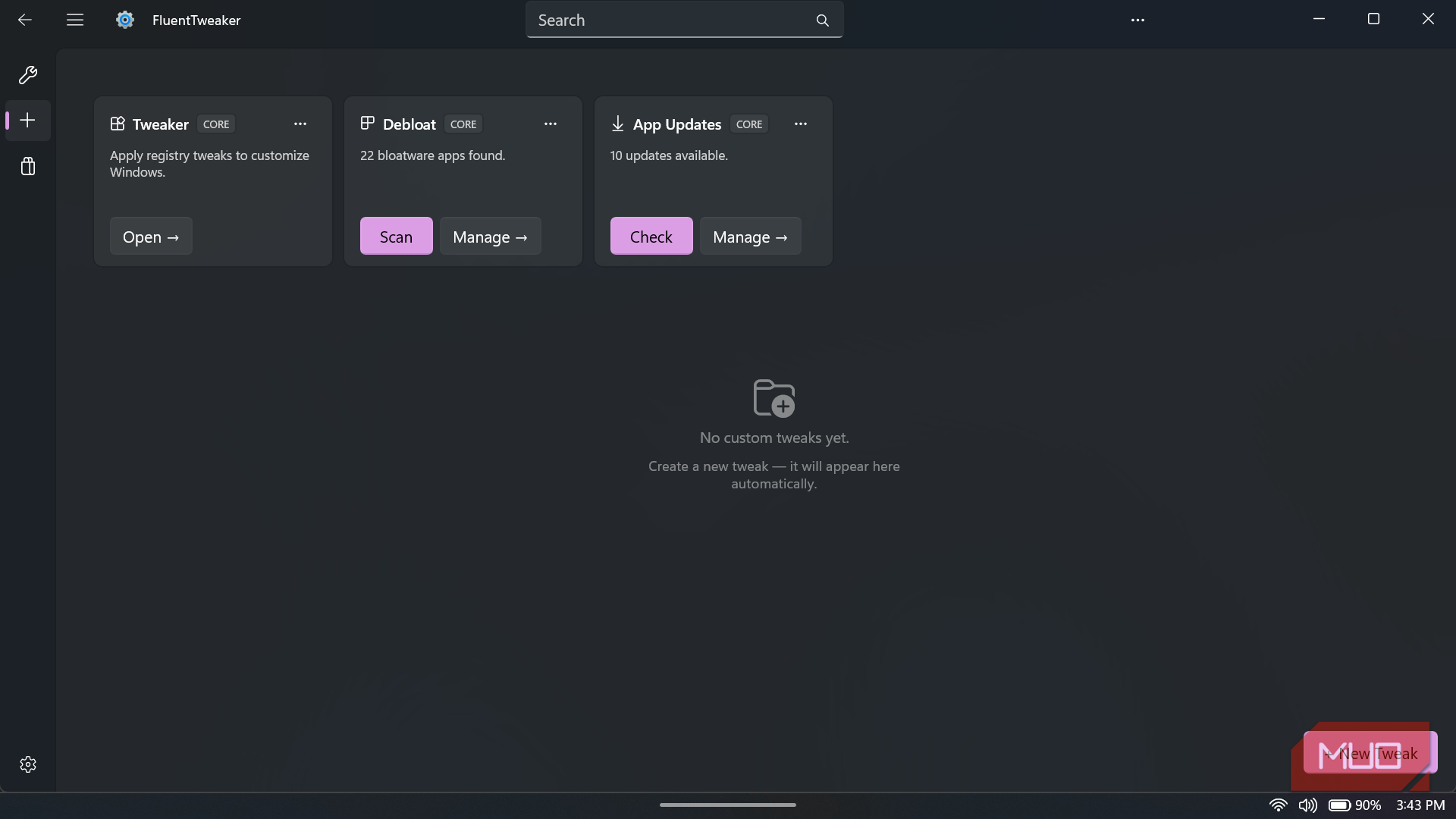
Back on the Custom dashboard, Tweaker appears alongside two other cards: Debloat and App Updates.
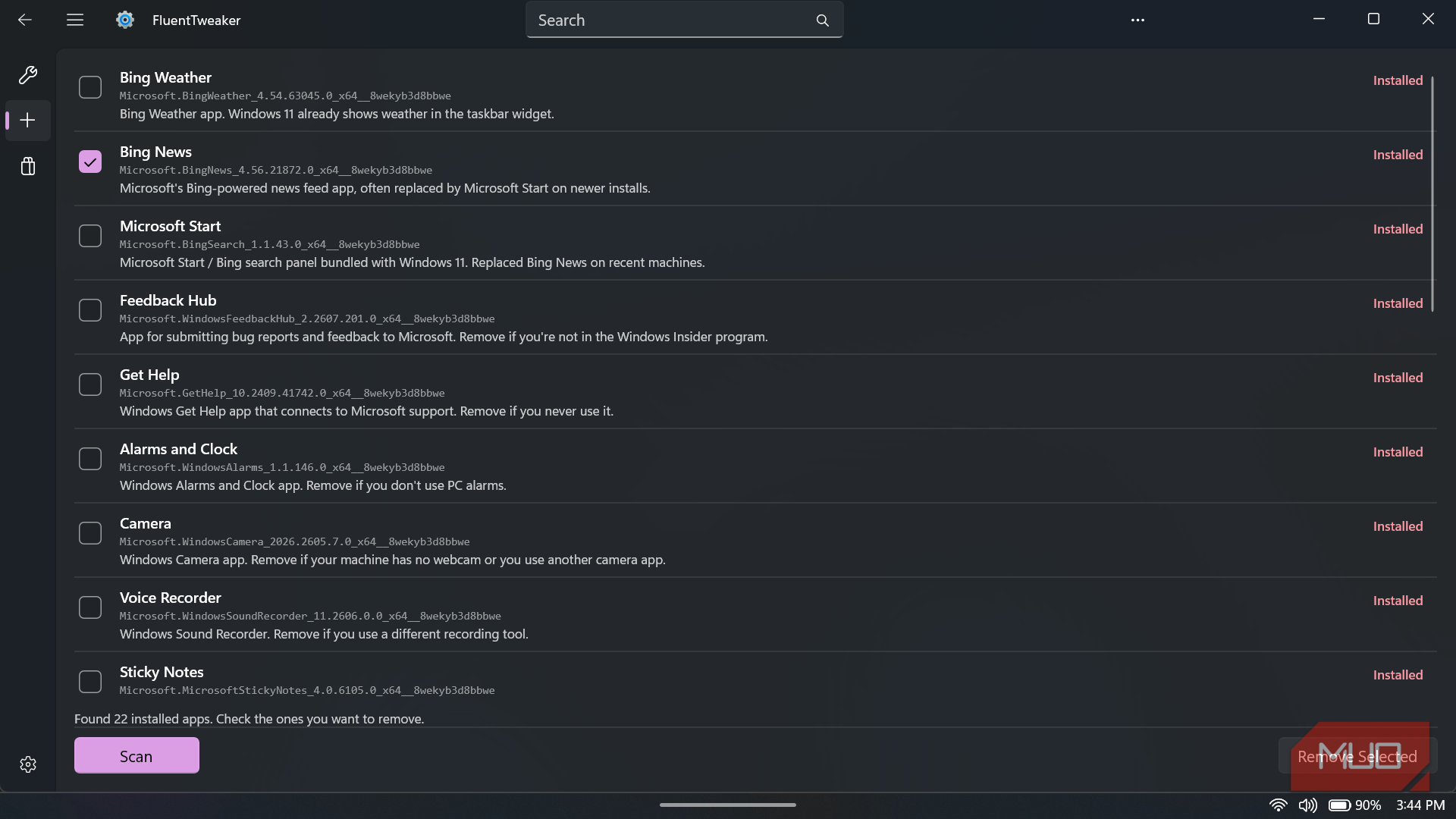
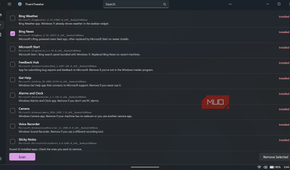
Debloat scans for installed AppX packages and presents the results as a checklist. On my PC, it found apps such as Bing News, Feedback Hub, Camera, Voice Recorder, and Sticky Notes, although the exact results will depend on the Windows installation.
Each entry includes a short description and a suggestion about when removal may make sense. Those recommendations come from FluentTweaker's own database, so you may treat them as the developer's judgment rather than a universal definition of bloat. Sticky Notes may be disposable on my PC and essential on someone else's. So, you should review the list manually before selecting anything and clicking Remove Selected.
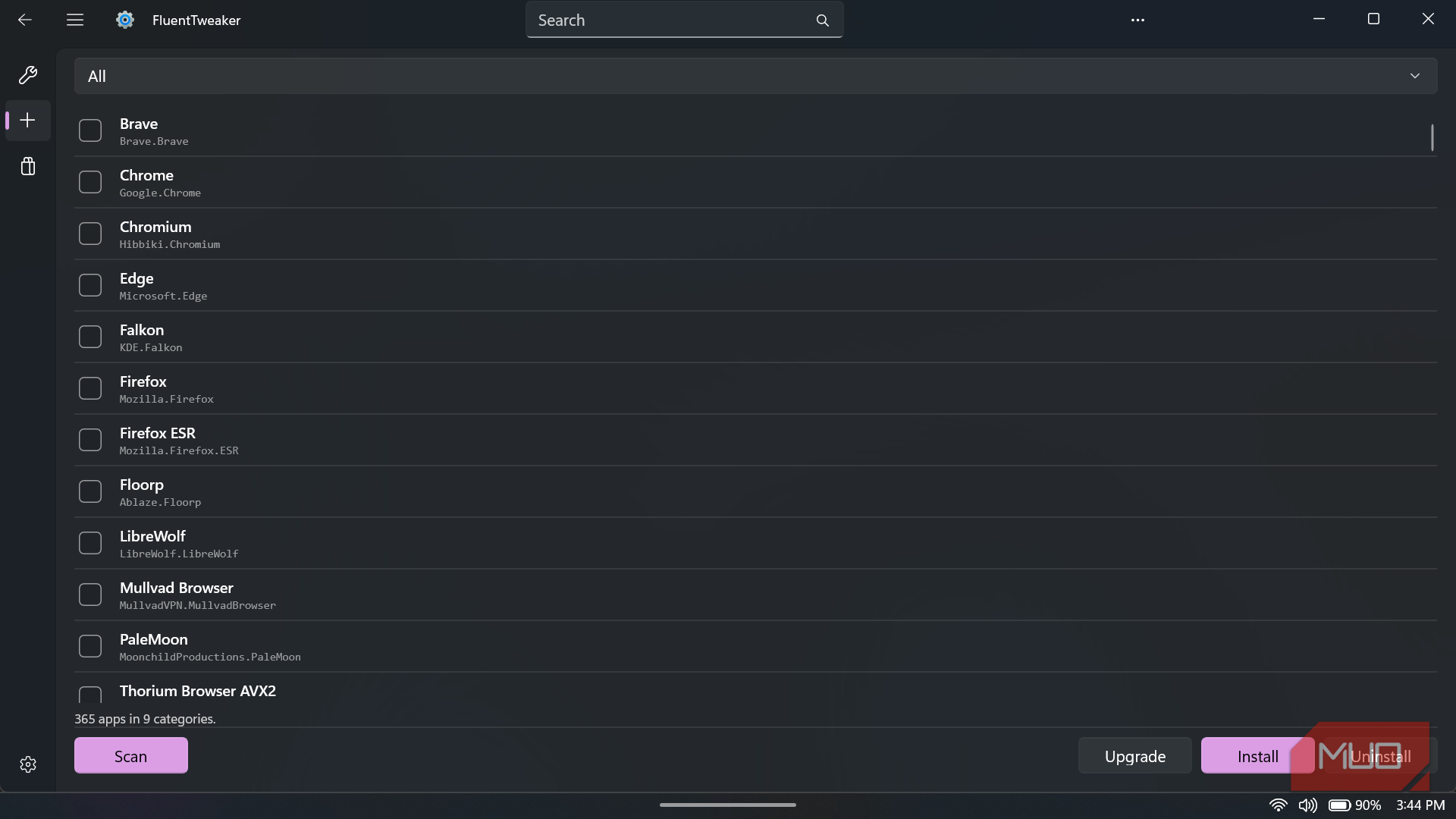
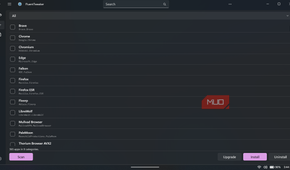
App Updates is where FluentTweaker folds in WinGet and the package-management tricks it brings to Windows. The dashboard card shows how many updates are waiting. From there you can click Manage and get a full software catalog containing 365 apps, with filters for categories such as Browsers, Communications, Development, Documents, Games, Microsoft Tools, Multimedia Tools, Pro Tools, and Utilities.
Selecting any app activates Install, Uninstall, and Upgrade controls that send the appropriate commands to winget behind the scenes. The same package manager still handles the actual work, while FluentTweaker replaces package IDs and terminal syntax with a set of checkboxes that are easier to browse and manage.
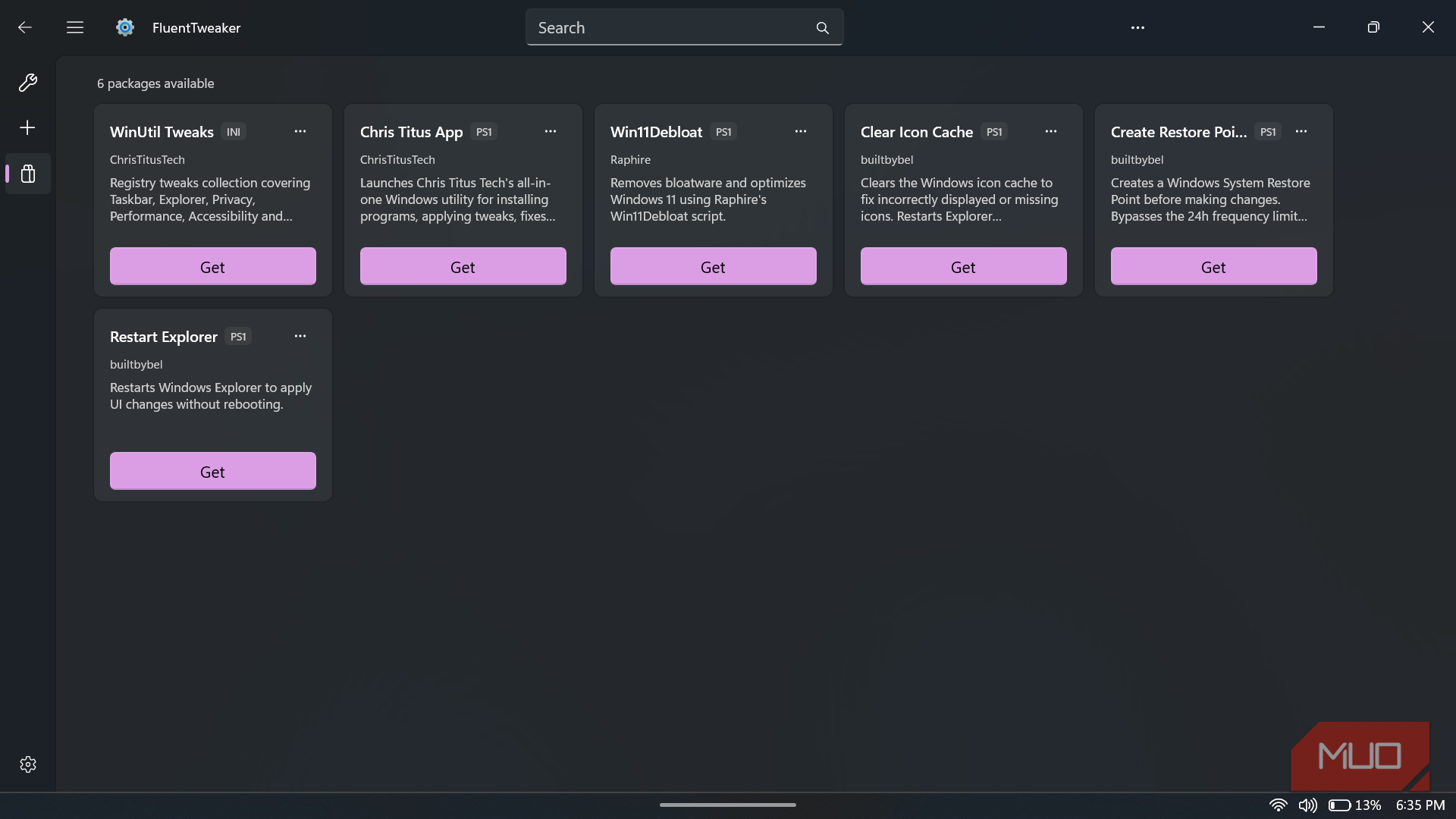
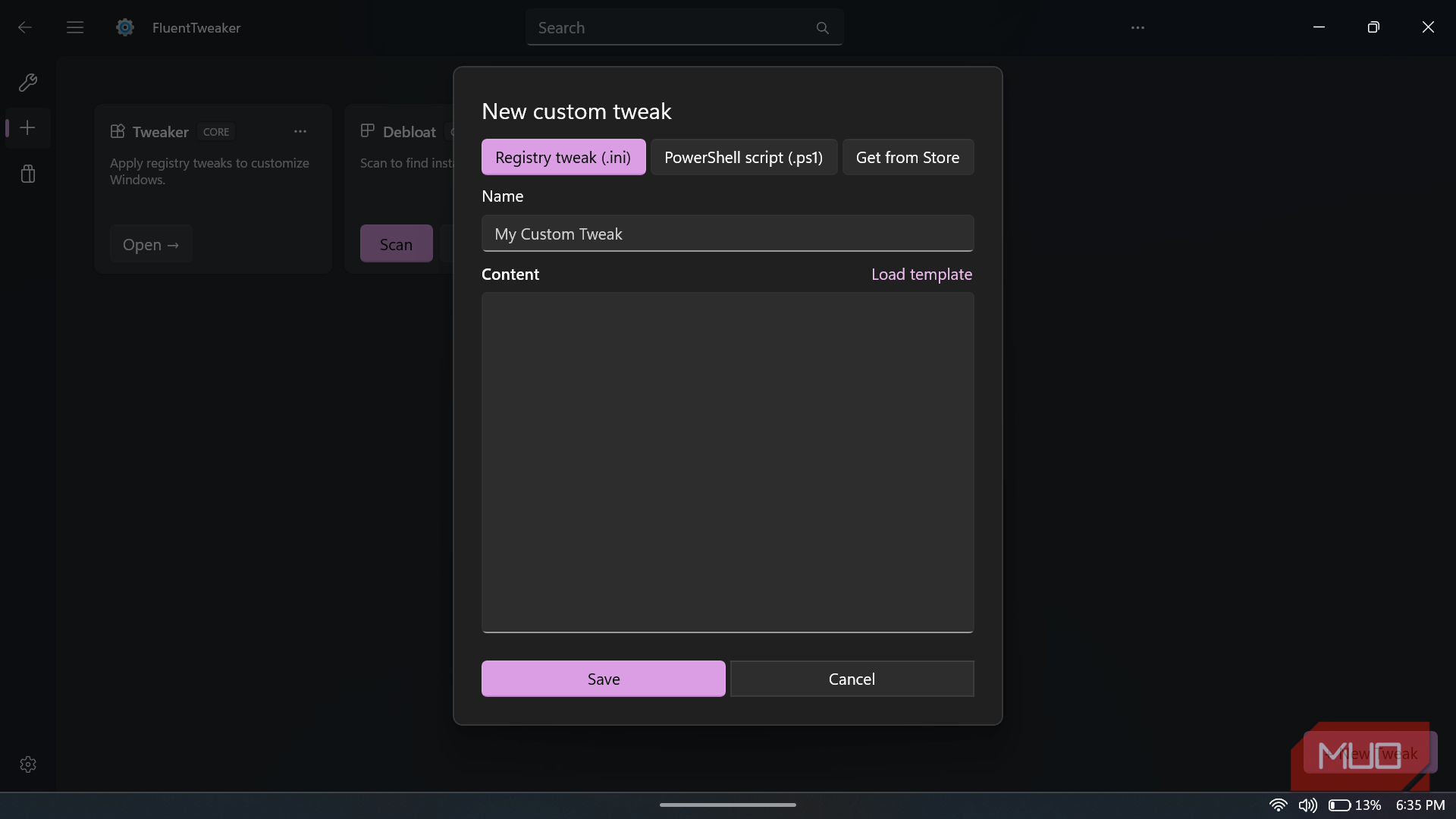
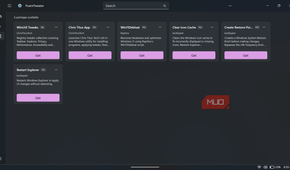
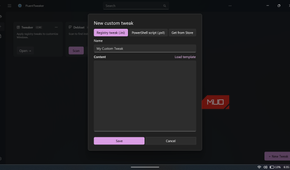
The Custom section goes a step further by letting you add your own INI-based registry tweaks or PowerShell scripts that automate Windows tasks, while Store offers downloadable tweak packages and utilities. Those additions make FluentTweaker considerably more flexible, although I would inspect any community script with far more suspicion than one of the built-in registry definitions.
Registry Editor still has a job, but it gets fewer invitations
FluentTweaker has not made Registry Editor irrelevant, and unusual tweaks will still send me back there. What it has removed is the repetitive hunt for paths, value types, defaults, and stale instructions. I can see the proposed change, apply only the settings I understand, and keep a practical route back instead of wandering through the registry with a decade-old forum post open beside it.