


I've read numerous articles criticizing Windows Search. I don't hate it as much, but I've never fully trusted it either. Sometimes when I type the name of a file I know exists into the Windows Start menu, I get results that don't include what I'm searching for, and I end up manually digging through folders after trying a few keywords.
After going through this cycle for years, I knew I needed an alternative, and my search led me to WizFile. It took just a few seconds to scan my entire drive after the first launch, and almost instantly displayed a comprehensive list of files. It's become the default Windows search tool for me, and one I've now stuck with for months.
Windows Search wasn't solving my problem
I stopped trusting the results

The usefulness of Windows Search goes beyond finding files. It's integral to launching apps, opening settings, searching email, and general navigation in Windows. These are tasks that Search can't easily replace.
However, the frustration starts to show when you have to locate a specific file. Search relies on an index maintained by the OS, so it doesn't actually scan the drive each time you search; it gets quick results from that index. This approach makes sense, especially since you could be dealing with millions of files.
The issue is the inconsistency of the results. At times, you may find an item almost immediately, but other times, especially when the item is tucked away in rarely used folders, it may not show up. So, while Search wasn't always wrong, I just wasn't 100% sure I'd always get what I wanted.
This uncertainty makes you double-check every result. When it doesn't return a file I know exists, I start a manual search because I can't trust that the file actually doesn't exist. In the end, a search tool that should save me time ends up consuming more time.

WizFile
- OS
- Windows
- Price
- Free
WizFile is a fast file search utility for Windows developed by Antibody Software.
WizFile changed how I search
Everything appears immediately
I was caught off guard by how quickly WizFile populated its file list. I was used to watching File Explorer slowly work through a search term, and I had accepted it as the norm. As soon as I start typing, results appear, and the more I type, the narrower they become in real time.
However, it was the predictability that changed my workflow, and I started using it for everything. There was nothing it couldn't reach, including old screenshots buried deep within folders I'd forgotten. I found the setup files I had saved long ago on my SSD. I no longer had to second-guess results or manually navigate layers of directories.
In WizFile, you can search by file path, size, and date, in addition to file name. These options have come in handy when I don't remember a file's name.
It also includes filters that help you narrow down search results. I can filter by audio, video, compressed, image, document, or folder. When I need to find storage hogs, filtering for files above a specific size comes in handy. While these may feel like tiny features, they've solved real-life problems in my daily workflow.
WizFile helped me evolve from searching for files to browsing for them, a tiny change that became a huge time-saver.
The speed comes from one difference
It reads the file table

WizFile is extremely fast, and this made me curious. I needed to know why. The main difference is in how it gets its information. Windows computers most often use the NTFS file system, which maintains the Master File Table (MFT), which tracks files and folders on the drive. WizFile builds its own in-memory database by reading this information directly.
WizFile can gather information on files almost instantly because the file system already maintains these records. This is why it takes just a few seconds after launch to display a comprehensive list. However, WizFile doesn't solve the same problem as Windows Search.
Windows Search plays a more integrated role, indexing content inside documents, integrating with other parts of the OS, and powering searches across apps, settings, and emails. On the other hand, WizFile stays focused on locating files and folders on the disk almost instantly. This is why I wouldn't compare them purely on speed. However, for anyone who simply needs fast file finding, WizFile is the faster, more direct option.
It works best on NTFS drives, making it ideal for most modern Windows computers.
I ended up using it for something else
Finding storage hogs

Interestingly, I have a different use for WizFile, which has little to do with searching for lost files. It's become the first tool I reach for when I need to know what's filling up storage.
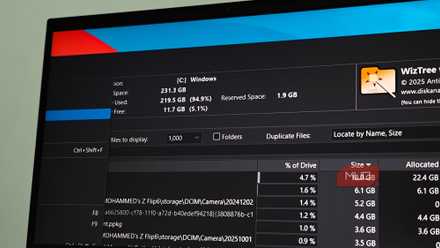
A simple sort by size does the trick, instantly revealing the largest files on the drive. When I first used it, I was shocked to see how many forgotten ISOs I still had on my computer. I found old video exports, backup archives, and installers from several years ago.
Native tools like Storage Sense and Disk Cleanup are helpful. However, the downside is that they primarily show categories rather than the actual files. WizFile wasn't just revealing that something was using 20GB; it showed me which files were using the space.
Windows Search serves a new purpose
Even though I switched to WizFile, Windows Search remains an integral part of my workflow. It's how I find the Environment Variables dialog, the Device Manager, or other tools. Limiting Windows Search's role to things other than finding files makes it more reliable. But for pure speed and efficiency in locating lost files, it can't compete with WizFile.