


Years of Windows updates and software installs slowly turned my old Asus Vivobook into a sluggish mess, where even opening a few browser tabs makes the cooling fan scream. The hardware is still fine, with a great keyboard and a clean screen, so a replacement is hard to justify given how expensive new laptops have become lately.
Instead of spending money on hardware or wiping the drive completely, I spent a day tracking down the background bloat and testing free tools that could clean it up. A handful of installs ended up restoring the snappy performance I thought was gone for good.
O&O ShutUp10++
Disables unnecessary background services


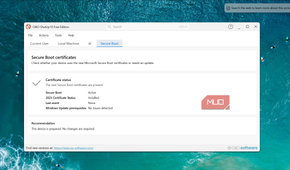
Windows runs a lot of background processes that you never signed up for. Telemetry services send data back to Microsoft while diagnostic tools and syncing tasks run on their own schedule. Modern hardware handles this fine, but on my Vivobook's Core i3, they hog the processor and keep the cooling fan spinning even when nothing is open on the screen.
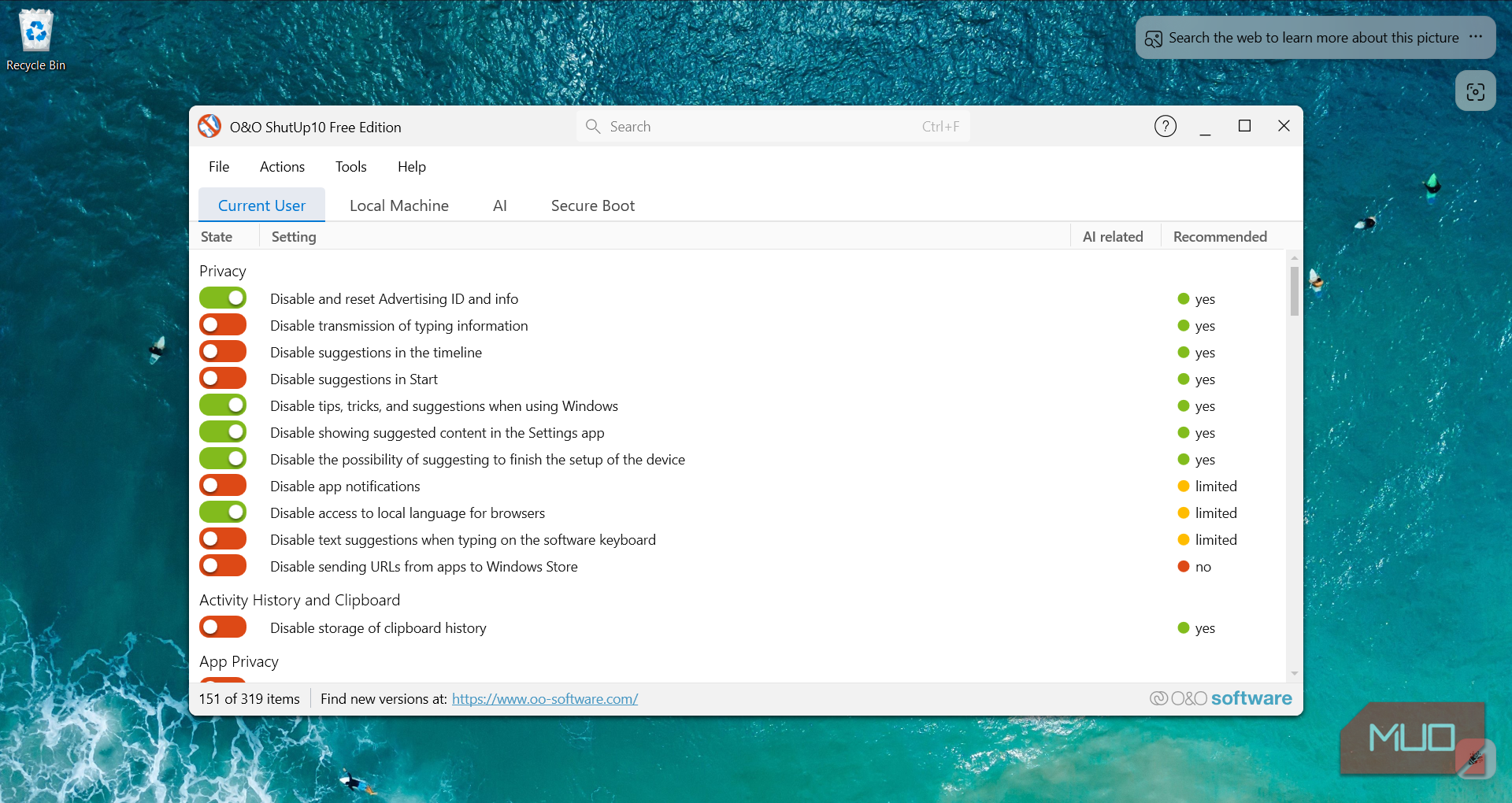
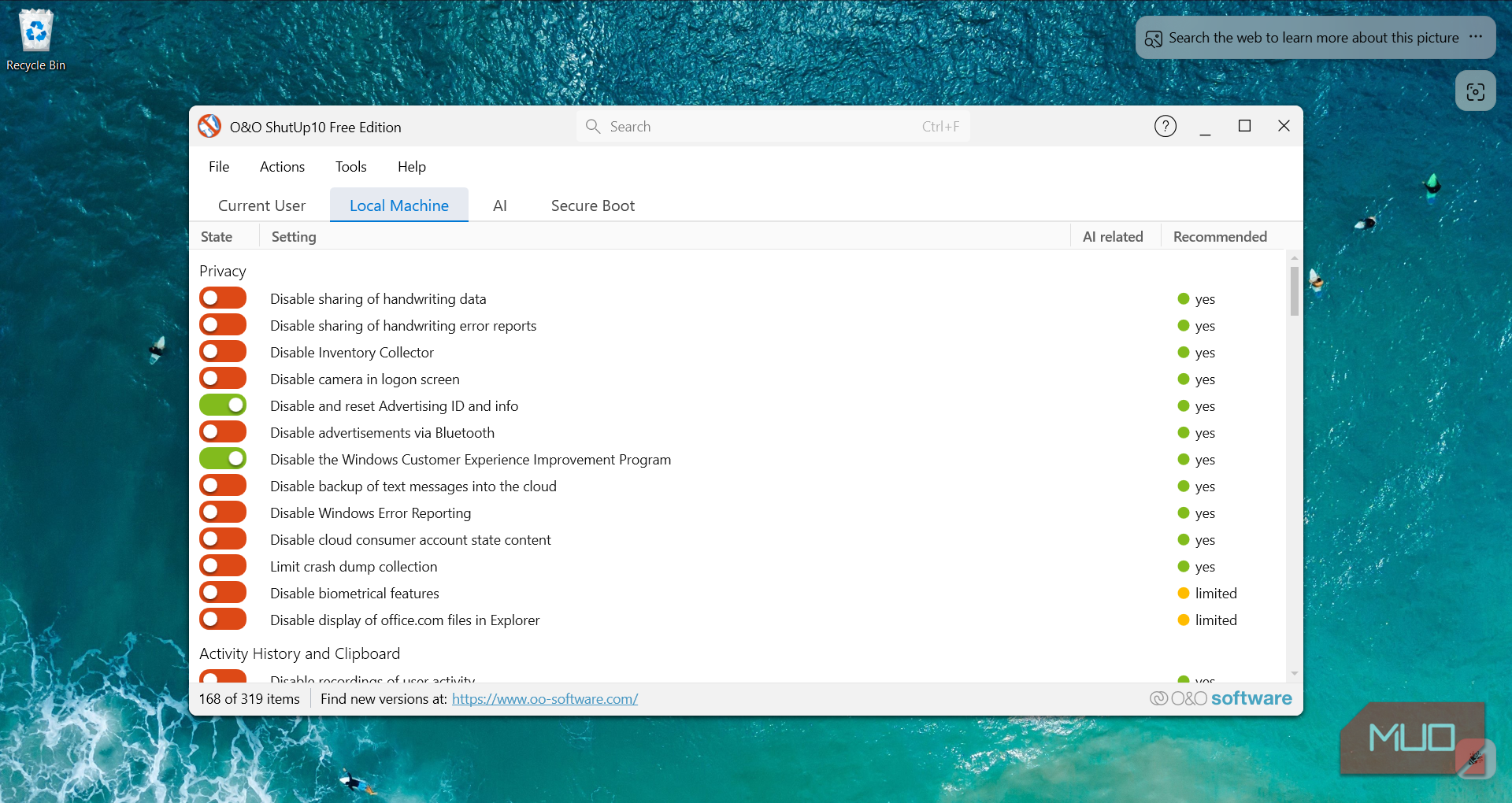
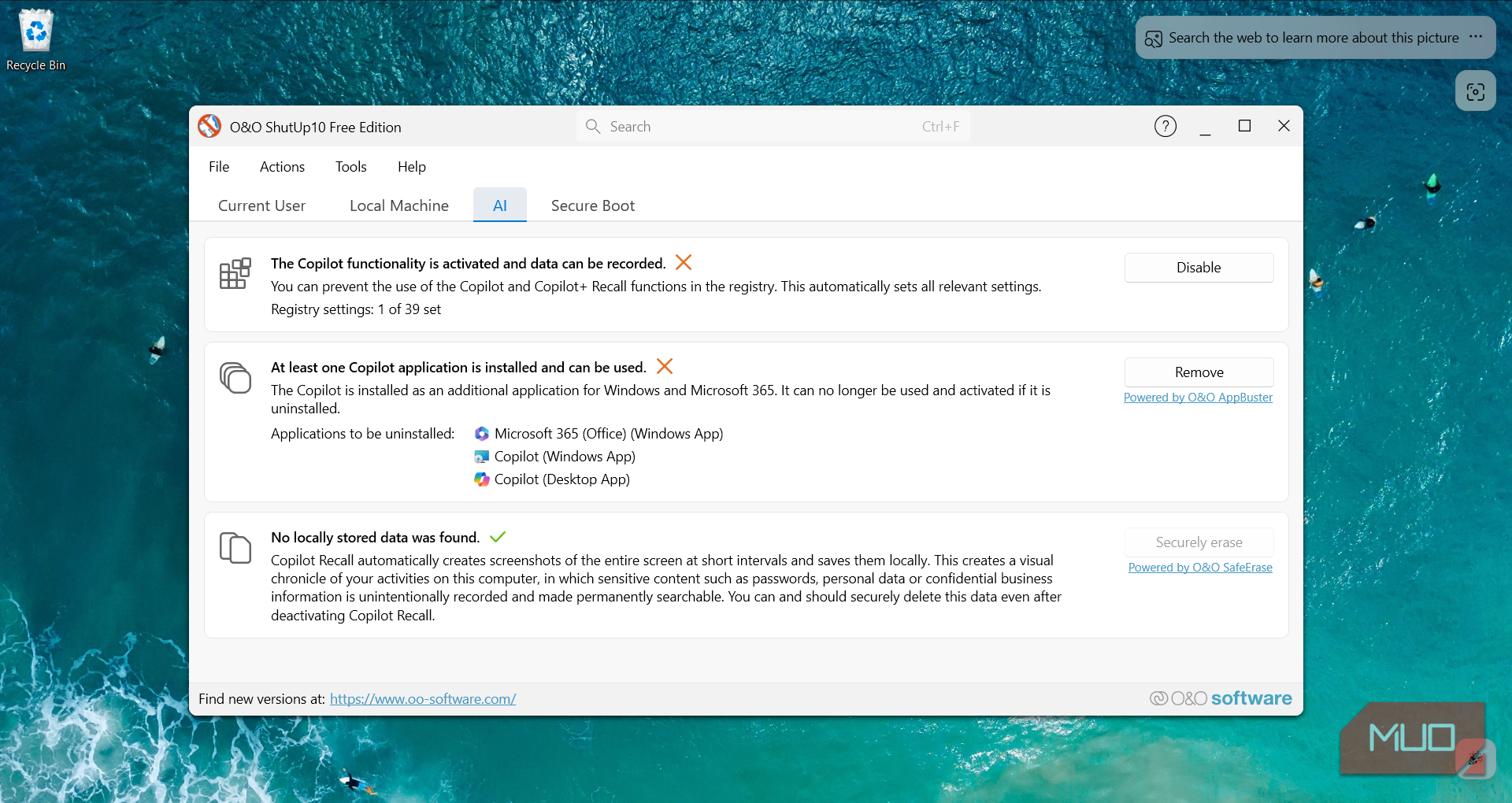
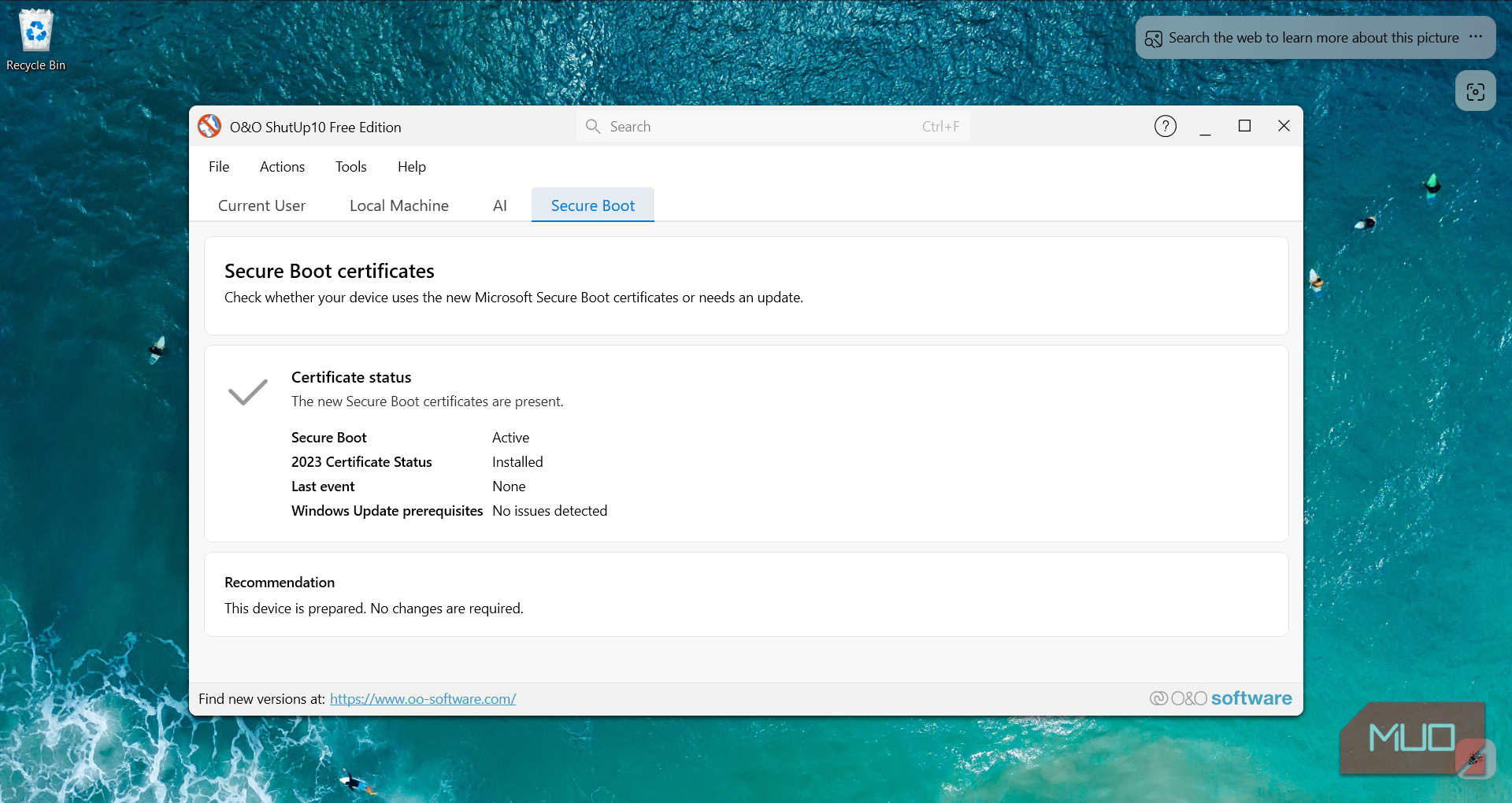
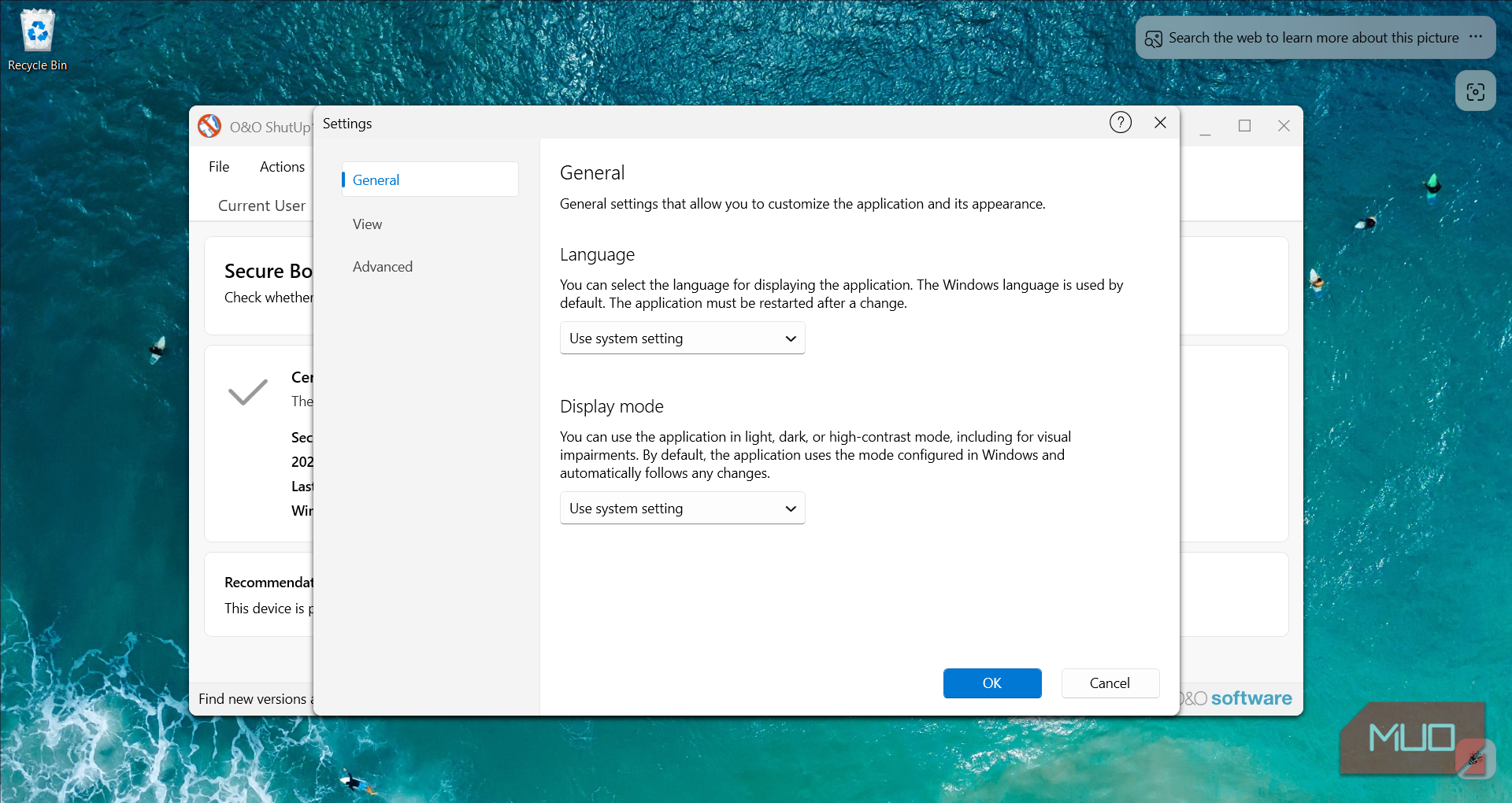
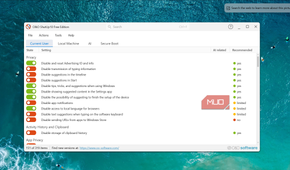
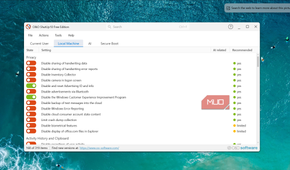
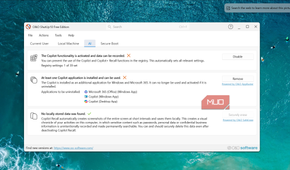
O&O ShutUp10++ pulls all of these hidden toggles into a single window and doesn't even need installation. The app listed 319 toggles across Current User and Local Machine tabs, with entries I never knew existed, like the Inventory Collector, handwriting data sharing, and advertising over Bluetooth. The AI tab was the biggest surprise, though. It flagged Copilot running on my system in three separate forms and let me disable all of them.
Copilot Recall, which silently takes screenshots of your activity and stores them on disk, had its own option to wipe any saved data. I applied the recommended settings, which turned off telemetry pings, advertising identifiers, and silent feedback tasks without touching Windows Update or security protection. After a restart, Task Manager showed idle CPU usage had dropped from around 15% to 2%, and the fan finally went quiet.

O&O ShutUp10++
- OS
- Windows
- Price model
- Free
O&O ShutUp10++ is a free, portable Windows privacy tool and offers full control over Windows 10 and 11 comfort functions, letting them disable telemetry, Copilot Recall, and data sharing without requiring installation or technical knowledge.
Bulk Crap Uninstaller
Clears out years of forgotten bloatware

Turning off background services helped with the processor, but my Vivobook's storage was still packed with software I didn't need. Old utilities, forgotten runtimes, and OEM apps have piled up since 2019, and Windows Settings only lets you remove them one at a time. It doesn't even show portable apps or broken installers that are still sitting on disk.
Bulk Crap Uninstaller scans the whole drive and pulls up everything it can find, complete with a disk space map at the bottom of the window. It turned up 197 programs on my system totaling over 23GB, way more than I expected. The list is color-coded too, with unregistered apps flagged in red and entries with missing uninstallers greyed out, so spotting the junk was easy. A full Wondershare Filmora install still ate over 500MB, even though I was sure I'd removed it a year ago.
I queued up about two dozen apps, skipped anything tied to system drivers, and hit the Quiet Uninstall button to remove them all in one batch. BCU then ran a deep scan to clean up stranded folders and registry entries the standard uninstallers left behind.

Bulk Crap Uninstaller
- OS
- Windows
- Price model
- Free
Bulk Crap Uninstaller is a program uninstaller. It removes large numbers of applications and requires minimal user input.
Microsoft PC Manager
Keeps things clean going forward

After sorting out the services and removing the bloat, I still needed something to keep it that way. Microsoft now has its own free utility for this. PC Manager is on the Microsoft Store, and it just runs quietly in the background once it's set up.
When I first opened it, the home screen showed 9GB of temporary files on my drive and memory usage sitting at 80% with nothing heavy running. One tap of the Boost button cleared all of it in seconds. The Storage tab lets you go deeper and track down large files, duplicates, and old downloads that quietly pile up over time.

The Restore tab was an unexpected find, though. It noticed that my default browser and the Edge start page had both been changed, and offered to set them back. Pop-up management was handy too, since half the preinstalled apps on this laptop would fire off notification windows every time I logged in.

Microsoft PC Manager
- OS
- Windows
- Price model
- Free
- Developer
- Microsoft
- Operating System
- Windows 10 & 11
Everything (Voidtools)
Searches your entire drive in milliseconds

Windows Search has always been a drag on older hardware. Its indexing service constantly reads your drive and eats CPU cycles in the background, yet the results still take several seconds to load. Half the time I would type a filename into the Start menu only to get Bing web links instead of the document sitting right on my drive.

Everything skips that indexing overhead completely. It reads the NTFS USN Journal directly rather than scanning files one by one, indexing more than seventy-three thousand files on my drive in less than a second. Memory usage stays at just a few megabytes, and results appear the moment you start typing. Built-in filters make it easy to narrow queries down to pictures, documents, or executables, so even a partial filename pulls up the right item.
I set Everything to run as a lightweight service and assigned a global Ctrl+N shortcut to open a search window from anywhere. With local search handled instantly, I disabled the Windows Search indexing service entirely, permanently stopping drive grinding on a machine with limited resources.

Everything
- OS
- Windows
- Price model
- Free
Everything is a Windows filename search engine that guarantees fast and accurate file search even without typing entire file names.
Making your old PC feel snappy again
Reviving an aging laptop doesn't require risky registry tweaks or spending hundreds of dollars on new hardware. Clearing out silent background tasks and replacing bloated default utilities gave my Vivobook the breathing room it needed. If you have an older machine gathering dust in a drawer, testing a few lightweight tools can easily turn it into a dependable daily driver again.