


DHCP, or Dynamic Host Configuration Protocol, is one of those router jobs that I mostly ignored because it just always works. Devices joined my network, received IP addresses within the defined subnet, and allowed me to reserve IPs ifneeded.
At some point, however, the basic DHCP functionality of my old and tired home router was no longer adequate because I needed to add local names, zones, and domain names to IP leases. Suddenly, the boring background DHCP service I had never given a second thought to became something I needed to understand.
So I moved DHCP to a small Technitium DNS server on a VM and let the router keep routing.
I built a tiny DHCP server before touching the router
I wanted the new address book ready before I pulled the old one away


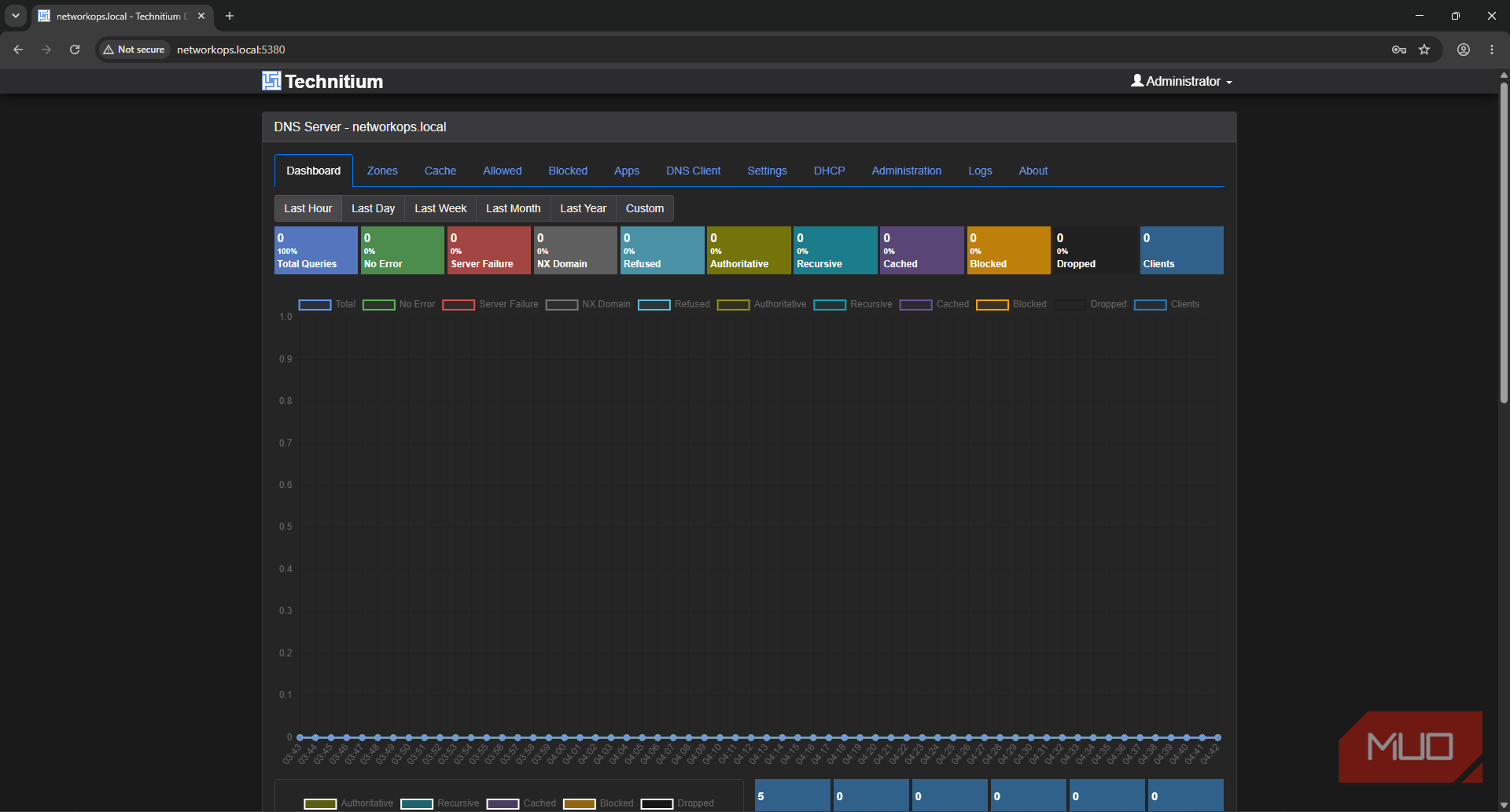
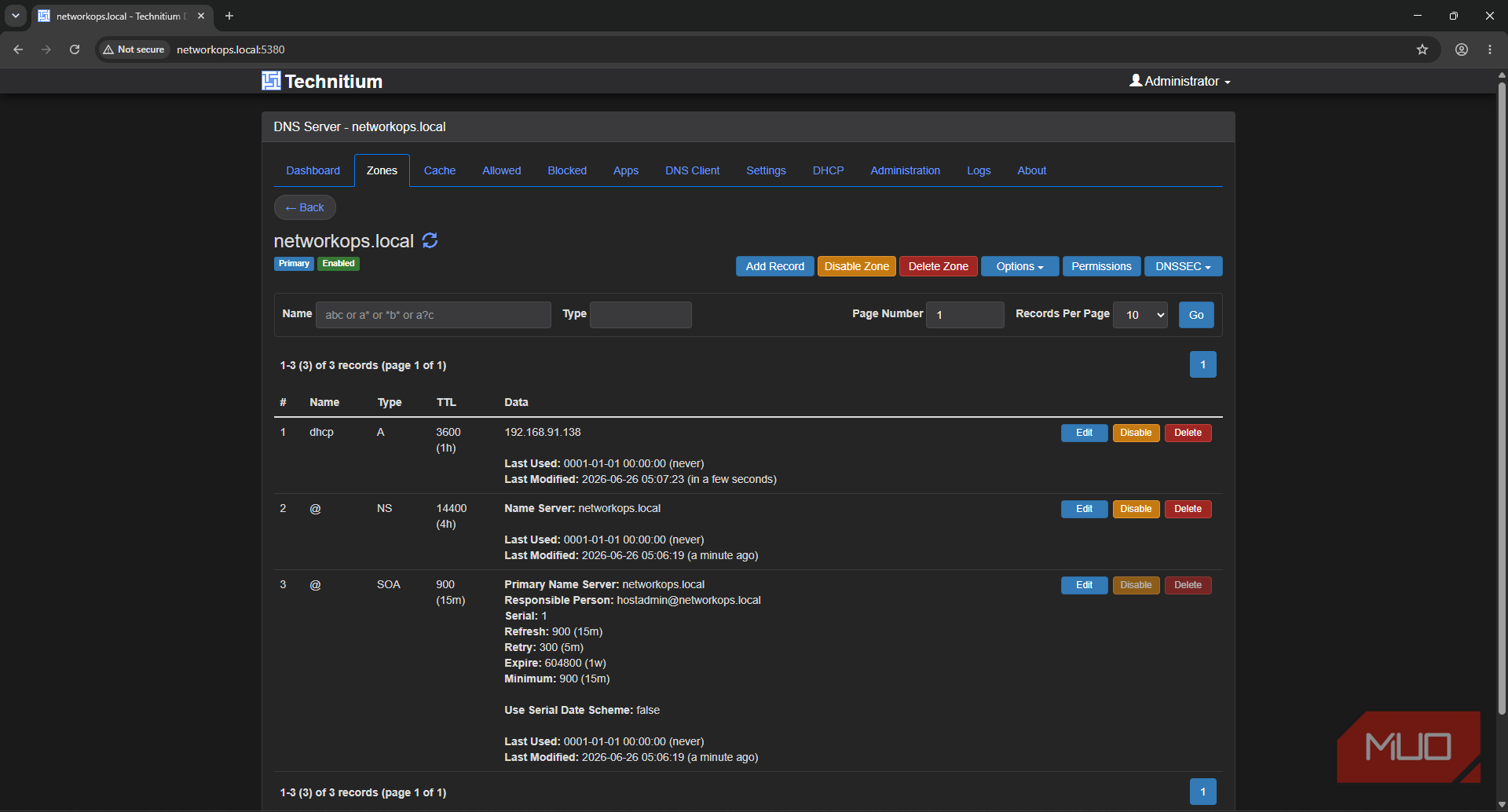
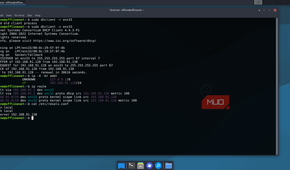
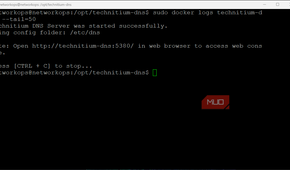
The last thing I wanted was for my first DHCP experiment to be the one that made every device in my house forget how to join the network. So I built the replacement first on an ESXi host, using a small Linux Ubuntu server VM “networkops.local.”
The very first job was to make sure the server itself didn’t depend on DHCP for an IP address, which meant setting a static IP. After all, a DHCP server that needs a DHCP lease to hand out DHCP leases sounds like the start of a bad joke. First, I checked the interface name:
ip -br addrThen I edited the Netplan file under /etc/netplan and replaced the DHCP client setup with a fixed address in my network subnet:
network:
  version: 2
  ethernets:
   ens33:
    dhcp4: no
    addresses:
     - 192.168.91.138/24
    routes:
     - to: default
     via: 192.168.91.2
    nameservers:
    addresses:
    - 1.1.1.1
    - 8.8.8.8
After applying it with sudo netplan try, the server had a stable LAN address, a clear default route, and working DNS that would become important later.
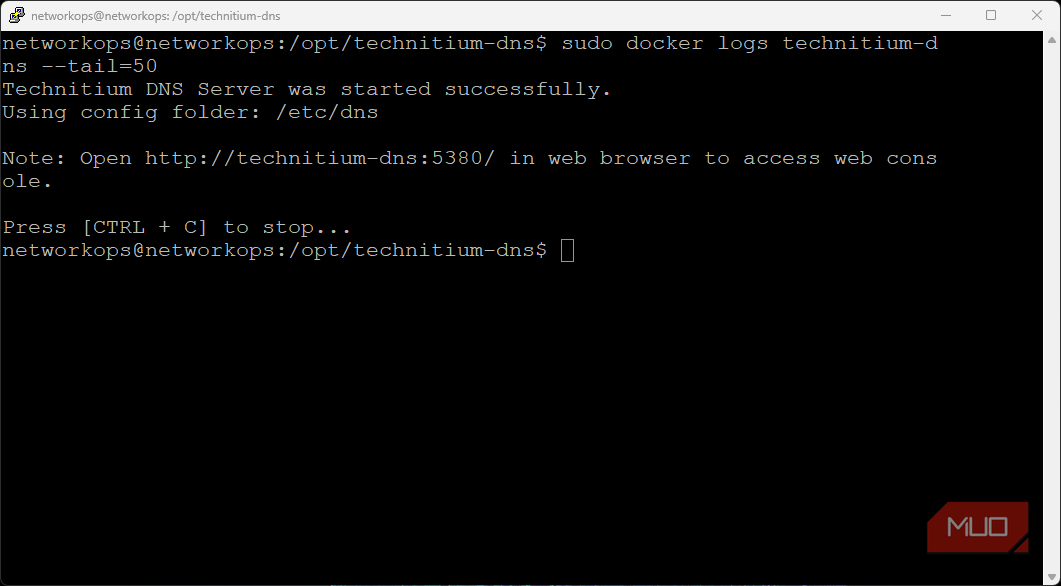
I then installed Docker and ran Technitium DNS server from a Compose file. DHCP added one annoying little gotcha: the container needed host networking because it relies on broadcast traffic. So my Compose file needed this:
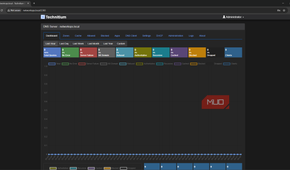
Network_mode: “host”Once that was running, docker ps showed the container, and the Technitium web UI was available at networkops.local as I’d already set it in my hosts file.
At this point, I had two DHCP servers on a single subnet, which is a recipe for disaster in a full-on production setting, but for my homelab it was temporarily fine. The router remained as the gateway, while Technitium was configured with a DHCP scope for the LAN. That scope defined these:
- Address range (192.168.91.50-100)
- Subnet mask (255.255.255.0)
- Gateway (192.168.91.2)
- DNS server (192.168.91.138)
- Domain name (.local)
- Lease time (24 hours)
Once the scope was set and enabled, I made sure that the Technitium server was listening on port 67 (DHCP port) and disabled DHCP on the router:
sudo ss -lunp | grep ':67'
Technitium DNS Server
- OS
- Windows, Linux, macOS, Raspberry Pi, Docker
- Developer
- Technitium
Technitium DNS Server is a self-hosted DNS server that combines recursive resolution, ad-blocking, and encrypted DNS into a single, easy-to-manage platform.
- Price model
- Free, Open-source
The first lease proved the router was no longer in charge
The client got its network instructions from Technitium.

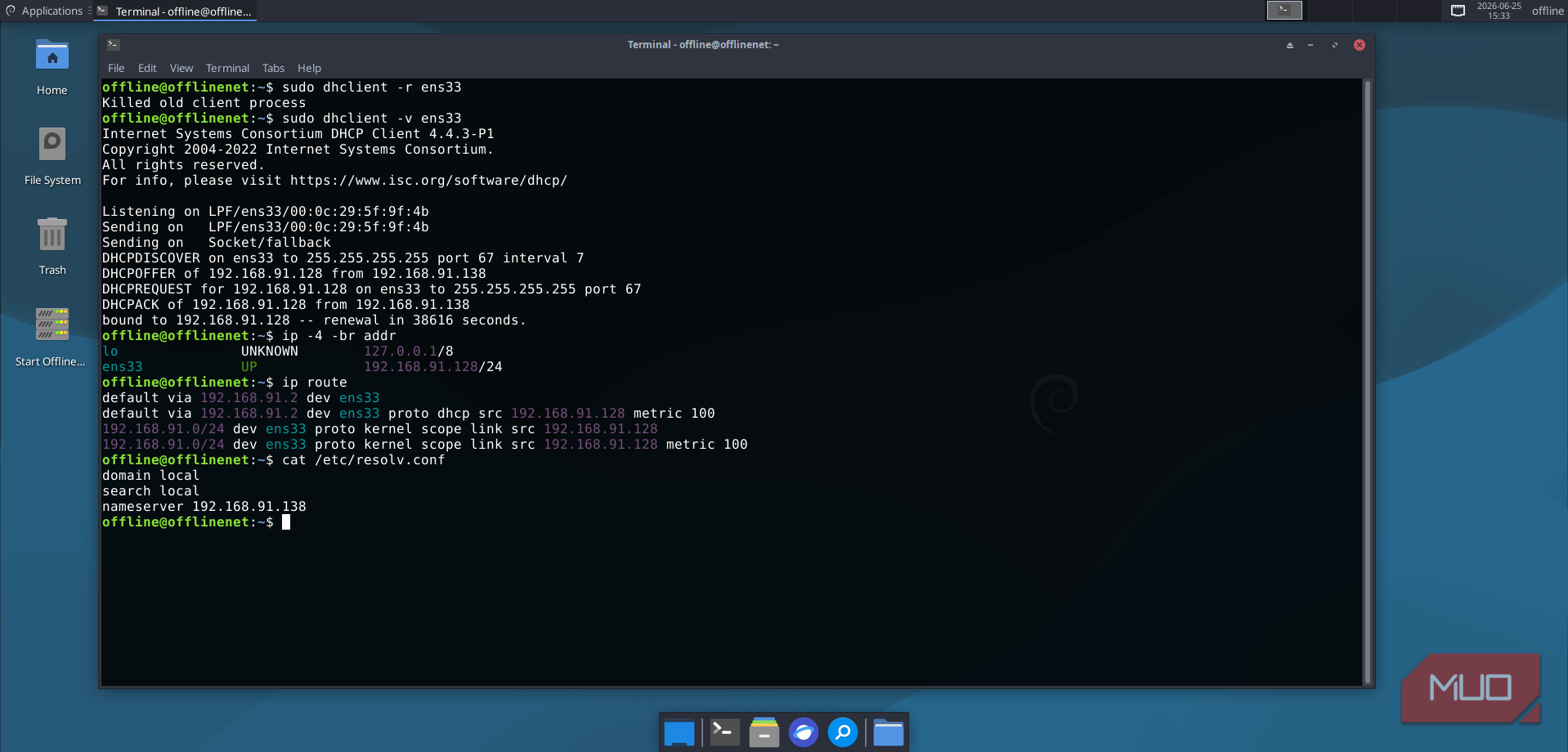
Once the scope was enabled, I used my offline project VM as a DHCP client to officially test out the new DHCP server. On the client, I released the old lease and asked for a new one:
sudo dhclient -r ens33
sudo dhclient -v ens33
The output indicated that Technitium had answered the call and acknowledged an IP lease. More importantly, the address came from the range I created in Technitium and not from the old router’s DHCP pool.
I also checked the rest of the network details:
ip -4 -br addr
ip route | grep default
cat /etc/resolv.conf
That told me the client was indeed obtaining its network instructions from Technitium:
- The client had an address from my new DHCP server.
- The default route still pointed at the old router.
- The DNS server was now pointing at Technitium rather than the old gateway.
-
networkops.localis now the search domain - The same client had appeared on the Technitium leases page.
That last acknowledgment was important because it now meant I had proper visibility into network leases, rather than having to dig through buried menus on the home router.
If your clients don't obtain an IP from the Technitium server, make sure the scope is enabled. The setting is easy to miss and is located on the DHCP -> Scopes page.
I finally understood what DHCP was doing in secret on my network
It hands out the network’s rules and not just IP addresses.

I used to think DHCP was a glorified ticket machine: devices turned up, asked for an address, received one, and I could reserve it if it was important enough to retain. But moving DHCP away from the router made me realize that was only one small part of a bigger network picture.
DHCP leases are network instructions. The IP addresses are just one part of it that I used to only care about. The rest of the instructions are just as important because they’re essentially telling a client how to understand the network it just joined up to.
The scope I created in Technitium made those network instructions and how they interact with each other more understandable because they were in one place:
- The IP address told the client where it was.
- The subnet mask told it what it should count as local.
- The gateway told it where to send traffic to the internet.
- The DNS server told it where to find hostname-to-IP translations.
- The search domain made local names easier to use.
- The lease time told it how long it could have its identity before being assigned it again, or receiving something different.
It all changed how I thought about my router’s DHCP page. In the home Wi-Fi router, it was just a list of IPs and their corresponding MAC addresses. But in Technititium, those instructions were made clearer because I had to configure them myself. Technitium hadn’t actually added any complexity, but the whole learning experience made me understand the underlying complexity that had been there the whole time.


DNS made the DHCP move worth doing
Addresses helped, but names made the network readable.

DHCP leases were the practical reason to start moving the functionality away from my router, but DNS domains were what I really needed. I didn’t just want clients to get addresses from yet another server, but also for those leases to fit into a local naming system that made my life easier.
The DHCP scope also named the Technitium server as the DNS provider. This meant that clients knew where to ask for names, and Technitium could then answer the local requests (.local addresses) and forward everything else to a normal upstream DNS server.
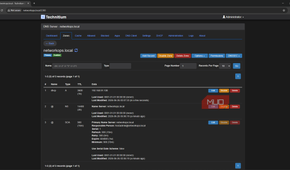
I created a networkops.local zone, then started adding in records like:
dhcp.networksops.local
fileserver.local
homeops.local
dc.local
That meant I could finally stop treating IP addresses as the only reliable way to access servers on my network. From any network client that received a lease from my new zone, I could use domain names instead of IP addresses or custom one-off records in my local hosts files.
The best part about this setup, however, was knowing that even clients with dynamically assigned IP addresses could be easily found on my network by just using their hostname plus the domain. For example, a Windows client has a hostname of WIN-1234, so it can be found using the fully qualified hostname WIN-1234.local, regardless of the IP address the DHCP server assigned.
This became a huge quality-of-life change for my homelab operations and was so successful that I plan to expand its operations by adding more DHCP zones for other subnets and VLANs in the future.
I like it, but it’s not as easy as rebooting a router if something goes wrong
Central control is only clever while the server actually stays online.

Moving DHCP away from the router comes with one obvious trade-off. Once yet another server became responsible for handing out all-important network settings, it became another source of DIY tax, and something difficult to handle if it went down.
If Technitium goes down, I’d need to fire up an ESXi console and bring it back up without DHCP and without local DNS. That doesn’t make the idea bad, but it does mean the DHCP server now needs the same treatment as any other important service. Instead of updating firmware once every few months, it needs regular patching and updates, which either means scheduling them or babysitting them.
But for me, the extra effort is worth it. The router’s DHCP server was already the weakest part of the network, and Technitium gave me readable leases and the ability to set up and control proper DNS zones.
So, where does my router still fit into the equation? It still can move packets; it just no longer controls the network instructions clients receive when joining the network. In other words, it can just be a router.