


For years, I was dependent on the File Manager that Windows gave us by default. It is plain, simple to use, and does what you tell it to do. But that’s the thing. It doesn’t go beyond its boundaries to give you more. To transfer files, you have to open multiple file explorers and juggle them to get things done. And because of this, I’ve been on the hunt for a better file manager for Windows that would not only get things done more efficiently but also bring something new to the table.
Since Windows Explorer hasn’t received any meaningful features for years, and you have to use third-party tools to make it better, it starts showing its age when you start using it for serious file management. That’s where Double Commander hops in. I expected to struggle with it for a day and return to the default file manager, but the opposite happened — ever since I started using it, I haven’t opened Windows Explorer once.
The Double Commander name says a lot
It has an old-school look but is genuinely powerful

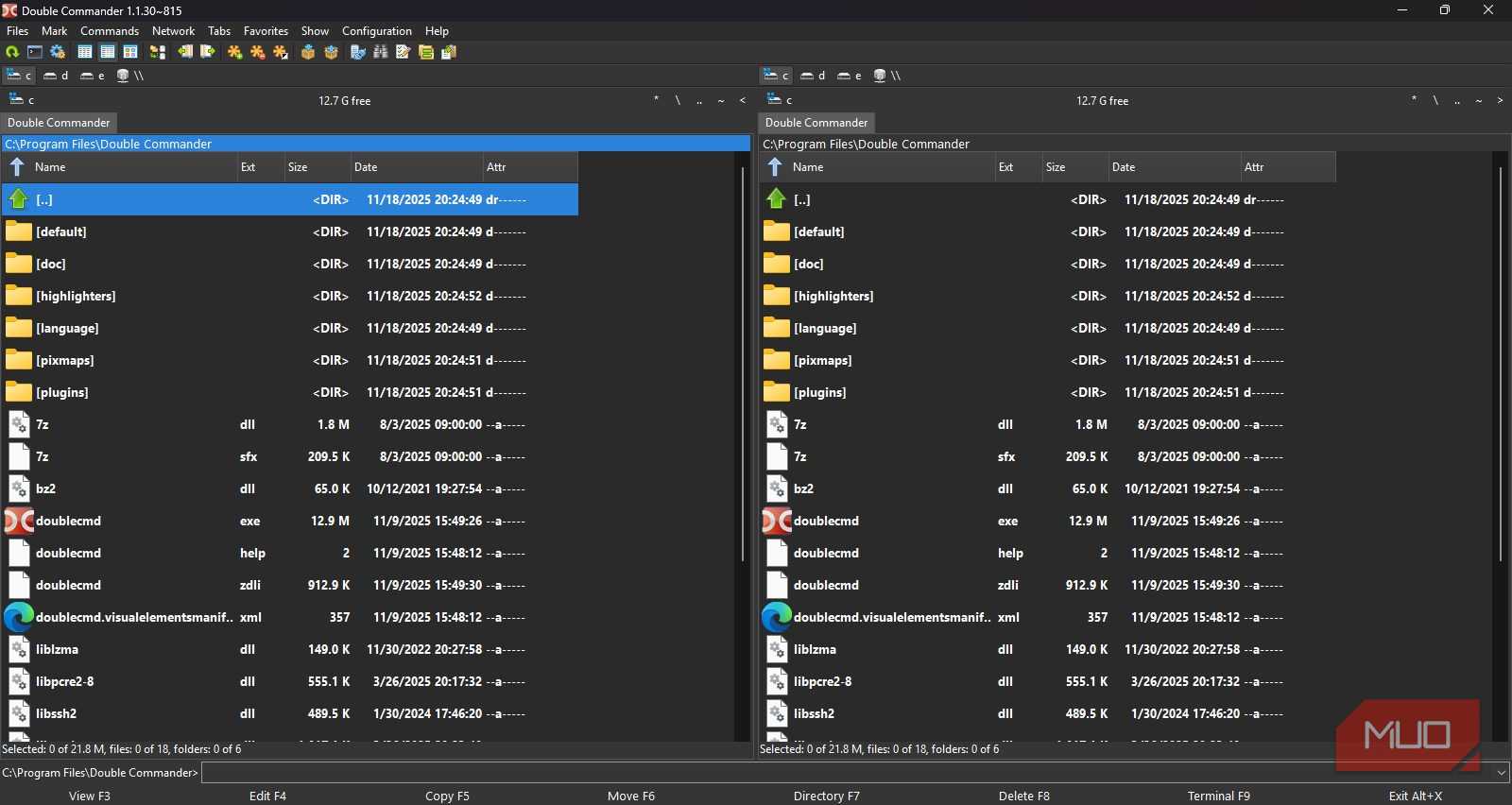
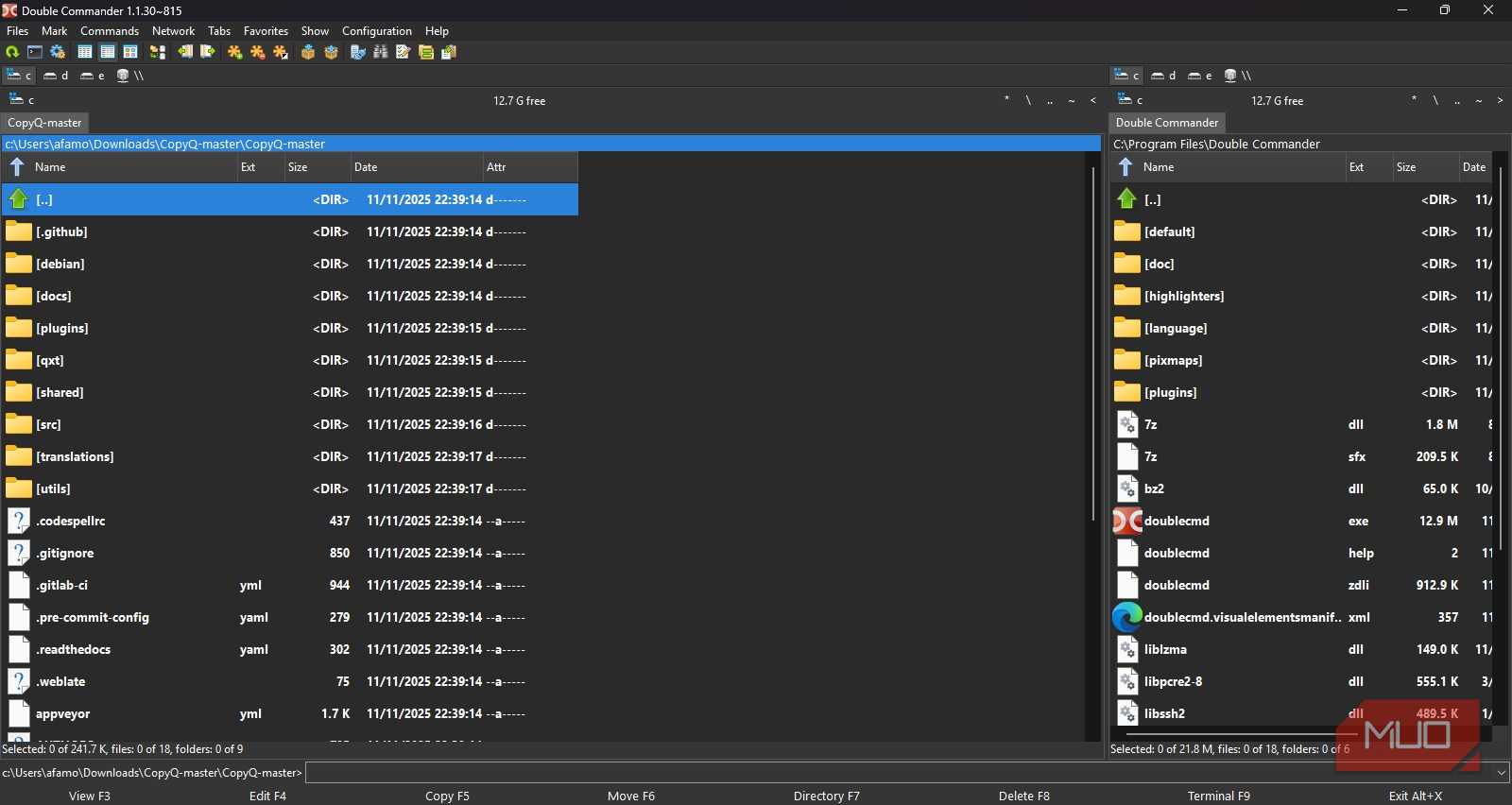
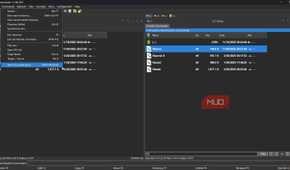
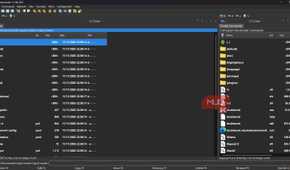
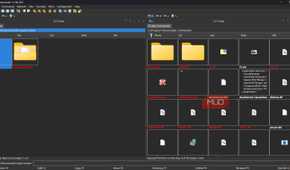
As soon as you install Double Commander, the first thing that you will notice about it is that it doesn’t look modern. It’s got that classic, mature interface, with two panels side by side, a toolbar at the top, and a row of function keys along the bottom. It may look like something from the early 2000s, but it has features that can give ultra-modern file managers a run for their money.
Double Commander takes inspiration from the already legendary Total Commander and Norton Commander. The design philosophy hasn’t changed because it doesn’t need to. However, once you get the hang of it, it clicks fast.
The left panel is your source, and the right panel is your destination. Moving files using Double Commander is such a breeze that it becomes a natural thing that you will do on your computer, using a third-party app.
It is available for Windows, macOS, and Linux. Meaning if you ever switch platforms, your muscle memory comes right along with the software. Double Commander is free, open-source, and doesn’t barrage you with ads. You don’t have to pay for anything.
Double Commander heavily prioritizes keyboard shortcuts. In order to copy, you have to press the F5 button, whereas to move a file, you need to press F6. This eliminates the need to go back and forth between different windows, resize them just to have a good view between the location and destination, and no accidental drops occur to a different folder. This way, you are clicking less and doing more things, basically flying through file management tasks, most probably without touching your mouse.

Double Commander
- OS
- Windows, Linux, macOS, FreeBSD
- Price model
- Free
Double Commander is a free and open source, cross-platform file manager with two side-by-side panels. It has a configurable button bar for starting external programs or internal menu commands.
The problem with Windows Explorer
You juggle more and do less

One of the things that surprised me the most with Double Commander is how easy things can be. With standard Windows Explorer, you have to open multiple windows just to move files from one place to another. That is not the case with Double Commander.
When you can see two directories at once, you stop doing things the slow way without even realizing it. Recently, I was batch-organizing a folder of photos, which included renaming and sorting into subfolders by type. The job that would have taken me 15–20 minutes with Windows Explorer, but with Double Commander, took me about five minutes.
Tabs are another thing that makes Double Commander stand out. With Windows 11, Microsoft introduced tabs for File Manager. But the problem is, it is still very basic, and you can just navigate between them.
On Double Commander, it is slightly different and much more effective. Each pane supports its own independent set of tabs. So, you could have your left pane be your Downloads folder, having your files folder and your desktop open simultaneously. On the other hand, the right pane could have three completely different locations open.
On top of this, you can also lock tabs so that you don’t accidentally close them. You can also save your current tab layout to Favorites and restore it with one click. Good for those whose daily workflow requires opening the same set of folders. Then there is the Preview feature. Selecting a file and then pressing F3 opens an internal view, eliminating the need to open another app.
Features that stand out
Frankly, there’s a lot


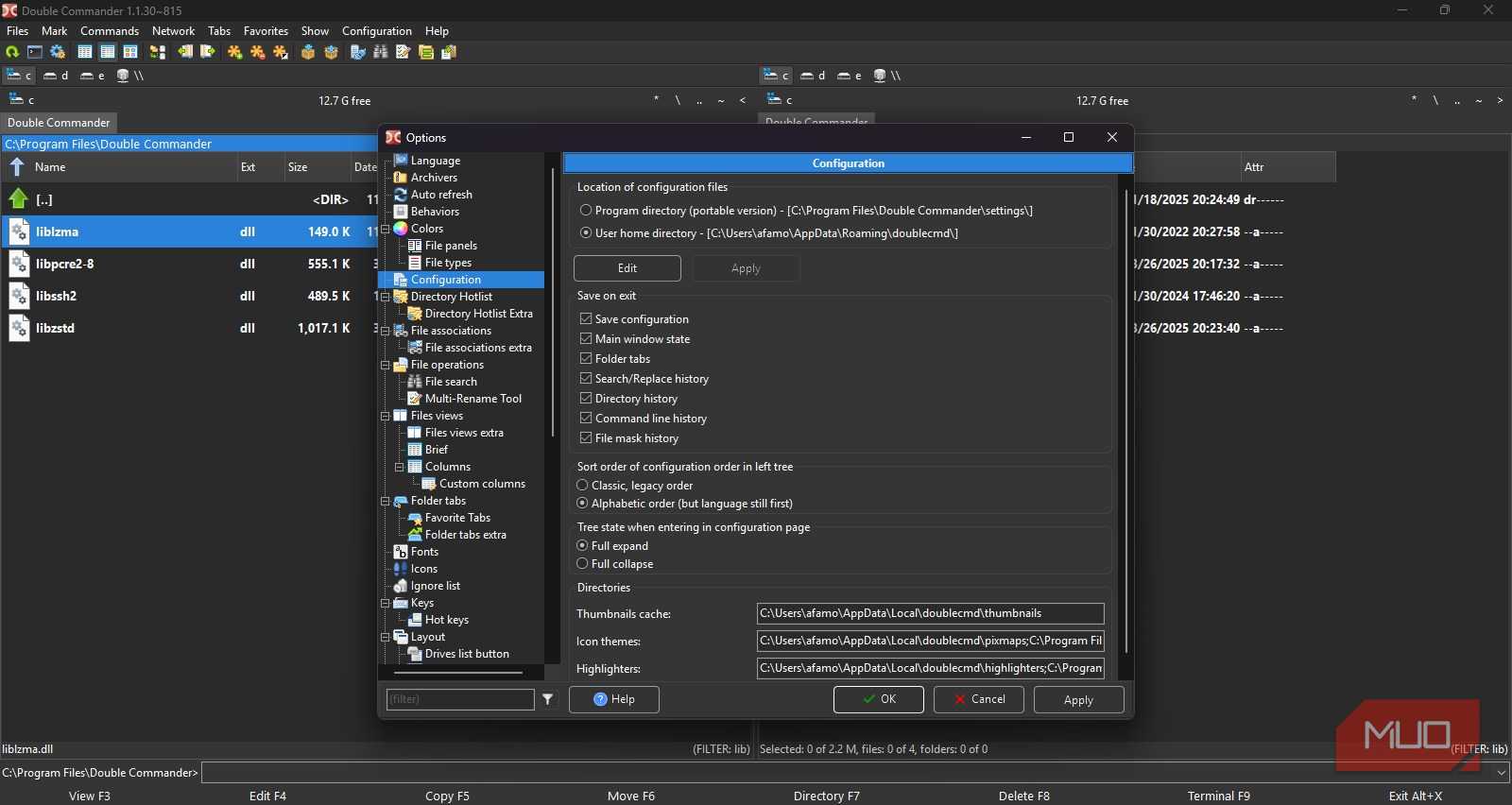
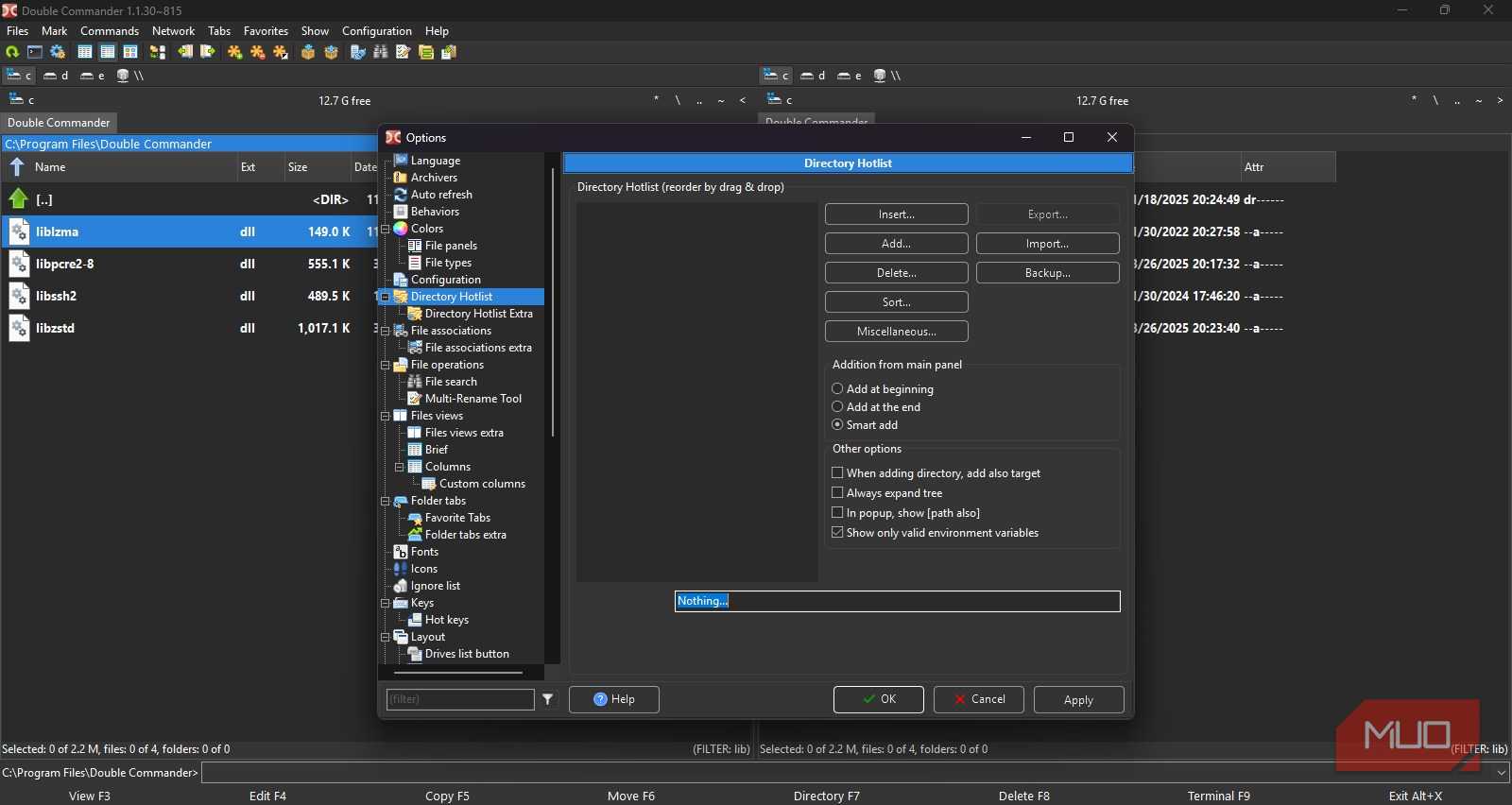
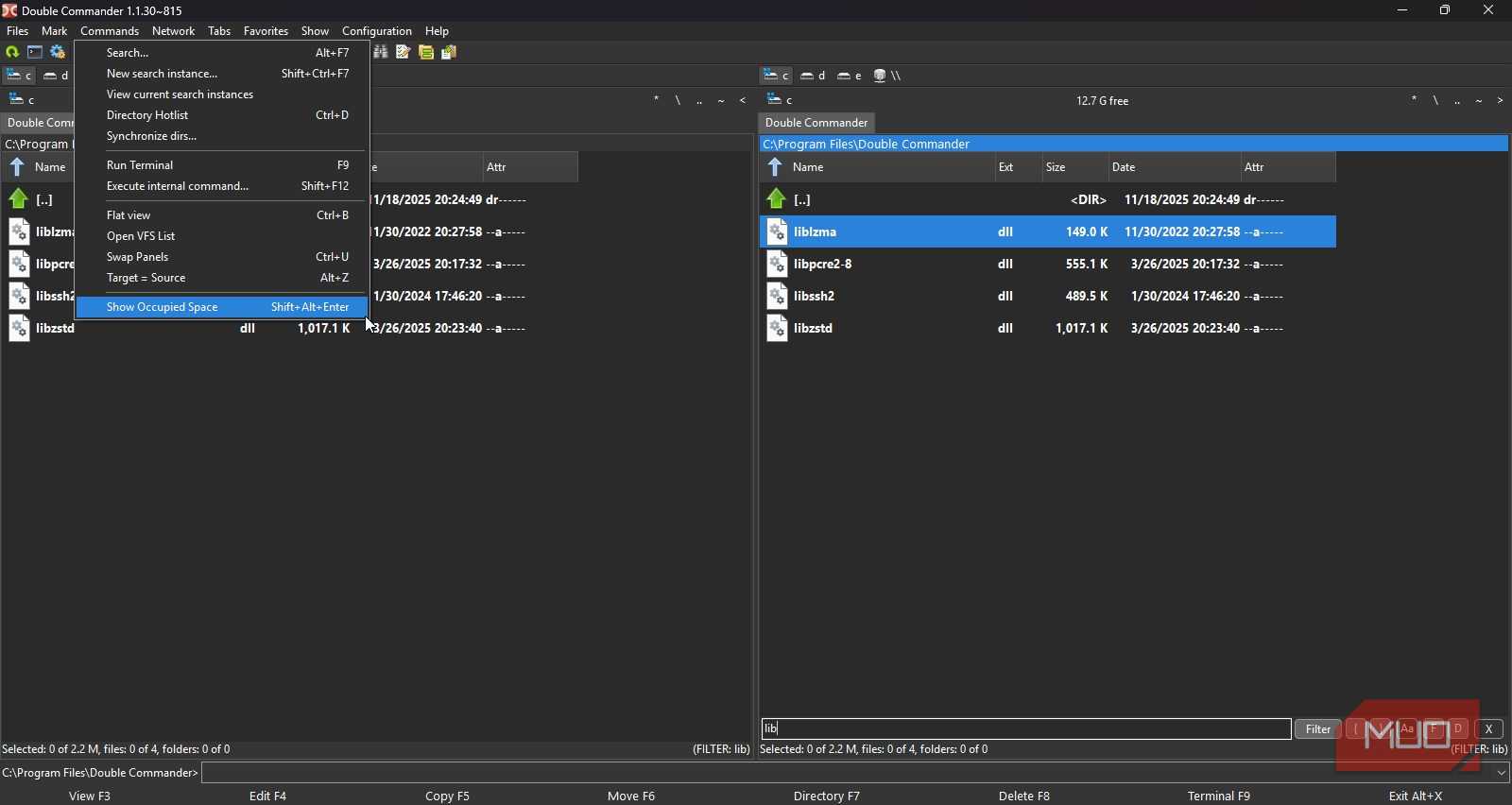

I take quite a lot of vacations every year. There are many times when I have to rename a large batch of files. With Windows Explorer, you know how painful that is. You can select all and hit F2 to do a sequential rename, but that’s basically it.
Double Commander has a built-in multi-rename tool. All you need to do is select your files, press Ctrl + M, and you get a full rename interface with options for adding suffixes and prefixes, inserting counters, using regex patterns, changing case, and more.
There is also a live preview column that shows what your files will look like when you apply the renaming. For anyone who deals with media files, documents, or a huge amount of files, this is a game-changer.
As mentioned, Double Commander is all about keyboard shortcuts. The primary way to operate is you press F3 for previews, F4 to open the internal text editor, F5 copies, F6 moves, F7 creates a new folder, and F8 deletes. Once you start using the tool, these shortcuts will be in your muscle memory.
Archives are also treated as regular folders. While with Windows Explorer, you have to install tools to extract them, Double Commander lets you navigate inside archives like you would inside a regular folder. Supported formats include ZIP, TAR, GZ, BZ2, XZ, LZMA, 7Z, RAR, RPM, CPIO, DEB, and ZIPX.
Include it in your workflow
Transitioning to a two-pane workflow may require some adjustments. However, if you are a person who opens File Explorer twice a day to drag a document into a folder, then the learning curve isn’t worth your time. But if you spend a good amount of time managing files, then the two-pane layout will change how you work. The app is free, so it is worth giving a try and deciding if it fits your workflow or not. I went back to Windows File Explorer after a couple of days of using Double Commander just to check, and using Windows File Explorer suddenly felt like squinting.