


RAM is still crazy expensive, and those prices aren't expected to take a dive any time soon. If anything, due to the AI boom, memory prices will only continue to rise. Instead of buying more RAM, I tried to use an old SSD as a swap drive instead — and it quickly showed me what memory swapping is really for, as well as when to actually use it.
Swap isn't extra RAM
It just pretends to be

If your computer runs out of RAM, it's not automatically game over. Instead, it can use what's known as the swap drive, also known as virtual memory, or the pagefile on Windows. That's when your operating system (Windows, macOS, Linux) uses a dedicated, pre-defined area of your hard drive to offload data it can't hold in its memory anymore.
It frees up RAM for whatever process needs it at that time, and it can be recalled by your system memory. But while that sounds like a solution to a lack of system memory and a solution to buying expensive RAM, it's more complicated than that due to how memory swapping actually works.
In short, RAM operates at nanosecond speeds, transferring data faster than the blink of an eye. Even a fast SSD operates in microseconds, and a HDD is another order of magnitude slower in milliseconds. That's the first issue; traditional storage is slow and can't keep up with memory.
It can be useful on restricted setups
But it does really depend on your hardware

The reason I was experimenting with this at all is that I was recently forced to use one of my older laptops for a period. It's not ancient, by any stretch, but it only has 8GB RAM. In the modern era, 8GB RAM is edging towards the lower end of the scale, especially as I'm used to having 32GB on my main PC and primary laptop.
Browsing with a few tabs open and more than three programs basically saw me pushing up against the 8GB RAM limit more than I'd like, and the laptop, which has an Intel Core i5 1135G7 CPU, would slow to a crawl.
Rather than buy more RAM or accept the limitation, I took matters into my own hands and created a partition on my secondary SSD to set up as a dedicated pagefile location. Windows handles virtual memory automatically, typically using your main storage drive as backup, but you can manually override its settings and use a custom configuration.
There is another caveat to this process, too: you still need to keep a small pagefile on your main storage drive either way. That's because some programs won't play nicely with a virtual memory allocation on a separate partition (using a different drive letter). Your system will mostly use the separate partition fine, you just need the default option as backup.
Another note is that unless you have an actual secondary drive, there isn't much use in partitioning your primary drive, as you're really just moving files around on the same drive. It's not handing any data off to a separate drive, basically negating the entire process.
Create a partition, set your pagefile location
Then, hope that your system is faster


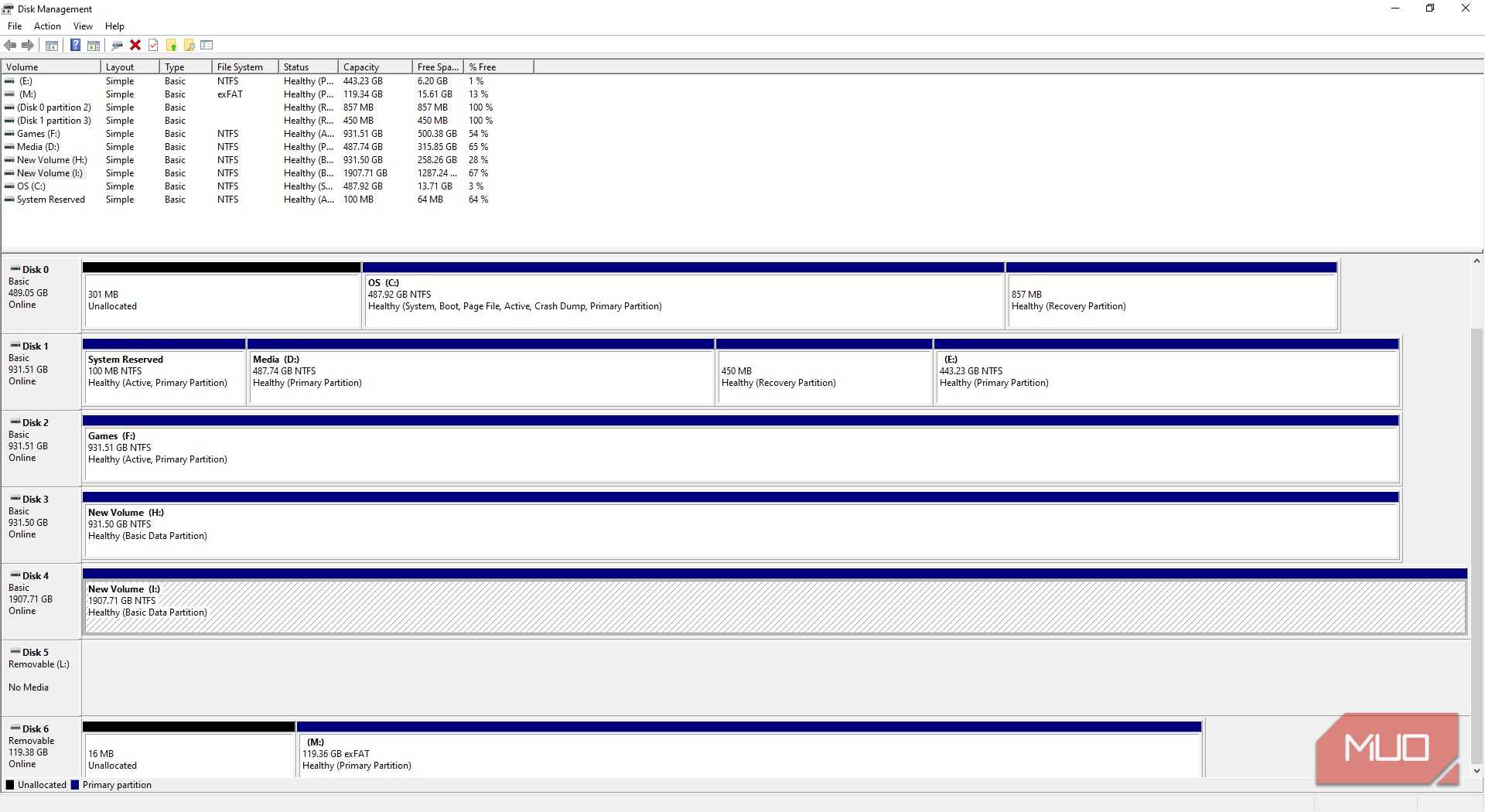
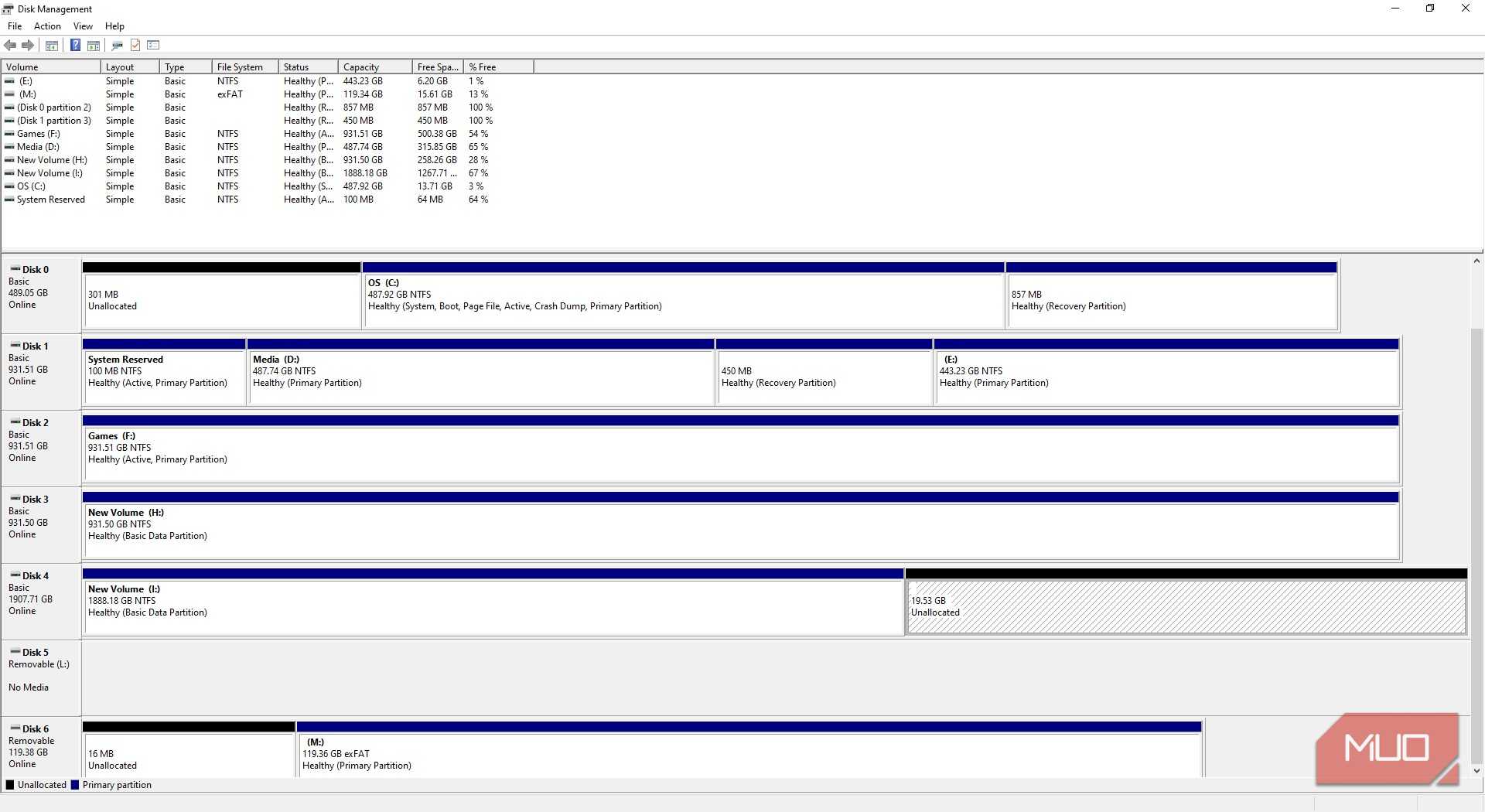
Now, first, you'll need to make a partition on your secondary drive.
- Input disk management in the Start Menu, and select the Best Match.
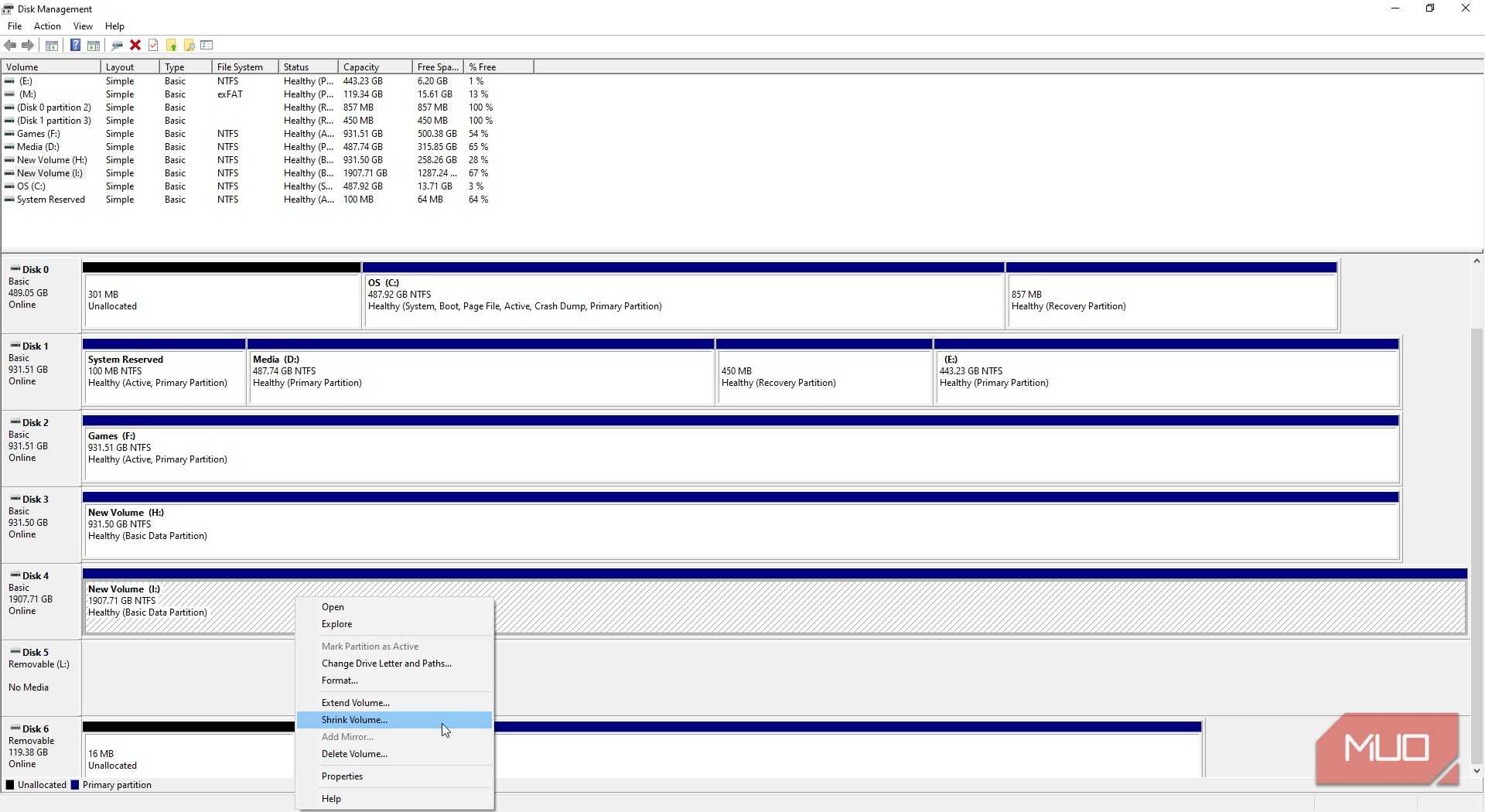
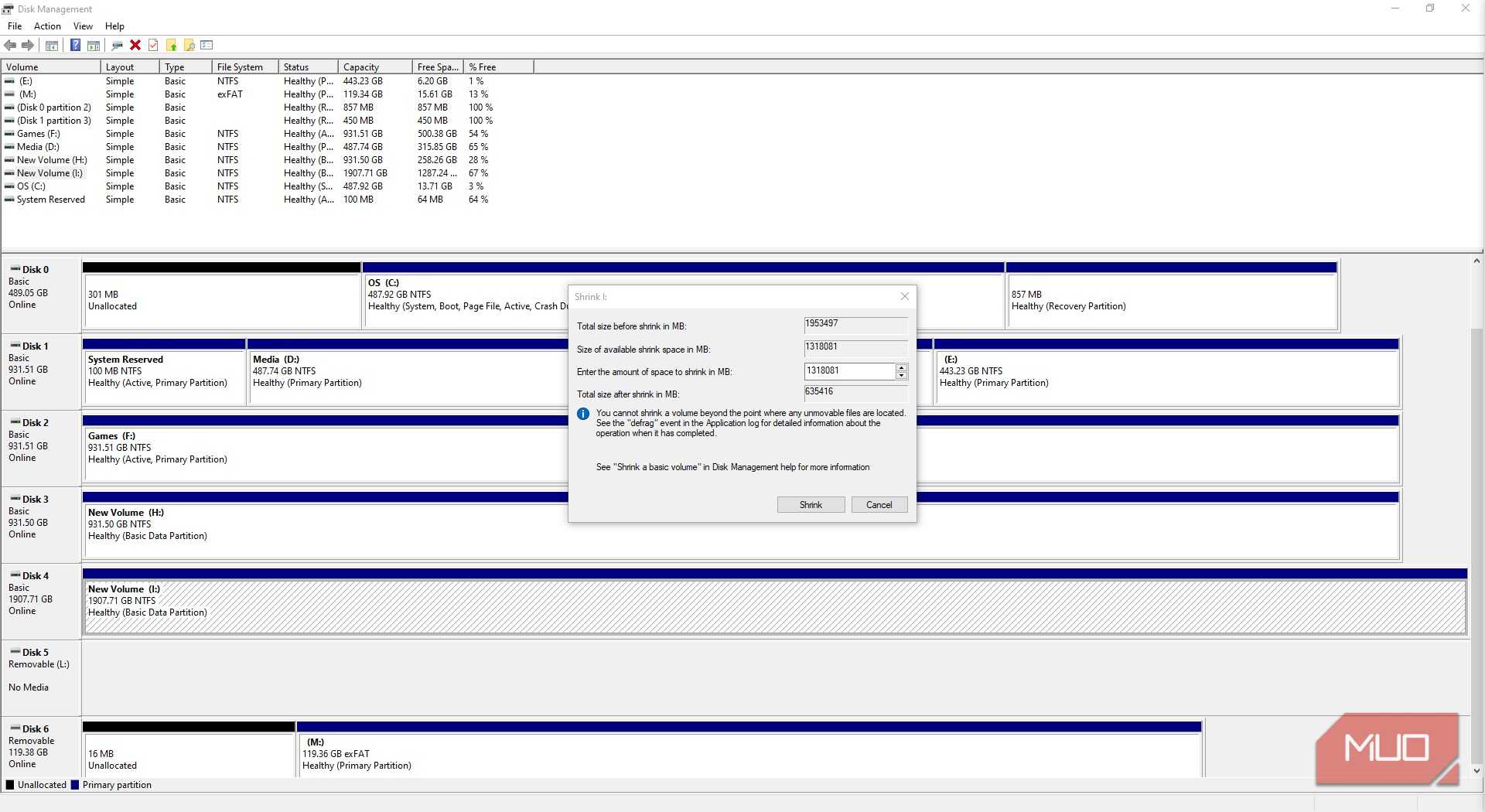
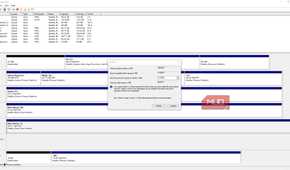
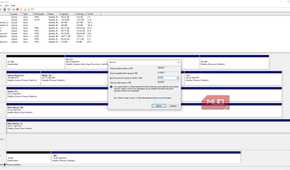
- When Disk Management opens, locate the secondary drive you're going to partition. Right-click and select Shrink Volume. Disk Management will query the drive to see how much available space is available.
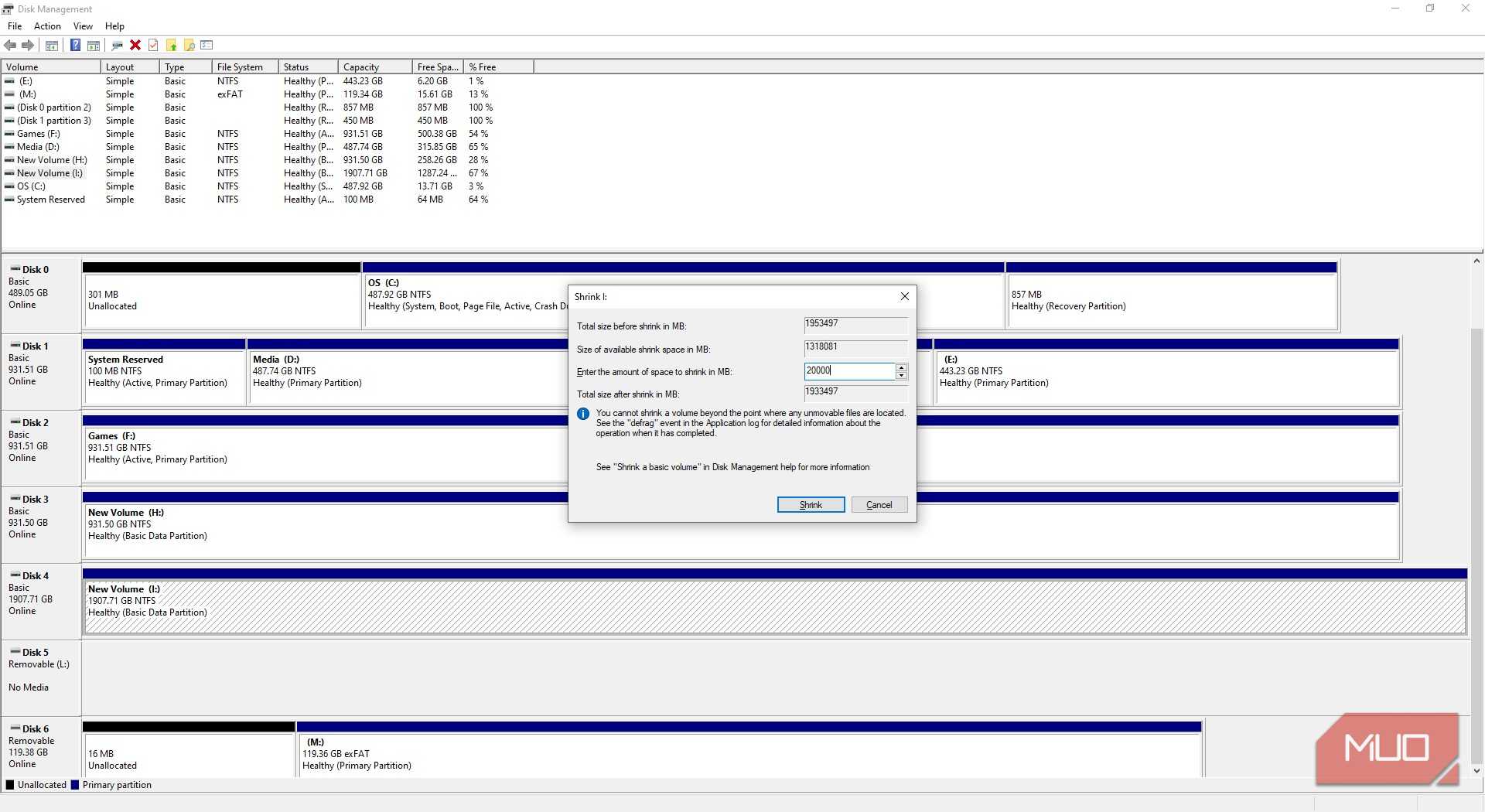
- Disk Management works in megabytes. So, my total drive size of 1953497MB is just shy of 2TB, with 1318081MB (1.3TB) available to shrink. I'm going to allocate 20GB (20000MB).
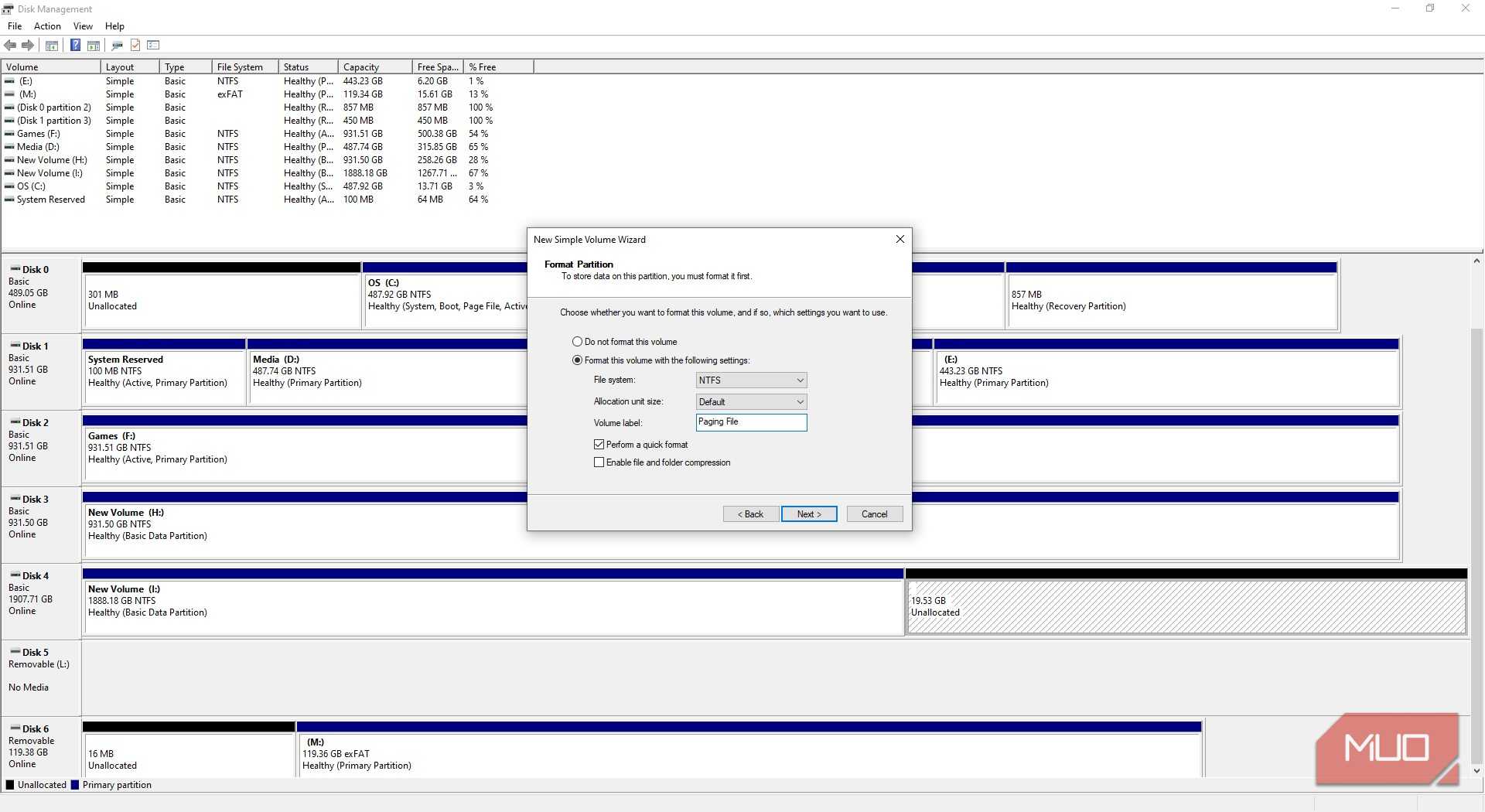
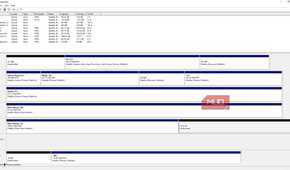
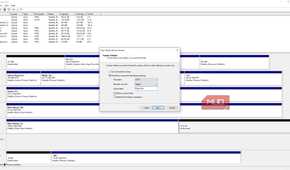
- Now, right-click the newly created Unallocated drive partition and select Simple Volume, then follow the Simple Volume Wizard. I gave mine the name "Paging File" so it's easier to see in my directories.
The creation should only take a second, as 20GB isn't a large partition to format.

When you're done, you need to change the page file location.
- Input advanced system settings in the Start Menu, and select the Best Match.
- Select the Advanced tab, then under Performance, select Settings.
- Now, select the Advanced tab (yes, another one), and under Virtual memory, select Change.
- Unselect Automatically manage paging file size for all drives, highlight the currently set page file, select No paging file > Set.
- Next, scroll down to the new partition you made, select Custom size, and set your sizes. Best practice is to set Initial size at 1x your RAM, and Maximum size at 2x.
- Then, remember to set a small value in your OS drive to counteract the aforementioned problems.
You're good to go.

CORSAIR VENGEANCE RGB DDR5 RAM 32GB (2x16GB)
- Brand
- Corsair
- Size
- 16GB
- Technology
- DDR5
- Speed
- 5200MHz
- RGB
- Yes
My paging file experiment didn't really do what I wanted
It was better than nothing, but it's time to upgrade
Choosing a separate partition for my paging file definitely helped to alleviate some issues, especially as I was using a faster PCIe 4.0 NVMe SSD to hand off data to. But the reality is that, generally, virtual memory is a backup option and not something to rely on full-time.
It made using the laptop less painful for a period, but eventually, I still felt like I was butting up against the same problems. Data would transfer faster, but really, you're just making the same problem marginally more manageable.
There is another virtual memory cost: the constant writing to your drive can increase drive wear, which means your storage will eventually degrade. The slower memory option it offers isn't really worth the degradation, though it has to be said, if virtual memory is used as a backup and not a specific feature, you shouldn't encounter this anyway.
The reality is that once you start hitting your RAM limit and more and more data is passed off to your storage, you need to upgrade.