


The gap between how fast your Windows 11 PC or laptop should be and how fast it actually is can be quite frustrating. The problem is neither the computer's processor, the SSD, nor some other hardware component. This is mainly tied to Windows 11 defaults, which are relentlessly and quietly designed to feed Microsoft's ecosystem.
I decided to strip away corporate bloat, especially the ones tied to built-in telemetry. My available idle RAM, which stood at around 510MB, jumped to one.6GB. This gave me back much-needed memory on my laptop with just 8GB of RAM, turning it from background-heavy into a leaner setup.
Widgets weren't fully disabled as I thought
Hiding the button didn't stop the background activity
Most people remove widgets from the taskbar and assume that keeps them muted. At least that was what I had initially done. I didn't use the feed, didn't care about weather cards, and had no use for MSN headlines. So, as far as I was concerned, I had gotten rid of widgets, but it really wasn't.
Whenever I checked Task Manager, I noticed Microsoft web-related processes even when I had not consciously opened anything. This was the clearest sign to me that hiding a feature on Windows does not necessarily stop it.
Widgets is one aspect of the broader Microsoft web experience system. Certain parts of it use Edge WebView2 components to power news, weather, and other live content. When you remove the taskbar icon, the background behavior that is tied to it doesn't automatically disappear. This is how I got rid of it:
- Launch PowerShell with admin privileges.
-
Run the command below:
Get-AppxPackage *WebExperience* | Remove-AppxPackage
This did not give me dramatic memory shifts. It only freed about 100–150MB, but it set the tone for other things that I found. It pointed to the fact that Windows will quietly keep certain things alive, even after you believe you turned them off.

6 ways to free up RAM in Windows when your PC starts slowing down
Freeing up vital memory on Windows only takes a moment, and your computer will feel much faster once you're done.
OneDrive was already working before I opened anything
Syncing started before I even touched a file

I realized that OneDrive launches immediately when I signed in. This happens even before I open File Explorer, launch my browser, or touch any other documents. In the background, it constantly checks the sync status and monitors folders. One option is to uninstall it and use a better backup tool. However, that may not be an option everyone is willing to consider, in which case you may simply change your setup as I did. I store files locally and handle backups separately, eliminating the need for continuous syncing while the computer is powered on. This instantly makes the automatic startup feel unnecessary.
As soon as I stopped OneDrive from launching with Windows, I cut down on background activity, and it came with noticeable gains. Windows startup instantly stopped feeling crowded. At idle, OneDrive uses roughly 50MB to over 150MB of RAM. This number easily spikes up when there is a sync. By disabling it at startup, this freed up valuable idle RAM space for other apps I actually need.
Tiny apps became a surprisingly big problem
No single app slowed Windows down — all of them together did
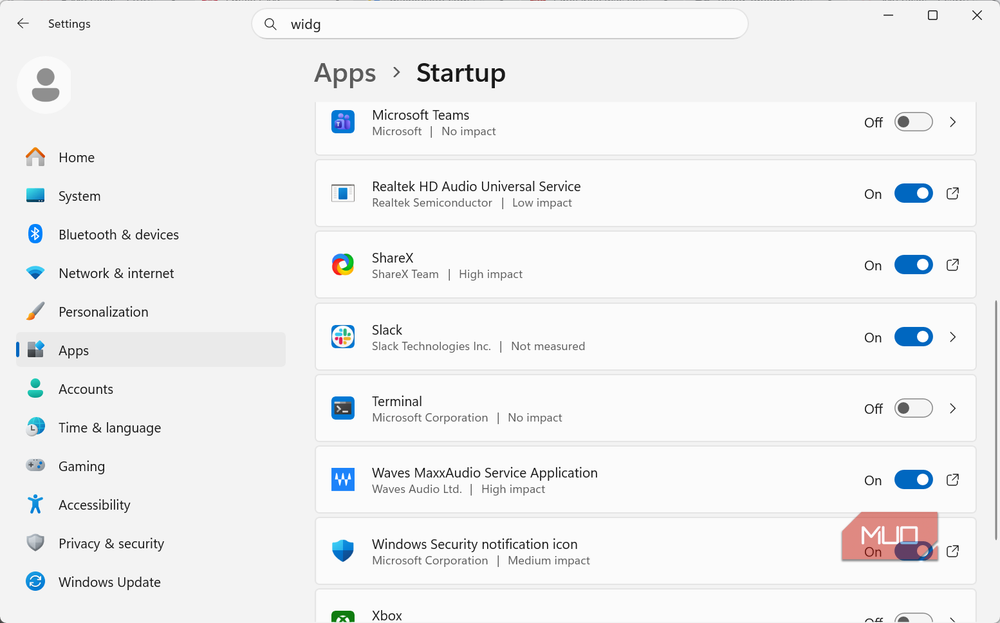
Of all the elements I discovered, the several tiny startup apps were the biggest contributor to how much available idle RAM my computer had. This was an interesting find because I always assumed there was one giant process that ruined performance, but the tiny ones, stacked together, were just as consequential.
The first was Phone Link, which was just sitting in memory waiting for my phone to connect. It was a service that I rarely used. Then there were Xbox-related apps active on my laptop, even though I don't use that computer for gaming. Outlook was preloading itself, and Weather was refreshing information I never bothered to check. On top of these, there was Clipchamp, several random Microsoft services, and background helper apps that ran unused.
Individually, they have a negligible effect on the available idle RAM, which is why they get overlooked so often. However, there is a real cumulative overhead — a death-by-a-thousand-cuts problem on Windows 11. It becomes more of an issue if you are running on 8GB of RAM.
When considering if a tiny startup program must be disabled, the question you must ask isn't if a specific app is heavy, but why it is running. If it doesn't need to run, it's a candidate to be disabled. Disabling the startup apps gave me back about 600MB of available idle RAM. Your memory gains may vary depending on your configuration.
Windows didn't need all the extras
Optional diagnostics that adversely affect performance
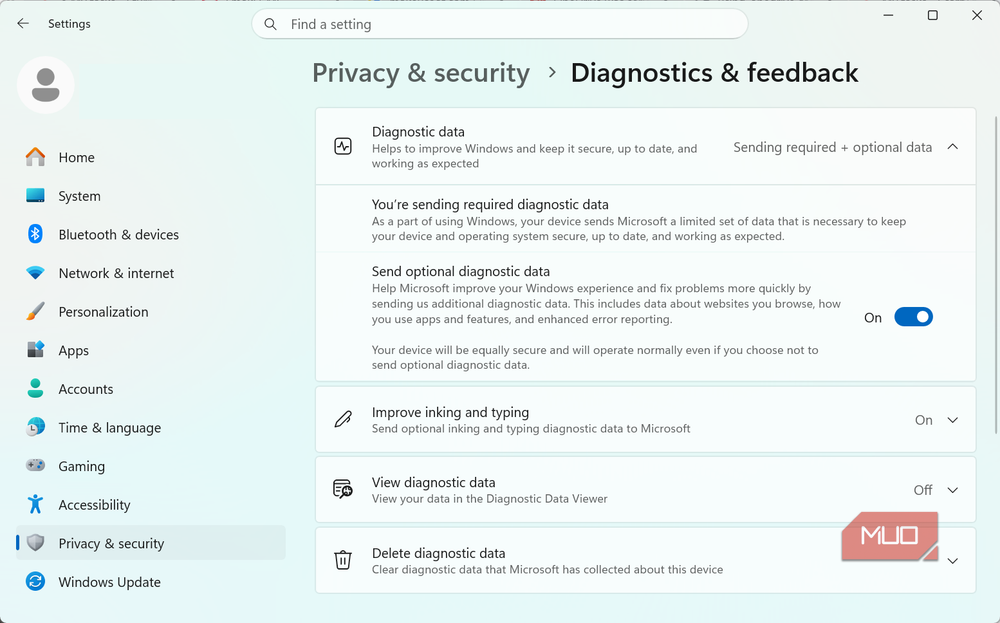
The next three elements that I disabled were optional diagnostics, tailored experiences, and feedback personalization. I will give context here so that you don't overestimate the impact of these settings.
The goal wasn't to wage war against telemetry or assume Microsoft was secretly ruining my laptop. Most of the telemetry is meant to improve updates, security, and reliability.
However, the real problem is that recommendations, sync systems, preloaders, personalization layers, and feedback features enhance the operating system, but not in ways that are useful to me. On a system with just 8GB of RAM, it was more important to conserve as much of that RAM as possible as available idle memory. I simply decided that if a feature isn't improving the system in a way that matters to me, it doesn't deserve permission to consume system resources. The effect on idle available RAM wasn't as much as other features I disabled, but reclaiming about 100MB still felt significant.
Most of these can be disabled in Windows Settings under the Privacy & Security menu.
It's time to open the Task Manager
For a computer running on 16 or 32GB of RAM, these may not be the most impactful changes you can make. But for a lower spec laptop, they make a world of difference. It might just be time to open the Task Manager and see if your system is becoming overwhelmed. The part is that these tiny changes take less than five minutes to make.