


Clicking "Uninstall" in Windows should really be a clean break. You find the app in Settings or Control Panel, hit the button, watch the progress bar move, and the program disappears from the list. Job done, at least on the surface.
In reality, Windows has usually handed the job to the app's own uninstaller, and that uninstaller may only remove the core program files. And that, in many cases, leaves residual clutter that takes up storage space, can cause odd behavior if you reinstall the app later, and accumulates every time you install or remove software.
The uninstall button is not a shredder
This is less goodbye and more ghosting with folders


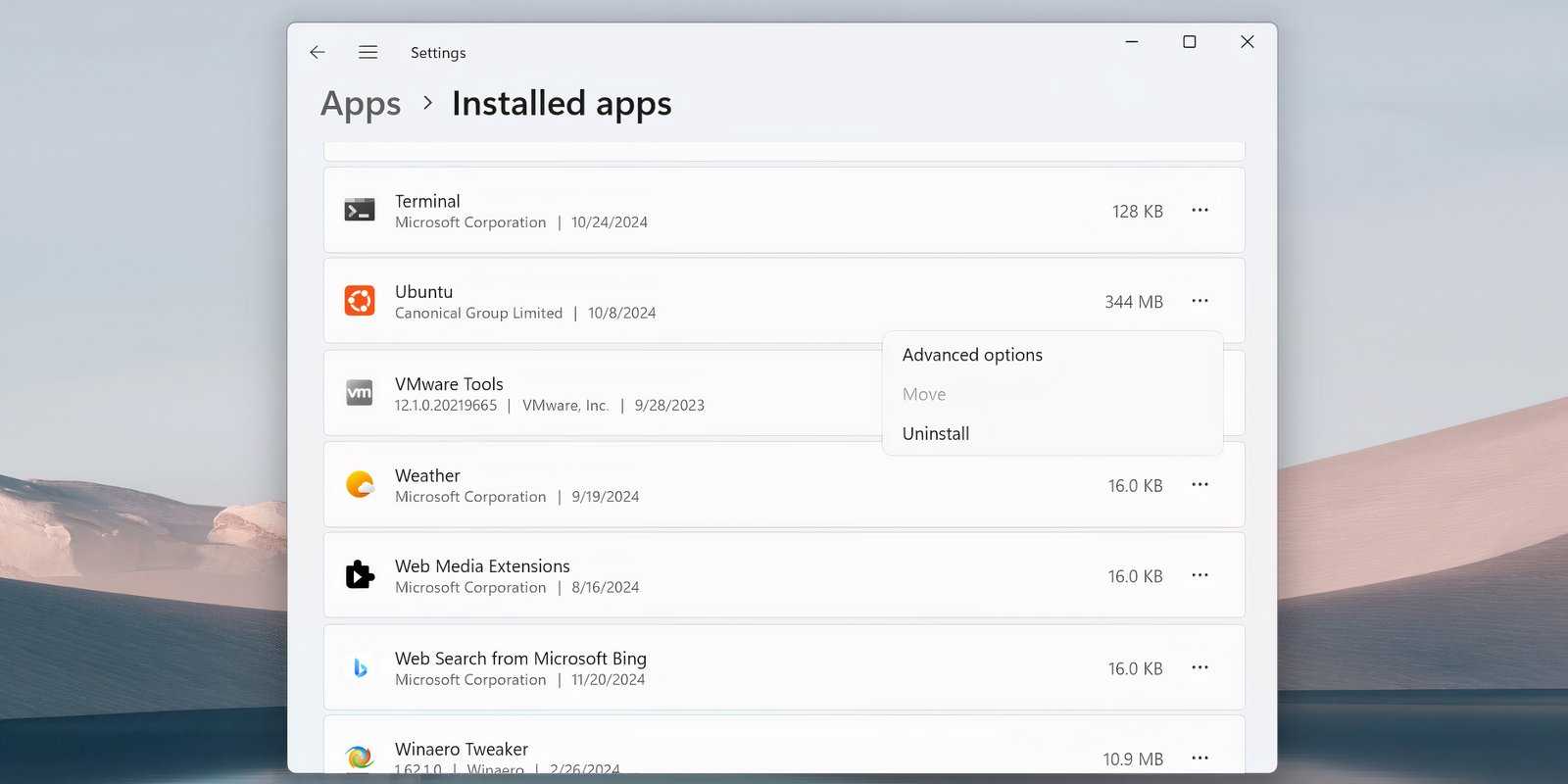
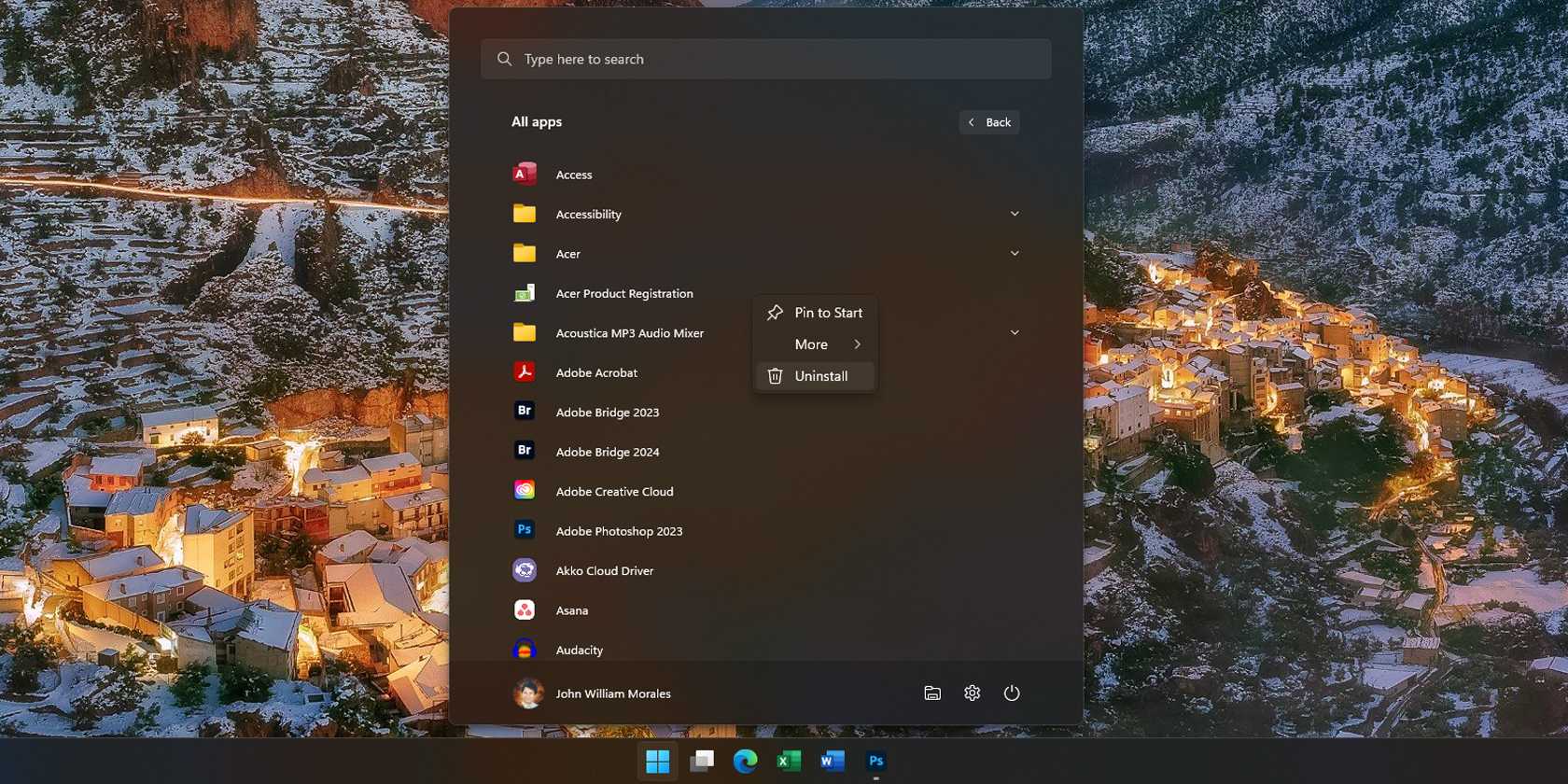
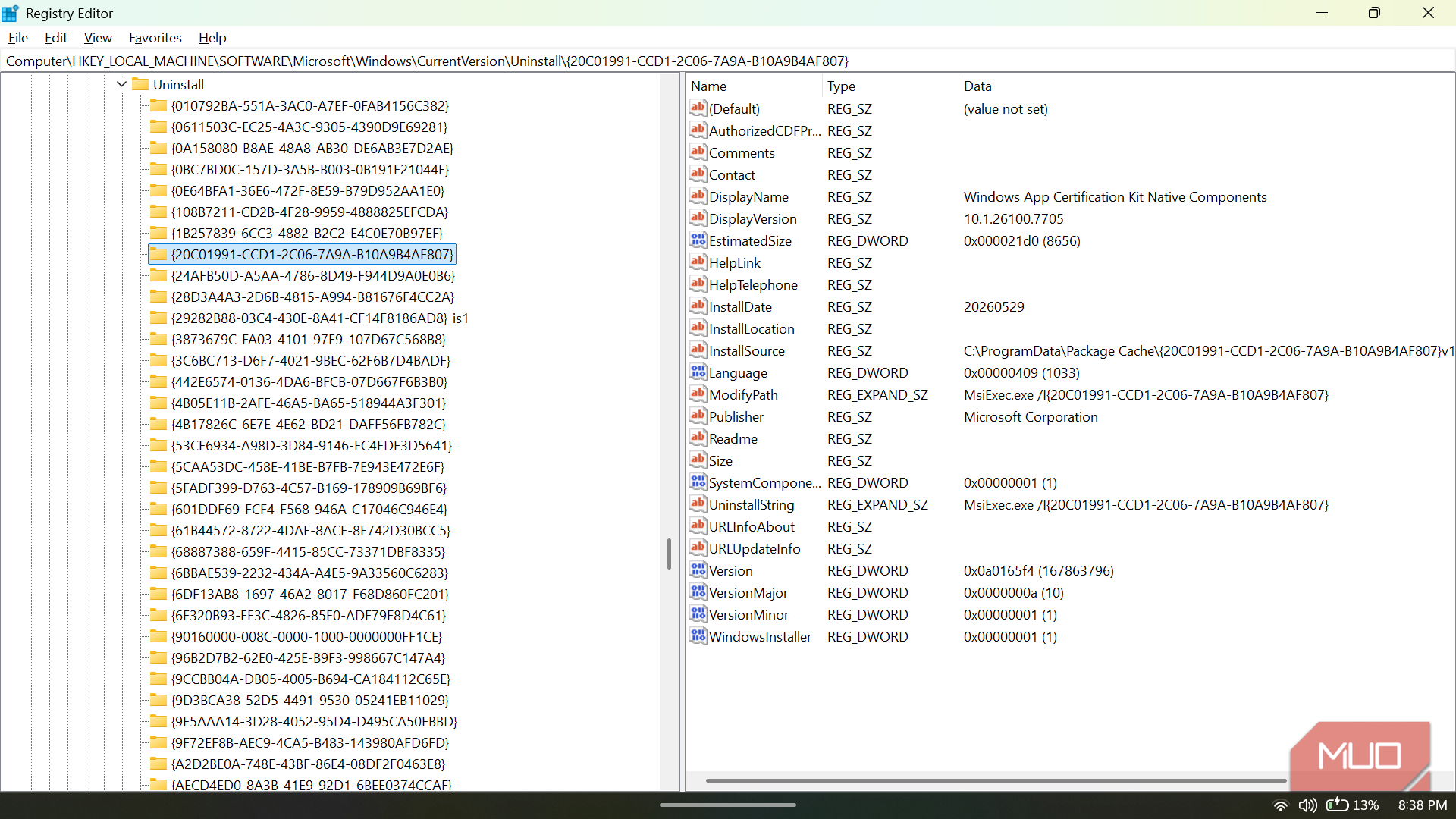
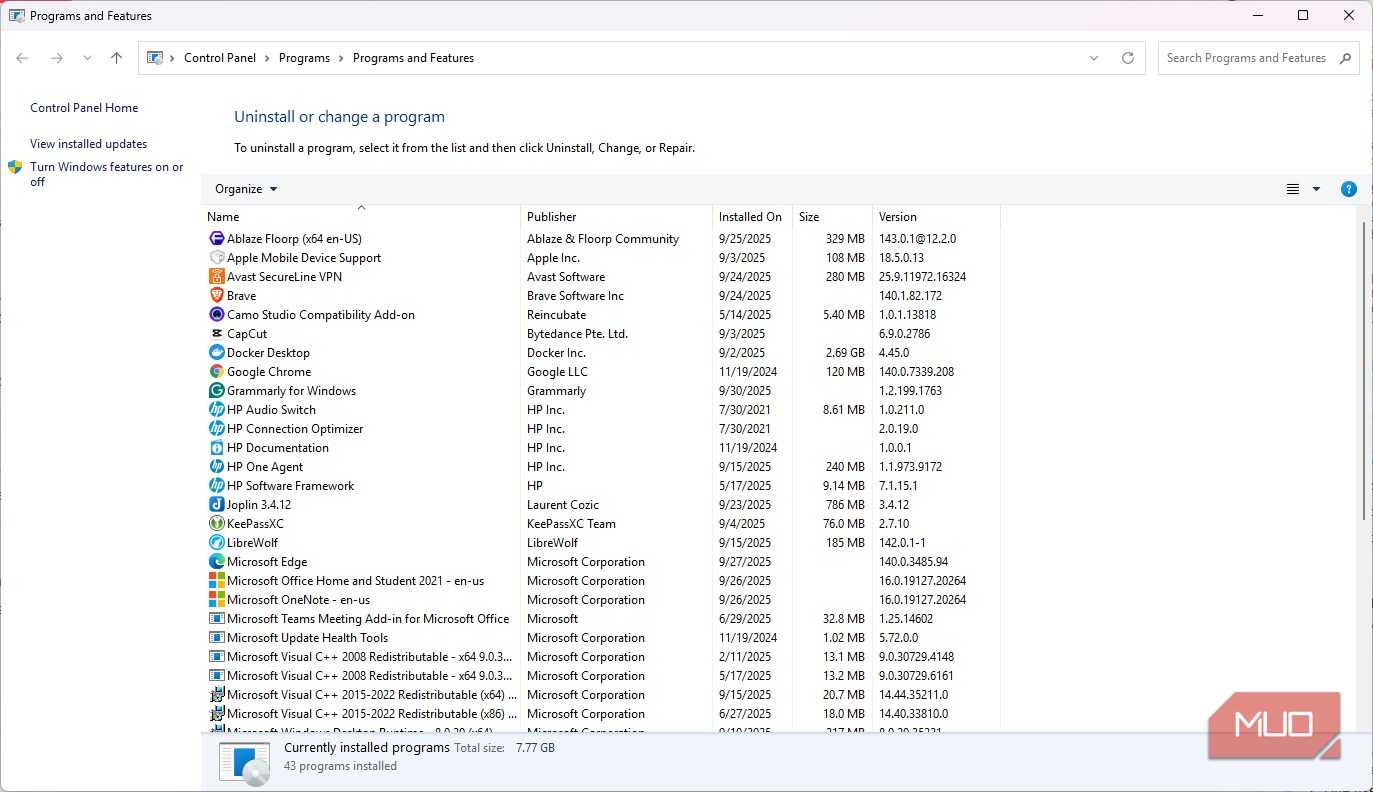
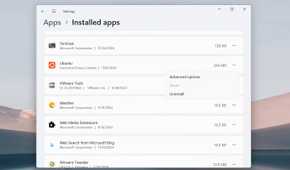
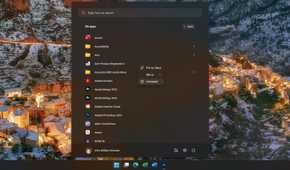
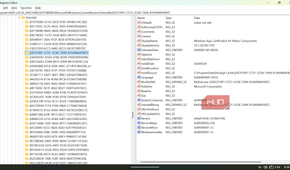
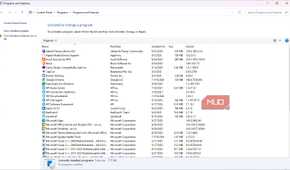
When you remove an app through Settings, Control Panel, or the app's own setup tool, Windows usually follows the uninstall command that the program registered under HKEY_LOCAL_MACHINE\SOFTWARE\Microsoft\Windows\CurrentVersion\Uninstall. That command points to the app's uninstaller, and from there, the cleanup is mostly the developer's responsibility. If the installer never recorded everything properly or the uninstall data is incomplete, the removal can fail, skip pieces, or leave Windows with a partial cleanup. Windows itself does not go hunting for every trace independently.
The leftovers depend heavily on the kind of app you installed. Traditional Win32 programs, whether they use MSI packages or custom installers, can scatter files across C:\Program Files, C:\ProgramData, AppData, LocalAppData, and the Registry. When you uninstall one of these apps, the main binaries may be removed, while runtime data, cached settings, logs, and registry entries created after installation remain. That is why reinstalling an app sometimes feels strangely familiar, with old preferences or broken behavior returning as if the uninstall never happened.
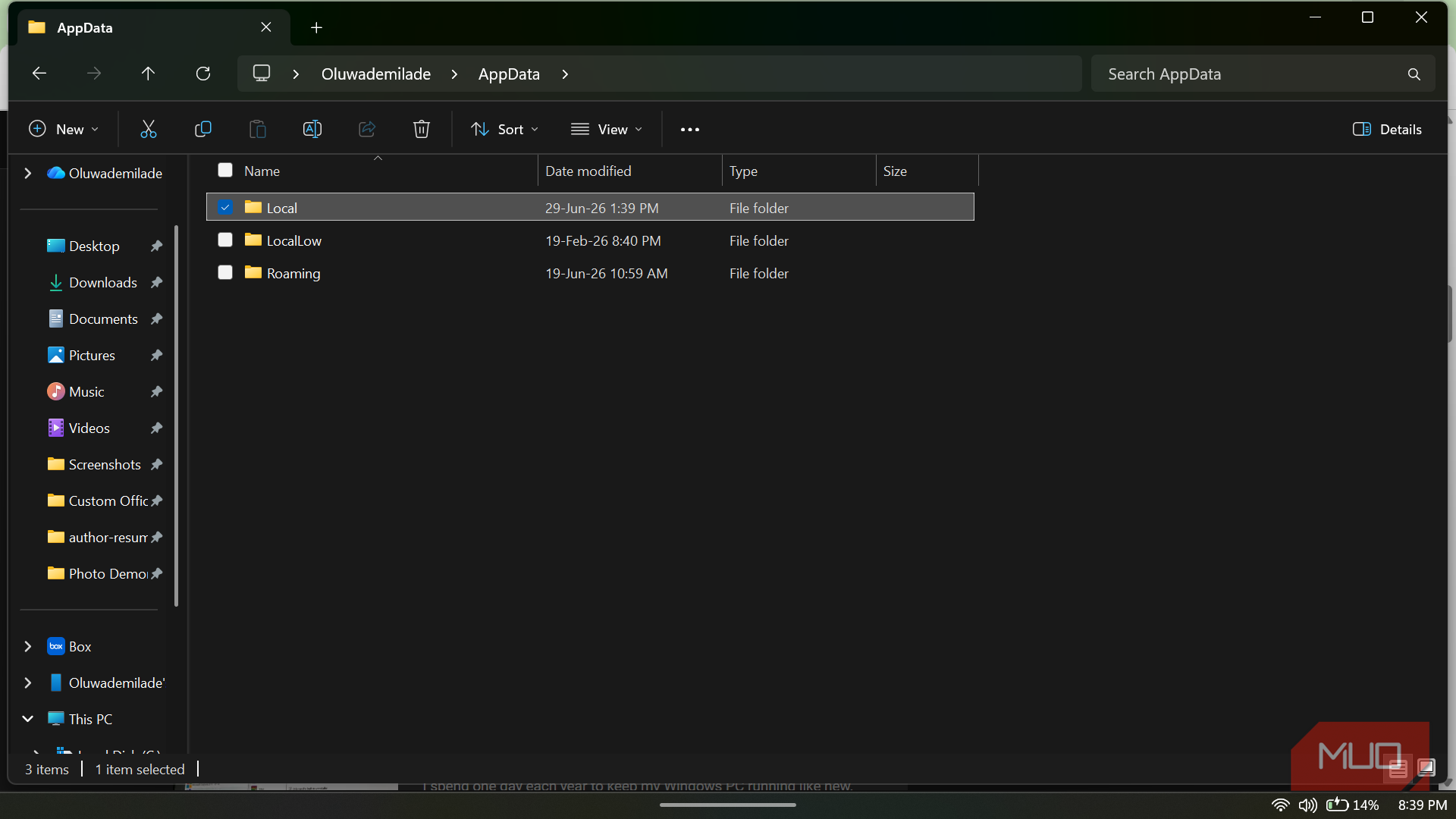
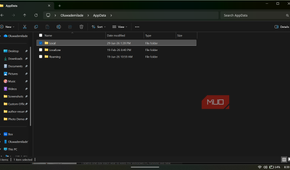
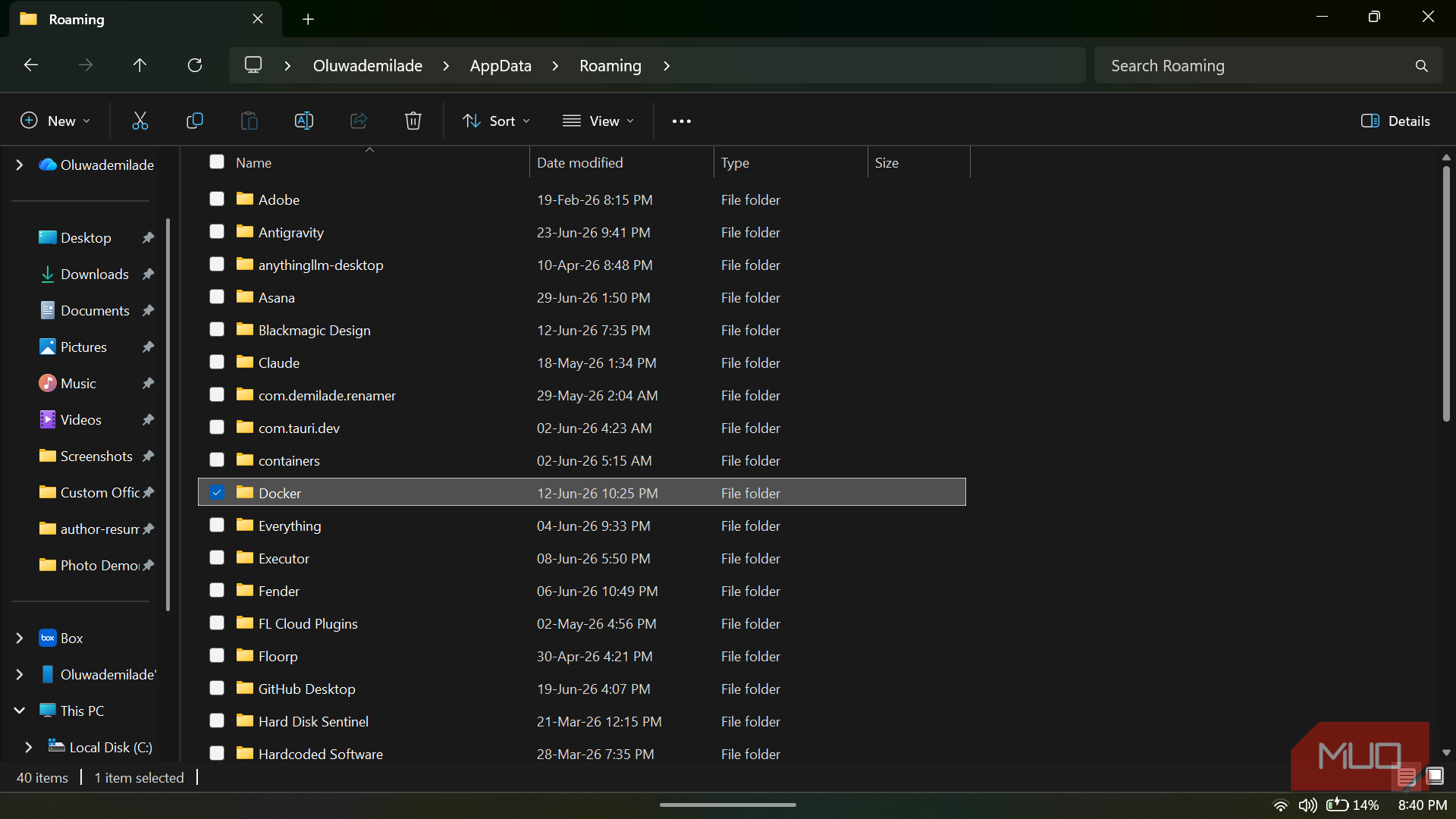
The AppData folder splits into three subfolders, and knowing which holds what matters when you are cleaning up. Typing %localappdata% into the Run dialog or File Explorer address bar takes you to Local, where apps often store machine-specific caches and heavier data.
Typing %appdata% opens Roaming, which is meant for settings and preferences that can follow your user account across devices in managed environments. LocalLow is used by sandboxed or low-integrity processes, such as some browser plugins, and it does not have its own handy environment variable shortcut, so you access it manually via %userprofile%\AppData\LocalLow. Windows hides all three by default.
Microsoft Store apps packaged as MSIX or AppX are generally cleaner because the platform gives them a more controlled installation model. Removing an MSIX package clears the app's installed files and any registry writes redirected through its container. Files the app created outside its managed areas, such as items saved to Downloads, Documents, or Desktop, are left alone for good reason. Windows should not assume your exported project, saved document, or downloaded file is disposable just because the app that created it is gone.
Portable apps you run from a USB drive or even without installing on your machine sit in their own category. They do not install in the traditional sense, so they also do not perform a traditional uninstall. The folder you extracted or copied is the thing you remove when you are finished, along with any settings folder the app may have created elsewhere if it was not truly self-contained.
Game launchers, creative suites, and developer tools tend to be the messiest category. A game client might leave library folders, save data, shader caches, and a background update service. A creative app might leave plugin directories, scratch disks, or presets in locations the main uninstaller never touches. Developer tools often leave SDKs, package caches, or runtime components that other projects may still depend on.
Drivers, VPN clients, and security software can go even further. These often install kernel components, network adapters, Windows services, or shell extensions that require a separate removal step, and sometimes a reboot, to fully clear. Shared components tracked under reference counts in the registry indicate when a file is still in use by another application, which is one reason generic cleanup tools cannot safely determine what is safe to delete.
The cleanup Windows was never going to do for you
Time to check the junk drawer


 Credit: Sagar Naresh/MakeUseOf
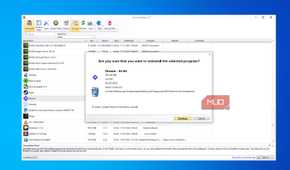
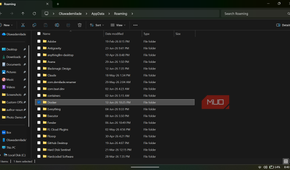
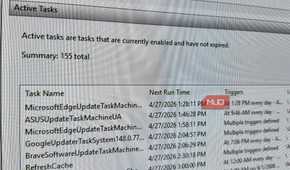
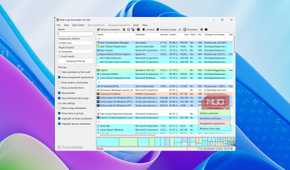
When I want an app properly gone from Windows, I start by treating the normal uninstall button as the first step rather than the whole job. I use Settings or Control Panel for most apps, the app's own removal tool when it provides one, or WinGet from the terminal if that fits the workflow better. The important part is letting the official uninstaller finish before I start poking around manually, because deleting files too early can leave Windows with a messier problem than the one I was trying to solve.
If the app installed services, drivers, a VPN adapter, or a shell extension, I reboot before continuing. Some parts of Windows stay locked while the system is running, and a restart gives the uninstaller a fair chance to finish cleaning up components that were still loaded in memory.
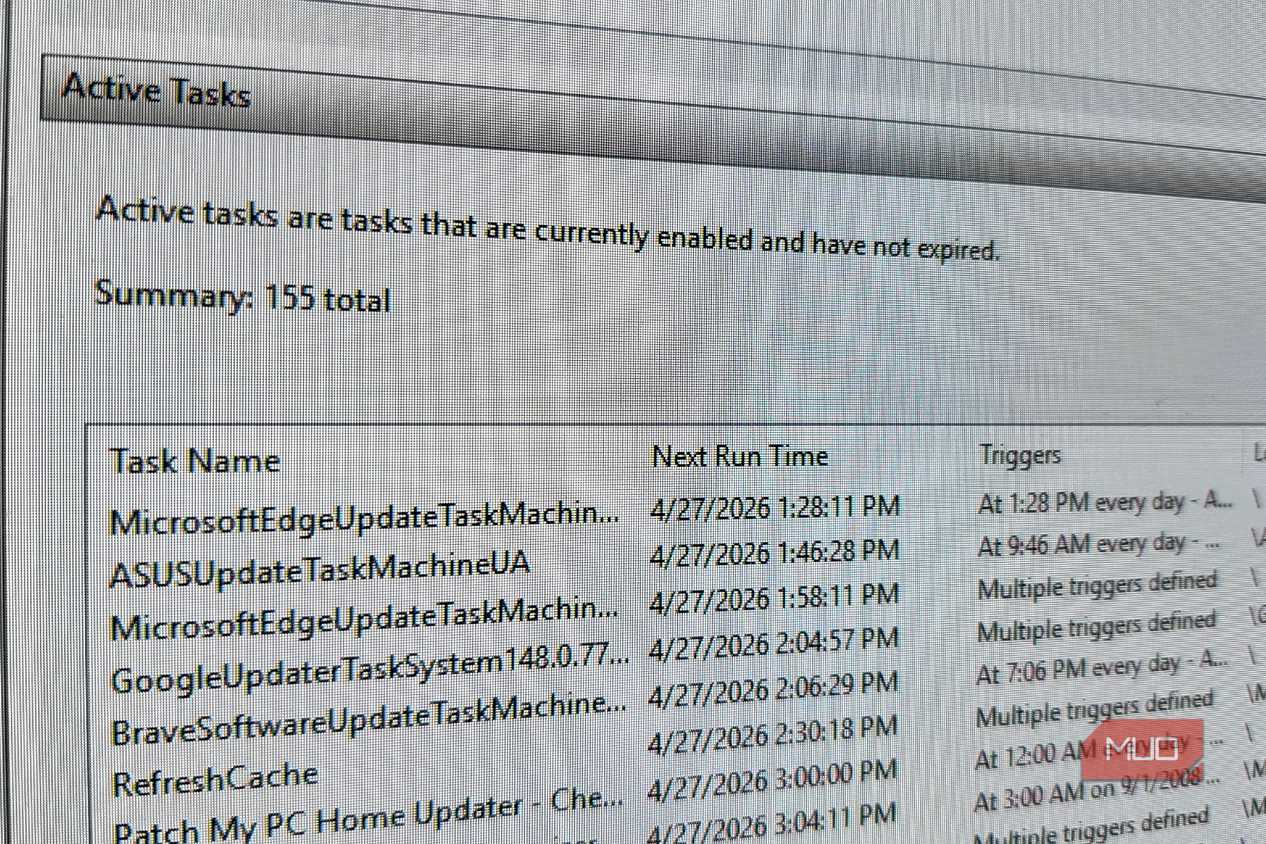
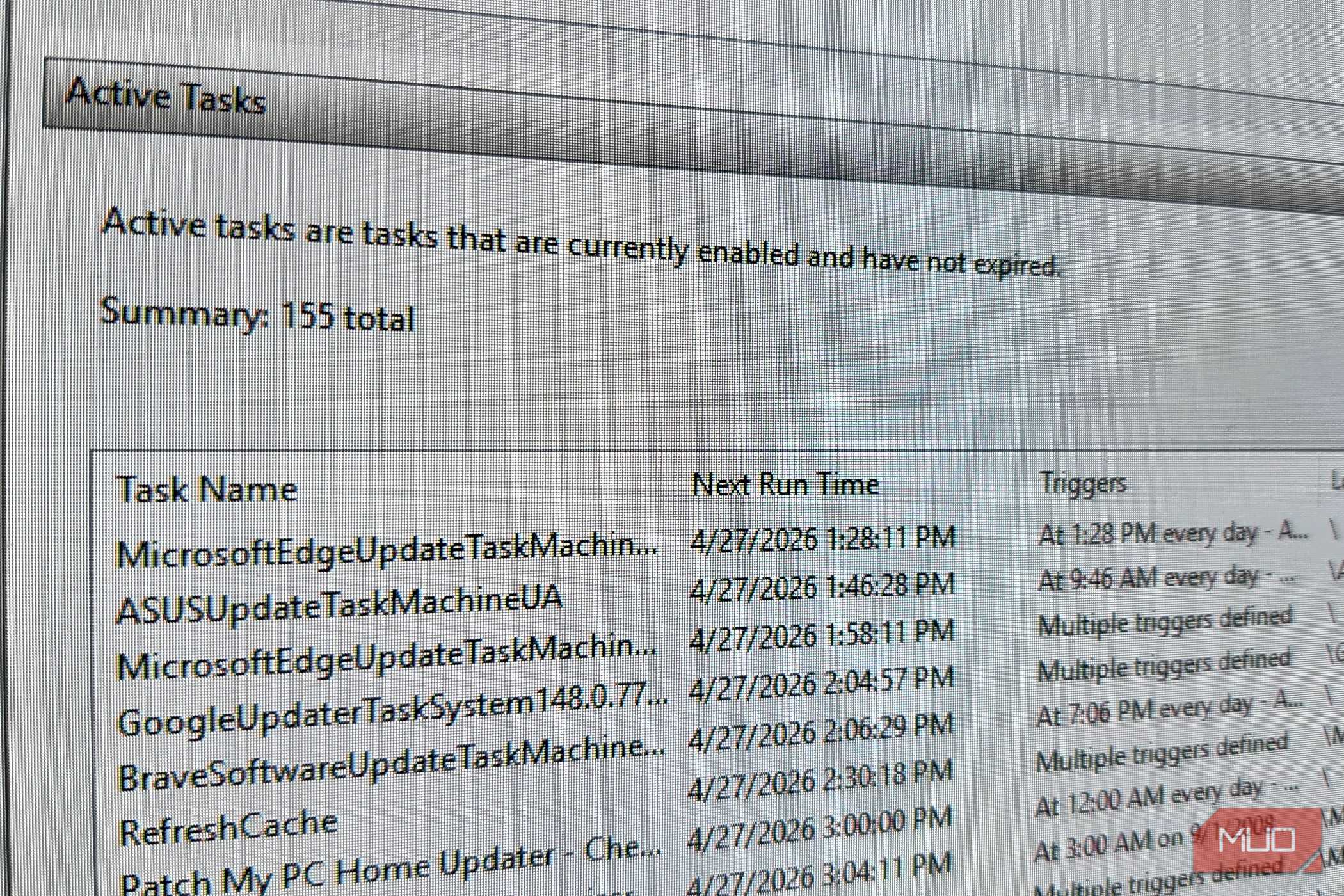
After that, I check the areas where stubborn leftovers actually affect the system's performance. Task Manager's Startup Apps tab is worth a look for anything tied to the app or its vendor. Also, click on Services and check whether any services associated with that app are still listed. Next, open Task Scheduler and look under the Task Scheduler Library for scheduled entries with the app or developer's name. Remove or disable what you find in these locations first, since these are the leftovers that actually affect your running system.
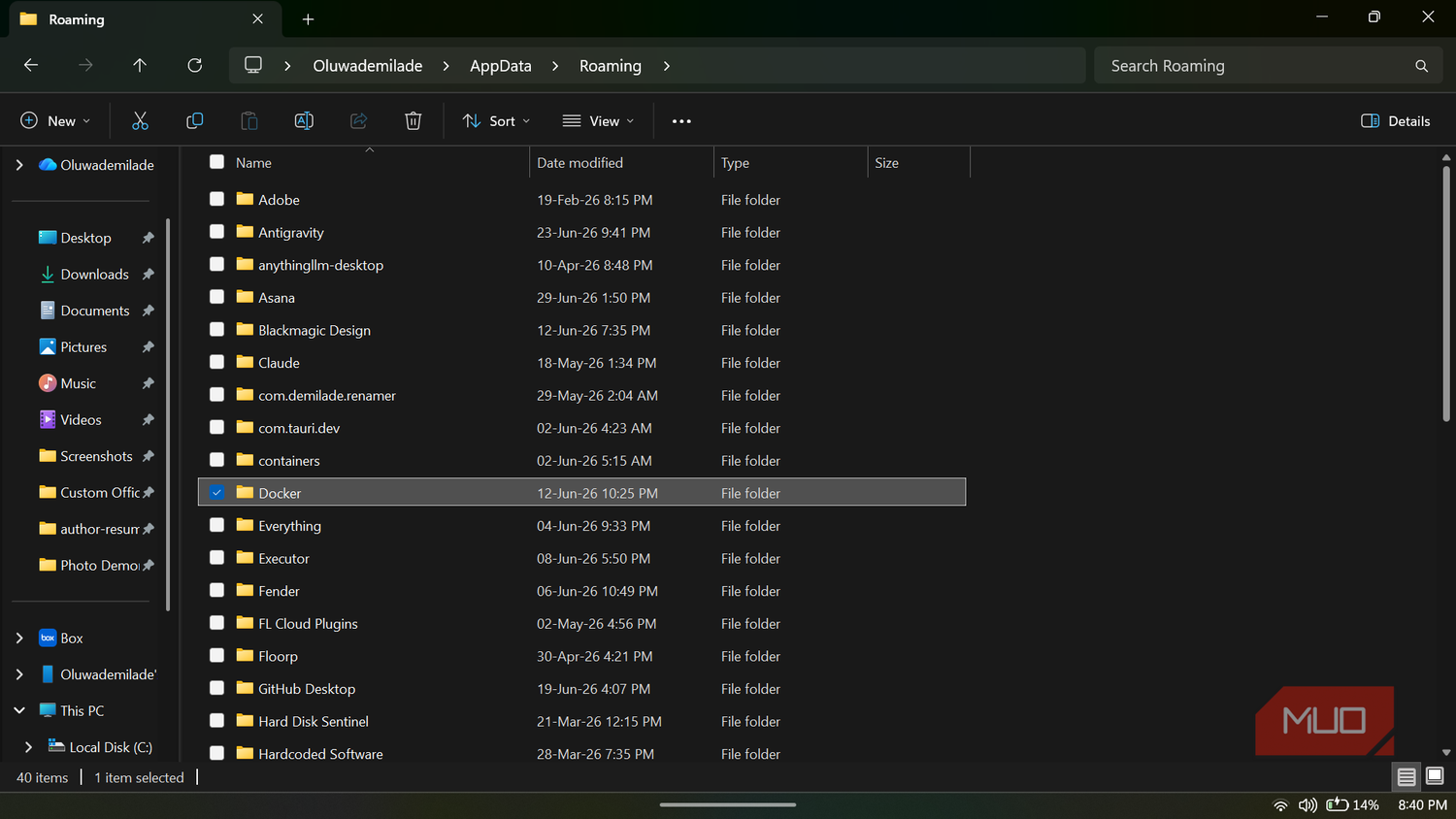
Then I look through the file system. The usual hiding places are Program Files, Program Files (x86), ProgramData, AppData\Roaming, and AppData\Local. If I find folders clearly named after the app or its developer, and I am confident they belong to the program I removed, I delete them. Anything shared, generic, or connected to another product I still use gets left alone, because aggressive cleanup is a fine way to break a completely unrelated app and feel very clever while doing it.
From there, open Registry Editor by typing regedit into the Run dialog.
Before doing anything else, export a full backup of the Windows Registry using File -> Export. This step isn't optional; skipping it because it feels like extra work is a shortcut that might end in a system restore.
Search the following locations for keys corresponding to the removed software and delete them carefully:
- HKEY_LOCAL_MACHINE\SOFTWARE: system-wide app registrations and settings.
- HKEY_CURRENT_USER\Software: per-user app settings and preferences.
- HKEY_LOCAL_MACHINE\SOFTWARE\Wow6432Node: 32-bit app entries on a 64-bit system; often overlooked but frequently populated.
- HKEY_CURRENT_USER\Software\Microsoft\Windows\CurrentVersion\Run: per-user startup entries.
- HKEY_LOCAL_MACHINE\SOFTWARE\Microsoft\Windows\CurrentVersion\Run: system-wide startup entries that the app may have registered.
- HKEY_LOCAL_MACHINE\SYSTEM\CurrentControlSet\Services: leftover service entries, particularly relevant for drivers, VPNs, and security software.
If you find the standard editor too clunky, there are better ways to search the Windows Registry that can make identifying specific orphaned keys much easier. What you should not touch is HKEY_USERS\.DEFAULT\Software. That hive belongs to the SYSTEM account and the pre-login desktop, not your user profile. Deleting keys there can cause unexpected system behavior and has nothing to do with cleaning up a user-installed application.
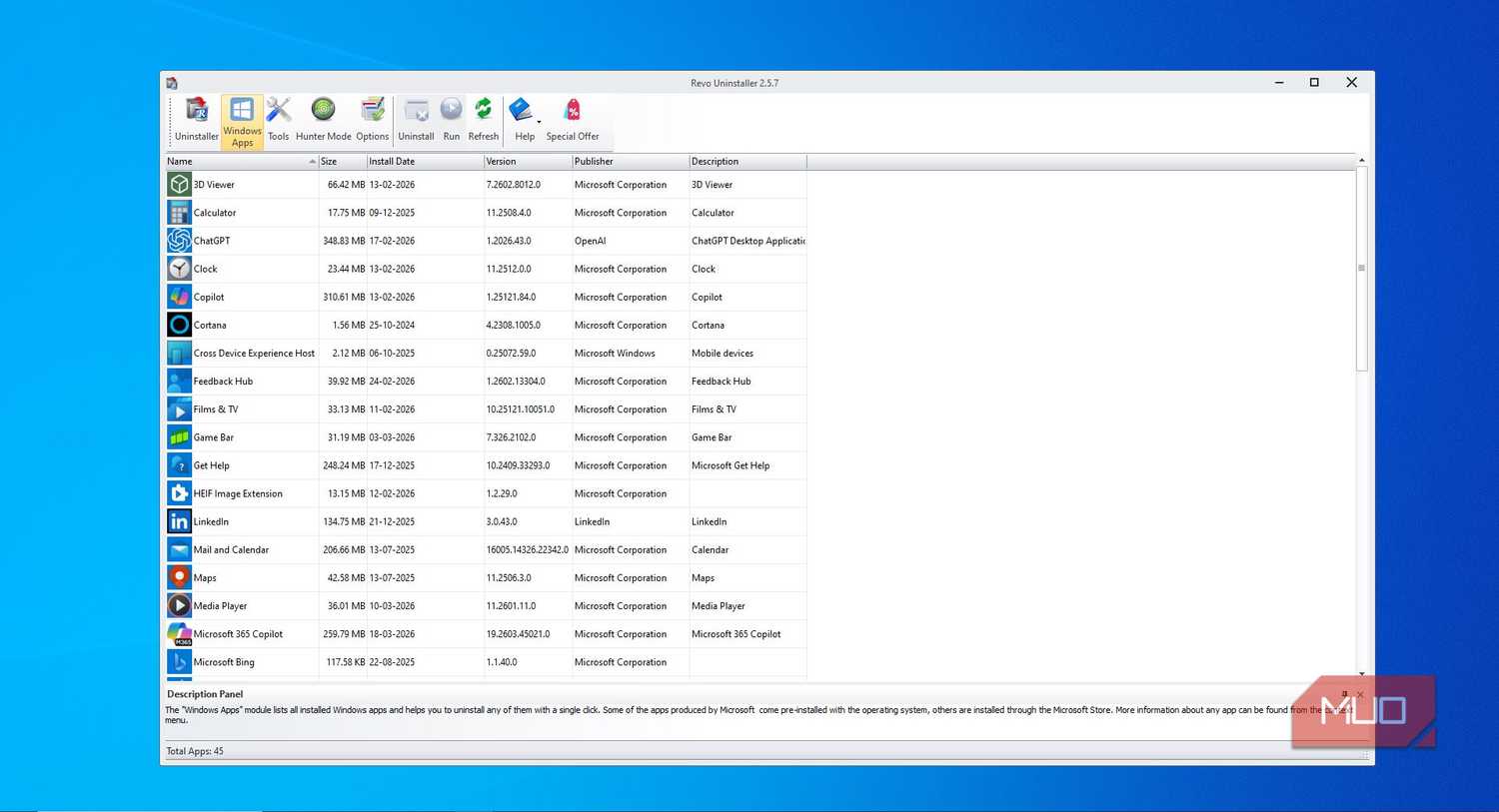
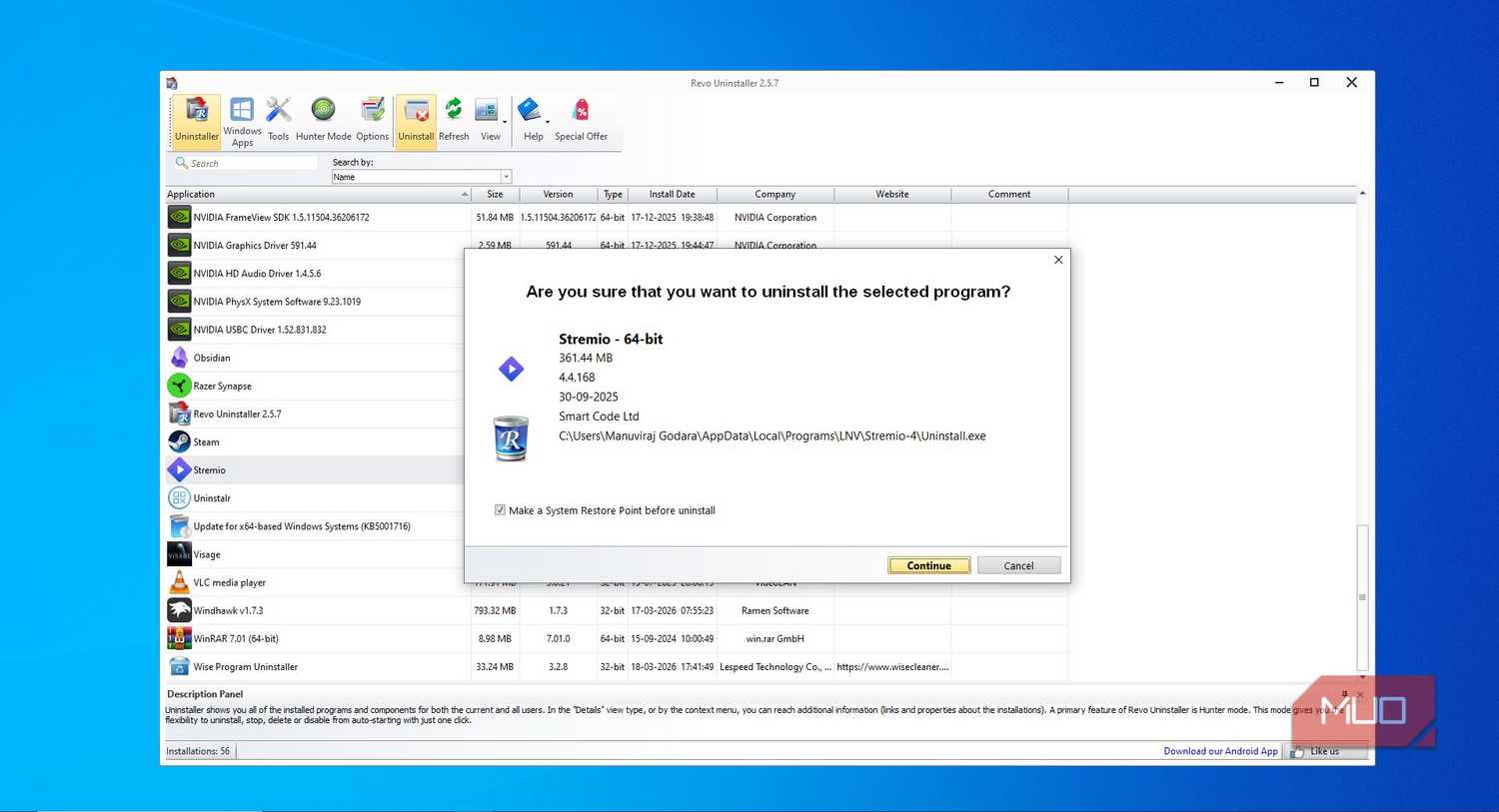
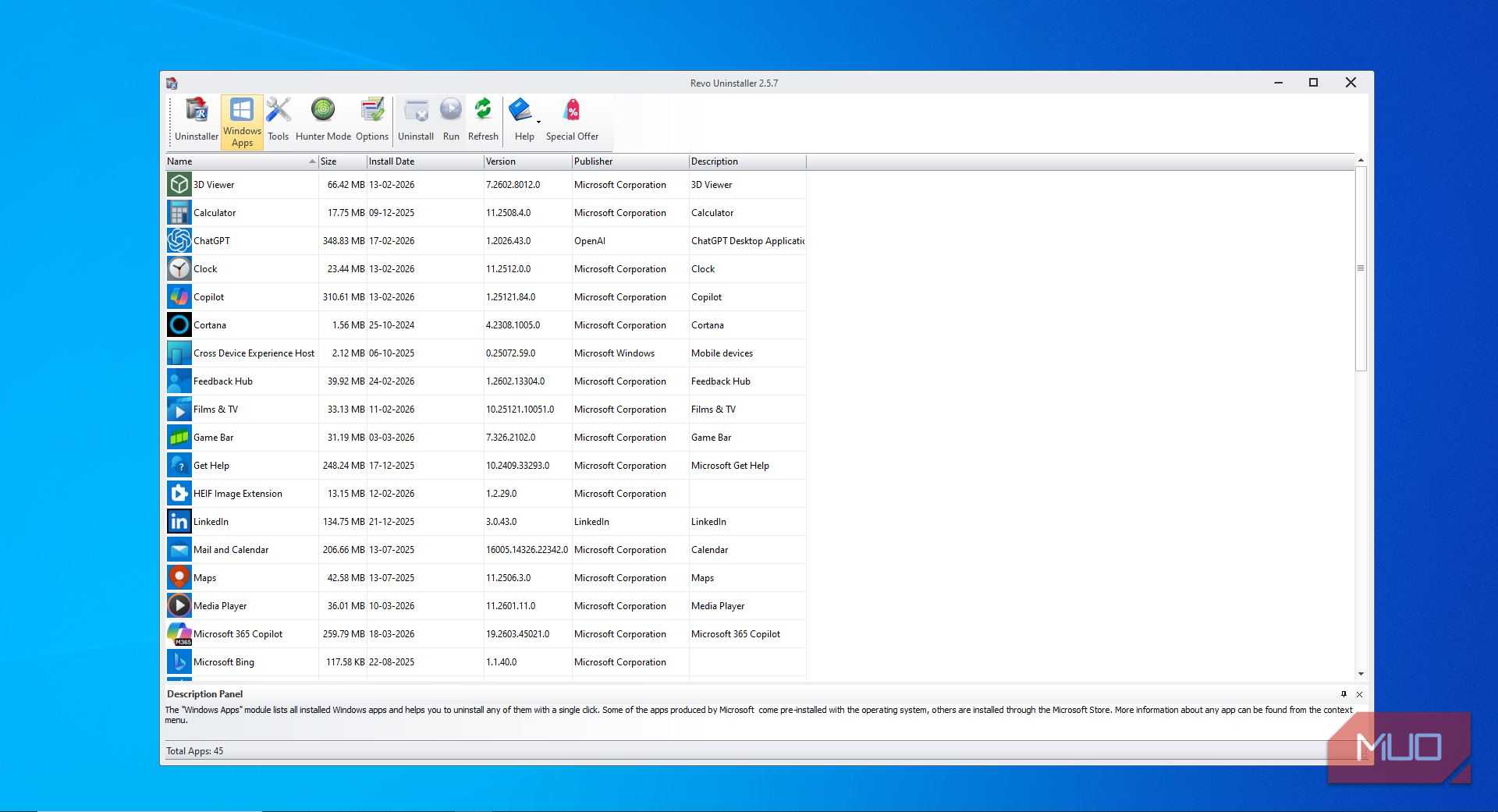
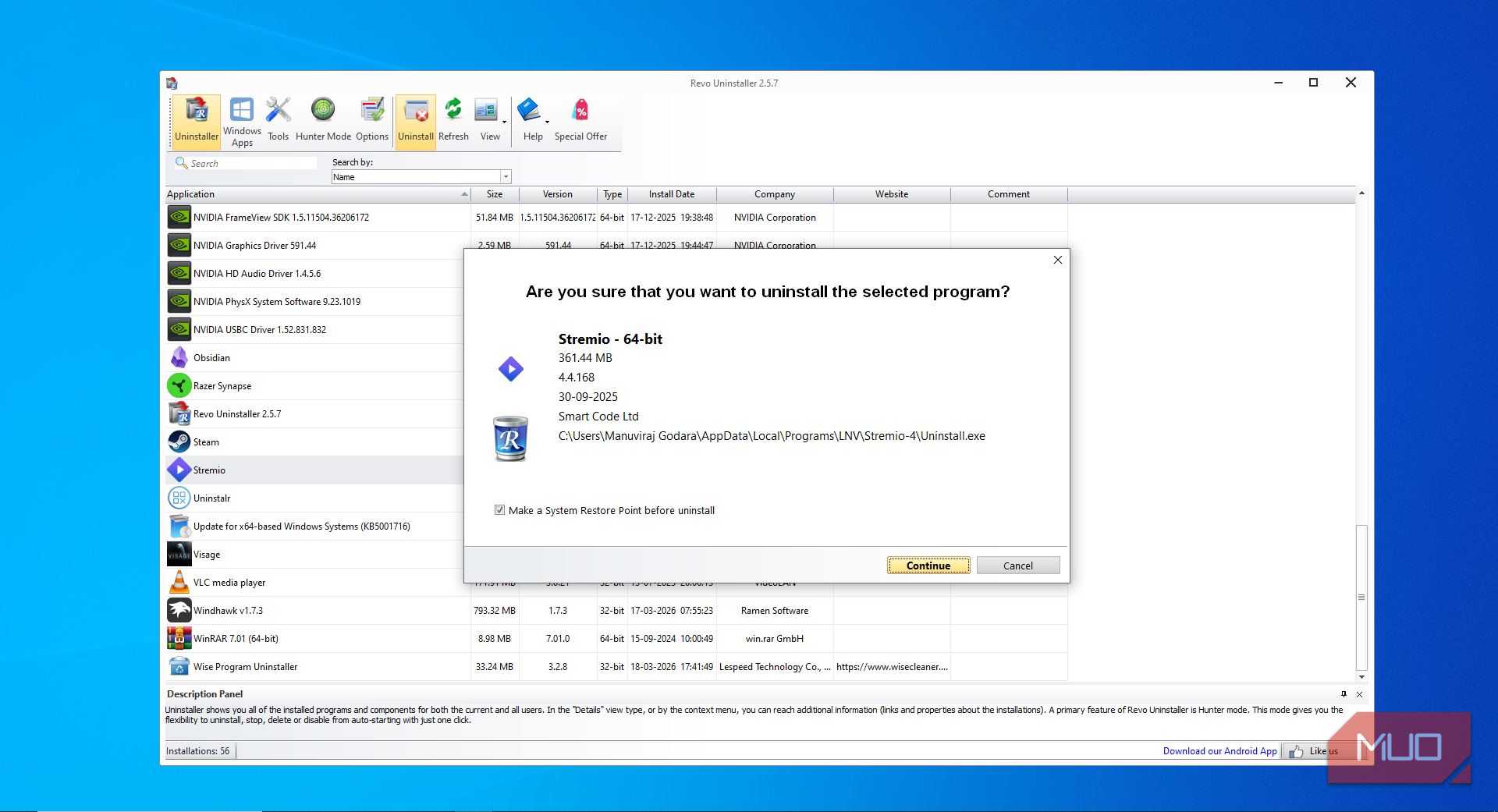
That workflow makes sense for a targeted one-off cleanup. If I had to do this regularly, I would rather use dedicated tools to complete the uninstall, and the two free tools I would reach for are Revo Uninstaller and Geek Uninstaller. Both start by running the app's own uninstaller, then scan for leftover files and Registry entries afterward.
Revo is the more feature-rich of the two, offering four scan depths and a Hunter Mode that lets you drag a crosshair over a running application to force-uninstall it. Geek Uninstaller is leaner and portable, with a straightforward uninstall-scan-confirm workflow and a useful option to look up unfamiliar programs via Google.
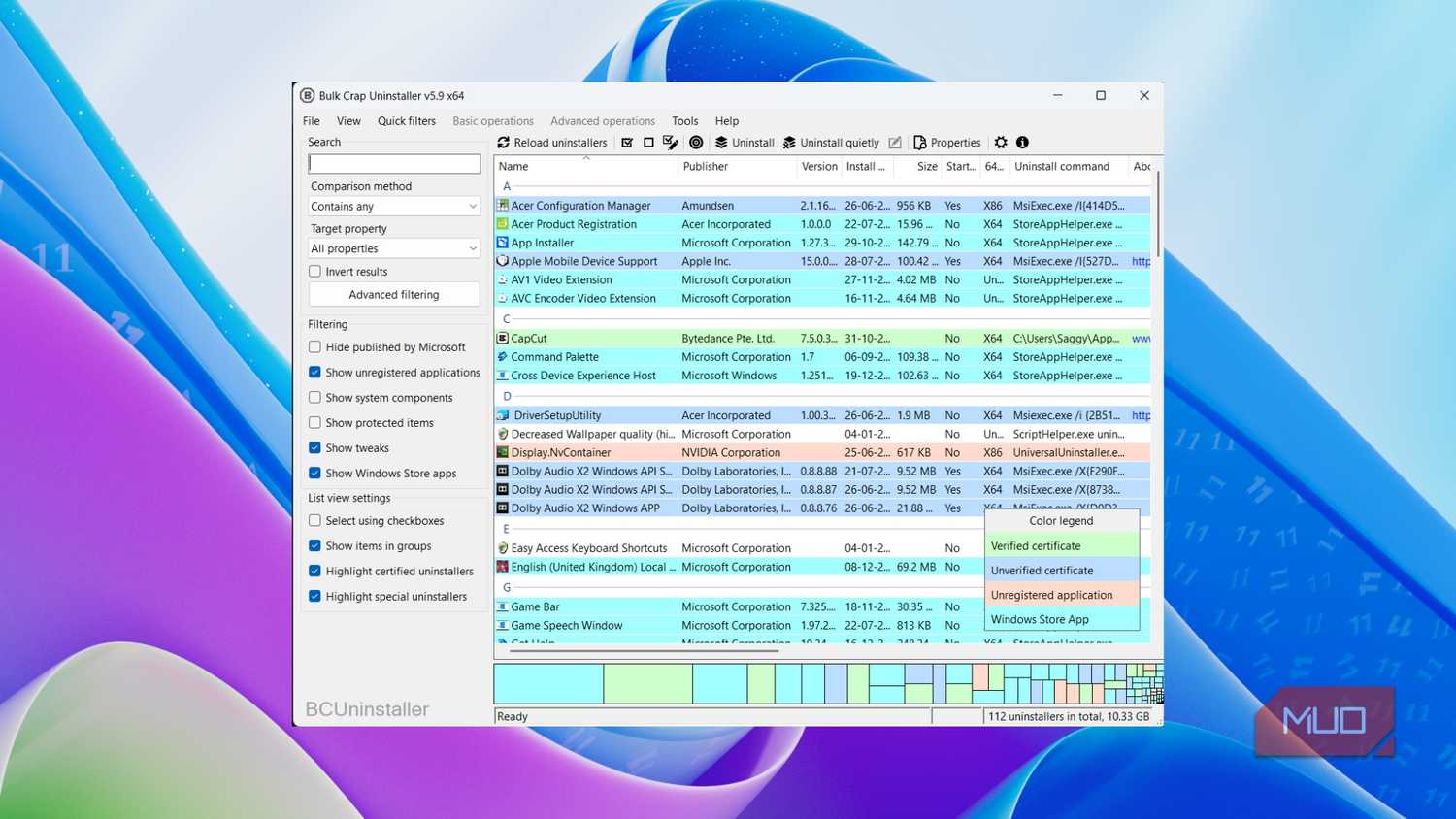
There are other open-source alternatives, such as Bulk Crap Uninstaller, that are exceptionally thorough at finding deep traces.

Bulk Crap Uninstaller
- OS
- Windows
- Price model
- Free
Bulk Crap Uninstaller is a program uninstaller. It removes large numbers of applications and requires minimal user input.
Clean enough beats clean-room cosplay
The point is not to obsess over every byte or hunt registry crumbs for sport. Most apps leave a little dust behind, and some of that dust is really your settings, saves, profiles, and work. Still, I no longer assume the uninstall button performs a full cleanup just because the app disappeared from the list.
Windows gives apps the door, but the app decides how much baggage it carries. For VPNs, launchers, creative suites, developer tools, hardware utilities, and anything that installs services or drivers, a careful cleanup is worth the extra few minutes.