


One UI is already one of the most feature-rich Android skins on the market. But that’s not where the story ends. Samsung also has a free app called Good Lock, which offers several different modules for unlocking settings and features that Samsung keeps hidden. Even if you’ve tried it before — or at least heard of it — I’m pretty sure you haven’t explored everything it can do.
Add an internet speed meter and declutter that status bar
The status bar boss

The status bar is one of those things most Android phones don’t let you customize very much. Good Lock’s QuickStar module changes that. It lets you decide what icons appear in the status bar, so you can hide things like the alarm, VPN, NFC, location, and hotspot.
My favorite QuickStar feature, though, is the Network Speed option. It basically adds a real-time internet speed meter to the status bar. This feature is a part of the One UI 9 update, so you may not see it on your phone yet.
QuickStar is also handy for customizing the Quick Settings panel. You can move buttons around, resize them, change their style, and even slap custom images on each one to make the panel look more fun.
Edit images in bulk
No need to install third-party apps

Samsung’s Gallery app already has a decent photo editor, but there are still things it can’t do, like edit images in bulk. Gallery Assistant is a module that lets you select up to 500 images and edit them all in one go. And it goes way beyond the basic stuff like rotating, resizing, flipping, or adding watermarks.
One of my favorite Gallery Assistant features is bulk compression. I can select hundreds of photos and shrink them down to as little as 1/10th of their original size. It’s a great way to save storage on less important photos without actually deleting them. Another option lets you save multiple images as a single PDF file. It also includes the Galaxy Enhance-X app, which is a slightly more advanced photo and video editor.
Every app can have its own display settings
Thank the Display Assistant for that

If you’ve read enough battery-saving guides, you probably already know how setting the screen time out to 30 seconds and lowering the screen refresh rate can reduce battery drain. But the thing is, these system-wide settings aren’t ideal for every app.
For instance, I don’t want my screen locking up mid-recipe just because I stopped scrolling to chop something. Similarly, gaming on my Galaxy S26 at 60Hz defeats the purpose of buying a flagship in the first place.
The Display Assistant module lets you set screen timeouts and refresh rates on a per-app basis. So your cooking app can stay awake as long as you need it to, your games can run at 120Hz refresh rate, and everything else — your email client, calculator, whatever — can follow the battery-friendly defaults.
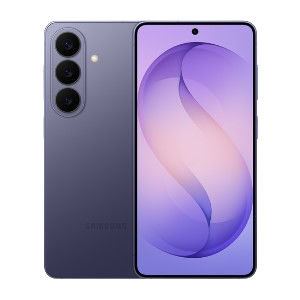
Samsung Galaxy S26
- SoC
- Snapdragon 8 Elite Gen 5
- Display
- 6.3-inch Dynamic AMOLED 2x
- RAM
- 12 GB
- Storage
- 256 or 512 GB
Unlock hidden camera settings
That Camera app can do a lot

Samsung’s stock camera app is excellent, but Camera Assistant is where you'll find the nerdy camera controls. For instance, your Galaxy phone normally picks the best lens based on the zoom, lighting, and distance to the subject. But if you don’t want that, Camera Assistant lets you turn off automatic lens switching.
Another useful option is the Quick tap shutter. It fixes that annoying delay between tapping the shutter button and a photo actually being taken. You can also increase or decrease the autofocus speed and sensitivity with this module.
And if you have a Galaxy S26, Camera Assistant unlocks 24MP shooting mode. It's a sweet spot between the full-resolution overkill of 50MP and the detail you lose by dropping all the way down to 12MP. These are just a few examples. Camera Assistant offers plenty more options like these.
Remap buttons — and even unlock a hidden one
Don’t limit yourself



 Credit: Pankil Shah/MakeUseOf
 Credit: Pankil Shah/MakeUseOf
 Credit: Brandon Miniman / MakeUseOf
 Credit: Brandon Miniman / MakeUseOf
 Credit: Brady Snyder / MakeUseOf

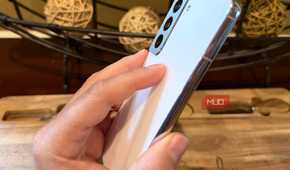
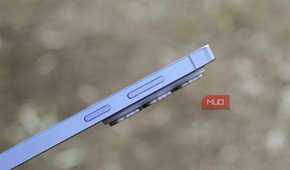
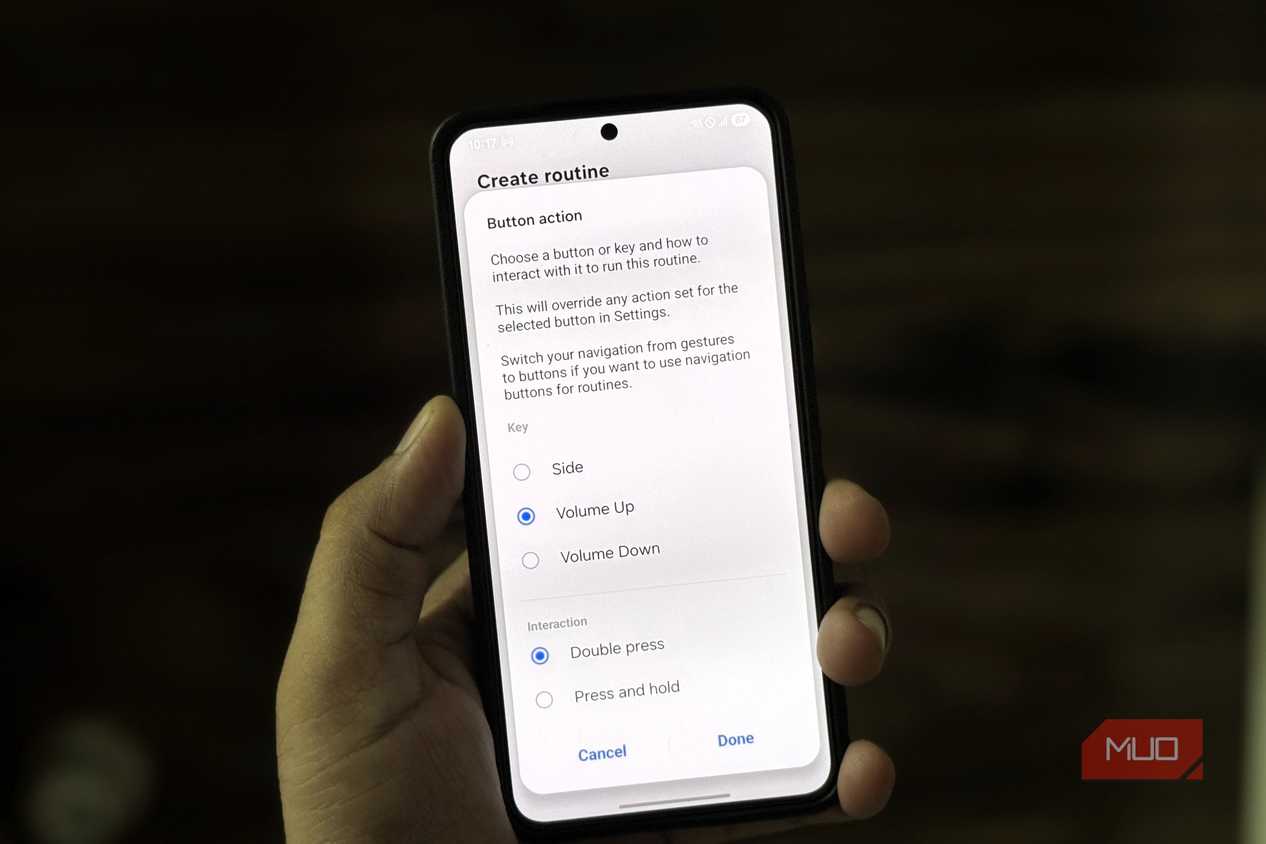
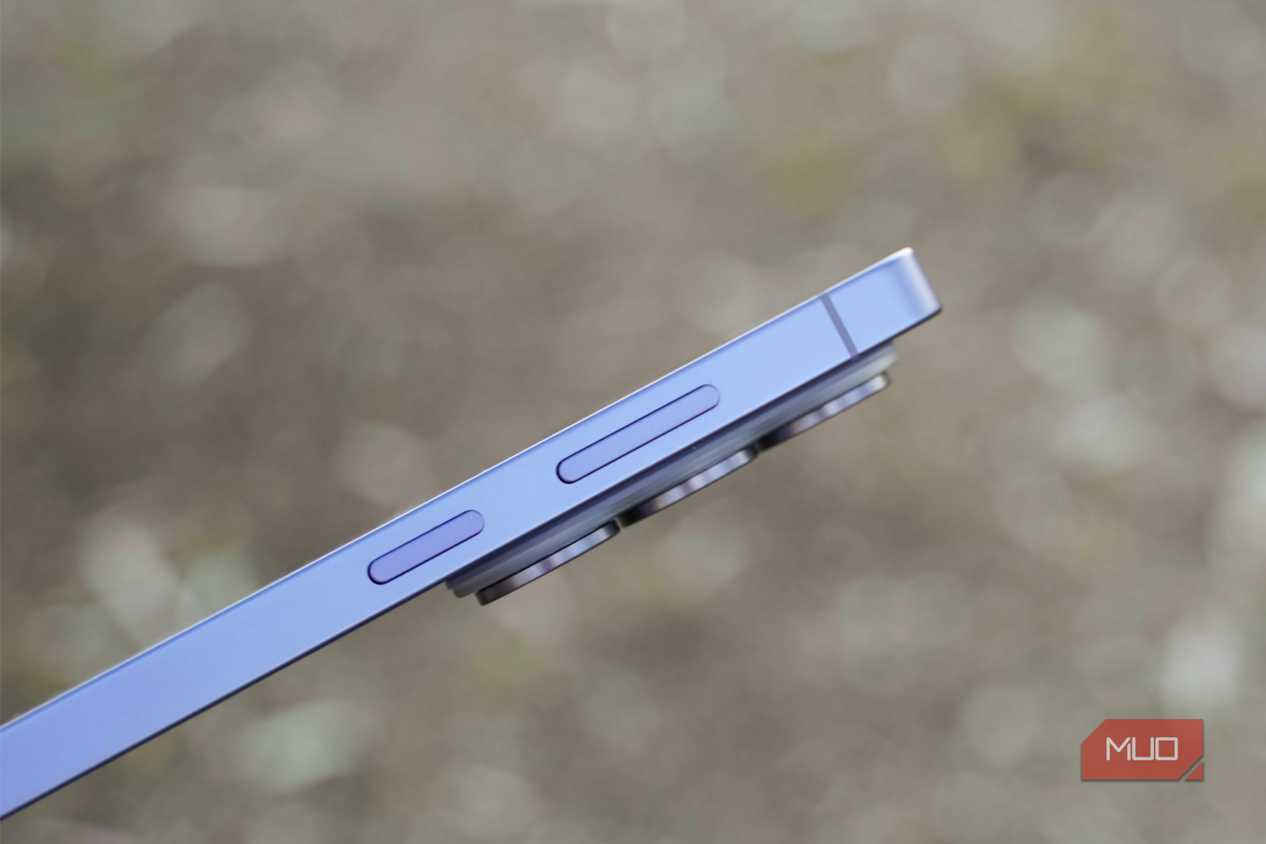
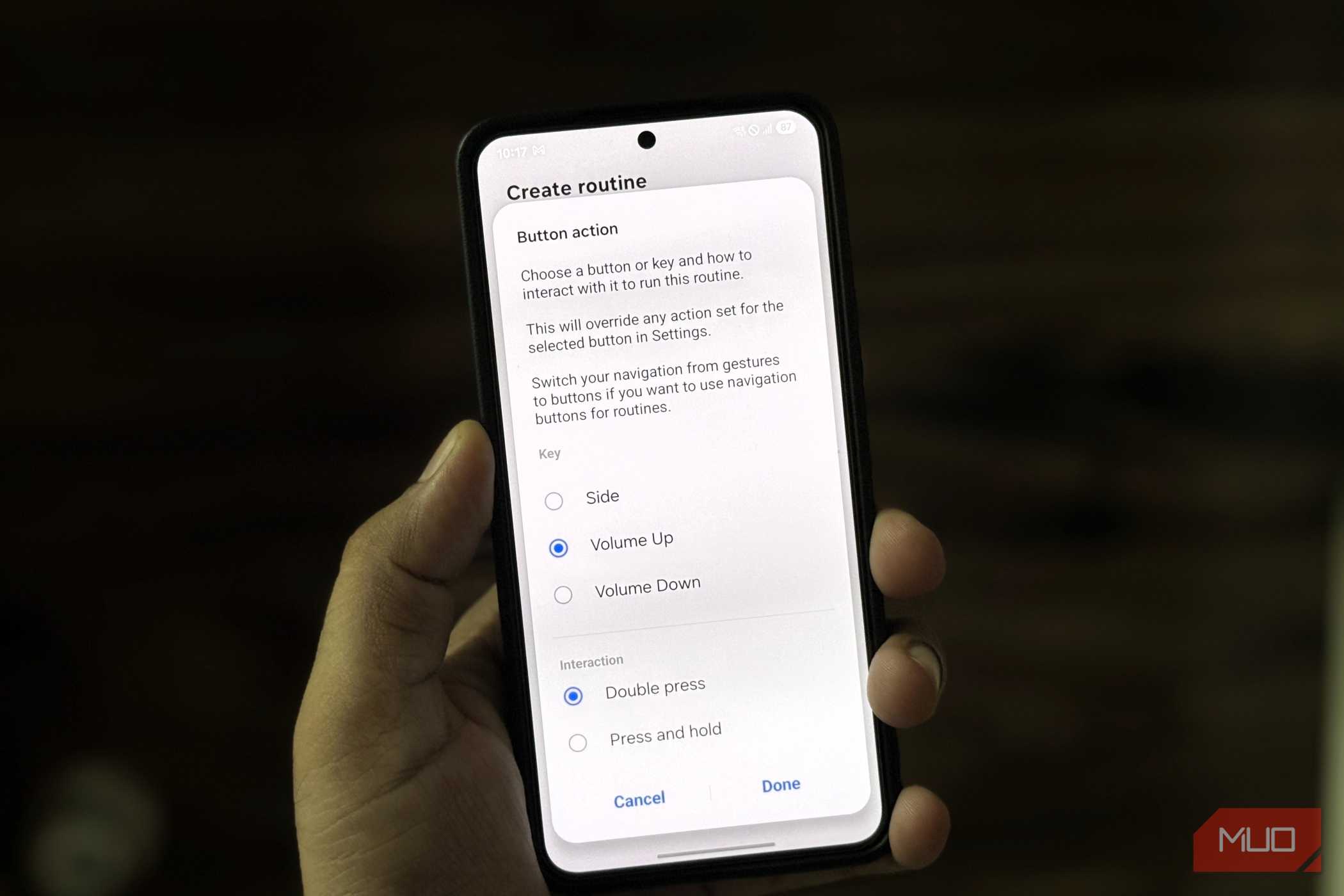
Most modern Galaxy phones only have three buttons, and they all do the usual stuff. Good Lock’s Routines+ module lets you assign custom actions to double-press and long-press gestures on the volume up, volume down, and side buttons. That gives you a total of six programmable shortcuts that can do almost anything you want.
You can use them to toggle Wi-Fi, Bluetooth, or mobile data, launch apps, start screen recording, or jump straight into a specific chat. And you’re not limited to just these basic actions. I’ve set my buttons to do things like open a specific Slack channel, launch an incognito window in Brave, create a note in Keep, and pull up Google Maps directions home.
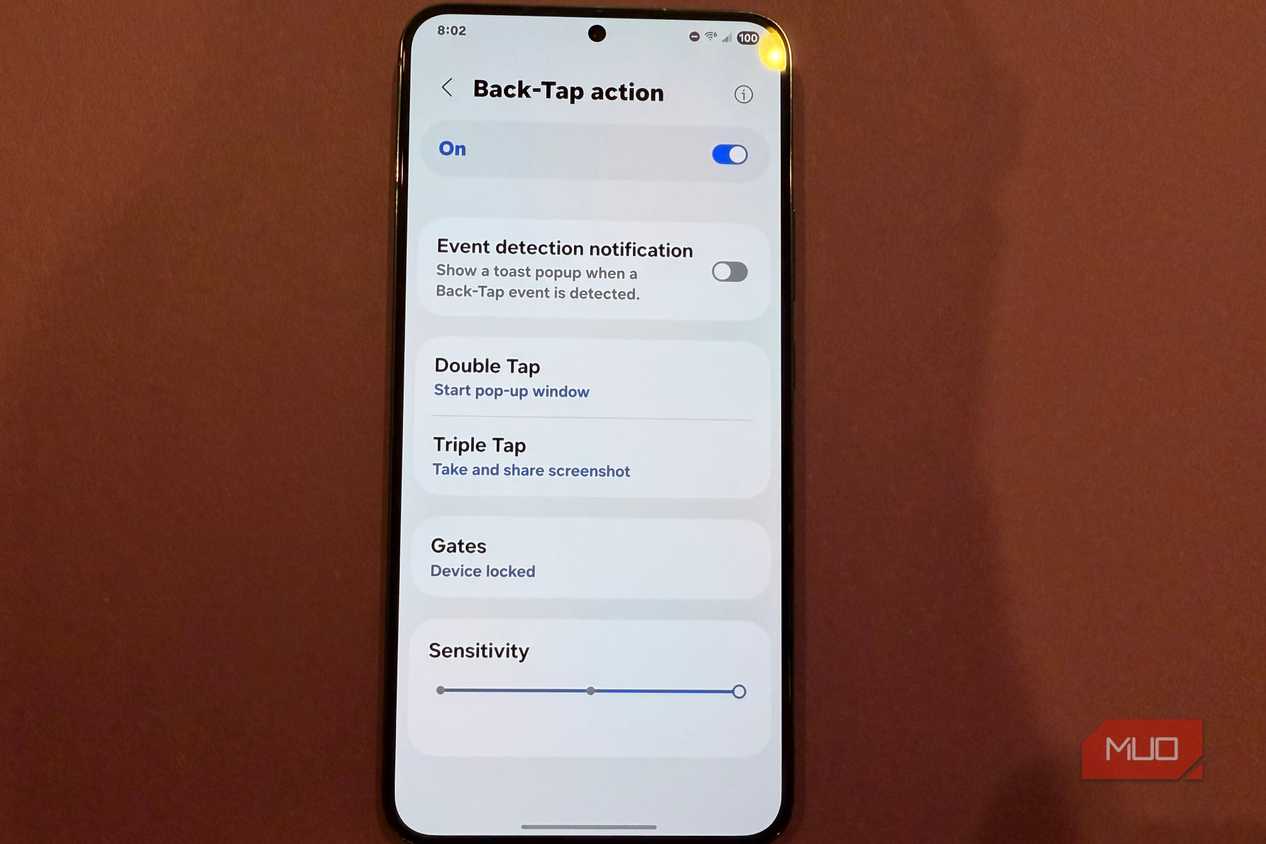
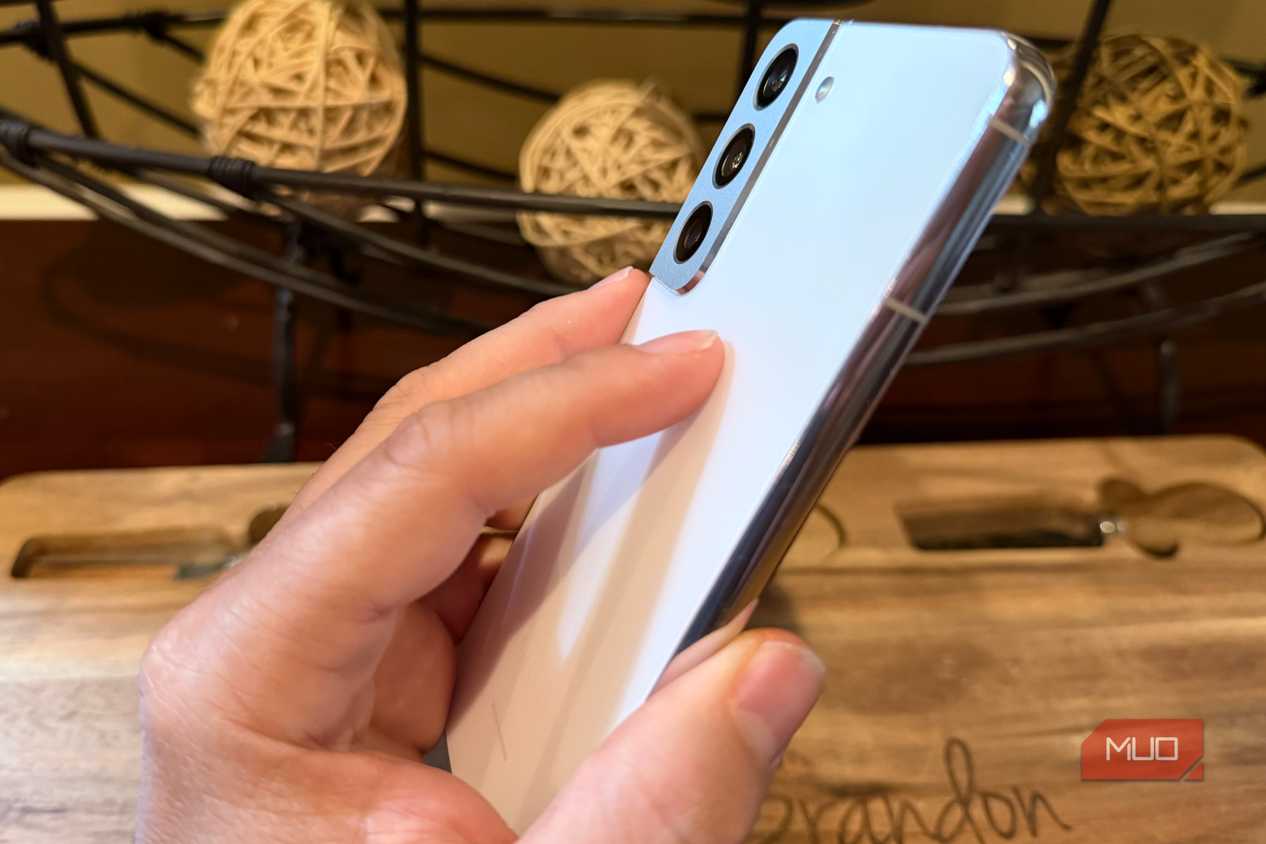
Another useful module is RegiStar. It lets you enable back-tap functionality on your Samsung phone, so you can assign actions to a double tap or triple tap on the back of your phone. It can do things like capture a screenshot, start a pop-up window, show notifications, and launch apps.

Good Lock
- OS
- Android
- Developer
- Good Lock Labs
- Price model
- Free
Good Lock is a powerful customization suite for Samsung phones. It lets you customize various parts of your phone and unlock hidden features.