


Google Messages is one of those apps that everyone's familiar with. But behind that simple-looking interface, there are plenty of features that are easy to miss. And if there's one I regret discovering too late, it's Google Messages for the web. It brings my text messages to a browser, which means I can send and receive texts from my PC while I work, even when my phone isn't anywhere near me.
Google Messages for web is underrated
Texting is more fun on a PC
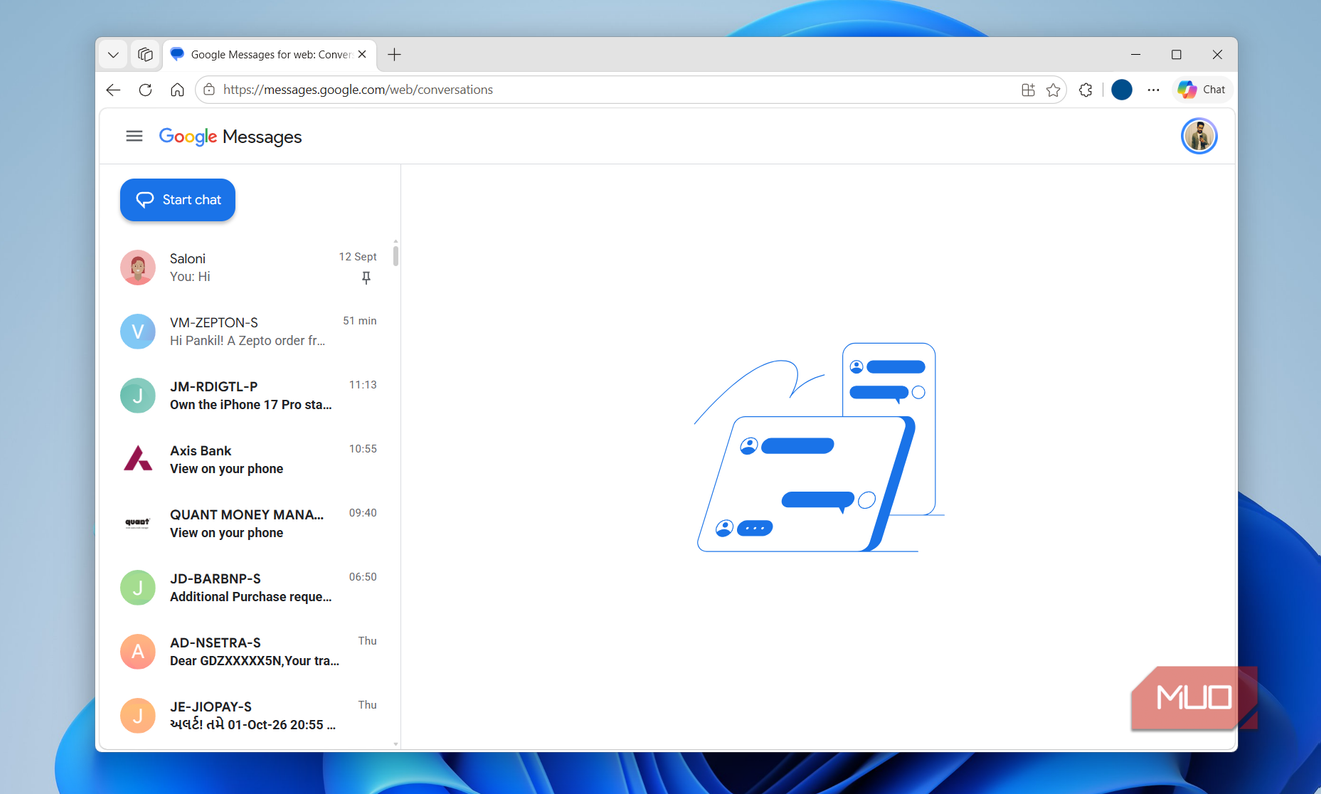
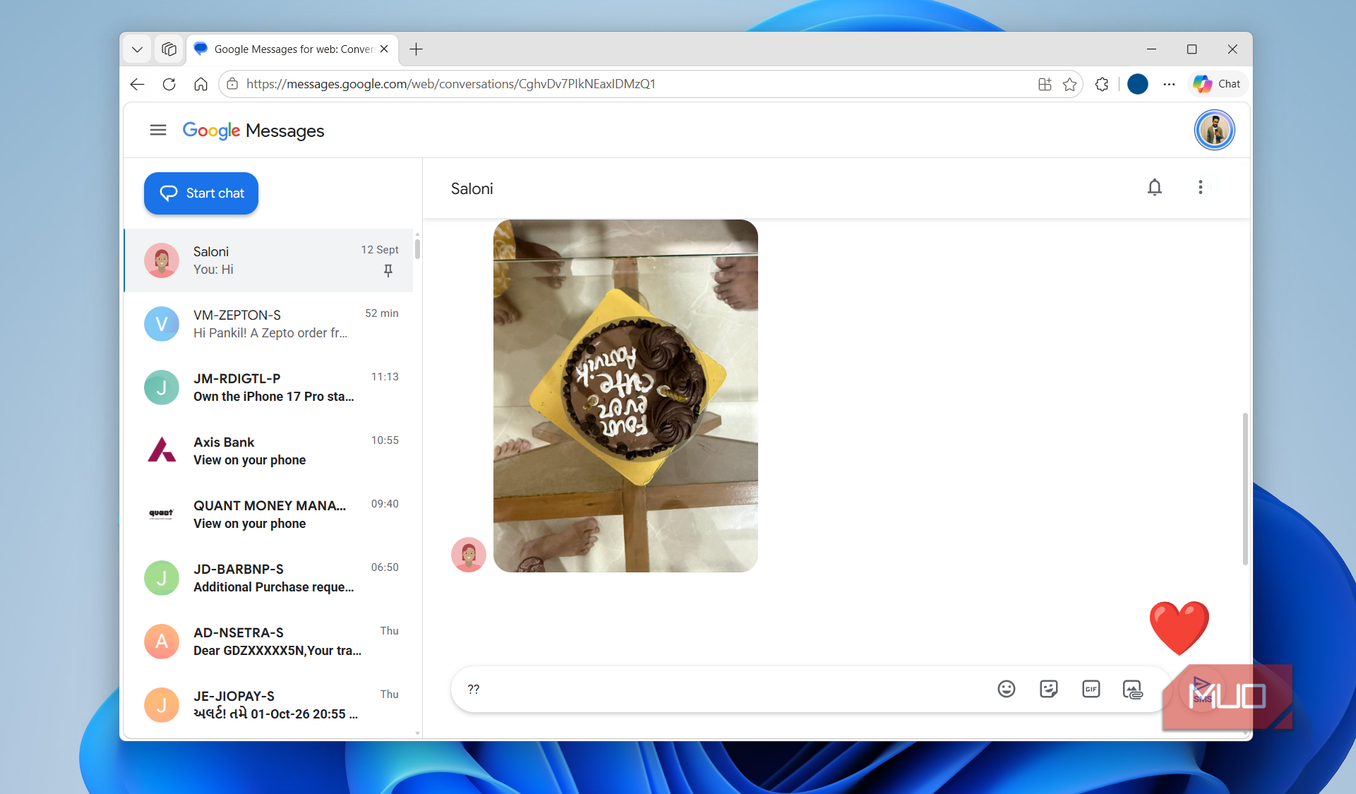
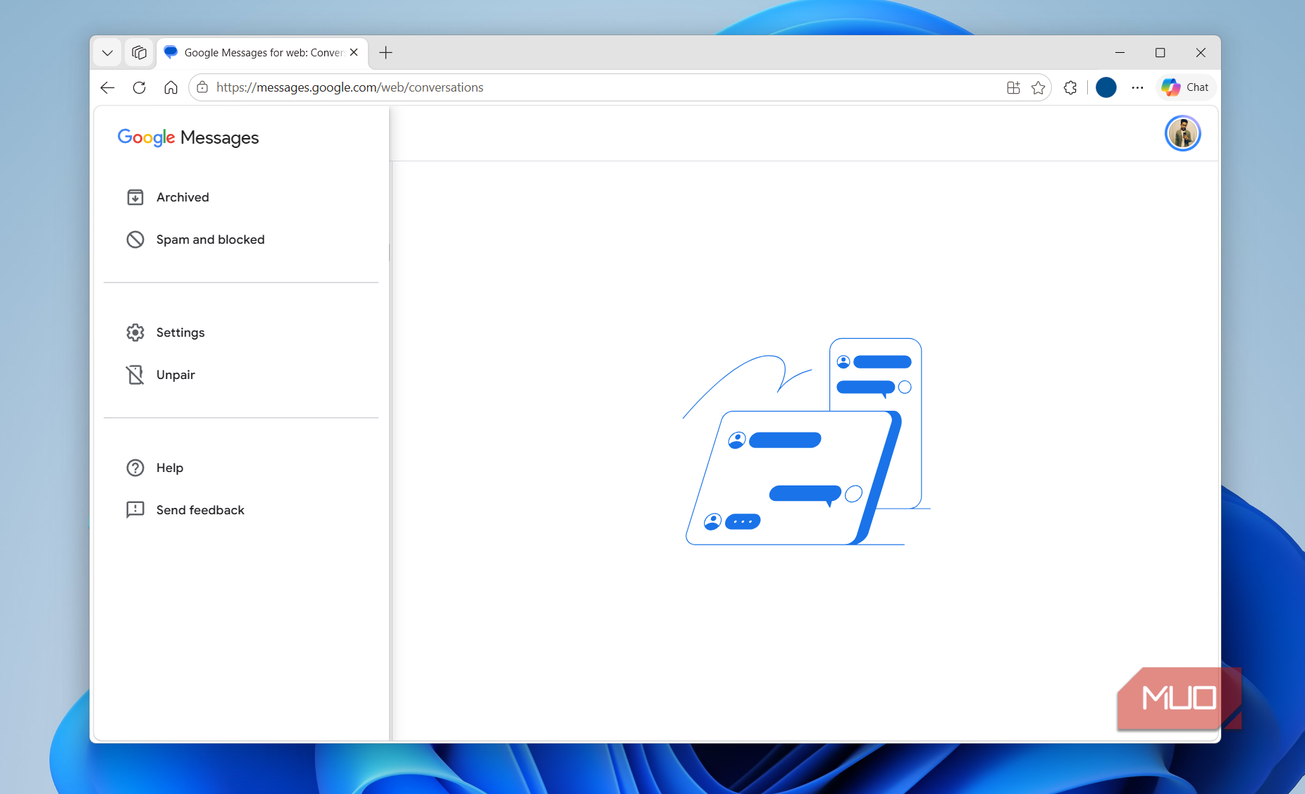
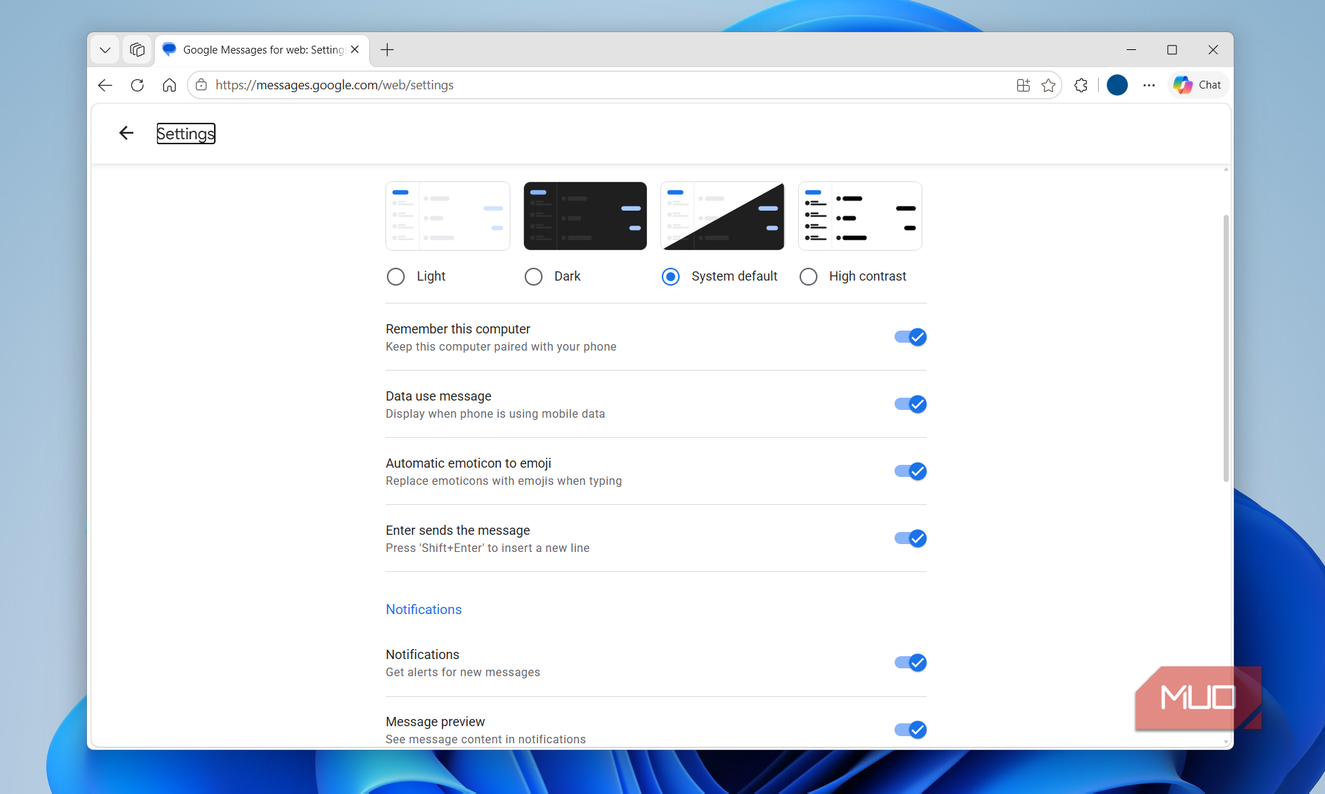


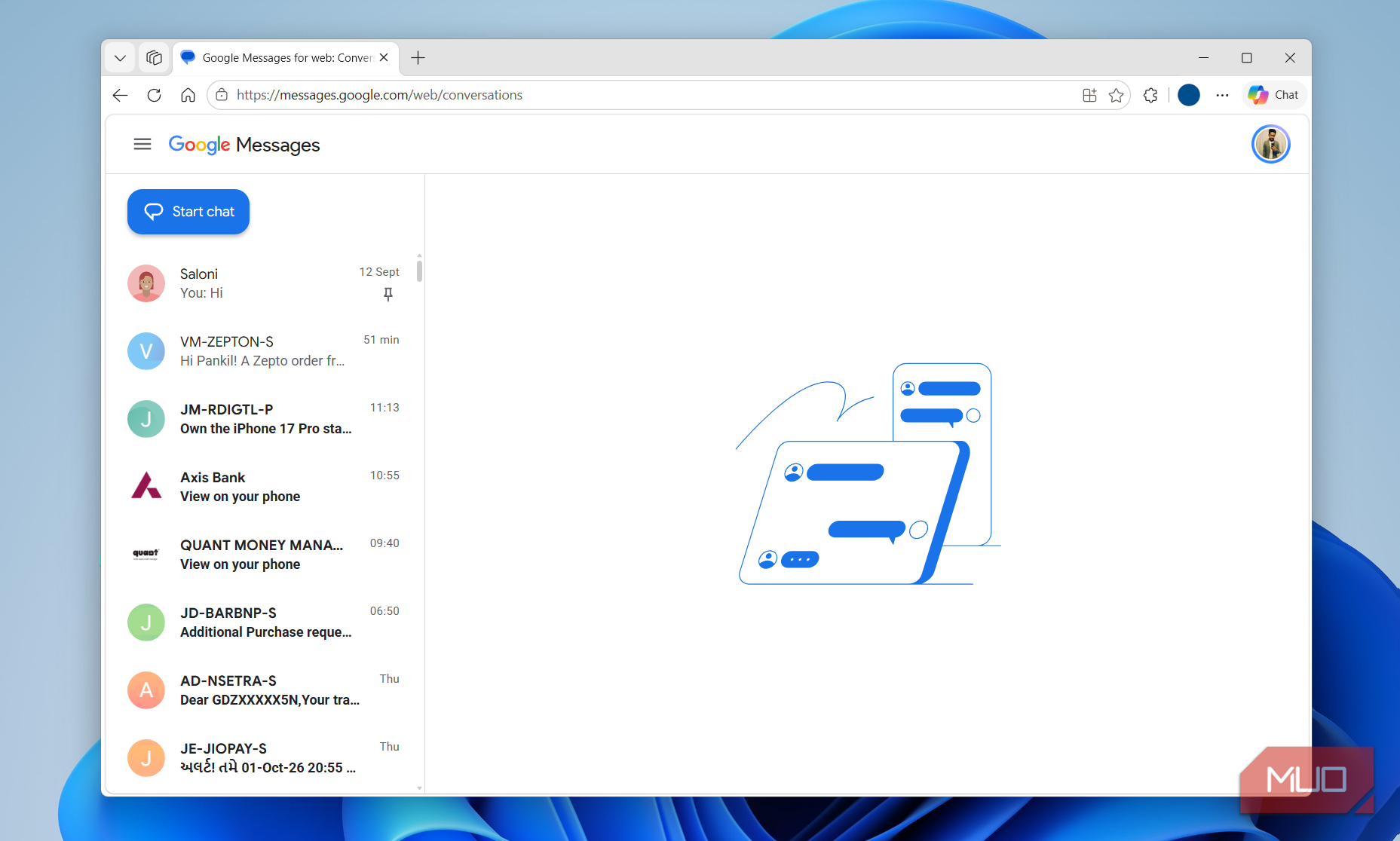
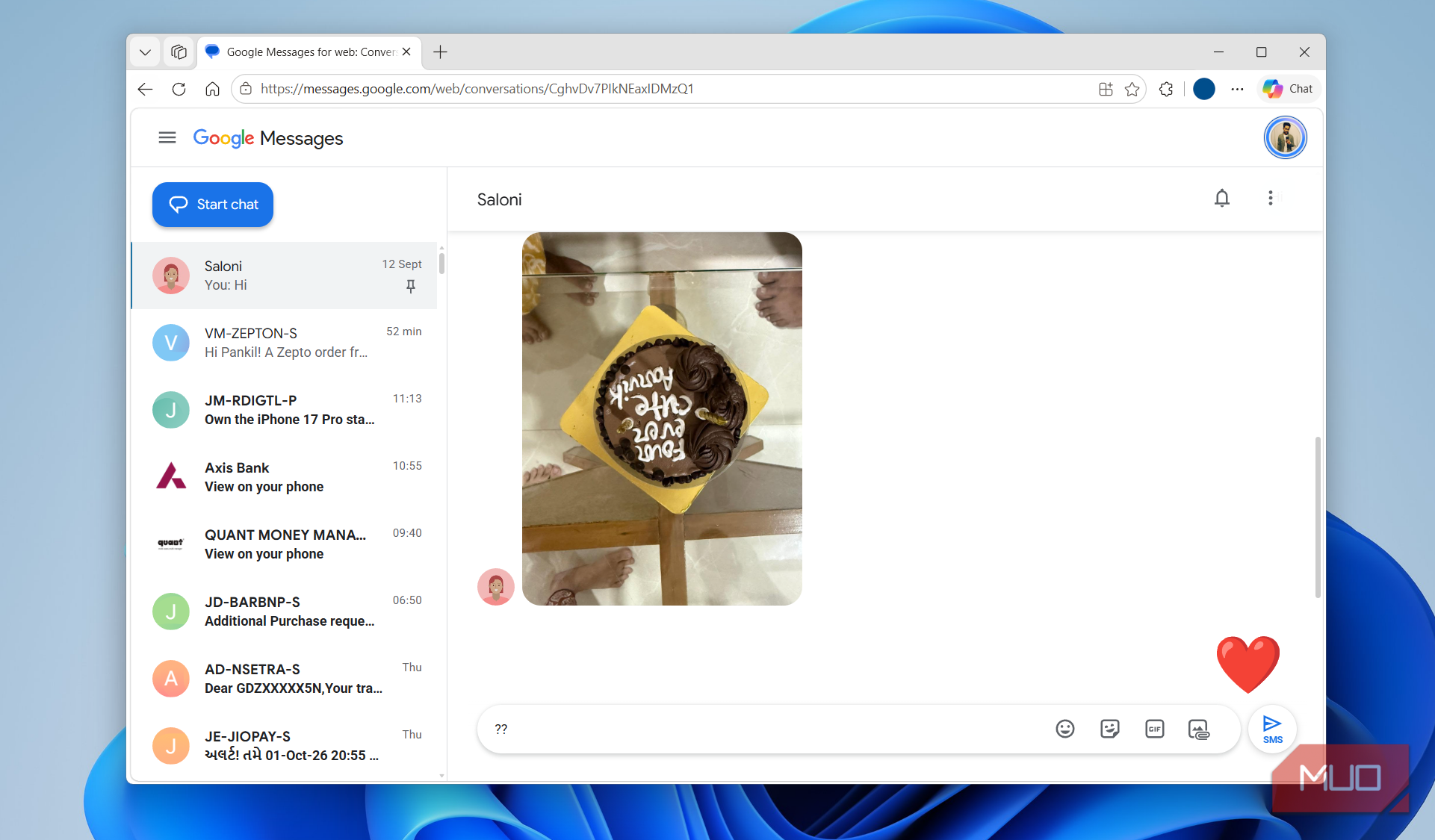
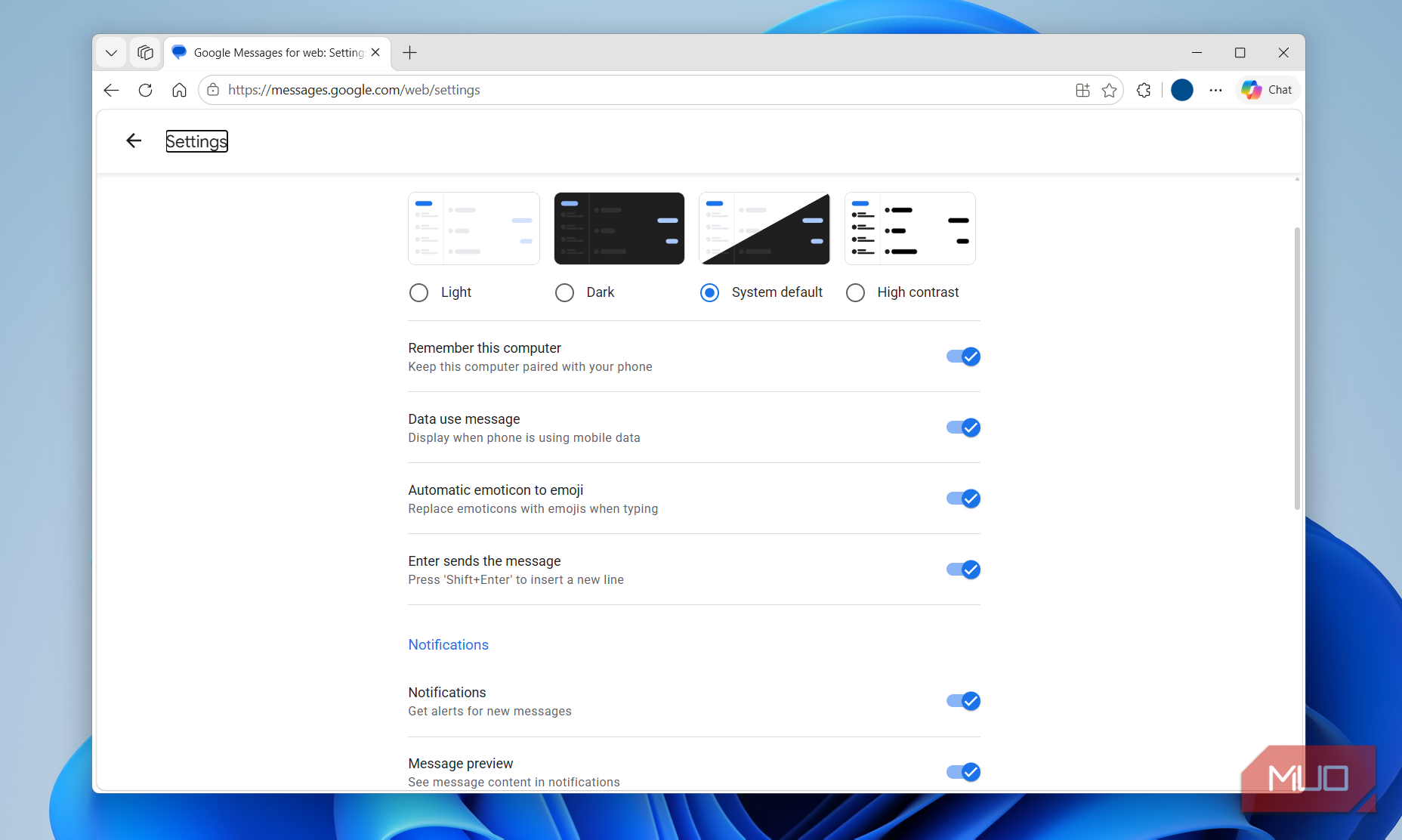
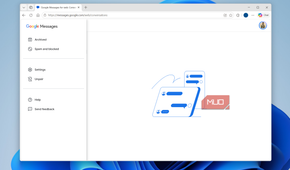
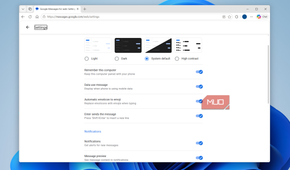
Google Messages has a web client that most people have no clue about. It’s not something everyone needs, but as someone who sits in front of a PC all day, it’s a lifesaver. Of course, Phone Link already solves this problem on Windows, so if you already use that, you probably don’t need it. But I personally don’t like using Phone Link because it forces me to keep Bluetooth and Wi-Fi turned on at all times. It’s also one more app that keeps running on my PC and phone.
Google Messages for the web is lightweight and brings my text messages and alerts to the PC without any overhead. Its biggest advantage is that it syncs through the internet, so it doesn’t require the phone to be nearby after the initial setup. Every text that lands on your phone shows up on your PC in real time. You even get notifications, as long as you’ve allowed the necessary permissions.
If you've ever used WhatsApp Web, it’s basically the same idea. You pair the Google Messages app on your phone with its web client and all your messages show up in the browser. You’re not missing out on anything important either. You still get RCS, GIFs, multimedia sharing, and themes, so chats look and feel exactly like they do on your phone.
Setting it up is also easy. Head to Google Messages on the web in your browser and you’ll see a login page. Sign in with the same Google account that you’re using in the Google Messages app on your phone, and you’ll see a verification prompt asking you to match a symbol between your browser and phone.
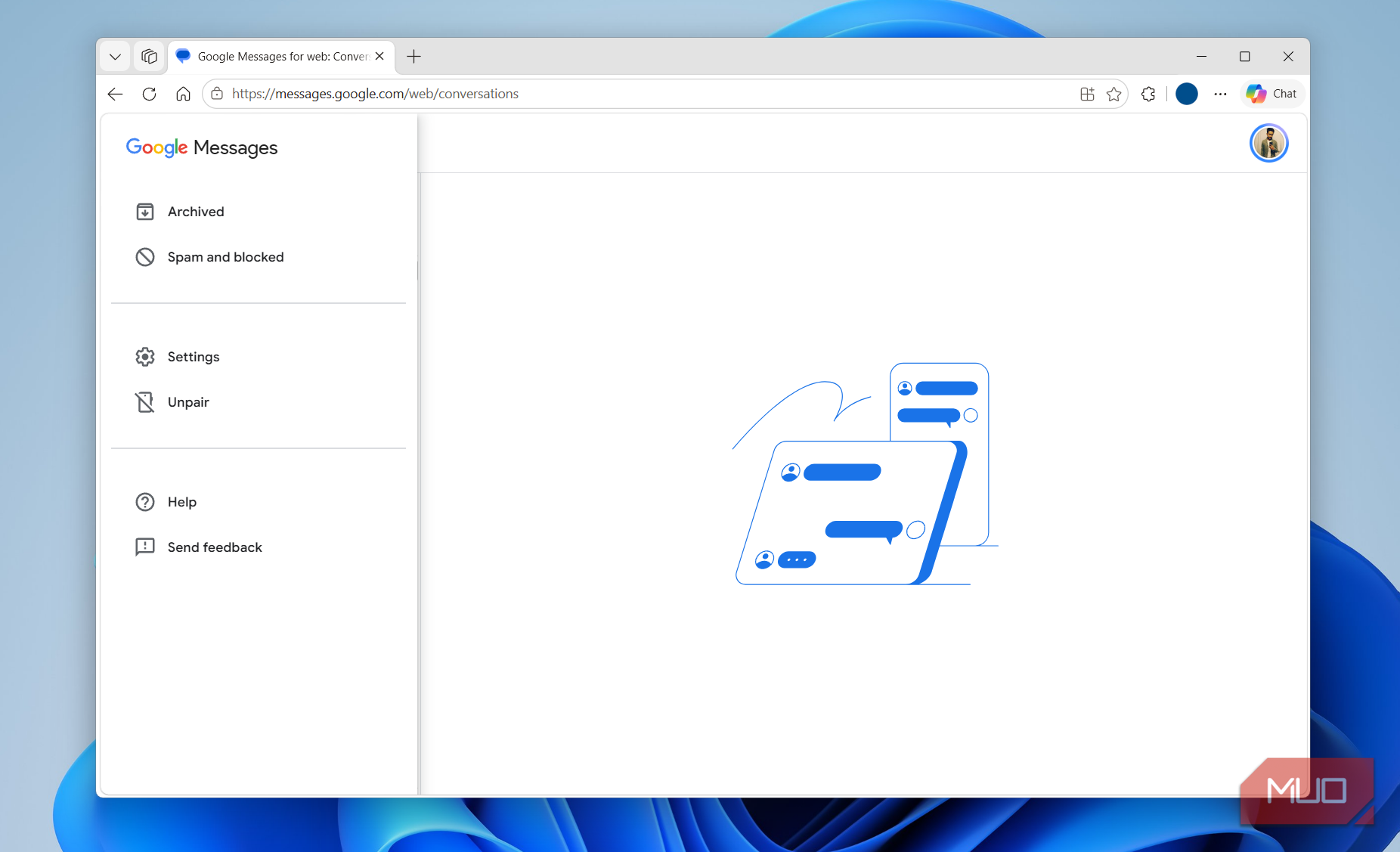
Once you do that, Google Messages will start syncing your chats, and you’ll be able to send and receive texts from your PC. You can even install the site as a web app to get a desktop shortcut and a proper app-like feel.
You can use it on a tablet or phone too
No need to switch SIMs
Since Google Messages for the web works in any browser, you can use it on a phone or tablet too. The setup works the same way it does on a PC.
It’s a slightly niche use case, sure, but if you ever want to check your texts from a tablet or another phone, this makes it possible. It saves you from switching SIMs, which is not exactly quick with eSIMs. You can open a browser, sign in to your Google account, and start texting from a device that doesn’t even have a SIM slot.
Google Messages lets you pair multiple devices, but the catch is that only one can stay active at a time. It’s not a huge deal if you’re simply hopping between devices, but something to keep in mind.
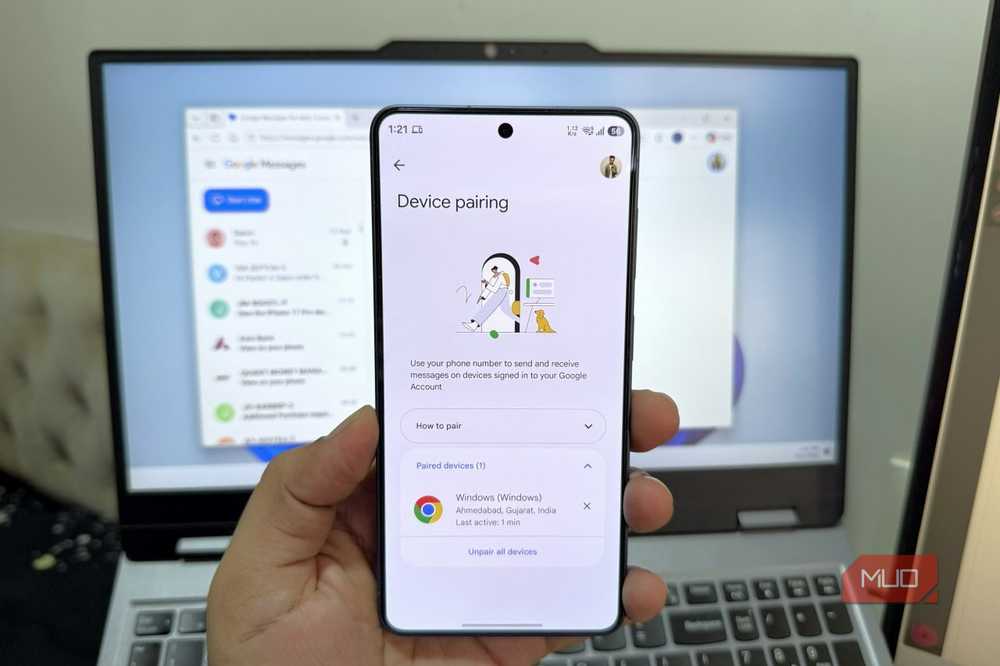
If you don’t use Google Messages on the web for a few days, it’ll automatically log you out for security. You can also unpair devices manually from the Google Messages on your phone by tapping your profile icon and selecting Device pairing.
It’s not perfect, but it works
Google Messages for the web is great, but there are a few quirks that you’ll notice within minutes. The biggest one is the lack of a search bar. It's bizarre how something so basic is missing, because it forces you to scroll any time you want to find a chat. The workaround is to use the Start chat option, which lets you jump to a conversation easily. Still, finding a specific text message is a pain on the web.
You also can’t do things like star a message or forward it. The same goes for voice texts. If you want to send one, you’ll need to pick up your phone. Pinning chats is another one of those half-baked spots. You can’t pin a chat from the web, but if you’ve already pinned chats on your phone, they do show up pinned here.
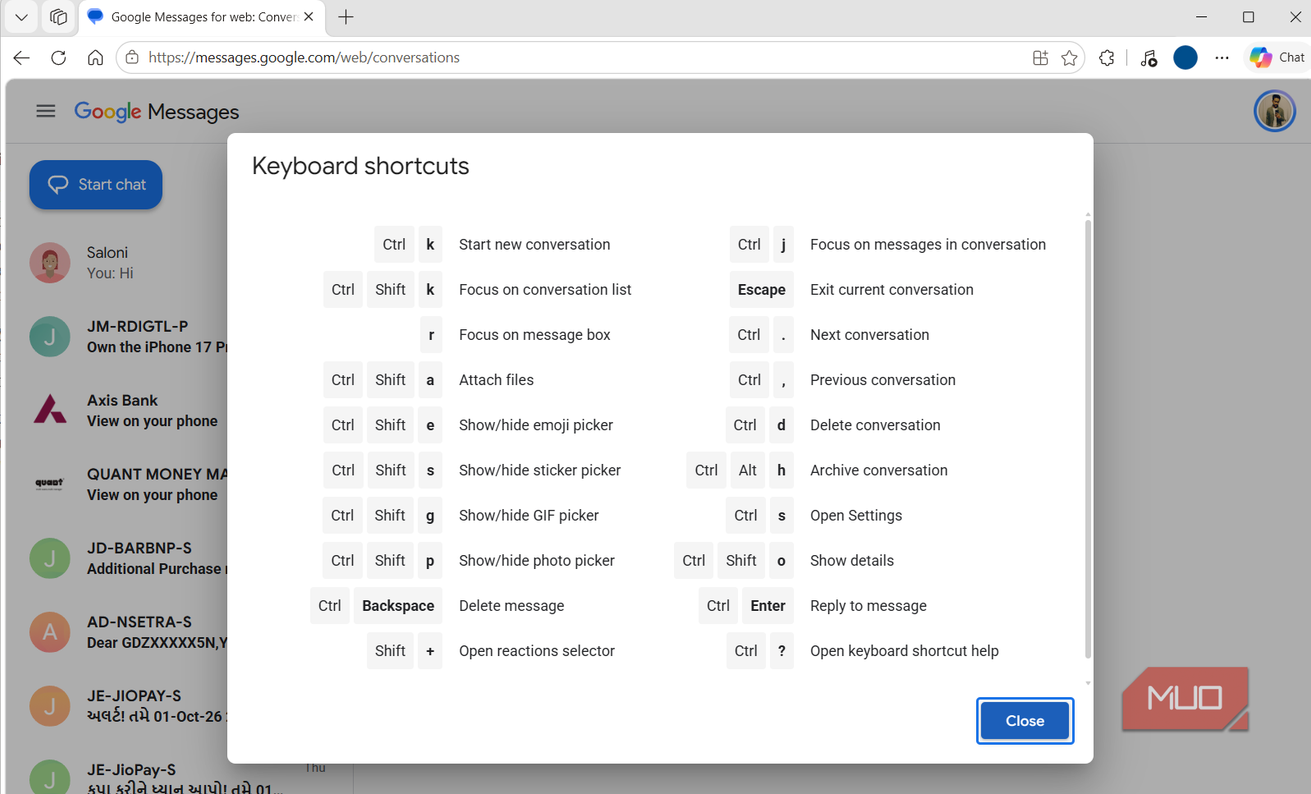
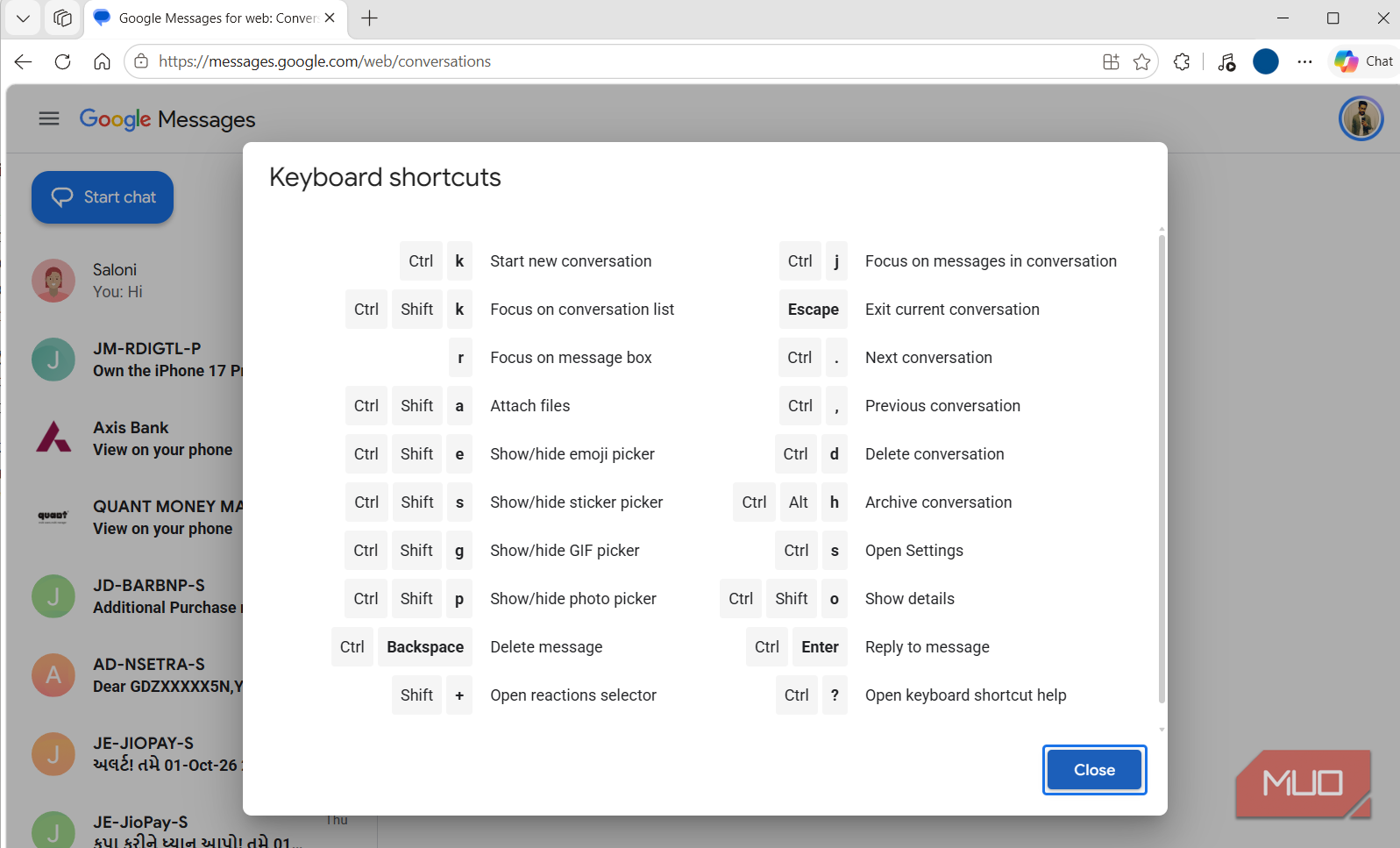
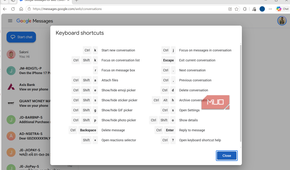
What makes up for a lot of this, though, is typing with an actual keyboard. Google Messages for web also supports keyboard shortcuts, so you can start a chat, jump between conversations, archive or delete, and open the GIF panel without touching the mouse.