


Folders are a great way to organize your files and keep everything tidy. But too many of them can be a nightmare to manage, especially when you want to move a folder with thousands of files to a new location.
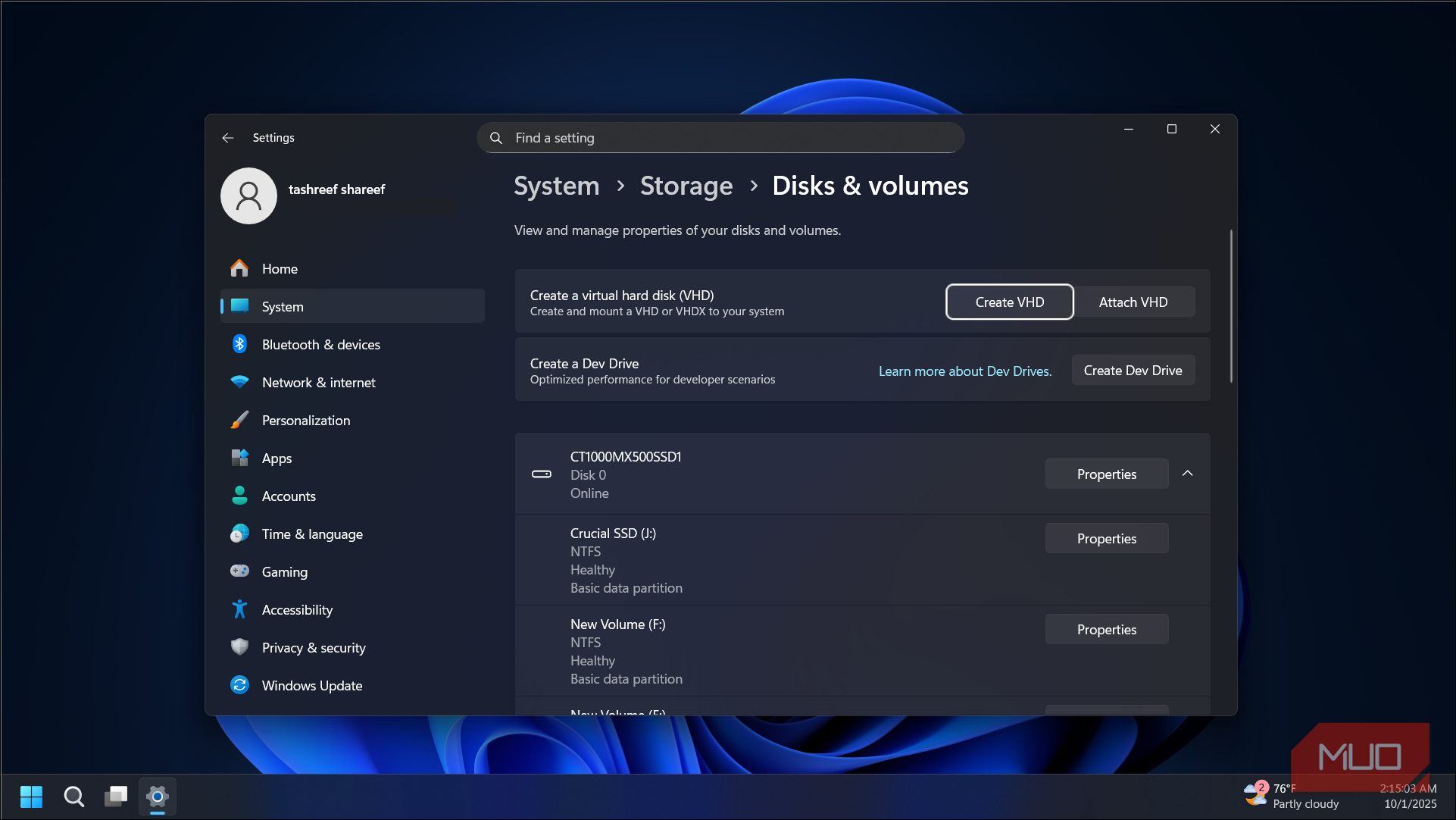
My fix for this problem was rather simple: create a VHD and store my files in it. A virtual hard disk is one of my favorite hidden features in Windows, and once I started using one for my projects and backups, I realized it could do things a regular folder never could.
Mount as a separate disk
It shows up as its own drive, not a subfolder

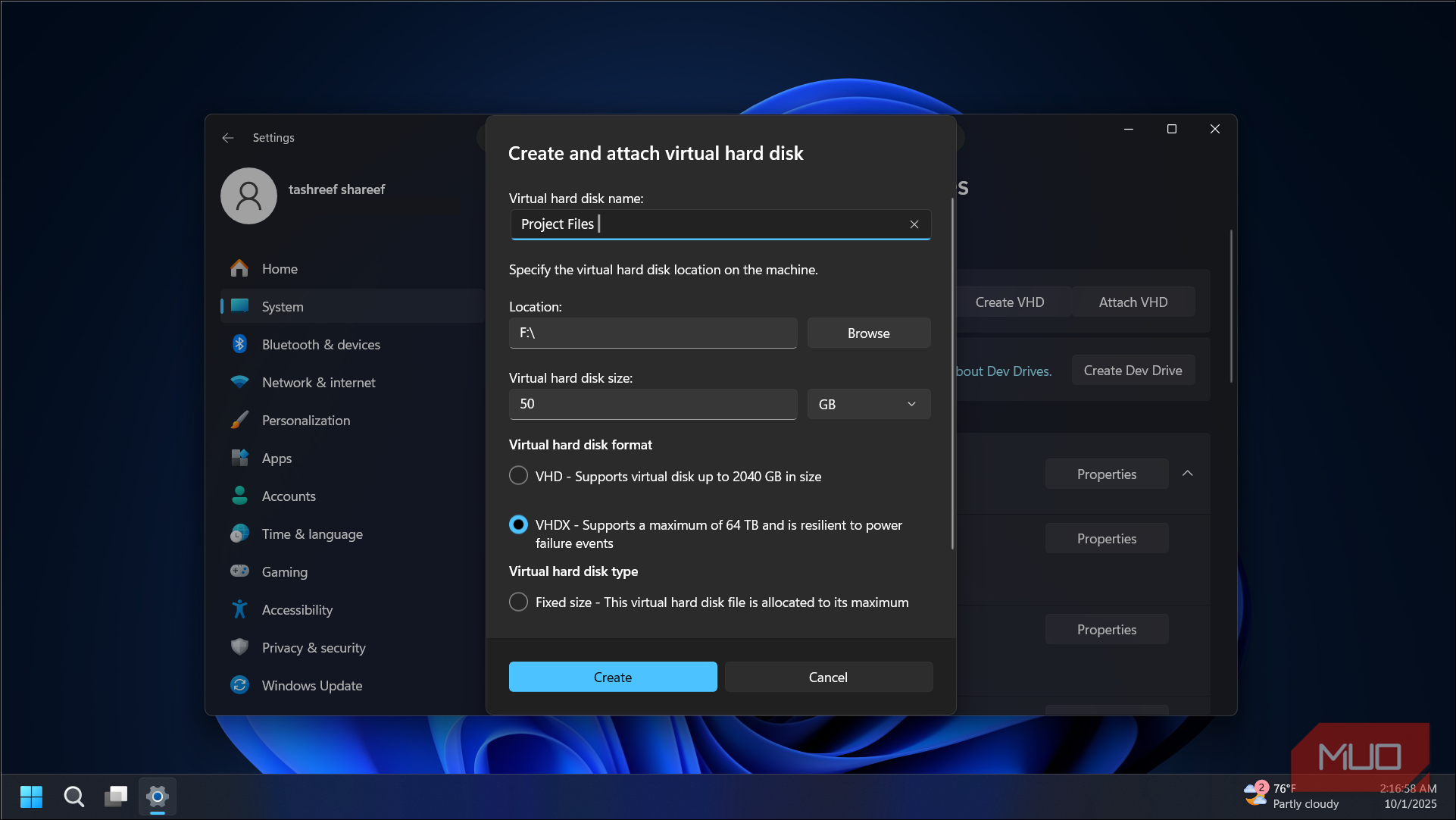
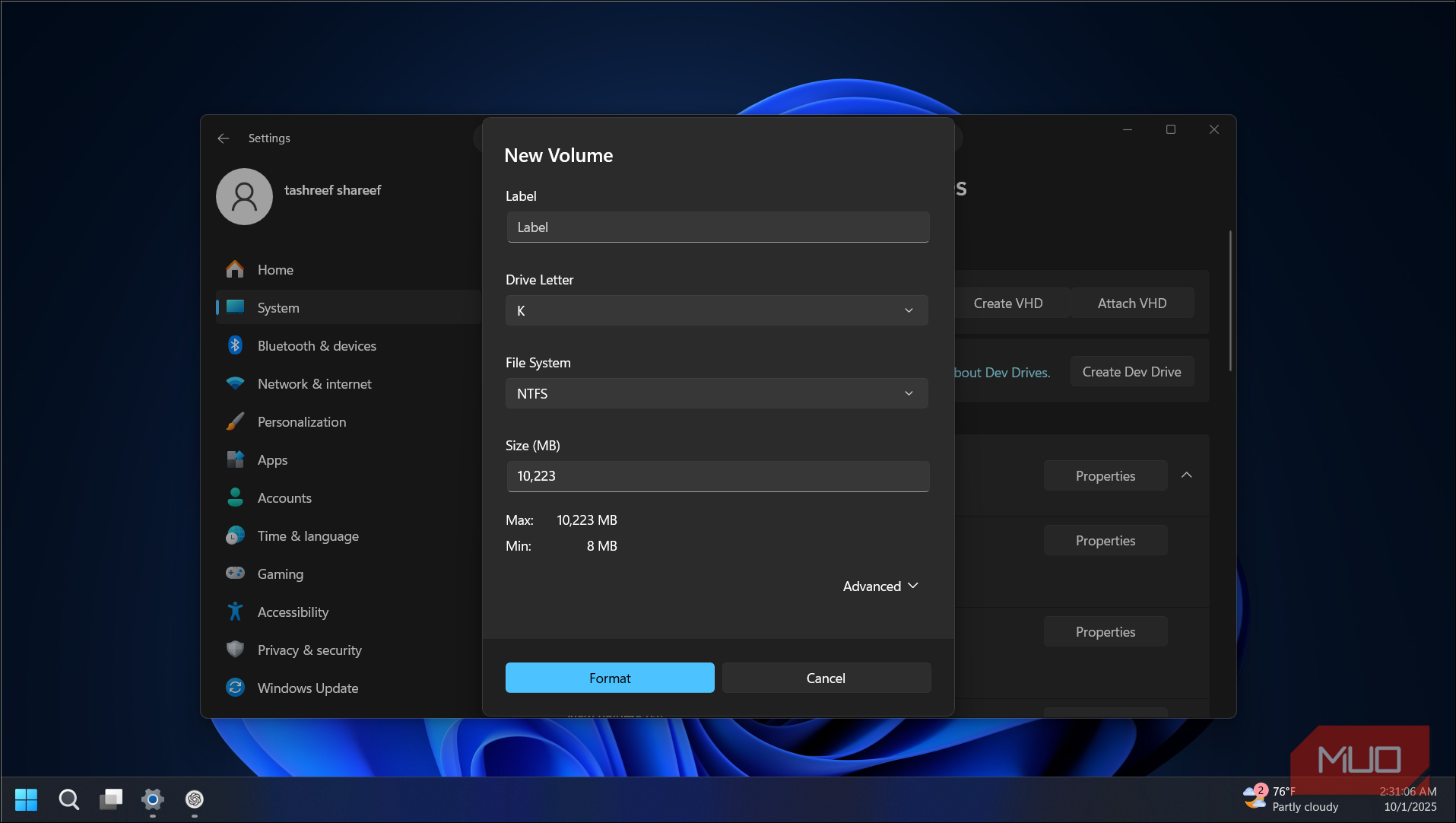
On Windows, a virtual drive mounts as its own drive letter. You get D:, E:, or whatever letter is available, complete with its own reported free space, capacity, and volume label. And none of that depends on the physical disk it lives on. With this, you can attach and detach a virtual drive the same way you would eject a USB stick. The contents disappear from your file tree instantly when you unmount it, and reappear the moment you mount it again.
A folder, by contrast, reports the space of whatever drive it sits on. You can delete it or hide it, but you cannot cleanly disconnect it while keeping the data intact and ready to reconnect. With a VHD, the file sits on your drive, and you decide when its contents are visible.
Secure sensitive files without full disk encryption
Lock specific files with BitLocker, not the whole drive


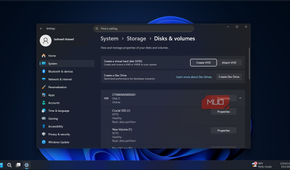
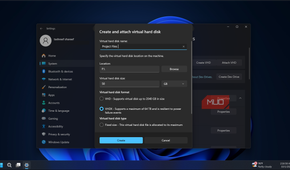
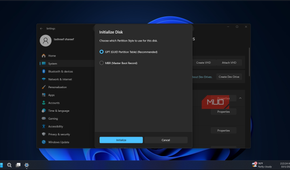
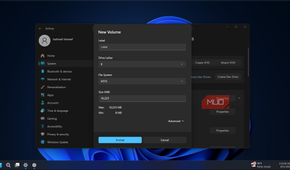
Full-disk encryption with BitLocker is great for protecting everything on your computer. But it is an all-or-nothing approach. Once you boot up and authenticate, the entire drive stays unlocked for the rest of the session. You cannot selectively lock a handful of private files while leaving everything else accessible.
A VHD gives you a way around this. Since Windows treats a mounted VHD like a real drive, you can encrypt a VHD with BitLocker and use it as a lockable container for your sensitive files. Mount it when you need access, eject it when you are done, and it locks itself automatically.
The trade-off is that an encrypted VHD does not protect your OS, temp files, or swap space. For that, full-disk encryption is still the answer. But for keeping a specific set of private documents behind a password with no additional tools, this does the job well.
A separate space for your development tools
Keep your dev environment isolated and portable

If you install a lot of development tools and IDEs, they scatter files across your system drive and eat up storage fast. Uninstalling them rarely cleans up everything, and after a few months you are left with a cluttered drive and no easy way to reclaim space.
A VHD, again, fixes this problem from happening in the first place. You can install each tool into its own virtual hard disk that mounts into a folder or a separate drive letter. When you are not working on a project, detach the VHD. That single file can be archived, moved to external storage, or deleted without leaving leftover files behind. If you have ever had a bloated VHDX file from WSL or Docker eating up storage, you know how much space dev environments can quietly consume.
This works best with portable or self-contained apps, since some installers write to the registry regardless of where you point the install path. But for tools like Arduino IDE, VS Code Portable, or standalone SDKs, it works well.
Enforce a fixed size cap
Set a hard limit on how much space a project can use

A folder has no concept of size limits and grows until the physical disk fills up. If a project generates large log files or cache data, it can silently balloon and crowd out everything else on the drive.
When you create a VHD, you set a maximum size. A fixed 10 GB virtual disk will never exceed 10 GB, no matter how much free space the underlying drive has. Once the VHD is full, you get a "disk full" error inside it, but the rest of your system stays unaffected.
This is useful for shared machines or any scenario where one project should not eat into the space of another. Additionally, dynamic VHDs offer a middle ground: they start small and grow as you add data, but still respect the maximum cap you set during creation.
Support different filesystem formats than the host
Run NTFS, ext4, or FAT32 inside a single file
A folder inherits whatever filesystem its parent drive uses. If your main drive is NTFS, every folder on it is NTFS. So, you get no choice in the matter.
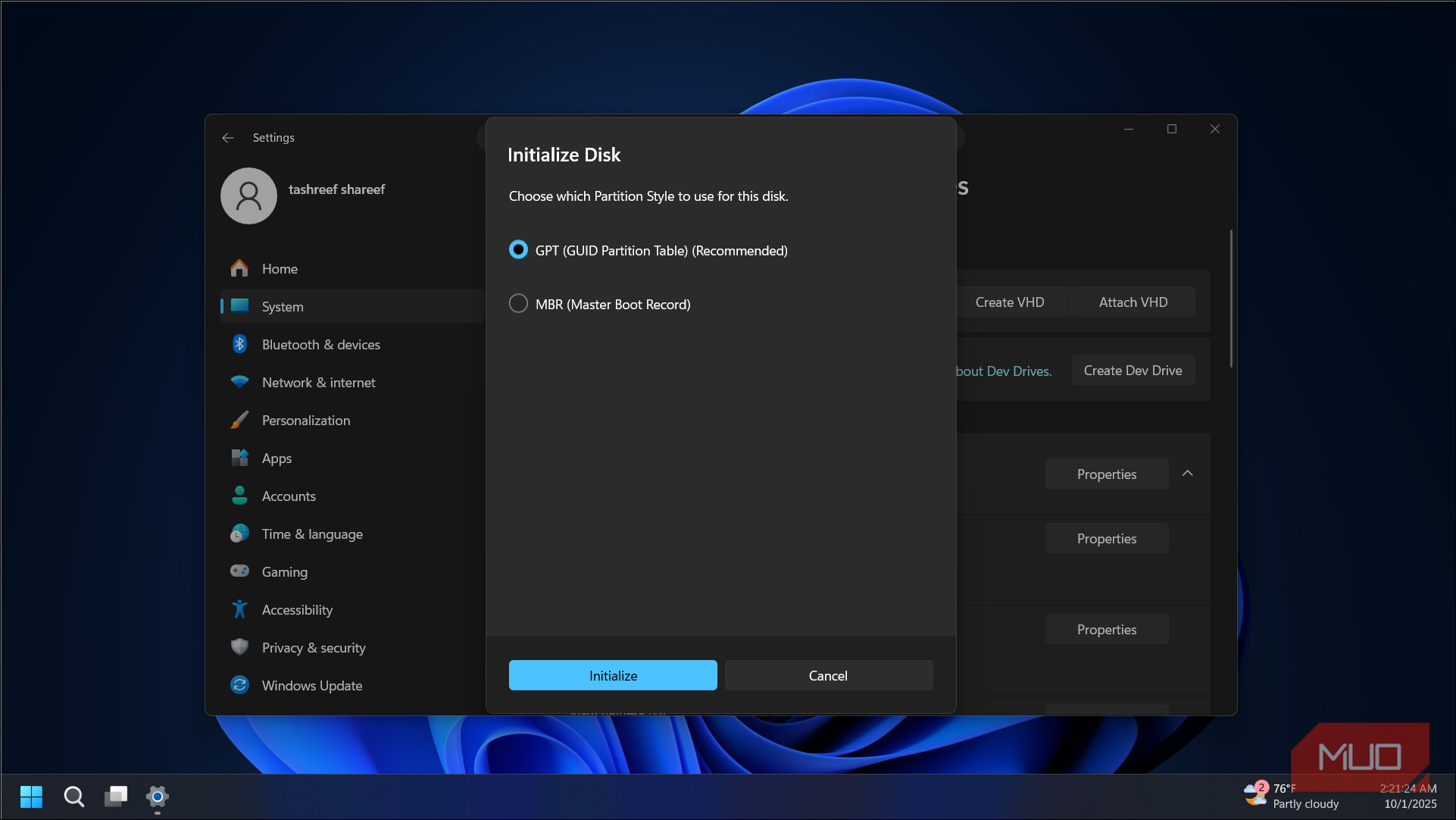
You can format a VHD with a different filesystem than the host. Create one formatted as FAT32 on an NTFS drive to test how a portable device reads files, or mount an ext4 virtual disk to test Linux-compatible file structures without leaving Windows.
If you are a developer testing how your app handles different filesystems, or you need to prepare files for a device that only reads FAT32, a VHD saves you from reformatting actual drives or partitions. You get a sandboxed environment with the exact filesystem you need.
Be moved or backed up as a single portable file
Copy one file instead of thousands

One use case that can benefit almost everyone is how easy a VHD makes moving large folders with thousands of files. Because a virtual drive is backed by one file (a .vhdx, .vhd, or .img), you can copy, move, or back up the entire drive by handling a single file. All the folders, permissions, metadata, and file structures inside come along for the ride.
You could zip the folder to get single-file portability, but then you have to compress everything first and extract it on the other end. With a VHD, all you have to do is mount the file, and your data is immediately usable without needing any extraction.
You can also install an operating system on it
Dual-boot without touching your partition table

A virtual drive is not limited to storing files. You can install a fully bootable operating system inside it, just like you would on a real hard drive.
Normally, if you want to dual-boot two versions of Windows, you need a second physical drive, or you have to shrink your existing partition to make room. Both options are somewhat permanent and carry risk.
Since Windows can treat a VHDX as a real disk, you can install Windows into that file and add a boot menu entry. At startup, the computer lists the VHD as an option alongside your regular OS. And when you want to remove it, delete the file and the boot entry. Or if you want to duplicate your test environment, copy the file, all without touching your actual partition table.
The setup requires extra tools and boot configuration steps, and you may run into bootloader quirks. But for testing Insider builds or giving someone their own isolated environment on the same machine, it works.
VHDs are Windows’s most underrated feature
A VHD is not a replacement for folders. You are not going to store your Downloads or Documents in a virtual drive. But for anything that benefits from isolation, portability, encryption, or size control, a VHD does things that a folder simply cannot.
The best way to think of it is as a regular hard disk, except it is portable. You can move it, duplicate it, upload it to cloud storage, encrypt it with BitLocker, and mount it on any Windows machine. Once you start using virtual drives for the right tasks, you will find it hard to go back to managing everything through folders alone.