


Over the years, I've wiped too many Windows devices to recall. It's usually because a clean installation can be the fastest way to fix a computer and get back to a state that feels trustworthy. This is a reflex that I still see today in several troubleshooting conversations.
However, the cost of wiping a device has changed. It now discards more than is necessary, and instead of fixing the actual problems, it can fix the symptoms without telling you what actually went wrong. There's an option worth trying first that keeps settings, files, and apps intact.
Windows used to let one bad install become everyone's problem
The mess wasn't age catching up with your PC — it was shared plumbing

Once upon a time, programs shared the same underlying files. This meant that updating one application could replace an important component another app needed, causing that app to stop working for a reason that its own installer hadn't triggered. The affected app — which had worked until then — would show a cryptic message about a missing or incompatible component. This experience made the machine feel broken when the real problem was that applications were forced to pull from a single, shared system library rather than keep their own isolated dependencies.
Eventually, Windows developed mechanisms such as side-by-side assemblies that reduced DLL-version conflicts. While this has effectively lessened such collisions, the behavior created by the old pattern persisted. A program may still leave behind a running service, startup entry, or background process. Wiping the computer became the most reliable way of restoring a known good state when it was too hard to tell which leftover component had caused the problem.
Windows started keeping track of who owns what
The part of this story most people have never heard

Achieving proper component isolation and file ownership tracking wasn't invented in Windows 11, but a process that took years. Windows has had a component store for years, and the WinSxS folder is part of how the OS keeps the components it needs for servicing and repair. This folder may look bigger than it actually is because the same files may be counted multiple times through hard links.
Microsoft has designed newer packaged apps (MSIX) so that they can track their own files and settings separately, ensuring that residual files, settings, or artifacts aren't left behind when one is removed. The system degradation effect is referred to as "system rot" in Microsoft's own documentation.
However, there are still several apps that continue to install the old way and may have full access to change anything on the system. This gives birth to the next option.
Windows can now fix itself without taking your apps down with it
The setting that replaced the "just reinstall it" reflex


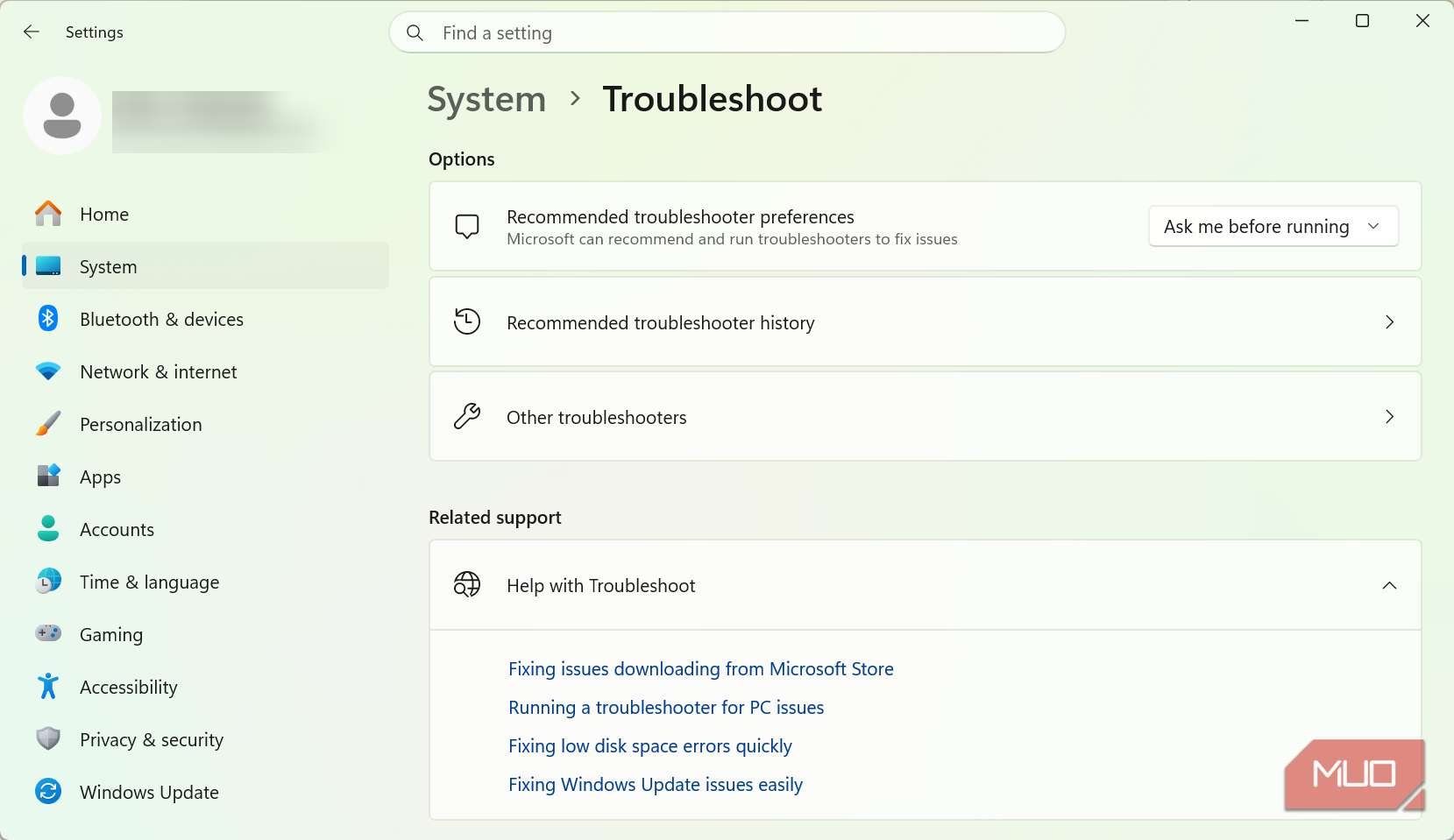
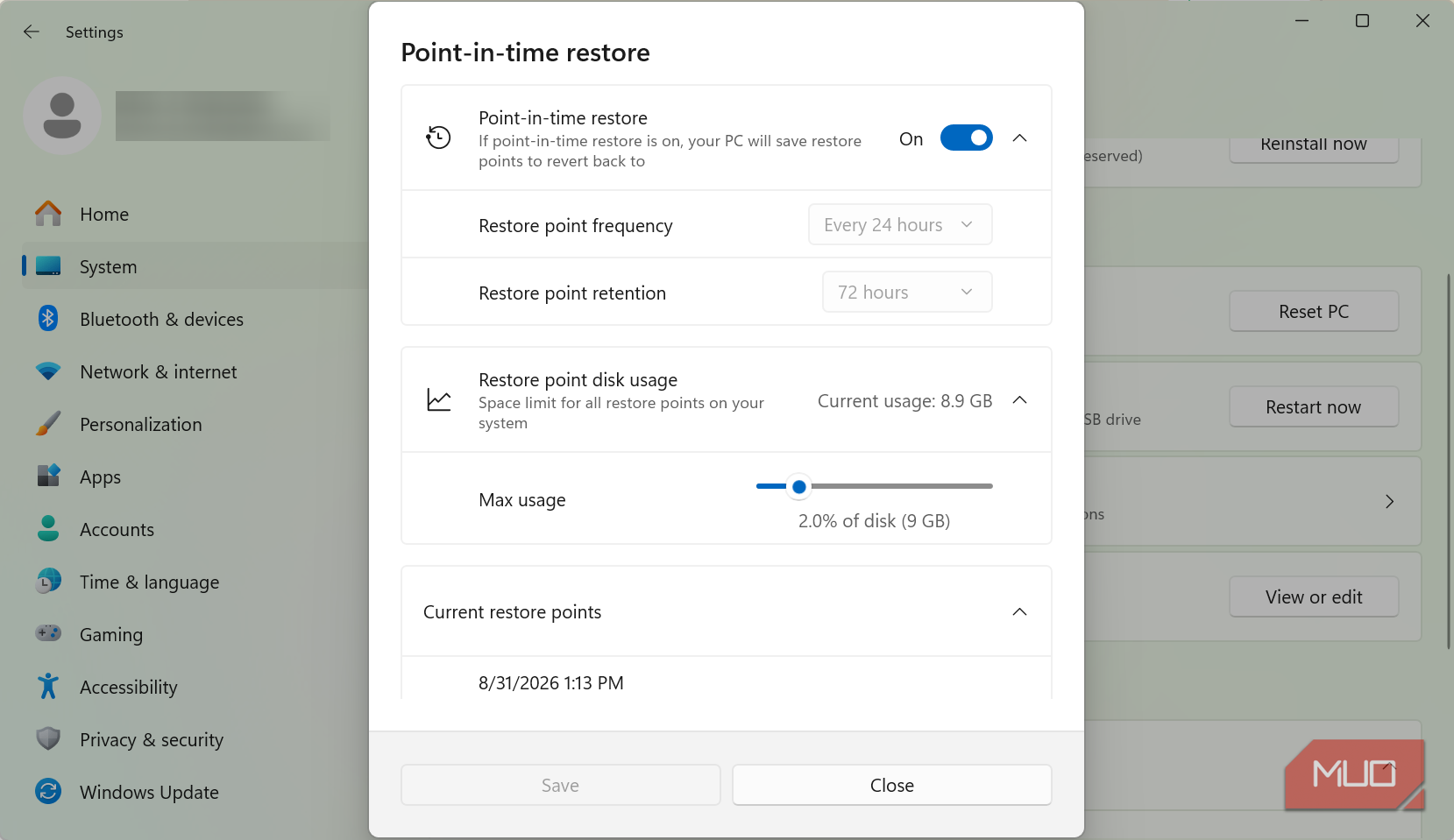
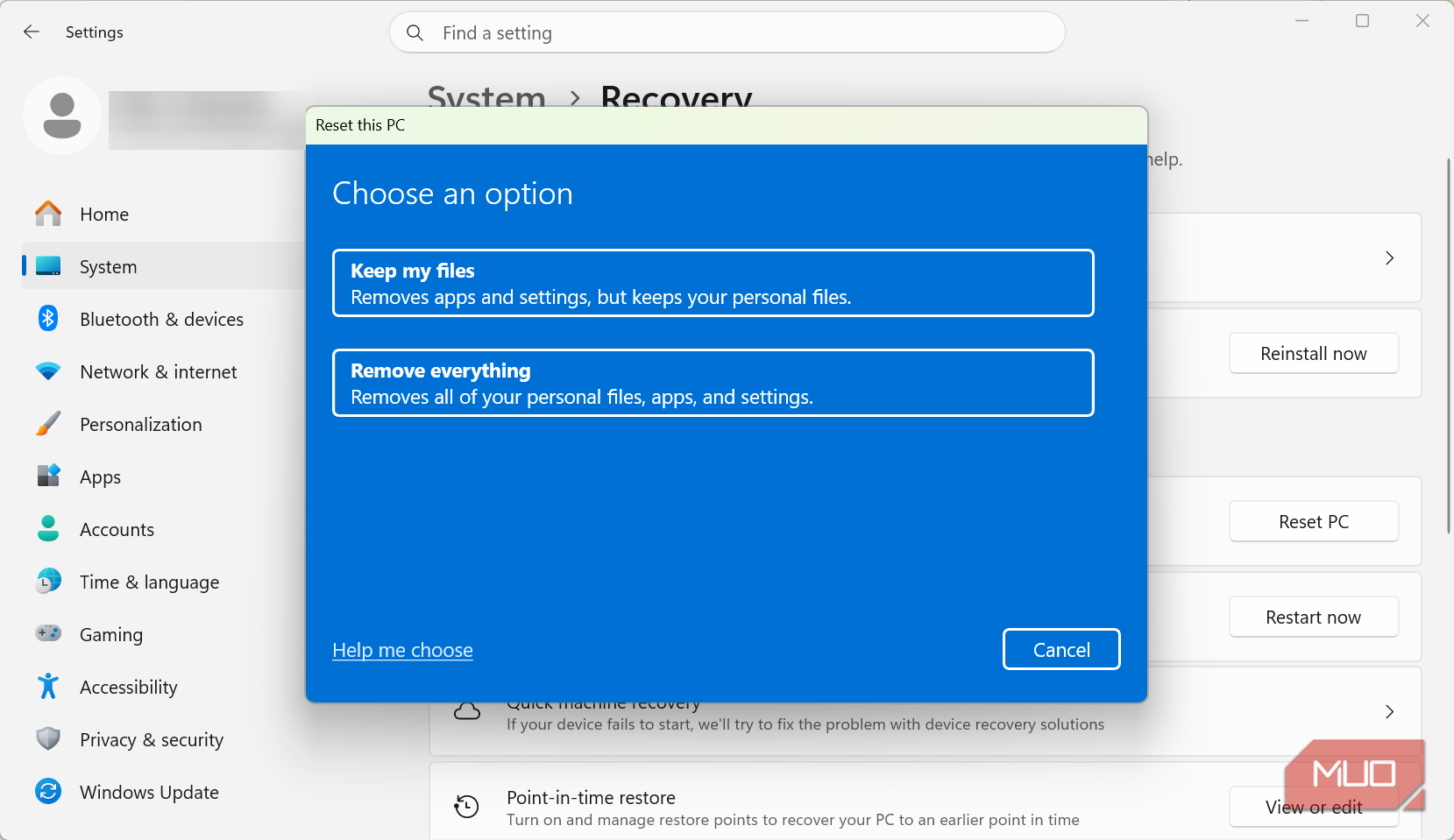
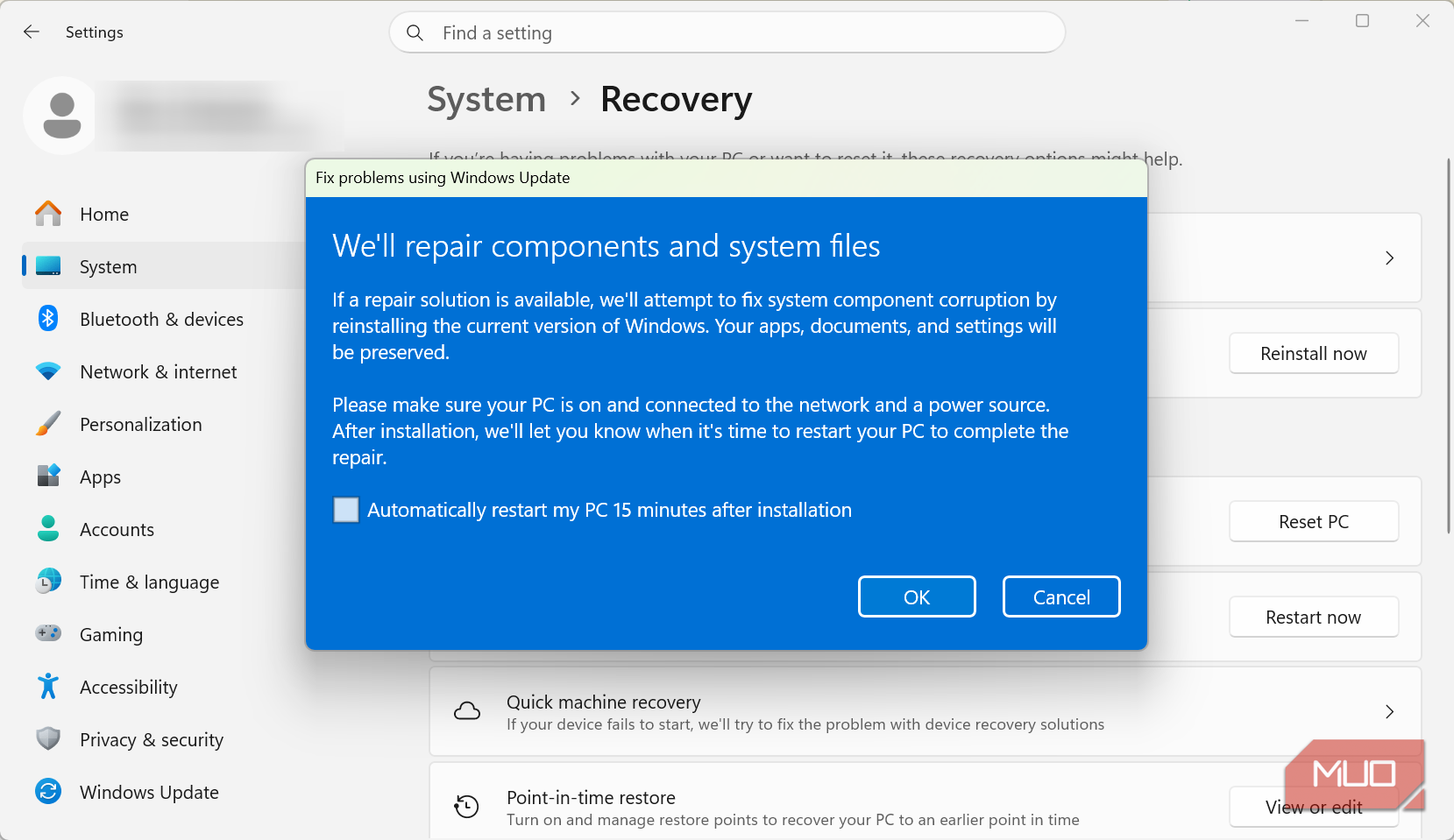
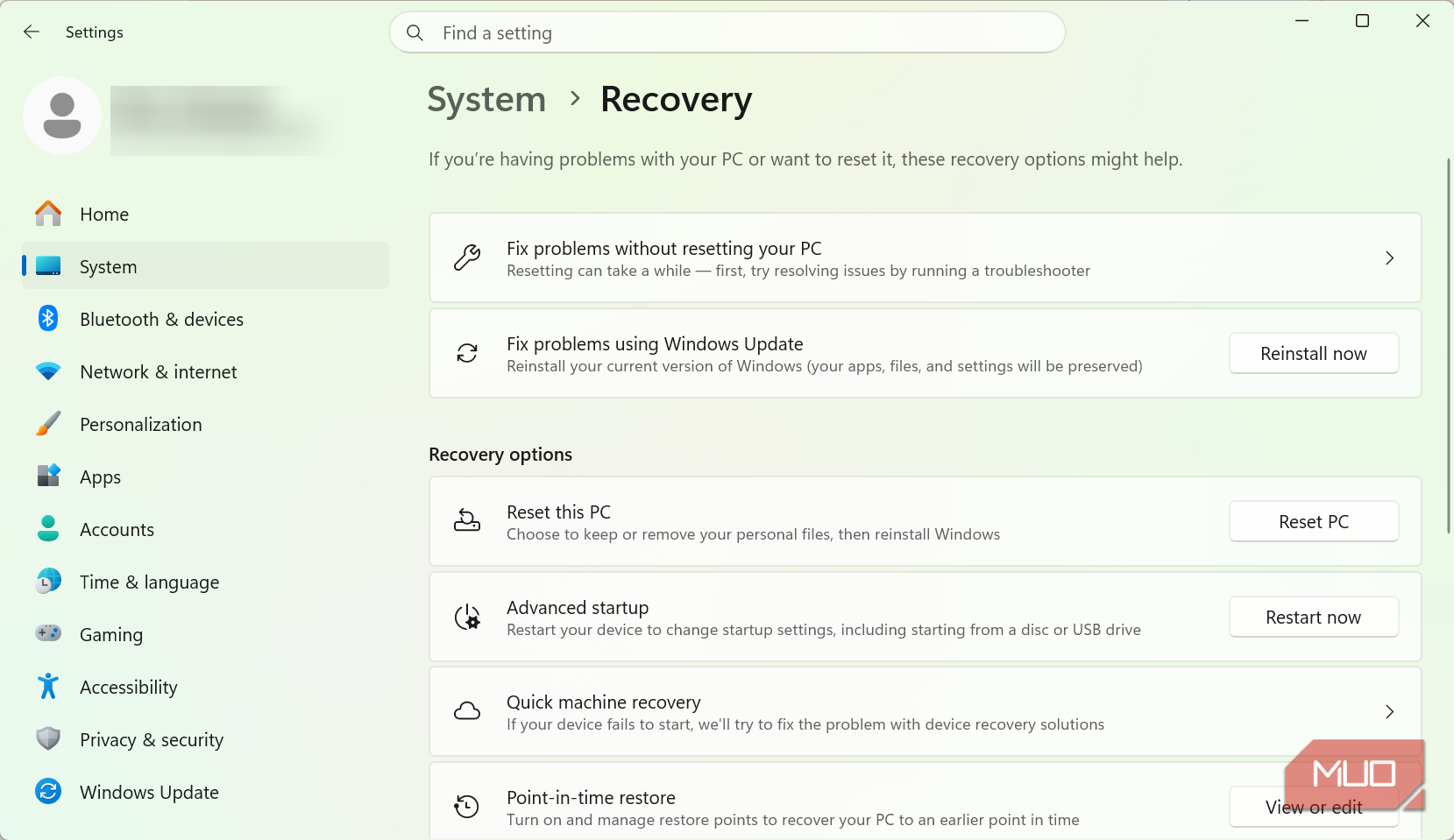
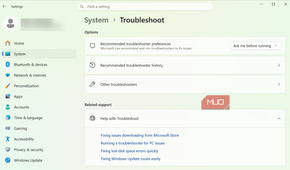
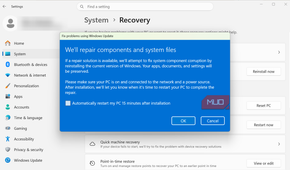
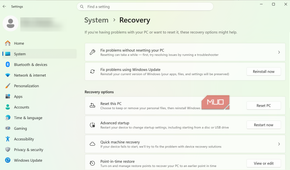
Supported Windows 11 systems now have a new option. You can open the Settings app and navigate to System > Recovery > Fix problems using Windows Update > Reinstall now. This reinstalls Windows while preserving your apps, files, and settings.
|
Option |
Apps |
Files |
What it's really for |
|---|---|---|---|
|
Reinstall via Windows Update |
Kept |
Kept |
Repairing Windows itself |
|
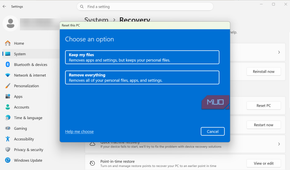
Reset this PC ("Keep my files") |
Removed |
Kept |
A harder software reset |
|
Clean install |
Removed |
Removed |
Starting completely over |
Using a USB installer doesn't automatically mean wiping the PC. If you launch setup.exe from within Windows and choose 'Keep personal files and apps,' Microsoft supports an in-place reinstall that preserves them. This is a repair for Windows itself and not everything running on the PC. A bad driver, a rogue background program, malware, or a dying hard drive will not be fixed by that repair.
A clean install can hide the real problem it just fixed
Why "What changed?" beats "When was Windows last installed?"

If you have any real experience fixing Windows, your first question isn't usually "When was Windows last installed?" The more important detail is: What changed? There are a few symptoms that I've seen people still attribute to Windows rot, but in reality they fall under one of these three categories:
- Windows itself being corrupted
- Years of startup programs and vendor utilities piling up
- A failing machine: overheating, low storage
By doing a clean installation, you often don't learn exactly what was wrong. Since it gets rid of so many things at once, even when the problem disappears, you may never know what actually fixed it. If all you had was an old registry entry that sat unused, that's rarely the problem. More often the issue is a service that runs in the background.
There is still a case for a clean install
I would still recommend a clean installation for certain situations. For instance: when the system is seriously compromised by malware; when Windows still refuses to boot after exhausting recovery options; when I need to set up a new user with a clean slate. But there is a useful and simpler shift. Before a clean install, verify which layer is actually broken and repair it first. Formatting C: still works, but it shouldn't be your default answer.