


Your PC isn't old, and your hardware hasn't changed, so why does Windows 11 feel slower than Windows 10? I figured that's just how the new OS ran until I went through a few settings I'd never bothered to open. Turns out they were eating into performance by default, and changing them restored the speed I had before the upgrade.
Stop unnecessary startup apps
Clean up what launches at boot

Whenever you boot up your PC, Windows 11 loads a list of apps in the background before you even reach the desktop. Spotify, OneDrive, Microsoft Teams, and a handful of others all launch automatically, whether you need them or not. Each one adds a few seconds to your boot time and keeps consuming resources long after startup is done.
If you open Task Manager (press Ctrl + Shift + Esc) and click on the Startup tab, you'll probably find apps there you didn't even know were running. I immediately disabled everything I didn't need, and my next restart was noticeably faster.
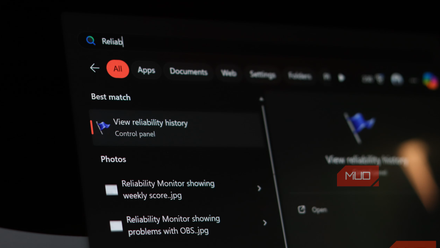
I found a Windows 11 log that shows exactly what's making my PC slow — and most people don't know it exists
A forgotten Windows feature that explains performance drops clearly.
Disable visual effects
Strip back the visuals you don't need
Once your startup list is clean, the next thing worth looking at is how Windows 11 handles its visuals. Transparency effects, smooth animations, fade-ins on menus, and tooltips all run on your GPU and CPU even during basic tasks. You probably won't notice most of these effects in daily use, but your hardware is still working to render them.
Head to Settings -> Accessibility -> Visual effects, and you'll find toggles for transparency and animation that you can turn off individually. For even more control, search for Adjust the appearance and performance in the Start menu, and you'll get a panel where you can turn off every visual effect at once. Try keeping just font smoothing on and turning off the rest.
Adjust power and GPU scheduling
Hidden toggles that unlock better performance
Your laptop or desktop most likely runs on a Balanced power plan out of the box, which means your CPU holds back even when you could use the extra speed. You can switch this to Best Performance under Settings -> System -> Power & battery. On a laptop, this will use more battery, but if your system has been feeling slow, that's a fair exchange.
The other change here is Hardware-accelerated GPU scheduling, which lets your GPU handle its own memory management instead of passing that work to the CPU. You can find it under Settings -> System -> Display -> Graphics -> Change default graphics settings. Not every GPU supports it, but if yours does, it noticeably reduces the load on your CPU during heavier tasks like video editing or gaming.
Cut down on background activity
Services you didn't know were active
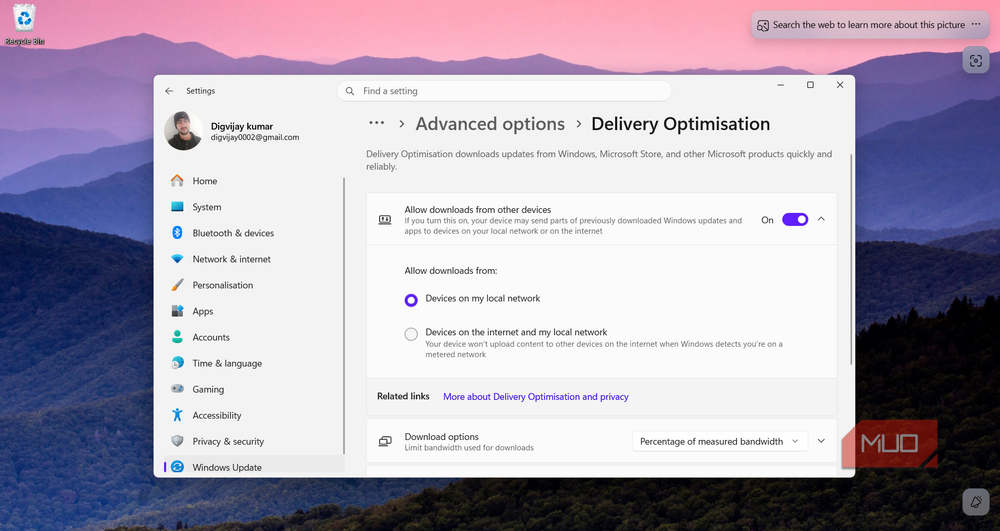
Windows 11 runs a lot of things in the background that most people don't even know are there. One of them is Delivery Optimization, which shares your Windows updates with other PCs over the internet. It's meant to speed up updates across networks, but on a home PC with a single user, it's just using bandwidth and resources for no real benefit. Unless you have a specific reason to keep that on, open Windows Update, head into Advanced options, and disable Delivery Optimization.
Turn off search indexing
Free up resources if you don't search often

Even if you never use Windows Search, the indexing service runs in the background, scanning your files so that results show up faster whenever you do a search. If that's not something you rely on, all that background activity is using up resources without giving you anything in return.
If your PC still uses a traditional hard drive, you'll feel the biggest difference here because indexing involves a lot of reading and writing to the disk. On a modern SSD, the impact is smaller, so it comes down to whether you actually use Windows Search or not.
Press Win + R, type services.msc, and find Windows Search in the list. Double-click it, set the Startup type to Disabled, and hit Stop. Searches will take longer after this, so it's not the right move for everyone. But if you rarely search for files through the Start menu or File Explorer, your system has one less thing running than it needs to.
Defaults aren't always on your side
These are the kind of settings you set once and forget about, and your system gets to keep resources that were going somewhere you never agreed to. If your new PC feels slower, the problem probably isn't your hardware. It's the default. Windows 11 leans toward visuals and background services over raw performance, and none of these settings come up during setup. It makes you wonder why Microsoft didn't just ask from the start.