


Like many of you, I love using my ultrawide monitor, but the Windows Taskbar is pretty annoying. It takes up valuable horizontal real estate, wasting it at the bottom of the screen. Sure, third-party tools like Windhawk have let you move the taskbar to the left edge for a while now, but that's not a built-in solution. Microsoft has finally put a vertical taskbar into Windows itself, and after a few days with it on my gaming PC, it's an upgrade I didn't realize the taskbar needed.
What changed and why it matters
A long-overdue fix


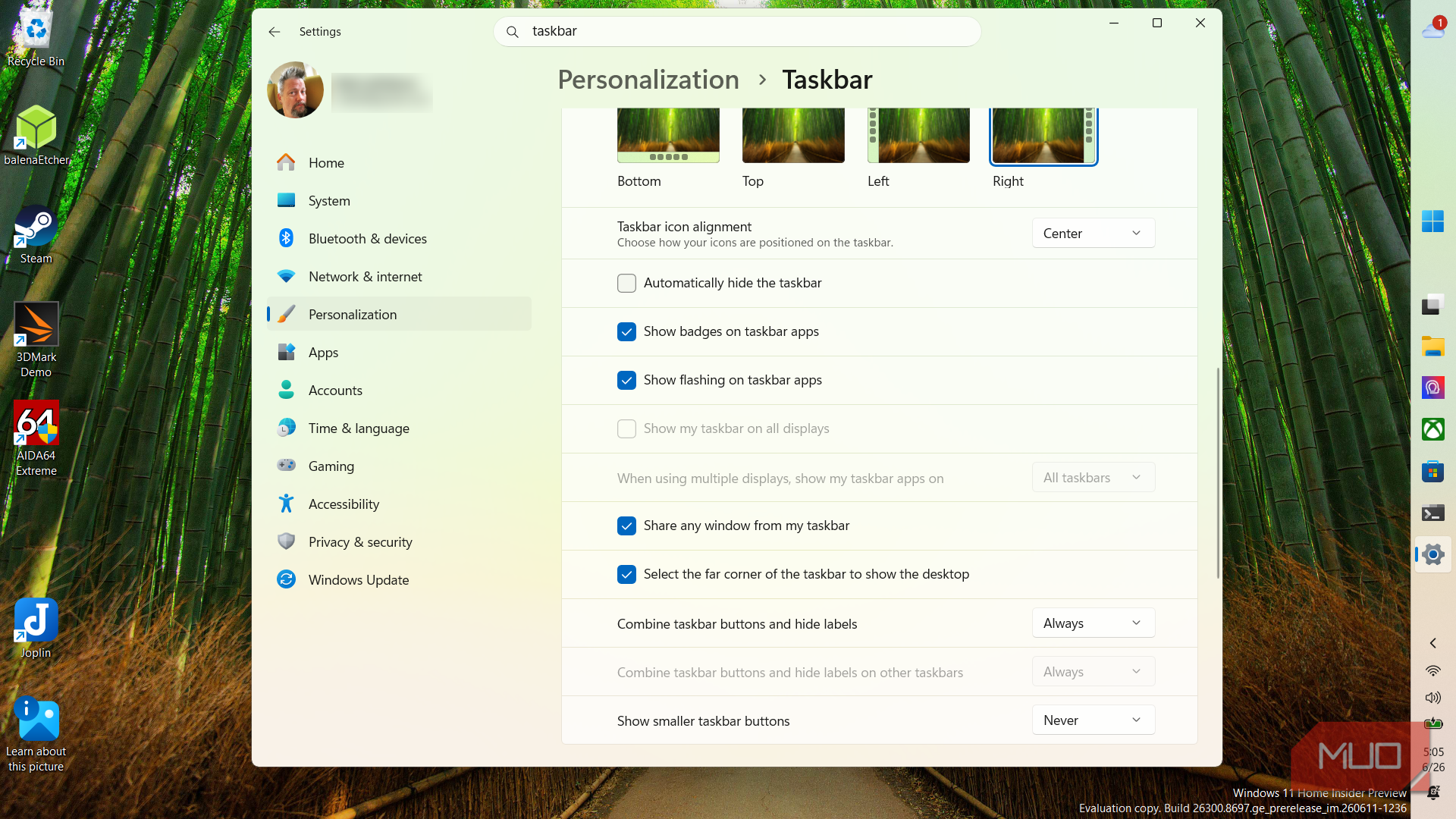
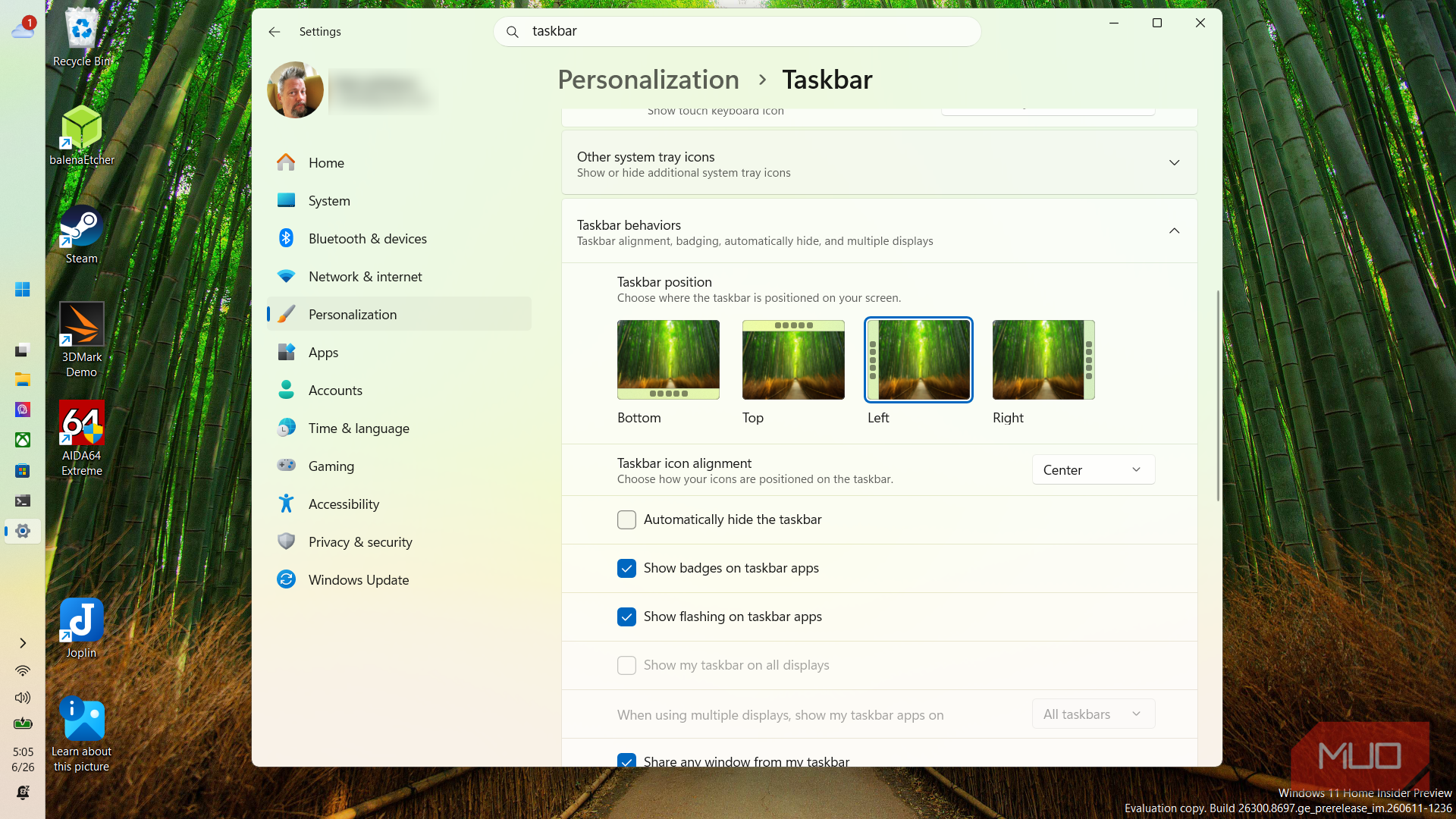
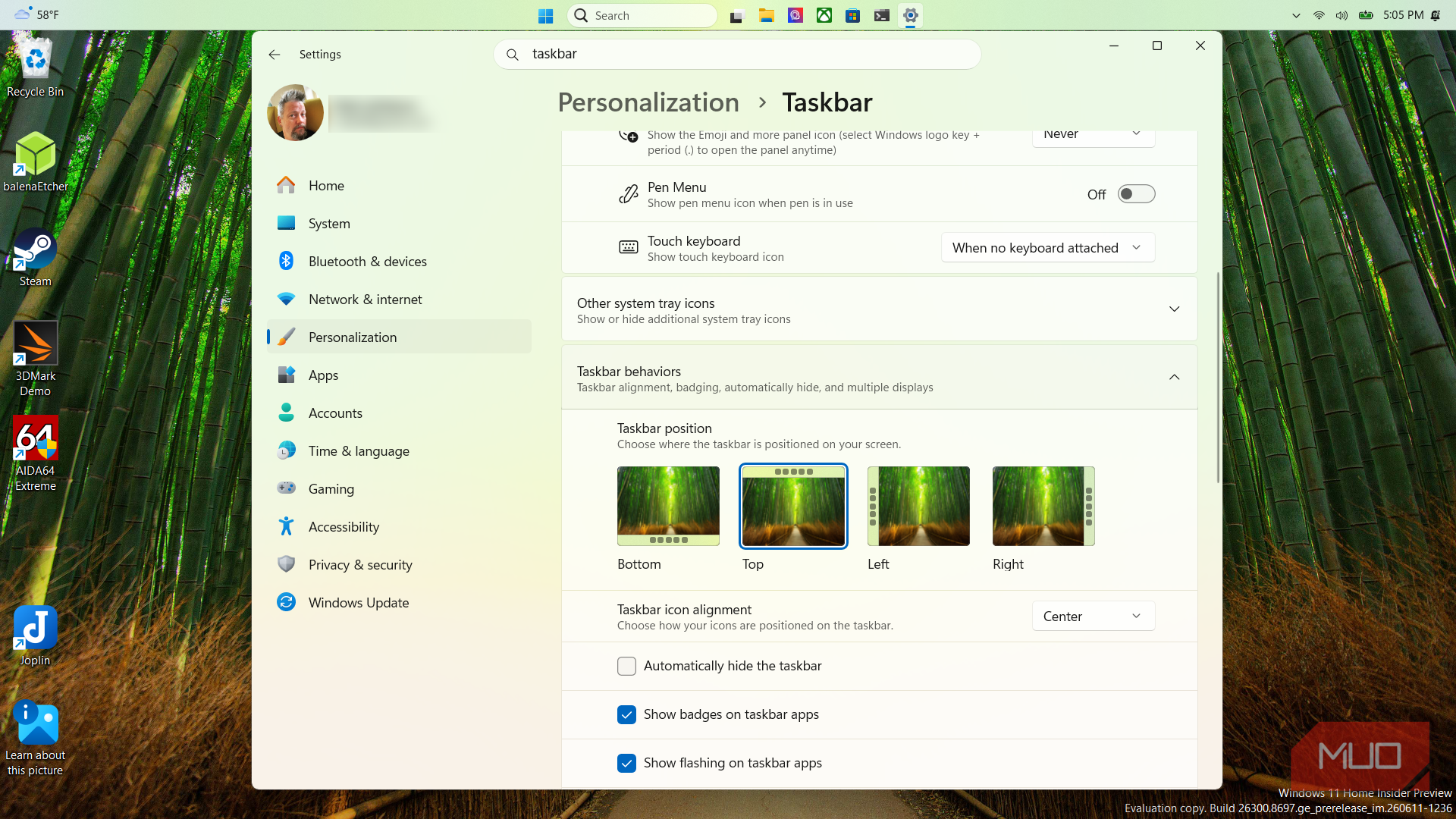
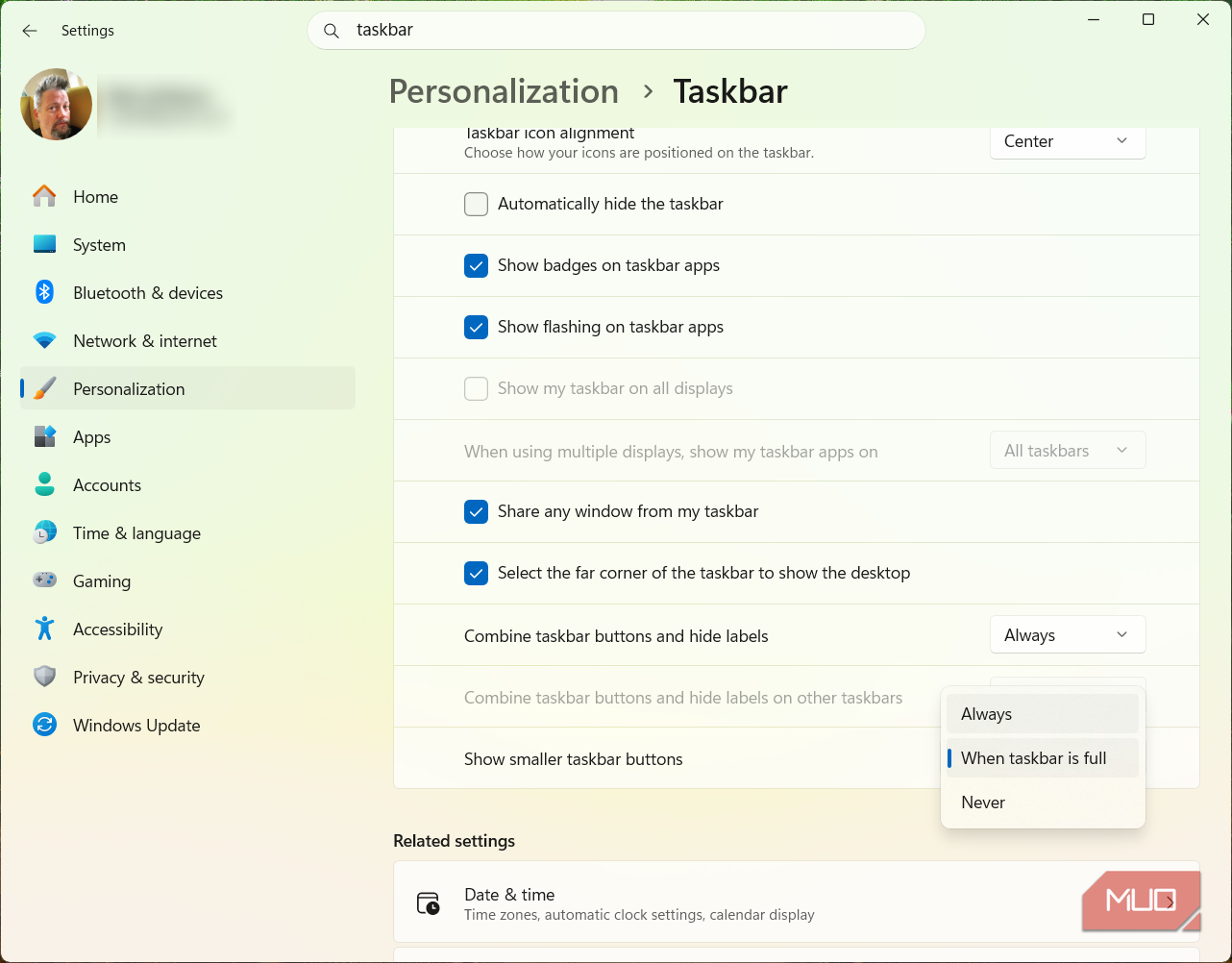
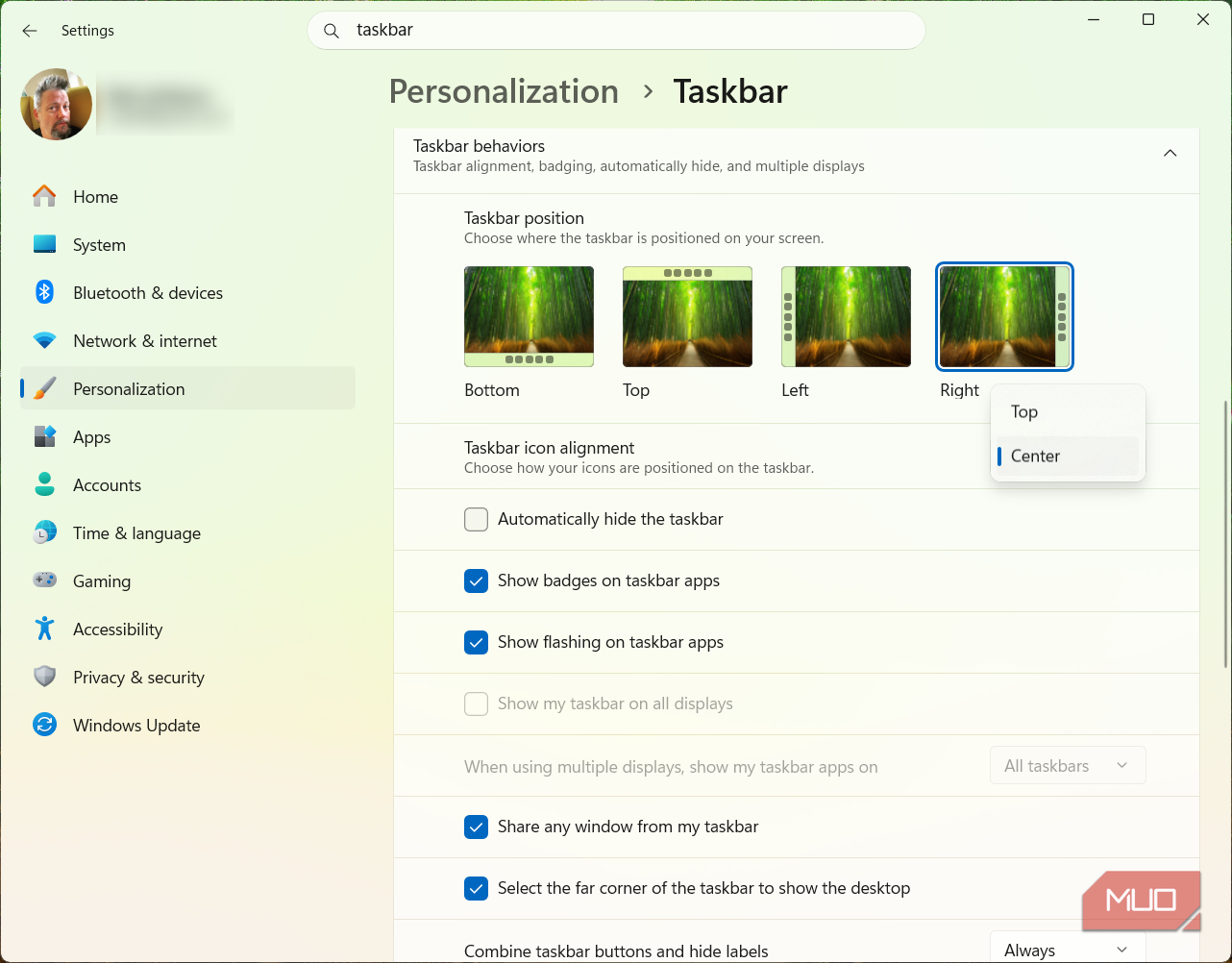
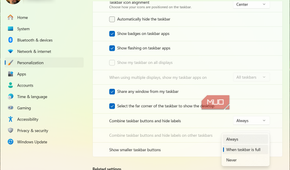
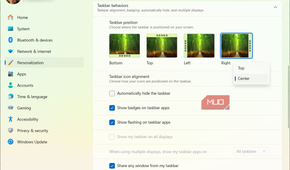
Windows 11 dropped taskbar repositioning entirely when it launched in 2021, which annoyed quite a few users who liked it on the left, right, or top in Windows 10. Microsoft announced that it was coming back in March 2026, then rolled it out to Insiders in May 2026 alongside a new option for an even smaller, more compact bar. Both features are currently in the Dev / Experimental Channel of the Windows Insider Program. That means that a full stable release is likely several months out, so you'll have to become a Windows Insider to grab it now.
For ultrawide and widescreen users, left or right placement is a real productivity change: a vertical taskbar frees up the horizontal rows of your display that matter most when you're running multiple apps side by side. On a 21:9 or wider screen, the horizontal taskbar at the bottom consumes space in a direction you want for content, while the sides are largely wasted. Flipping it vertical gives you that space back.
If you're rocking a compact or laptop display, the smaller taskbar is the winning move, now. It recovers a few pixels of vertical space, keeps your eyeline on the content, and removes some of the visual weight the default bar typically carries. It's subtle, but recognizable on a 13- to 14-inch machine.
How to get the vertical taskbar today
Join the Windows Insider Program

Start here if you're not already enrolled. Head into Settings, navigate to Windows Update > Windows Insider Program, and then click Get Started. You'll need to link your Microsoft account and choose a channel. You'll want the Experimental Channel (my machine still showed Dev Channel as its name). Restart and then check again for updates, as it might need to grab a newer Insider Build.
The Experimental Channel is less stable than the Beta Channel. It's fine for a secondary machine or if you're comfortable with occasional rough edges, but I wouldn't recommend it as your daily driver on a work machine where stability is non-negotiable.
Once on a compatible Experimental Channel build, go to Settings > Personalization > Taskbar > Taskbar behaviors. You'll see a Taskbar position dropdown. Change it from Bottom to Left or Right for a vertical bar. To get the smaller bar without moving it, stay on Bottom and set the Show smaller taskbar buttons dropdown to Always.
If you're on an eligible build but the dropdown doesn't appear, Microsoft uses feature flags to stage the rollout. Go to Settings > Windows Update > Windows Insider Program > Feature Flags, search for "taskbar," and toggle Alternate taskbar positions and Smaller Taskbar to on. Restart.
What it's actually like to use
Personally, I like the new taskbar on the right of my widescreen, as it doesn't interfere with the default placement for desktop icons, and I have a ton of stuff over on the left side of my desk, including a mic stand that blocks some of my view. Your preferences matter, of course, and you might really like it over there.
Either way, once you have it in place, pinned apps will stack vertically, keeping them visible without eating into the top or bottom of whatever you're working on. The bar doesn't resize horizontally beyond its default width, though, and you can't stretch it. Microsoft's own release notes acknowledge that taskbar resizing improvements are still in progress. That's a bit of friction for many of us, and I'm hoping Microsoft addresses it before this lands in stable.
The smaller taskbar mode is a more subtle change. Icons shrink, the bar loses a bit of height, and you get a few rows of usable screen back. It's not a dramatic switch, but definitely the kind of thing you'll appreciate on a laptop after a while. On a 1080p display where every pixel of vertical space counts, it makes the desktop feel less crowded without hiding anything you need.
Until this reaches an actual stable Windows 11 release, Windhawk still works on any build without Insider enrollment and gives you more width control over the bar than the native option currently does. If you want to get more out of your taskbar in the meantime, it's worth seeing what the taskbar can already do natively before reaching for third-party tools.