


Every now and then, Windows adds genuinely helpful features, but for some reason they tend to go under the radar, and barely anyone uses them. And in typical Windows fashion, most of those features are off by default, while gimmicky ones are enabled.
Storage Sense falls into the former category, and trust me when I say this is one of the most helpful storage features Windows has added in years. I've been using it for about two years now, and not enough people talk about it.
The feature launched with Windows 10 in 2015, but its roots go back further, to Windows Phone 8.1. However, it has gone through a couple of changes to get to where it is today.
Storage Sense cleans up the files I usually forget about
It handles the boring storage maintenance automatically

I've always used third-party apps like CCleaner to clear out files I don't need anymore on my PC, or I go through the manual route and start looking through folders to see what's taking up unnecessary space.
The problem with doing this manually is that I usually don't remember to do it until I'm already running low on storage. When I do remember, though, I have to figure out which files are actually safe to delete. Storage Sense takes that burden off my shoulders and does all the heavy lifting for me. It automatically frees up space on your PC by removing files you don't need. Depending on your settings, it can clean up temporary files, empty the Recycle Bin, and remove files from your Downloads folder that you haven't opened in a while.
It can also manage locally available cloud content from services such as OneDrive by making files that you haven't opened recently online-only. The files aren't deleted from your cloud storage, but Windows can remove their local copies to free up disk space.
Here's how I turned on Storage Sense
You can find the feature in Windows 11's storage settings


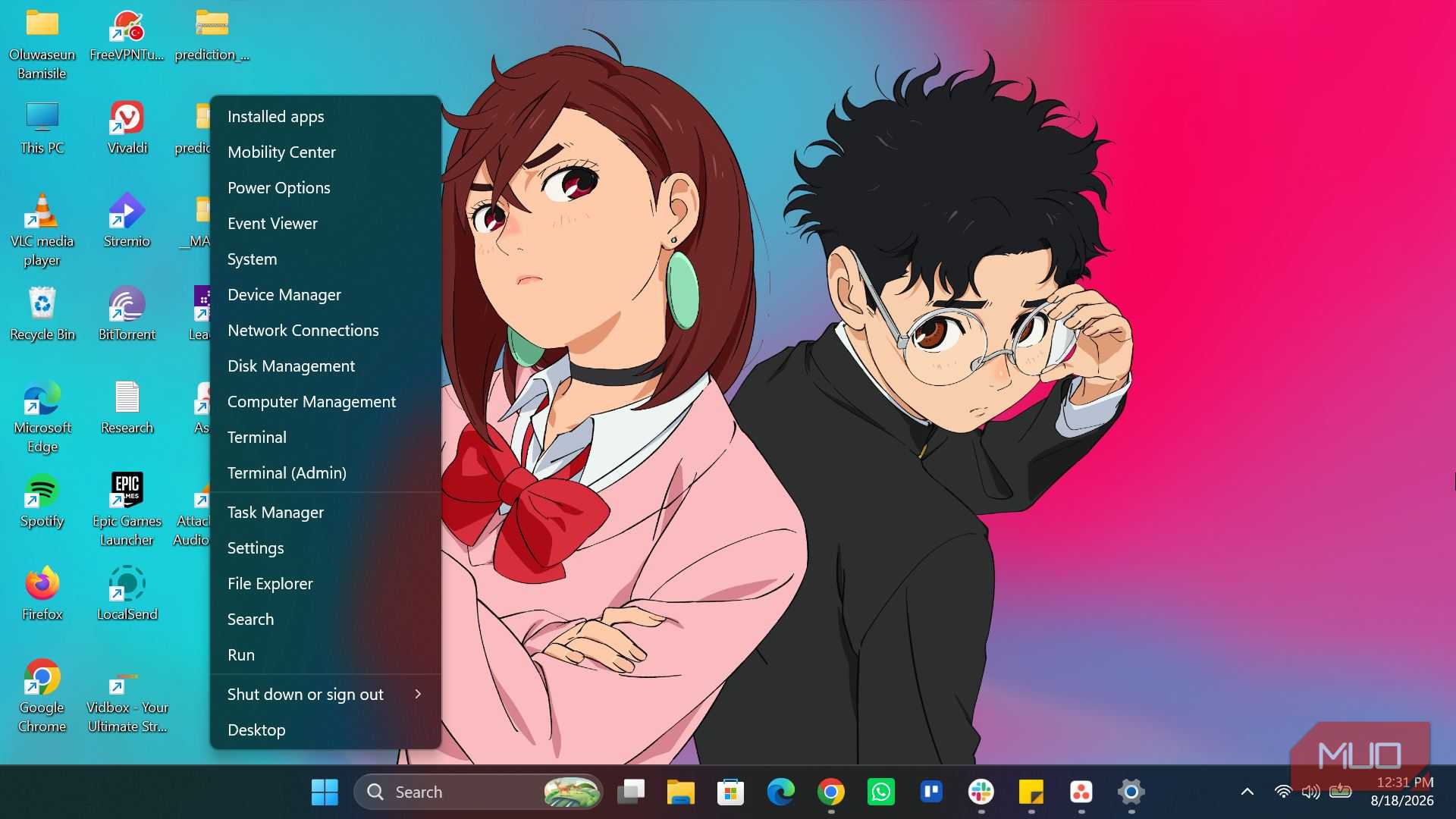
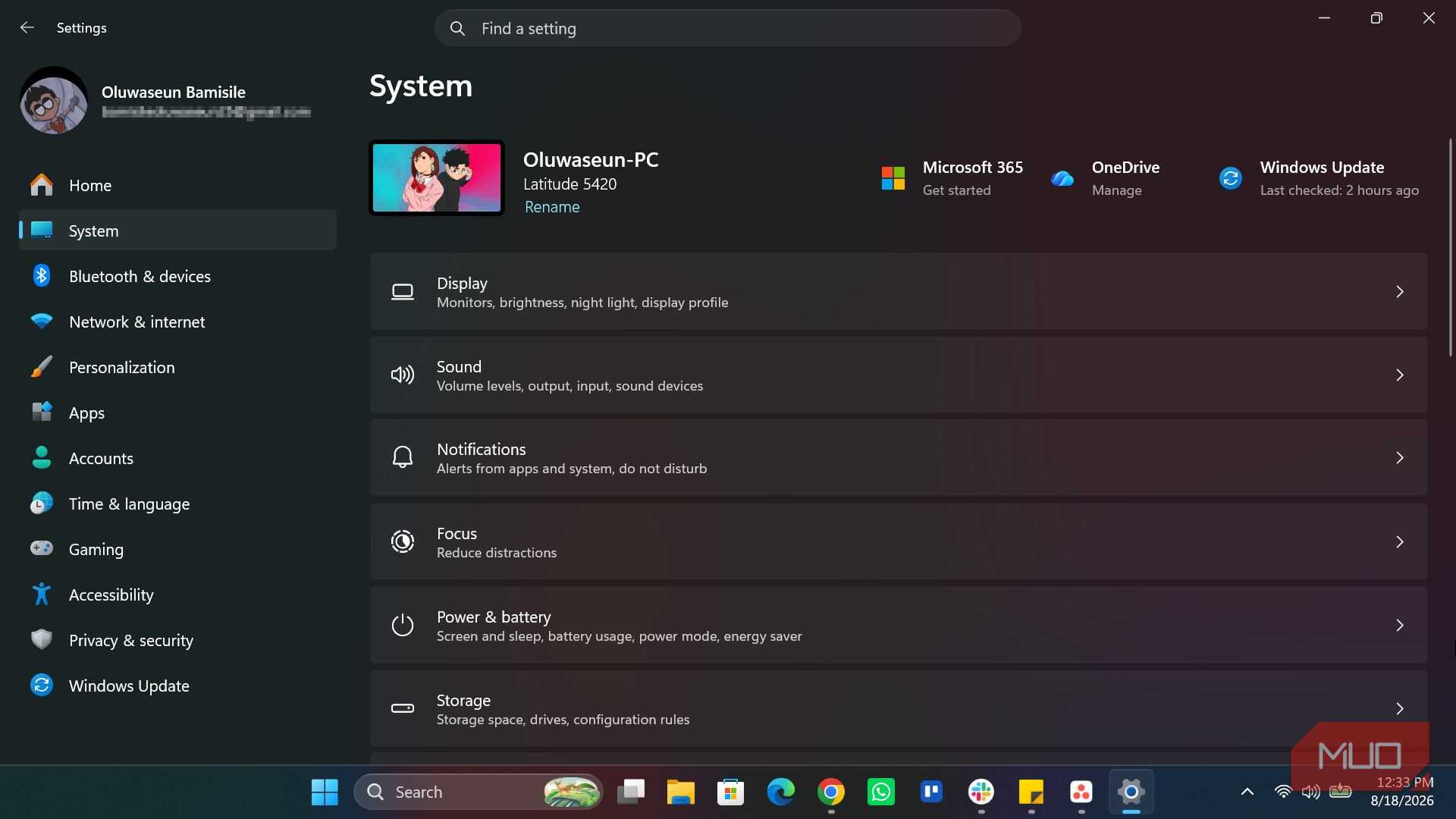
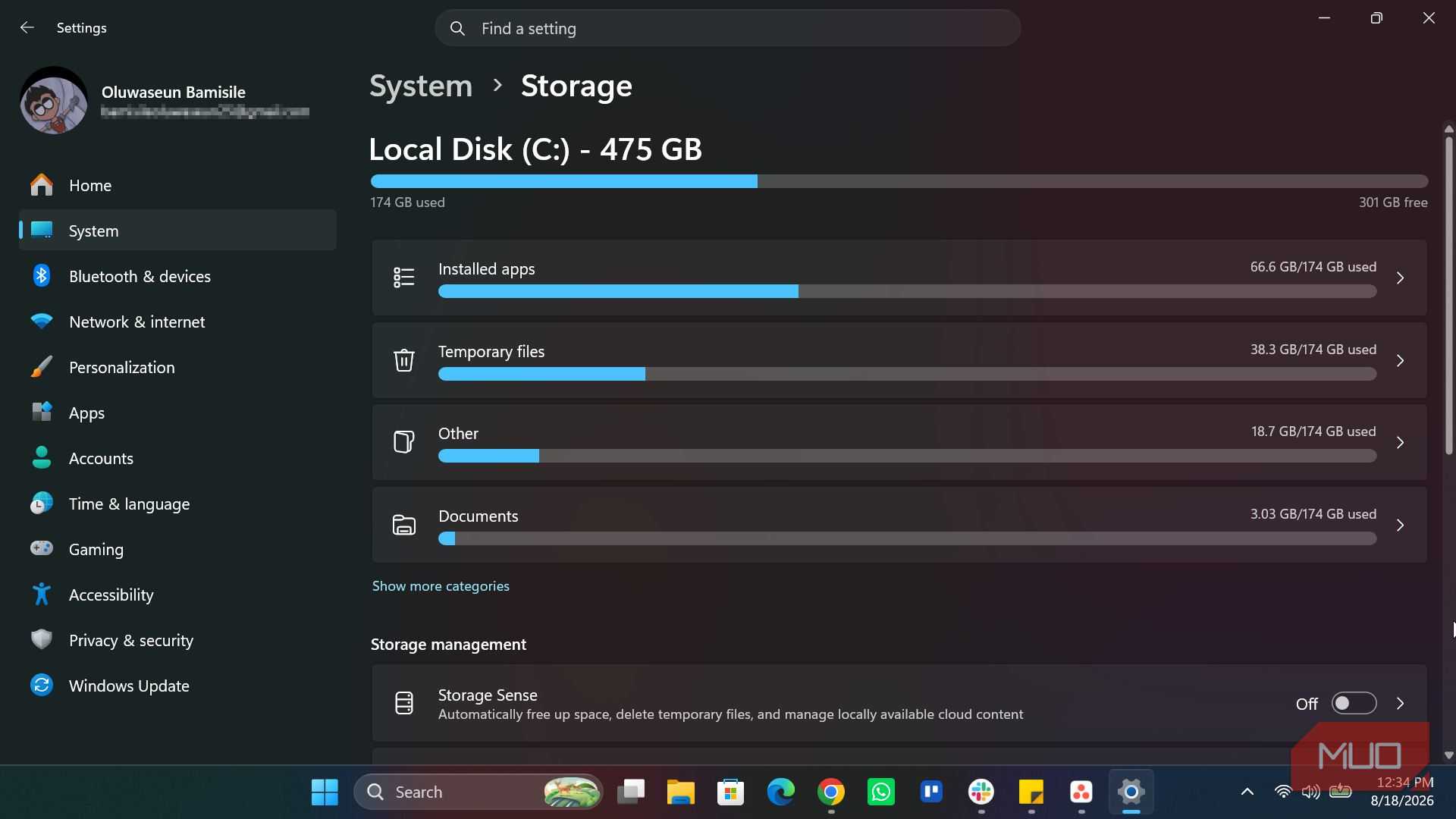
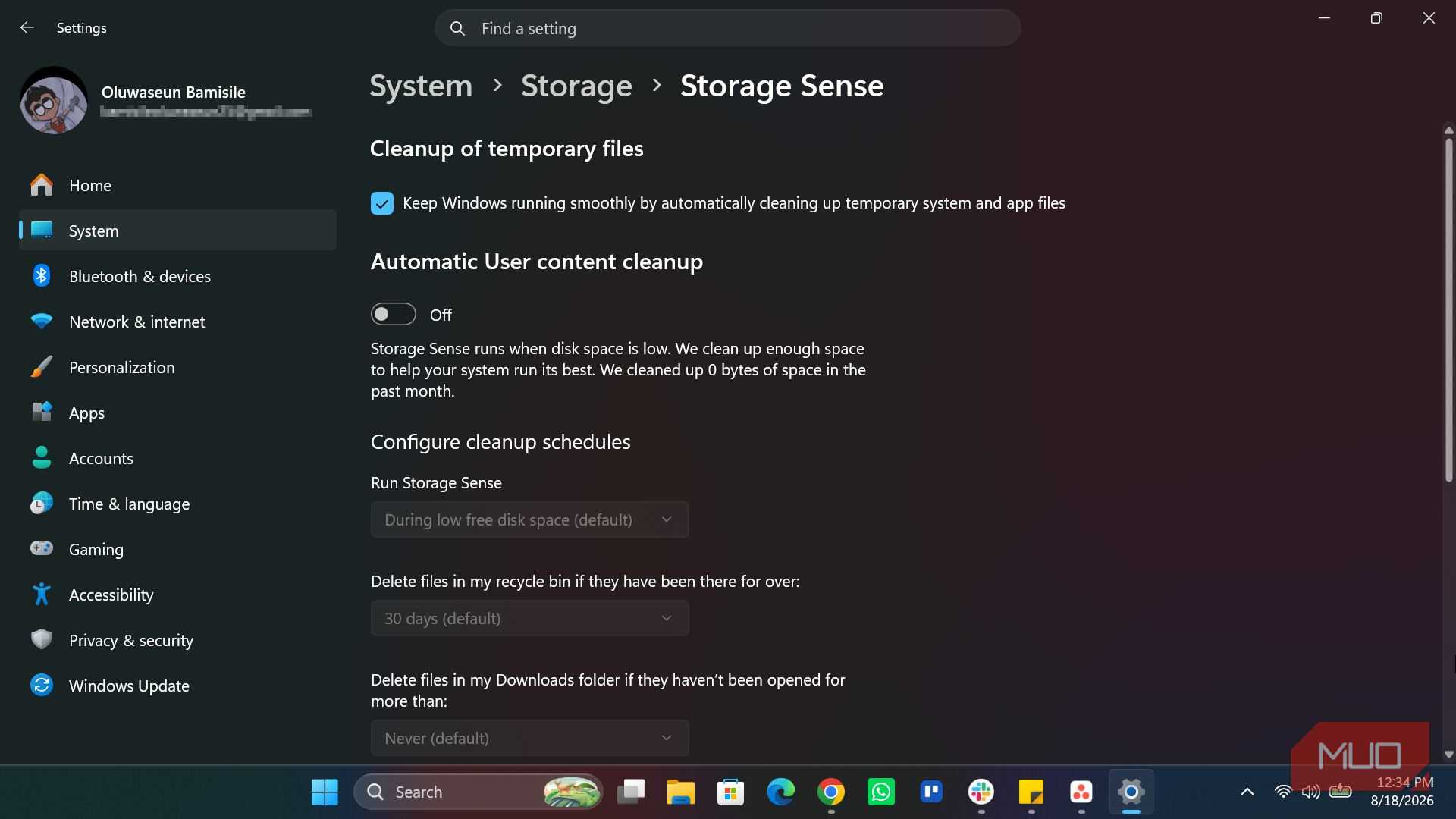
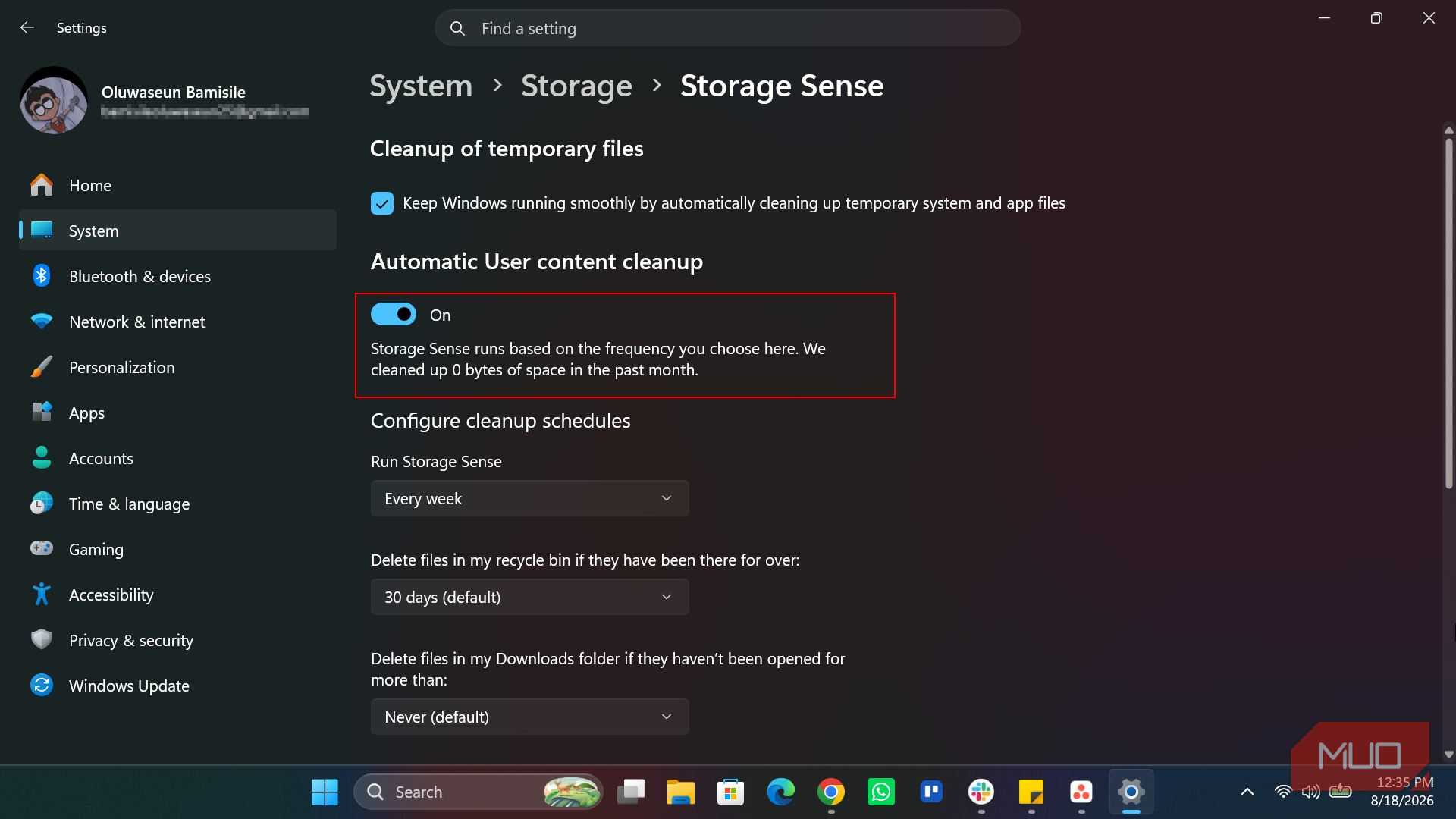


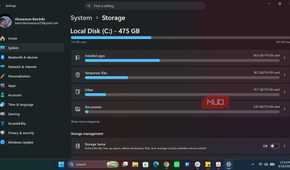
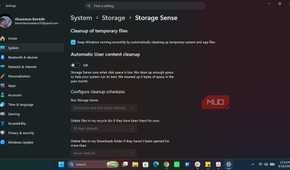
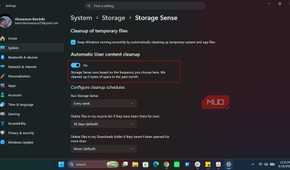
Storage Sense is already built into Windows 11, so there's nothing to download or install. You just have to turn it on. Here's how:
- Open Settings and go to System -> Storage.
- Under Storage management, select Storage Sense.
- Click into Storage Sense settings.
- Turn on Automatic User content cleanup.
Once enabled, Windows can automatically run Storage Sense according to the schedule you've selected.
You can tell Storage Sense exactly how (or when) to work
The default options don’t do it justice

In the same settings area where you enable Storage Sense, you can configure how it works. By default, Storage Sense only runs when you're running low on storage. But you can set it to run on a schedule. It could be every day, every week, or every month. You can even choose to run Storage Sense at any given time you like, as there is a Run Storage Sense Now button in the settings.
For Storage Sense to run automatically, you need to be signed in and connected to the internet for at least 10 minutes beforehand.
You can also set how long files remain in the Recycle Bin before Windows removes them. Storage Sense only deletes files in your Recycle Bin every 30 days by default, which is fair in my opinion, but you can change that to whatever interval you prefer.
Meanwhile, Storage Sense defaults to never deleting any file in your Downloads folder, and that's totally fine because I don't really like deleting things in my Downloads folder anyway, since I might need them later. But if you're nothing like me, you can set Storage Sense to automatically delete files in your Downloads folder if they haven't been opened in 1, 14, 30, or 60 days.
You can also control how Windows handles locally available OneDrive content, and depending on your setup, you may even see multiple dropdown menus here. I only have one OneDrive account, so I only saw one dropdown menu, and I set it to 30 days. If yours is set to Never, I’d strongly suggest changing it to at least 30 days, or even a shorter interval if you want more aggressive cleanup. And if you want a specific file to stay on your device regardless of the rule you set, right-click the file in File Explorer and select Always keep on this device.
I don't even think about storage cleanup anymore
The best thing about Storage Sense is that it takes something I used to do manually and turns it into background maintenance. And considering the feature has been around since Windows 10, I'm surprised it doesn't get more attention. Microsoft has continued refining it, but it's still one of those useful Windows features that many people probably don't even know exists.
If you're running Windows 11 and Storage Sense is still off, I'd at least open Settings and see what it can do.