


I used to think VLC stuttering during 4K playback was a video problem, but it's not. It's a hardware decoding problem, and the fix sits buried in a settings menu most people never open. Switching the decoding load to your CPU sounds like a downgrade, but it doesn't have to be. You just need to know what's happening before you flip the switch and get rid of that video lag.
Your graphics card makes the video stutter
Your processor has enough power to do it alone

Moving decoding from your graphics card to your CPU fixes stuttering during 4K playback. High-resolution video is just demanding. A 4K stream at 60fps means your system constantly has to unpack huge amounts of compressed data in real time. By default, VLC tries to handle this by sending the video stream directly to your operating system's built-in media APIs, such as DXVA2 or D3D11VA on Windows. These basically act as middlemen, communicating with your graphics drivers.
Those APIs then hand the data off to dedicated chips built right into the GPU. That hardware is supposed to work well, but the whole pipeline is kind of fragile. It doesn't take much, like driver quirks and software conflicts, before you start seeing dropped frames.
You also have the copy-back method GPUs use for hardware acceleration, so that means raw, uncompressed frames have to keep shuttling back and forth over the PCIe bus between your video memory and system RAM. That alone can choke your memory bandwidth and throw off the timing.
Then there's the issue of other apps quietly consuming shared VRAM in the background, which can leave VLC without enough contiguous memory to properly set up hardware decoding.
So when you turn off that GPU path and let your CPU handle things instead, playback becomes much more stable. Once decoding switches to software, your CPU handles the workload using well-tested libraries like FFmpeg's libavcodec or the dav1d AV1 decoder, instead of relying on graphics drivers that can be hit-or-miss.
Newer hybrid multicore processors have enough raw horsepower to decode 4K video natively without needing GPU help. To squeeze the most out of that power, these CPU-based decoding libraries have to use low-level optimizations and smart multi-threading. Instead of processing everything in a straight line, which would bog the system down, the decoder splits the work both across frames and across sections of each frame. So it's basically spreading the load evenly across all your processor's cores.
How to turn off the hardware setting in VLC
You just have to change one dropdown menu



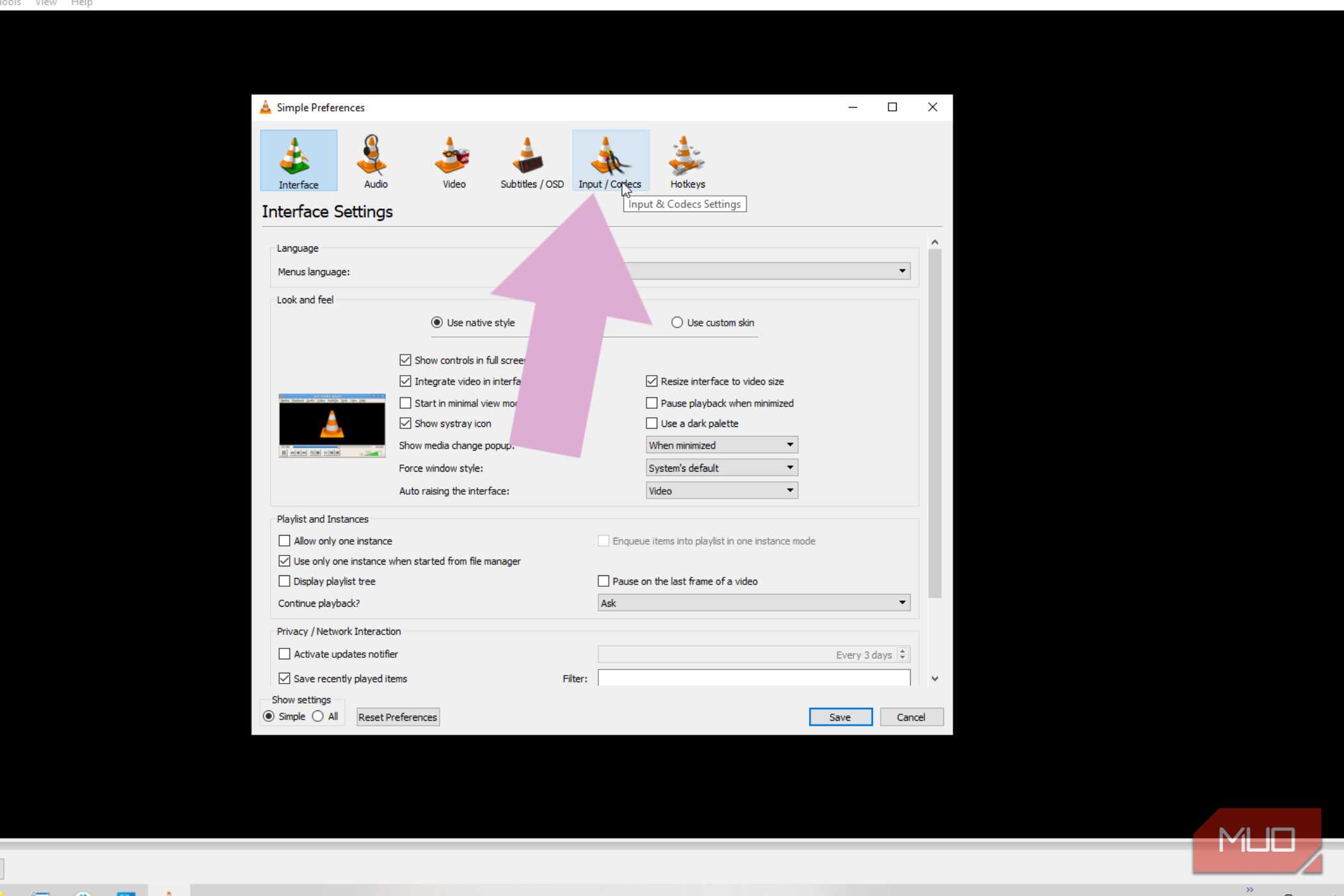
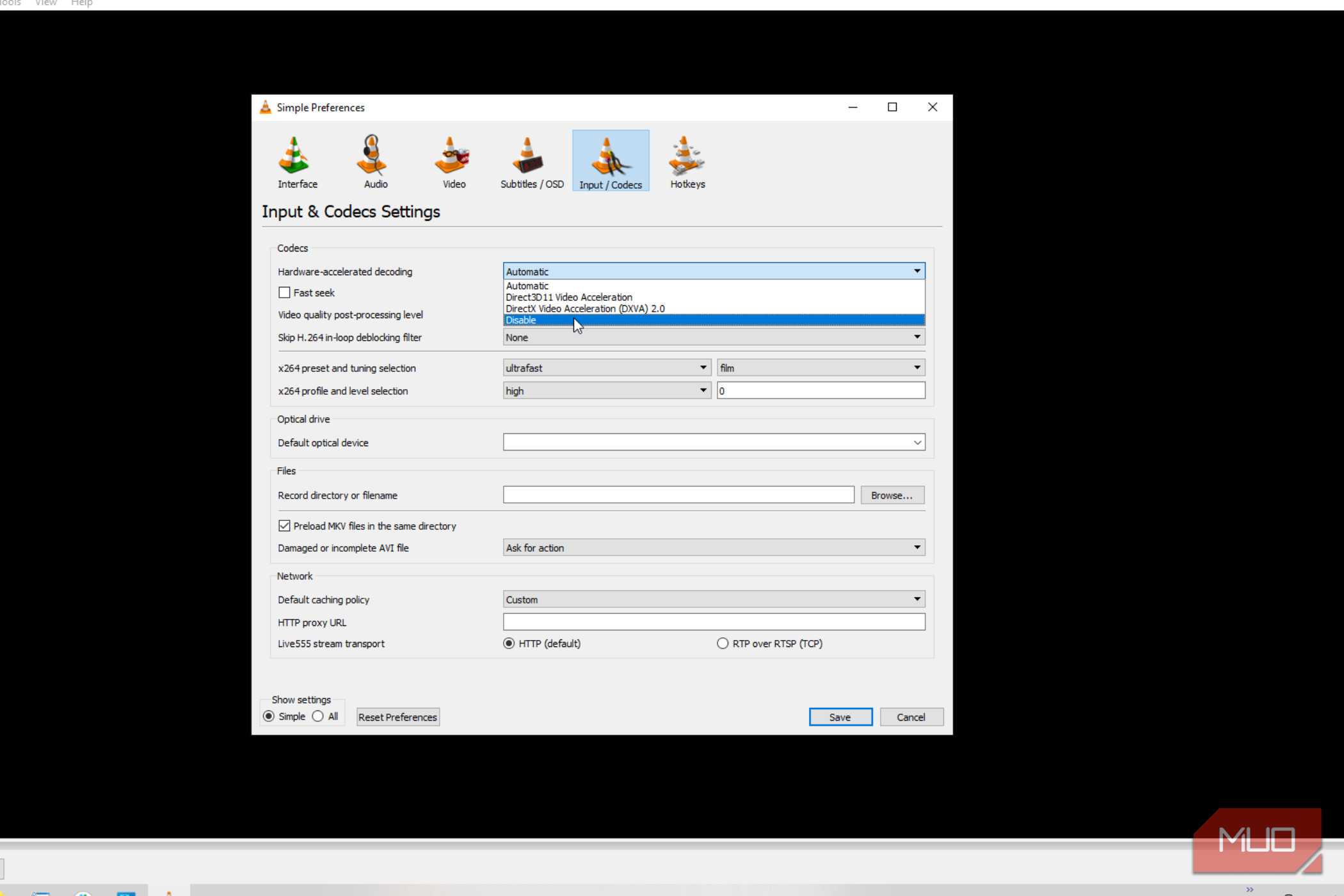
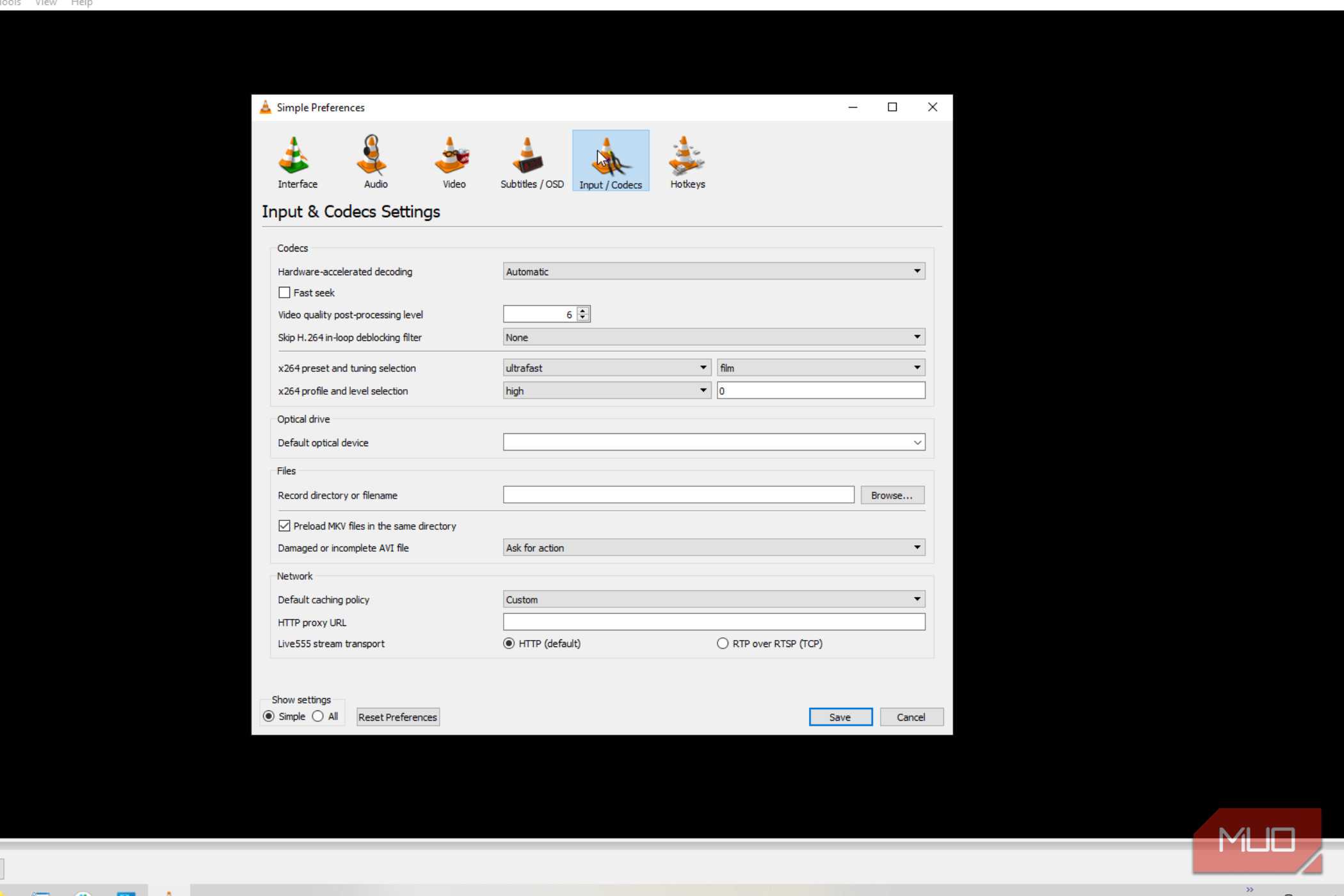
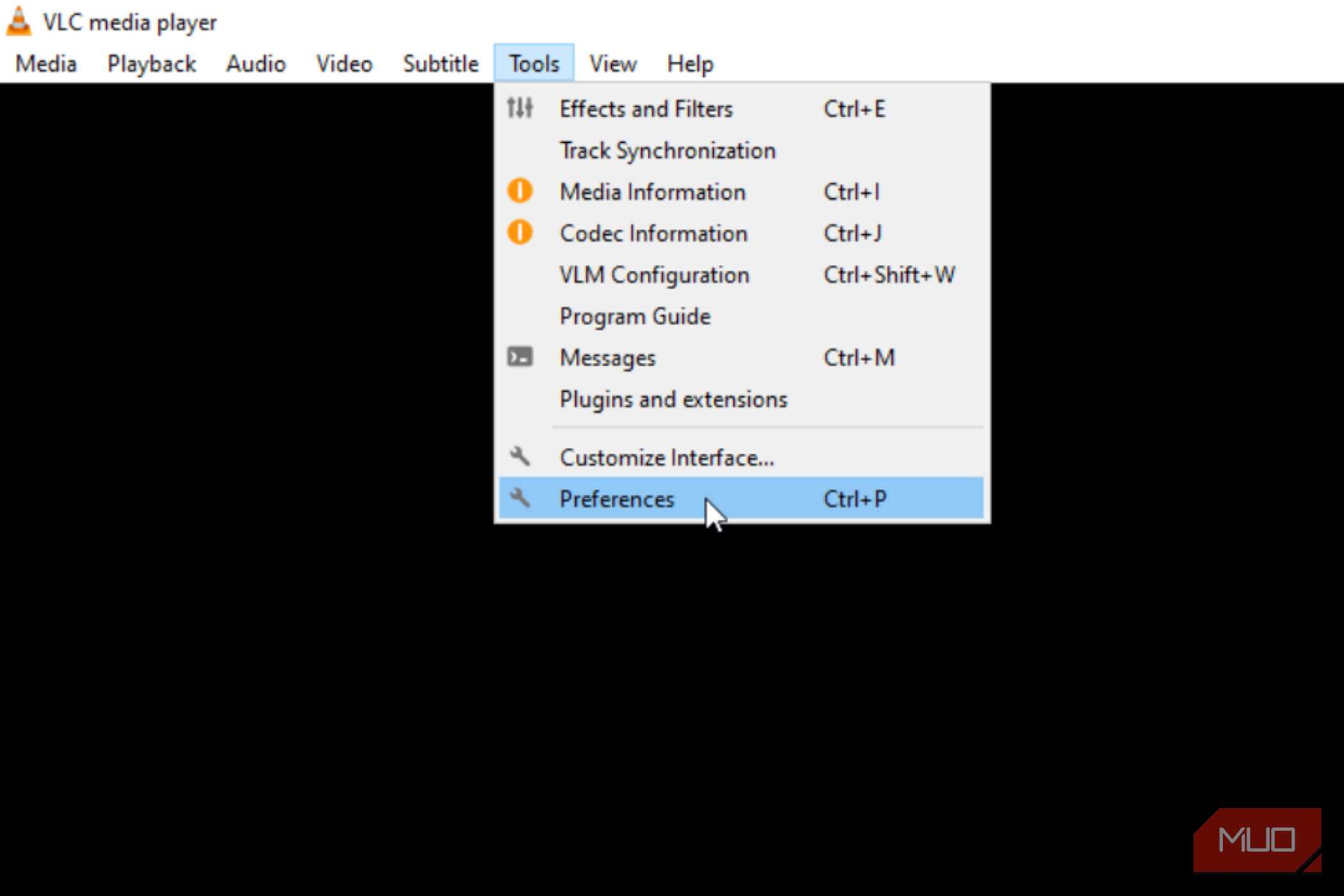

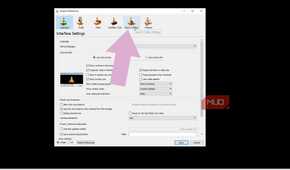
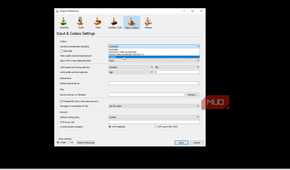
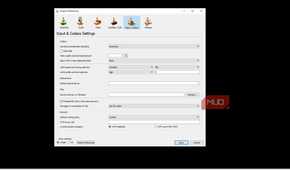
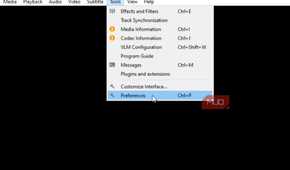
To fix the annoying playback stuttering you get with high-res video, just turn off hardware-accelerated decoding in VLC. It sounds technical, but it's really just flipping one setting.
First, open up Preferences. On Windows or Linux, click "Tools" in the menu bar at the top, then "Preferences. You can also just press Ctrl + P to use the shortcut. On a Mac, click VLC in the menu bar at the top of your screen, then go to Settings and expand the preferences view if it's showing the simplified version.
Once you're in there, look for the "Input / Codecs" tab near the top of the window. Click into that, find the "Codecs" section, and you'll see a dropdown for hardware-accelerated decoding. Right now, it's probably set to "Automatic," so change that to "Disable." Hit Save, then close VLC completely and reopen it, so the change takes effect.
It'll use more power and lean harder on your CPU, but in exchange, you get much more reliable playback, without the random hardware-related stutters and glitches. You likely have a more-than-capable CPU if your GPU is high-end enough to handle decoding on its own.
This fix will make your computer work a lot harder
Older processors will struggle to keep up with the extra load

Switching video decoding from the graphics card to the CPU stops your 4K video from stuttering, but there is a trade-off. It's basically a brute-force workaround, and it comes with some serious downsides you need to consider.
When you turn this setting off, your CPU usage shoots way up, since it's now stuck doing a constant stream of heavy number-crunching that used to be the graphics card's job. Formats like HEVC are brutal for a CPU to handle on its own, requiring about 10 times the processing power that regular H.264 does at 4K. AV1 is even worse, with over 100 different coding tools packed into it.
So if you've got an older or weaker processor, it might just buckle under that load, leading to a whole new set of slowdowns since it doesn't have the muscle to push through raw 4K video. Older dual-core or basic quad-core chips, in particular, don't have enough parallel processing power to keep up.
When you force one of these weaker chips to do it all in software, every core gets pegged at 100%, so the interface starts lagging, audio falls out of sync with video, and you're right back to dropped frames. Even on newer, beefier processors with lots of cores, doing everything in software still eats up a ton of processing power and chews through a huge chunk of the L3 cache.
That leaves almost nothing left over for anything else running in the background, so your powerful computer is almost out of commission while doing this.
This may not work for you
Moving decoding to your CPU isn't hassle-free. HEVC alone puts a lot of strain on your PC. If your processor is a few years old and underpowered, software decoding can leave you worse off than where you started. However, if you have a newer multi-core chip sitting idle, turning off hardware acceleration is a quick change that can fix your playback issues.

- OS
- Android, iOS, Windows
- Price model
- Free, open-source
VLC can read every format ever invented, from modern files to the digital relics on old drives. It opens whatever you throw at it, turning your device into a centralized hub for all your scattered media.