


RAM is super expensive these days, and upgrading for most seems out of the question. Instead, you can try to make the most out of your memory with tweaks like debloating Windows 11, adjusting browser settings, and more. That said, these are surface-level tweaks, and there's one hidden setting that is sandbagging your RAM, reserving it for a use you might never need.
Your PC reserves a portion of your system RAM for the iGPU even if you have a discrete graphics card. That portion of RAM is locked by your system, but fortunately, you can retrieve it.
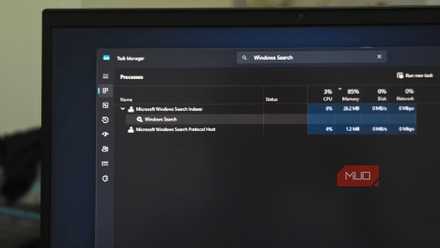
I disabled one Windows 11 service I'd never heard of and freed up nearly 1GB of idle RAM
A sneaky service that can take gigabytes of memory.
The iGPU tax you never agreed to
Here's why your system reserves memory for graphics you will never use
Aside from a few exceptions, most CPUs come with an iGPU, an integrated graphics processing unit, to output video if your system doesn't have a discrete GPU. Unlike a discrete GPU, though, the iGPU doesn't come with its own VRAM and has to borrow memory from your system RAM.
The thing is, even with a discrete GPU installed, your system still locks some memory for your iGPU, which might be irrelevant to you.
On older systems, the default reserved RAM is negligible, often 128MB or so. However, on newer models, like the AM5 CPUs, the default reservation may be 512MB, and it can go all the way up to a whopping 2GB of memory. For configurations like 32GB or 16GB, reclaiming the hoarded memory can have a notable impact on your system's performance.
With my setup featuring 32GB of Corsair Vengeance DDR5 memory and a Ryzen 5 5600G, I freed up 1GB of memory.
Here's how to reclaim your lost memory
Windows offers a simple fix, but you can also get a permanent solution from the BIOS menu

Now, there are multiple ways you can go about reclaiming your lost memory. The easiest way is through Windows itself. Now, before doing so, you'll have to check out if you even have an iGPU in the first place, since higher-end and powerful CPUs come without integrated graphics.
To check, open Task Manager and, under the Performance tab, you will see two GPUs listed: a discrete GPU and, if you have one, an integrated GPU. If only a single discrete GPU is shown, it means your PC doesn't have an iGPU.
Now, to disable it through Windows, follow these steps:
- Open Device Manager.
- Look for Display Adapters.
- Select your iGPU, then right-click and disable it.
If the reserved memory doesn't change after a reboot, you can head over to the BIOS to make the change.

For that, follow these steps:
Enter BIOS -> Advanced -> iGPU VRAM/UMA Frame Buffer Size. In this setting, the memory options may be: Auto, 64MB, 128MB, 256MB, 512MB, 1GB, or 2GB.
Under Auto, the system will decide how much RAM to retain for the iGPU, depending on your RAM configuration. I recommend setting the reserved RAM to the lowest option, just in case your discrete GPU crashes or has driver issues.
Otherwise, you can disable your iGPU completely and free up every ounce of RAM for your system.
To do so: BIOS -> Advanced -> Primary GPU -> set to PCIe; if you can see an integrated graphics option, set it to disable.
Why does your system still use an iGPU even with a discrete GPU?
Your onboard graphics aren't dead weight — it's just sort of expensive insurance

Even with a discrete GPU, your system doesn't completely discard the iGPU — it is still being used in some capacity. On some systems, the iGPU handles low-intensity tasks like encoding or decoding media or handling a multiple-display setup.
Other than that, Windows can also switch between GPUs based on the workload's demand at the time. This is great for power consumption, but it can also backfire: if a background app is utilizing the iGPU, more RAM gets pulled towards whatever the onboard graphics are using at the time. Sometimes, your system can dynamically adjust RAM usage for your iGPU, again depending on the task, of course.
Should you touch this setting?
Your system's allocation of memory for your iGPU isn't an inherent flaw; think of it more as a safe fallback in case your discrete GPU fails. On high memory configurations, I recommend keeping this setting untouched, but on configurations like 32 GB and especially lower, you can disable the iGPU, since every gigabyte matters when it's already split between the resource-intensive Windows 11 and demanding modern video game titles.

Corsair Vengeance RGB DDR5 32GB 6000MHz C36
- Size
- 32GB
- Speed
- 6000MHz
One of the most popular DDR5 RAM choices, the Corsair Vengeance RGB DDR5 32GB 6000MHz C36 offers strong bang for the buck performance, making it suitable for both AMD and Intel builds as well as gaming and productivity workloads.