

Introduction
Google recently expanded Gboard’s Rambler voice typing feature to the Pixel 10 series as part of the November 2026 Pixel Drop. However, not all Pixel 10 owners may see this feature immediately after updating to the new monthly update. This guide will walk you through the process of manually enabling Rambler on your Pixel 10 if it is not automatically available.
Step 1: Update Android AI Core
If you have not already done so, update Android AI Core through Settings > [Google profile] > All services > System services. This update is crucial for accessing the Rambler feature.
Step 2: Enable Rambler
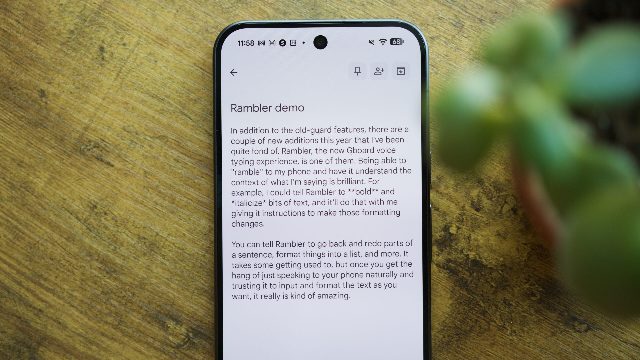
After updating Android AI Core, you can enable Rambler in Gboard’s settings. Navigate to Gboard > Settings > Voice typing to turn on Rambler. This feature allows you to polish natural speech, strip filler words, and make conversational voice edits.
Step 3: Additional Troubleshooting
If Rambler still does not appear after following the above steps, you may need to force an update for the Android AI Core app via Google Play Services. This can be done by navigating to Google Play Services > [Google profile] > All services > Android AI Core and selecting the option to force an update.
Conclusion
By following these steps, you should be able to manually enable Gboard’s Rambler voice typing feature on your Pixel 10. If you continue to experience issues, consider checking for any additional updates or reaching out to Google support for further assistance.
Comments