
Introduction to Alarm Issues on Google Pixel Devices
Google Pixel devices have faced issues with alarms not sounding, leading to missed alarms and potential consequences. This guide provides a step-by-step approach to troubleshooting and resolving these issues.
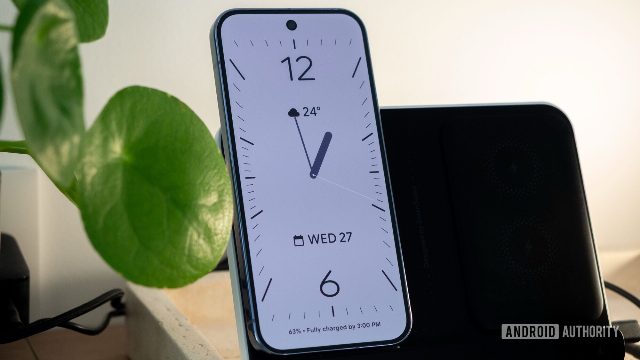
Step 1: Check Settings and Permissions
First, ensure that the Clock app is enabled and that no settings have been changed that could affect alarm functionality. Verify that the Clock app has the necessary permissions to access your device's alarms. If you have recently updated the Clock app, consider rolling back to the previous version to see if the issue persists.
Step 2: Reset Clock App Settings
If the Clock app settings have been changed, reset the app to its default settings. This can be done by uninstalling and reinstalling the Clock app. Ensure that the Clock app is set to the default alarm settings, including the default sound and vibration settings.
Step 3: Check for Software Updates
Ensure that your Pixel device is running the latest software version. Sometimes, software updates can fix bugs and improve functionality. Check for and install any available updates for your Pixel device.
Step 4: Verify Clock App Permissions
Make sure that the Clock app has the necessary permissions to access your device's alarms. If the Clock app is not set to allow access to alarms, it may not be able to trigger alarms correctly. Go to the app's permissions settings and ensure that the Clock app has the required permissions.
Step 5: Contact Google Support
If the issue persists after following the above steps, consider reaching out to Google Support. Provide them with detailed information about the issue, including the steps you have already taken and any relevant error messages. Google Support may be able to provide additional troubleshooting steps or a solution to your problem.
Conclusion
Missed alarms on Google Pixel devices can be frustrating and potentially problematic. By following these steps, you can troubleshoot and resolve alarm issues, ensuring that your alarms sound as intended and your day runs smoothly. If the issue continues, consider reaching out to Google Support for further assistance.
Tags
Google Pixel, Clock app, Alarm issues, Troubleshooting, Software updates