
Introduction to USB-C Port Icons
If you've noticed the symbols next to your USB-C port, you're not alone. These icons can provide valuable information about the capabilities of your port and the devices it supports. Let's explore some of the most common icons and what they mean.
The SuperSpeed Trident
The classic SuperSpeed trident is one of USB's oldest branding. While it typically indicates faster transfer speeds, it doesn't always work that way. Manufacturers often leave the number off, making the icon pointless. The main problem is that the number is often missing, leaving you unsure of the actual speed.
USB-IF rebranded the tier system to plain text logos in 2022, but many manufacturers are still using the old shorthand. The 'SS' icon alone indicates a port that can handle data transfer speeds faster than USB 2. 0, but you won't know the exact speed without checking the spec sheet.
Power Delivery (PD) Icons
The battery icon or 'PD' mark indicates Power Delivery support. However, it doesn't typically state the wattage. On rare occasions, you might find a wattage figure alongside it, but this is like finding a unicorn at Walmart. The actual number is usually found in the spec sheet.
Thunderbolt Icon
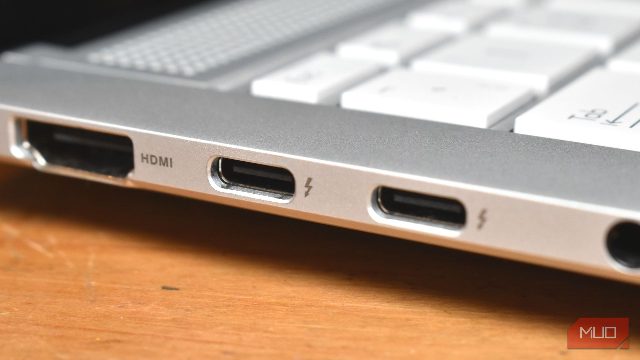
The Thunderbolt icon is the most standardized. It features a lightning bolt with an arrowhead on the tip, sometimes accompanied by a generational number. Thunderbolt supports a specific range of specs and is more useful than a standard USB4 port. However, no standardization requires manufacturers to use a Thunderbolt 4 or 5 icon, so you'll still have to do some guesswork.
The circular USB4 logo, marked 20 or 40, represents the newer, top-tier option. In practice, manufacturers can print the badge without the number, which puts you right back where you started with the SS trident: you know it's USB4, but you don't know which USB4.
The DisplayPort icon indicates the USB port also supports video output. This means you can plug in an external monitor or projector, but you'll need the right USB-C cable. The latest USB4 ports have a half circle with a number (20 or 40) printed beside it. These are almost always USB-C ports, and the number tells you the maximum speed the port can handle.
- D Symbol: Often styled like a little monitor, it marks DisplayPort over USB-C and confirms the port can push video to an external display. However, it doesn't specifically confirm the DisplayPort version you'll be using. - Nothing at All: The most common icon is nothing at all. On your devices, this indicates a USB 2. 0 port, also known as a Hi-Speed port, which offers modest data transfer speeds of 480 Mbps.
Conclusion
Understanding the meanings behind the various icons next to your USB-C port can help you make better choices and ensure better device compatibility and functionality. By knowing what each icon means, you can avoid potential issues and make the most of your USB-C port.
Comments