

Understanding Email Tracking Pixels
Your inbox might look clean after spam is filtered out, but it's still not private. Marketing emails and newsletters include tracking pixels that call back to the sender when images load. These pixels register an open with a timestamp and can build a profile of your reading habits. You don't need to click a link; loading images is enough to trigger tracking.
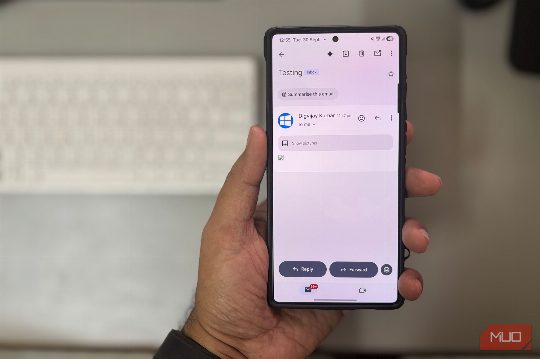
Gmail offers a setting to stop these requests from firing until you choose to load images. Once enabled, tracking pixels remain blocked unless you display them, allowing you to decide which messages report back and which stay private.
How Emails Track You When You Open Them
When you open an email, it does more than display the message content. Many marketing emails contain a hidden tracking pixel, a tiny transparent image loaded from a unique link on the sender's server. When your email client fetches that image, the server logs an open event with the exact time it happened. Across multiple messages, those logs can show how often and when you open emails.
Gmail's Image Proxy and Security Measures
Gmail uses a remote image proxy to load these images. This hides your IP address and presents a GoogleImageProxy user-agent to the sender. Google also caches and scans images for security before displaying them.
By default, Gmail loads these images automatically using its proxy. That makes emails look complete, but lets senders register an open when images load. To prevent this tracking, stop automatic image requests.
How to Flip the Switch in Gmail
To block tracking pixels, click the gear icon at the top right and choose See all settings. In the General tab, scroll to Images and select Ask before displaying external images. Scroll to the bottom and click Save Changes. Tap the three-line menu, open Settings, and choose your account.
What Happens When You Enable This Setting
With this setting on, Gmail changes how messages appear. When an email contains remote images, a banner appears at the top offering to display them. You can choose to load the images or skip them and move to the next message without triggering tracking pixels.
If Gmail flags a message as suspicious, you will see a warning banner with options like Report spam or Looks safe. Images and downloads stay blocked until you confirm the message is safe, which helps prevent malicious files from loading in the background. Clicking Looks safe usually clears the warning and lets you view the full content.
The Gmail app works similarly. It displays a Show pictures button for that message, along with an option to Always show pictures from this sender. This is particularly helpful for trusted services, such as banks or ticketing platforms, where images are necessary to clearly read the message.
Benefits of Blocking Images by Default
With images blocked by default, your inbox feels more focused. Emails are less cluttered, text is easier to scan, and you can move through nonessential mail without giving senders more data.
Final Thoughts
Before opening another email, take a moment to enable this setting. From that point, Gmail stops loading remote images until you choose to see them. That means image-based tracking pixels will not load without your knowledge. You can still display images whenever you want, or choose Always show pictures from this sender for trusted senders; the choice is yours. It may seem like a small change, but it protects your reading privacy and prevents senders from quietly tracking your opens.
Comments