
Integrating Home Assistant with Android Auto offers a powerful way to control your smart home devices from your car's dashboard. This guide will walk you through the process, including setting up the Home Assistant Companion app, configuring sensors, and creating automation rules. By leveraging the Android Auto connection sensor, you can create sophisticated routines that trigger based on your location and presence, ensuring your home is ready for you when you arrive. This integration not only provides convenience but also enhances the security and efficiency of your smart home system. Here’s a detailed step-by-step guide to get you started with Home Assistant and Android Auto automation.
Setting Up the Home Assistant Companion App
To get started, you need to install the Home Assistant Companion app on your Android device. The Companion app acts as a bridge between Home Assistant and Android Auto, allowing you to control your smart home devices from your car’s dashboard. Follow these steps to set it up:
- Install the Home Assistant Companion App: Download and install the Home Assistant Companion app from the Google Play Store.
- Sign into Your Home Assistant Server: Open the Companion app and sign in using your Home Assistant credentials. This will allow you to access your Home Assistant server remotely.
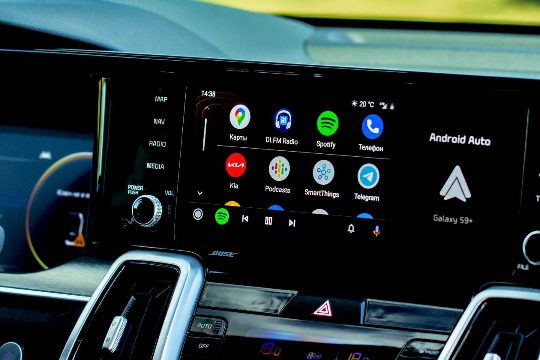
- Connect to Android Auto: Once signed in, open the Companion app and connect to Android Auto. You will be prompted to grant permissions for Home Assistant to access your car’s dashboard.
- Select Entities: In the Companion app settings, select the entities you want to control from your car’s dashboard. This includes switches, lights, locks, scenes, and scripts. You can also add sensor favorites to display information such as door status.
- Enable Connection Sensor: In the Companion app settings, enable the connection sensor. This sensor will report whether your phone is connected to Android Auto, providing a more specific trigger for Home Assistant automations.
Configuring Automation Rules
Once you have the Home Assistant Companion app set up, you can start configuring automation rules to trigger based on your location and presence. Here are some examples of automation scenarios you can create:
- Leaving Home: When you leave your home zone, you can trigger an automation to turn off lights, adjust the thermostat, and lock the front door. You can also add a condition to ensure nobody else remains home.
- Arriving Home: When you arrive home by car, you can trigger an automation to turn on driveway and hallway lights, adjust the thermostat, and turn on the AC if it’s hot outside. You can also add sunset conditions to ensure the lights are off when it gets dark.
- Climate Control: You can create a climate control module to ensure your home is at the right temperature when you arrive. This module can monitor the temperature in your office and turn on the AC if it’s too hot.
Additional Tips
- Remote Access: Ensure your Home Assistant server is accessible remotely. You can use Tailscale, Home Assistant Cloud, or an active VPN to achieve this.
- Testing: Before implementing any automation rules, test them over several trips to ensure they work as expected.
- Security: Always keep your Home Assistant server secure and monitor its access logs to prevent unauthorized access.
By following these steps, you can create a seamless and efficient home control system that works perfectly with your car’s dashboard, making your smart home experience even more convenient and secure. Whether you're on the go or at home, your smart home will always be ready for you.