
Introduction to Optimizing Android Headphones for Sound Quality and Battery Life
When it comes to enjoying your Android headphones, it's not just about the initial research and purchase. The quality of sound and battery life can be significantly improved by tweaking a few settings and enabling advanced audio features. In this guide, we'll explore how to unlock the full potential of your headphones and extend their battery life.
Enabling Dolby Atmos
Most Android devices from popular manufacturers like Samsung, Motorola, OnePlus, and Xiaomi support Dolby Atmos, which adds spatial audio to your music and movies, creating a more immersive listening experience. By default, this feature is turned off, but it can be easily enabled in a few minutes.
To enable Dolby Atmos, follow these steps:
- Open the Settings app on your device.
- Navigate to Sound and vibration.
- Look for the Dolby Atmos option and toggle it to On.
- You can choose the Movie, Music, or Voice mode based on your preference.
Enabling LE Audio for Longer Battery Life
LE Audio is a newer Bluetooth audio standard that promises better sound quality while using less power. This feature is particularly useful for earbuds and can extend their battery life. To enable LE Audio, follow these steps:
- Open the Bluetooth settings.
- Find the LE Audio toggle and toggle it to On.
- You can choose between Auto, Movie, Music, or Voice modes.
Switching to Better Bluetooth Audio Codecs
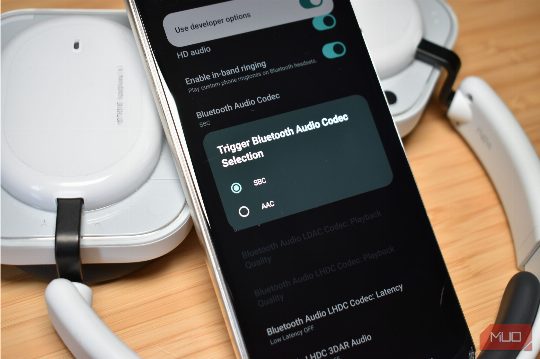
If you have high-end headphones, you might be missing out on better sound quality. By switching to more advanced audio codecs, you can improve the audio quality and detail. Here are the steps to switch to a better codec:
- Enable Developer Options by heading to Settings > About phone and tapping the Build number multiple times.
- Navigate to Developer options and find the Bluetooth audio codec option.
- Choose the codec that best suits your headphones (e.g., AAC, aptX, LDAC).
Disabling Absolute Volume for Better Control
The Absolute volume feature in Developer Options can be useful for syncing your phone's volume with your headphones, but it can also cause issues with volume control. To disable it, follow these steps:
- Open Developer options.
- Look for the Disable absolute volume toggle and toggle it to On.
Conclusion
By following these steps, you can optimize your Android headphones for better sound quality and longer battery life. Whether you're looking to enhance your listening experience or extend your device's battery, these tips can help you get the most out of your headphones and devices.