

Overview of Waze Settings
Waze is a powerful navigation app that provides real-time traffic updates and alerts. Before you start your route, it's essential to check several settings to ensure you're getting the best possible experience. This guide will help you understand and customize these settings to suit your driving needs.
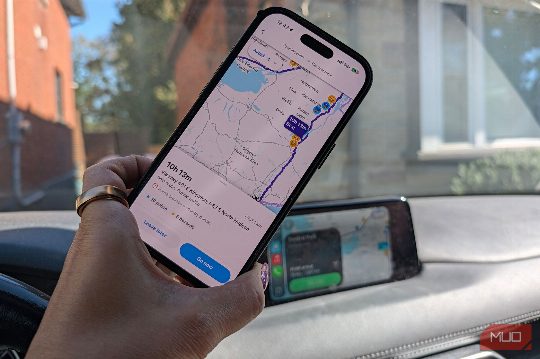
Avoid Freeways
One of the most common settings you should check is 'Avoid Freeways. ' This setting is particularly useful if you frequently travel on back roads or if you prefer to avoid bumper-to-bumper traffic during rush hour. By turning this setting on, Waze will suggest routes that avoid highways, which can save you time and money. However, it's crucial to remember to turn this setting off if you're planning a longer journey where highways are a better option.
Example Scenario:
- Situation: You plan to visit a friend who lives about 30 minutes away. The usual route through a busy highway can take up to 45 minutes. - Action: You punch in her address and Waze suggests a different route. After driving for a while, you realize this route doesn't make sense. You pull over and check the app, noticing that 'Avoid Freeways' is turned on.
How to Change:
- Navigate: Go to the top-left corner of the main screen, then select 'Settings,' 'Navigation,' and 'Avoid Freeways. '
- Adjust: Toggle the slider to the desired position (on or off).
Avoid Toll Roads
If you frequently travel on toll roads, you might want to consider turning on the 'Avoid Toll Roads' setting. This feature will alert you when you're approaching a toll road, allowing you to make an informed decision. For example, in a city where taking back roads is simpler, you might want to avoid toll roads even if Waze suggests a faster route.
- Situation: You're attending an evening event in a city about an hour's drive from you. The regular highway route would take over two hours during rush hour. - Action: You turn off the 'Avoid Toll Roads' setting to avoid the exorbitant cost.
Speed Alert
Another essential setting is the 'Speed Alert' feature. This feature allows you to set a speed threshold and receive alerts when you exceed this limit. You can choose to show the speed limit, or you can opt for alerts based on the percentage above the speed limit.
- Situation: You're driving on a wide-open highway and you're tempted to speed. - Action: You set a speed threshold and enable the 'Speed Alert' feature.
- Navigate: Go to 'Settings,' 'Speedometer,' 'Show speed limit' or 'When above limit,' and 'Speeding Threshold. '
- Adjust: Choose the desired distance and turn on 'Alert at threshold.
Voice and Sound Settings
Waze offers a variety of voice options, including limited edition and themed voices. You can also adjust the frequency with which the voice speaks. Additionally, you can customize the map display options, such as enabling Dark Mode, 3D, or 2D views.
- Navigate: Go to 'Settings,' 'Voice and sound,' 'Voice,' and 'Spoken directions. '
- Adjust: Choose the desired voice and adjust the frequency of speech.
Conclusion
By checking these essential Waze settings, you can optimize your driving experience, avoid unexpected routes, reduce interruptions, and save money on tolls. Waze is a valuable tool for anyone who wants to ensure a safe and efficient trip.
Comments