

Introduction to Bluetooth Headphones Audio Quality Issues
Bluetooth headphones can suddenly experience audio quality degradation without any obvious signs of disconnection, stuttering, or other issues. This guide will help you understand and resolve these problems by exploring the microphone's role in Bluetooth audio transmission.
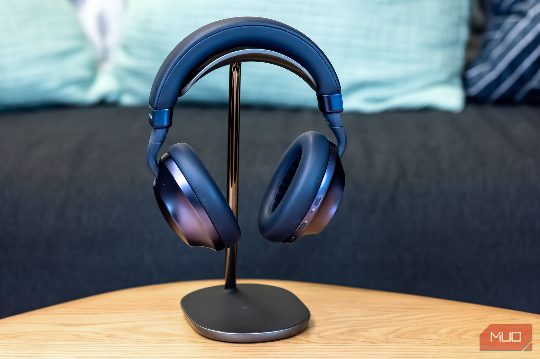
Bluetooth headphones are expected to perform two critical functions: delivering high-quality stereo audio for music, movies, and games, and sending voice through the microphone for calls and voice chats. The Advanced Audio Distribution Profile (A2DP) is used for stereo audio, while the Hands-Free Profile (HFP) handles voice communication. These profiles rely on different codecs for optimal performance.
Instead of immediately troubleshooting Bluetooth settings, it is often more effective to look at your microphone usage. Modern operating systems monitor microphone activity for privacy reasons and provide tools to track which applications are using the microphone. This can help identify the source of the audio quality issue.
Windows
On Windows, you can check microphone activity by navigating to Settings > Privacy & security > Microphone. Here, you can see which applications are currently using the microphone and their history of microphone usage. This information can be crucial in identifying the application causing the audio quality issue.
Android
Android devices show a green privacy indicator when an app accesses the microphone or camera. Tapping this indicator reveals which app is responsible for the microphone usage. Android's Privacy Dashboard also provides a history of sensitive permission use, which can be compared with the timestamp of when the audio quality degraded.
macOS
On macOS, you can check the microphone activity by opening the System Preferences > Security & Privacy > Privacy tab. The orange microphone indicator also signals microphone activity, and Control Center can show recent microphone usage.
Fixing the Microphone Session
Once you identify the application using the microphone, you should address the issue there before attempting to troubleshoot Bluetooth settings. This involves closing browser tabs, quitting and reopening problematic applications, and revoking unnecessary microphone access.
On Windows, choose the laptop, webcam, or USB microphone as the input device instead of the Bluetooth headset. This can help maintain high-quality audio transmission through A2DP.
On Android, newer devices support Bluetooth LE Audio, which can provide better simultaneous microphone and playback quality. This feature requires the right hardware and software support, and a recent Bluetooth version number on the device does not guarantee its availability.
This can help identify applications that are using the microphone and causing audio quality issues.
Conclusion
By understanding the role of the microphone in Bluetooth audio transmission and using the appropriate tools to monitor and manage microphone activity, you can effectively troubleshoot and resolve audio quality issues in your Bluetooth headphones. This guide provides a comprehensive approach to identifying and fixing the root cause of poor audio quality, making it easier to enjoy high-quality audio on your Bluetooth devices.
Comments