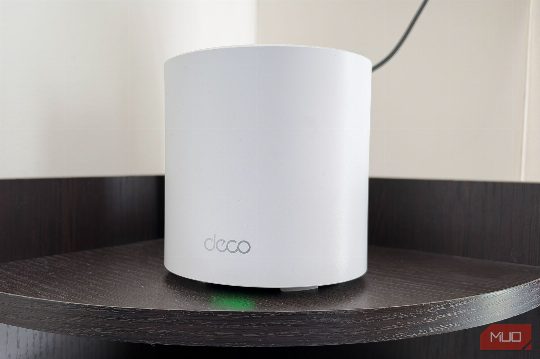
I pay for a 300Mbps internet connection, which should be more than enough for streaming movies, watching YouTube, and keeping all my devices connected. Yet, occasionally, I'd find myself staring at a buffering screen instead of enjoying whatever I was watching. The frustrating part was that my internet seemed perfectly fine otherwise. Speed tests showed no issues, but YouTube would occasionally drop its video quality, movies would buffer, and live football streams would start acting up at the worst possible moments. My internet was fast, but streaming had other plans. The solution to my streaming woes was hiding inside my router's settings all along. And the best part? It didn't cost me a single penny. My internet was fast, but streaming had other plans. Speed tests weren't telling me the whole story. Whenever my internet starts acting up, the first thing I do is run a speed test. More often than not, it helps me figure out what's wrong. But this time, everything looked perfectly fine. I was getting the speed I was paying for, yet my streaming experience told a completely different story. For context, I have a 300Mbps internet connection and use a TP-Link Deco X50 mesh Wi-Fi system with two nodes covering my home. It's been reliable, and I've rarely had coverage complaints. However, with so many devices connected, things can get a little hectic. Between my phones, laptops, PC, smart TV, NAS, and gaming consoles, something is always happening on my network. I might be downloading a massive game on my PC while someone else watches Netflix, or uploading large video files for work while my family streams YouTube at 4K. And while 300Mbps should be plenty for all of this, I started noticing that streaming would occasionally struggle whenever the network got particularly busy. At first, I thought it was just another Wi-Fi hiccup. I restarted the router, checked the Deco app, and even made sure my TV wasn't struggling with a weak signal. Nothing seemed particularly wrong, which made it even more frustrating. That's when I decided to dig a little deeper into my router's settings. And as it turns out, the solution had been sitting there all along. The router setting I'd been ignoring was exactly what I needed. QoS turned out to be more useful than I expected. While exploring the TP-Link Deco app, I came across a setting called Quality of Service, or QoS. I'd seen it before, but I'd never bothered exploring what it actually did. After all, why would I need to prioritize devices when my internet connection was already fast enough? Well, it turns out that having a fast connection and making the most of it are two different things. QoS essentially lets you tell your router which devices or activities should get priority when your network gets busy. Think of it as giving certain devices a VIP pass. Instead of letting a large download hog your bandwidth, QoS helps ensure more important activities get the attention they need. For example, imagine you're watching a 4K movie while your PC downloads a 100GB game. Both devices share the same connection, but the game download could eat up a significant chunk of your available bandwidth. And if that causes congestion, your movie might start buffering even though streaming in 4K doesn't require anywhere near 300Mbps. This is where QoS, or Quality of Service, can help. By prioritizing your streaming device, you could tell your router to favor your streaming device over other activities, ensuring your movie plays smoothly. Other key settings to consider include setting up a guest network for devices that don't require the same level of security, adjusting your router's encryption settings, and enabling parental controls to keep your children safe online. Optimizing your router's settings can make a significant difference in your overall internet experience, ensuring that you can enjoy your streaming services without any hiccups. By taking advantage of features like QoS, you can prioritize your streaming activities and ensure that your internet connection is always working at its best.