
Most Windows 11 users are familiar with the colorful Start menu, but there’s another menu that’s worth exploring: the Quick Link menu. This hidden feature can be accessed with a simple right-click and is perfect for accessing Windows features that are usually buried in Settings. Here are three standout recommendations and tips to make the most of this feature.
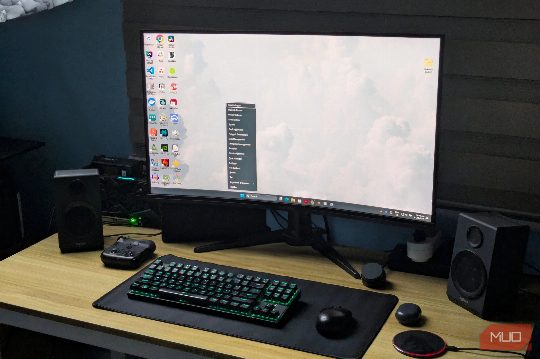
Standout Recommendations
- Right-Click the Start Button: The easiest way to open the Quick Link menu is by right-clicking the Start button. This method is quick and doesn’t require any special settings or third-party software. You’ll find a list of system tools and shortcuts, such as the Installed Apps, Device Manager, Disk Management, and more, all in one place.
- Keyboard Shortcut: If you prefer a keyboard shortcut, you can use the Windows + X combination. This method works from anywhere in Windows 11, even when you’re running full-screen applications. It’s particularly useful for users working on laptops without a mouse.
- Long-Press the Start Button: For touchscreen users, simply tap and hold the Start button for a couple of seconds. The menu will pop up automatically once Windows detects the long-press gesture. This method is quick and easy, and the menu appears near the Start button regardless of how you access it.
Actionable Tips
- Use the Quick Link Menu for Installed Apps: The Quick Link menu includes a shortcut to the Installed Apps, which allows you to view and uninstall installed programs directly. This shortcut saves time by bypassing multiple Settings screens for software removal or installation checks.
- Access Device Management: The menu also includes Device Manager, which is useful for hardware troubleshooting and driver updates. This feature can help you manage your hardware more efficiently and ensure your devices are running smoothly.
- Quick Links to Advanced System Tools: The Quick Link menu includes quick links to Computer Management, Event Viewer, and Network Connections. These tools are essential for managing system logs, services, and network settings, and they make it easier to perform these tasks without navigating through multiple menus.
By leveraging the Quick Link menu, you can streamline your Windows 11 experience and save time. Whether you’re a power user or just looking to make your computing experience more efficient, this hidden feature is worth exploring.