

Privacy Settings
The moment you unboxed your smart TV, you were hit with a barrage of menus, suggestions, pop-ups, and confusing default settings. It's worth taking a moment to check what they're asking, as these settings could make a huge difference to your smart TV experience. Start by turning off Automatic Content Recognition (ACR) and disabling any related features, such as Automatic Picture and Audio Quality, Content Recommendation, Personalized Ads, and Sports Mode Auto Detection. Additionally, disable voice recognition features if you're not using them. Lastly, review the terms you accepted during the initial setup and opt out of any data sharing, software usage stats, and marketing programs.
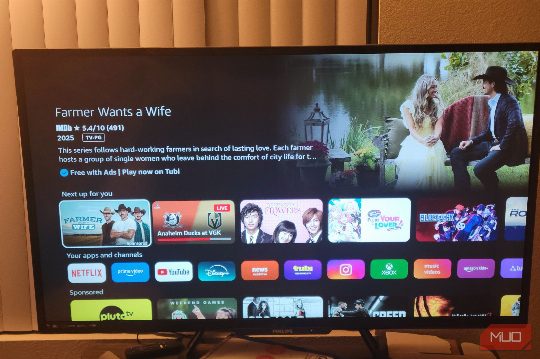
Picture Settings
The single most powerful change you can make is switching your picture mode from the default setting to something more cinema-friendly. To fix this, you'll want to dive into your TV's picture settings and make a few meaningful changes. Switch to a proper Picture Mode, such as Cinema, Movie, or Filmmaker Mode, depending on your TV's nomenclature. For gaming, always use Game Mode to minimize input lag. You should also adjust brightness, contrast, and backlight individually. Set Sharpness lower, and adjust color and tint to ensure colors appear vivid and full of life without looking exaggerated or unnatural. Finally, turn off Motion Smoothing, Dynamic Contrast, Noise Reduction, Intelligent/Smart Scene, and any so-called Eco or Adaptive features.
Audio Settings
Your smart TV's audio settings aren't doing your speakers justice. Smart TV speakers are also notoriously poor. Switch your audio output to PCM instead of Bitstream if you're using the TV's built-in speakers or a basic soundbar. If you have a dedicated home theater sound system, use Bitstream to pass uncompressed audio to your receiver. Turn off Virtual surround or 3D audio processing unless you are rocking a proper surround sound setup. These features attempt to simulate spatial audio through stereo speakers, but make the sound worse most of the time.
Wi-Fi Settings
Your smart TV is probably connected to the wrong Wi-Fi band. Most smart TVs ship with dual-band Wi-Fi enabled by default, supporting both 2.4GHz and 5GHz bands. If your TV supports dual-band Wi-Fi, you should switch your audio output to PCM instead of Bitstream. The improvement that comes with the 5GHz band becomes immediately noticeable with high-resolution content. Moving to 5GHz provides the headroom needed for consistent, high-quality streaming without the frustrating pauses that interrupt your viewing experience.
Firmware Updates
Most smart TVs ship with automatic firmware updates enabled by default, which can create several problems you haven't considered. These updates often arrive at the worst possible times, interrupting your viewing experience with lengthy installation processes that can take 30 minutes or more. Turning off automatic updates lets you research each update before installing it. You can read user reviews, check forums for reported issues, and choose when to update based on your schedule rather than the manufacturer's timeline.
Conclusion
By optimizing your smart TV settings, you can enhance your viewing experience and protect your privacy. Start by turning off unnecessary features, adjusting your picture and audio settings, and choosing the right Wi-Fi band. Finally, turn off automatic firmware updates to avoid unwanted changes and interruptions. With these simple steps, you can enjoy a better and more secure smart TV experience.
Comments