

Understanding the USB-C Port Divide
Your laptop likely has one dedicated USB-C port that handles all the capabilities of the USB-C standard, while the others are secondary ports that are limited in their performance. This article will guide you through the process of identifying the primary USB-C port and understanding the importance of matching the right port and cable for optimal performance.
The Hidden Hardware Divide Behind Matching Connectors
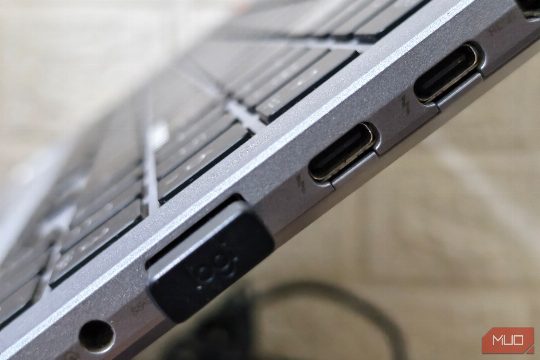
USB-C is a connector shape, not a speed guarantee. Every port shares the same metal shell and 24-pin layout, but what happens when you plug something in depends on the controller wired to the back of that port inside the machine. On most laptops, only one port connects to high-speed PCIe lanes running straight from the processor. That dedicated link enables Thunderbolt 4 or USB4 speeds, pushing up to 40Gbps through a single connection.
The remaining ports take a different path. Manufacturers typically route them through the chipset or wire them to simpler USB controller chips, limiting them to USB 3. 2 speeds of 5 or 10Gbps, or, in budget machines, USB 2. 0 at just 480Mbps. Processors only have a limited number of PCIe lanes to divide among the storage drive, wireless card, graphics, and external ports. Giving every port its own lane would cost more board space and raise production costs, so most laptops reserve that access for just one.
How the Wrong Port Silently Ruins Performance
When you plug high-demand gear into a secondary USB-C port, the operating system rarely explains that the connection is bottlenecked. Instead, the hardware automatically negotiates down to keep the device running. A fast external NVMe SSD capable of transferring data at 2,800 MB/s over a high-speed link will drop to 450 MB/s on a secondary 5Gbps port. File transfers still finish, but the drive takes six times longer.
Displays and charging run into the same silent downgrade. The primary port carries DisplayPort Alt Mode to drive an external monitor, while a secondary port may leave the screen black or drop the refresh rate from 60Hz to a sluggish 30Hz without telling you. Power input is just as restricted. A 65W or 100W wall adapter connected to a secondary port often refuses fast charging entirely.
Docking Stations Suffer the Most
Docking stations suffer the most because they pull video, data, and charging power through a single cable. If that dock lands on a secondary port, you might lose a second monitor, watch file transfers crawl, or find the battery draining while the charger is plugged in. The Lenovo ThinkPad T14s, Microsoft Surface Laptop, and Dell XPS 16 all come with USB-C ports that handle different tasks depending on which side of the laptop they sit on.
Spotting the Port That Actually Does It All
Finding the primary port begins with a close look at the laptop body. Manufacturers often etch tiny icons next to the ports. A lightning bolt marks a Thunderbolt port, a letter D inside a P indicates DisplayPort video output, and a battery or plug icon flags Power Delivery charging support. Some laptops also display a SuperSpeed (SS) logo alongside numbers like 10 or 20 to show the maximum speed in gigabits. However, many modern laptops leave ports entirely unlabeled for aesthetic reasons, meaning physical inspection is only the first step.
When physical markings are missing, software tools provide the exact hardware breakdown. On Windows, right-click the Start menu, open Device Manager, and check the Universal Serial Bus controllers section to see whether a Thunderbolt or USB4 controller is active. If the list only shows standard USB 3. 1 host controllers, the fastest port tops out at 5 or 10Gbps instead of the full 40. If you're on a Mac, click the Apple menu, hold Option, select System Information, and check the Thunderbolt/USB4 tree. A port showing a 40Gbps link speed confirms it has full capability.
The Right Port Needs the Right Cable
Even after finding the right port, the cable plugged into it can hold everything back. USB-C cables look identical on the outside, but a cable rated for USB 2. 0 will cap a Thunderbolt port at 480 Mbps regardless of what the port can handle. Many cables bundled with phones and basic accessories carry these lower ratings, and the packaging rarely makes it clear. The port and the cable both need to match the task, because a single weak link quietly cancels out everything the hardware was built to deliver.
Conclusion
By following the steps outlined in this guide, you can ensure that your laptop’s USB-C port is performing at its best, regardless of the device you’re connecting to.
Comments